Tag: keynote

Kindergarten Counting Pumpkins
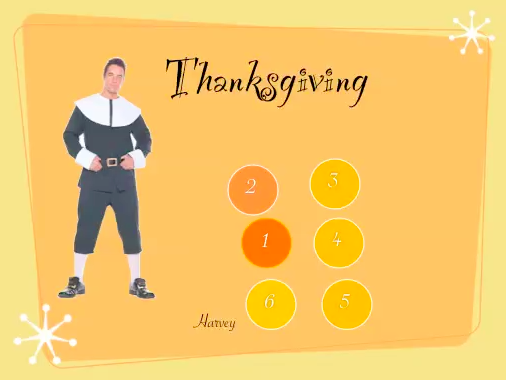
Screen shot 2014-02-17 at 10.40.01 AMKindergarten students at Holladay Elementary created their own Keynote animations today to showcase how they have learned to count up to 10. They started with a blank Keynote (so there’s no template to download) which means they made these animations from scratch–a pretty remarkable feat for kindergarteners! First they typed the word “Thanksgiving” for the title, then they added their names. They also chose a theme for their Keynote by clicking the Themes button. I showed them how to do a Google Image search for a “pilgrim.” They clicked on the pilgrim picture they liked and dragged it onto their Keynote (the teacher and I had to help a lot with this part, but a few students were able to do it on their own). Then I showed them how to click the Shapes tool, choose a circle, and change the color to orange so it looked like a pumpkin. They typed the number 1 in the pumpkin. I told them they could choose how many pumpkins they wanted to make, from 1-10. They created the rest of their pumpkins and typed in the numbers. Next we opened the Inspector and added animations to each pumpkin using the Build-In tool. We also added an ending using the Transitions tool. Finally I taught them how to record their voices, and I pointed out that they needed to sound like they were on a TV show, talking about counting. Take a look at a couple of student examples: Harvey and Muhaimen.


Tags:


5th Grade 3-D Ocean Model

Screen shot 2013-12-08 at 3.36.44 PMFifth graders in Ms. Payne’s class at Laburnum Elementary have been studying the ocean (SOL5.6), and she wanted me to help them review the different parts of the ocean floor. One of my goals this year is to help our students improve in math, so I’ve been trying to incorporate math into as many of my lessons as possible. I figured we could use the 3-D area graph in Numbers to create a model of the ocean and then import it into Keynote to animate it like this example. I wanted the students to gather their own data, but just graphing that wouldn’t produce a good looking model. So I created a template that you can download by clicking here that takes the data they enter and turns it into a model of the ocean floor. The students used Google Earth to gather the data for the graph. First I told them to find a continental shelf and measure the depth. Google Earth automatically tells the ocean depth or land elevation for whatever spot your mouse is hovering over… just be sure it’s in meters and not feet or my formulas won’t work (you could add a bit more math by having them convert the units). Next the students find a continental slope, continental rise, abyssal plain, and sea mount to measure. After entering all that data, I told them to do some research online to find the depth of the Mariana Trench. I gathered a bunch of sites for oceans research into a BundleNut that they could use, but one of the coolest infographics I found was this one. Once they entered that last bit of data, the 3-D graph should look like a model of the ocean floor. Then they copied the graph and pasted into a Keynote to animate it. Keynote has a sharp-looking animation for graphs called “3-D grow.” The students used text boxes to label the different parts, and the final step (if we got to it, which we didn’t) would be to record a voiceover explaining each part of the ocean floor.


3rd Grade Life Cycle Animations

lifecycleThird grade students in Ms. Dickey’s class at Davis Elementary have been learning about animal life cycles (SOL3.8). Animations are a great way to show life cycles (or any type of cycle) because each step can be illustrated and appear in sequence. Today I taught them how to make life cycle animations using Pixie and Keynote. First the students decided if they wanted to illustrate a frog or a butterfly life cycle. They used Pixie to illustrate the four stages then exported it as a PNG file (with transparency) so the background wouldn’t come through. Next we opened a Keynote template (that you can download by clicking here) and dragged our picture into the Keynote. We copied and pasted it three times and masked the picture so only one stage was showing for each picture. Looking back, we should have probably just drawn four separate Pixie pictures because masking was difficult for some students. After arranging their pictures in order, the students changed the them and added some transitions and builds using the Inspector. Finally they recorded their voices explaining each stage of the life cycle. Check out some of the students’ projects: Josie, Elena, Zoe, Owen, Isabella, and Alex (as you can see, most students picked the butterfly).


1st Grade Counting by Tens

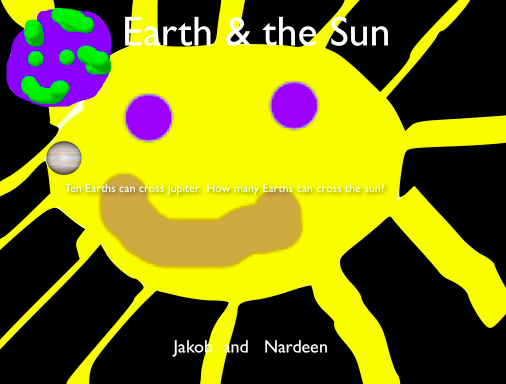
earthsunFirst grade students in Ms. Gerrard’s class at Davis Elementary have been learning how to county by tens to 100 in math (SOL1.2). They have also been studying about the Earth and sun in science (SOL1.6). So today we combined both topics into one lesson using Pixie & Keynote… a big task for first graders, but they were up for it! In my research I learned that the sun is about 870,000 miles in diameter and the Earth is about 8,000 miles in diameter, so about 100 (more like 110) Earths can cross the sun. But I wanted to find a unit they could use to count by tens, and I discovered that Jupiter is the perfect unit. It is about 87,000 miles in diameter. So about 10 Earths can cross Jupiter (more like 11) and 10 Jupiters can cross the sun. I created a Keynote template with most of the animations for this activity pre-built into it. You can click here to download it. I’ve done my work, now it’s time for the students to do their work. First they opened Pixie and, working with a partner, one drew a big picture of the sun and the other drew a picture of the Earth. We helped them take screenshots of their pictures and place them into their Keynotes. Next they added some transitions and animations using the Inspector. Finally they recorded their voices telling about how big the sun is and counting the Earths by tens to a hundred. You can see some student examples here: Mickaelly & Adin, Jakob & Nardeen.


2nd Grade Math Strategies

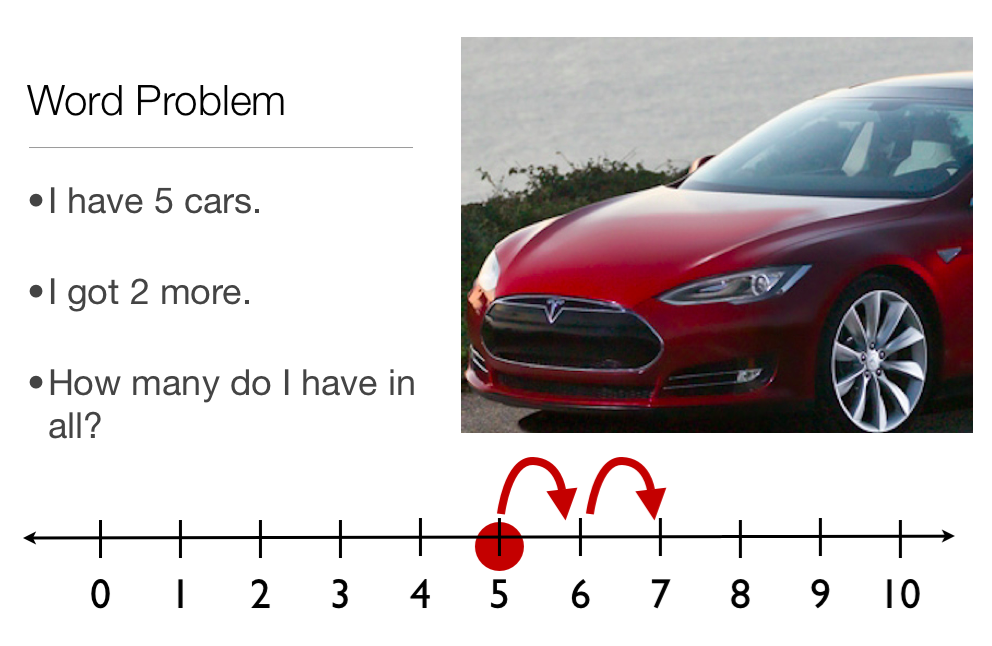
2ndstrategyMany students today are learning how to solve math problems by watching videos online, like those produced by the Khan Academy. But students can create their own videos demonstrating math strategies, and that’s what the 2nd graders at Laburnum Elementary did today. They wanted to show the “Counting Up” strategy for addition. So we opened a Keynote template that you can download by clicking here and wrote out an addition word problem. Each student made up their own problem and went online to get a picture for illustrating it. Next they went to the slide with the number line and illustrated the starting point and how to count up to the answer. On the final slide they wrote out the answer to their addition problem. The students could change the theme of the slideshow and add an ending. The last step was to record a voiceover explaining the problem and how to solve it using the math strategy. Take a look at a student example here.


Tags:


4th Grade Animated Graphs

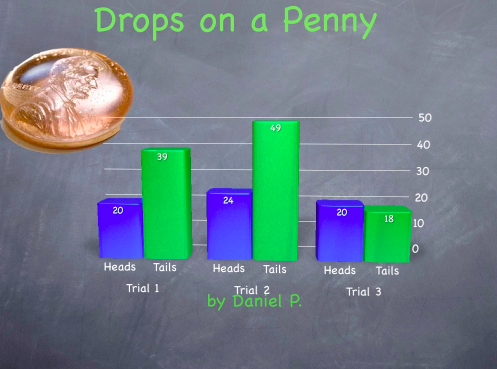
animatedgraph2Fourth graders in Ms. White’s class at Davis Elementary recently did an experiment where they predicted which side of a coin could hold more drops of water. Then they tested their hypothesis by counting the drops they placed on each side of a penny for several trials. Today my job was to show them how to create an animated graph of their data using Keynote. First I showed them how to choose a theme in Keynote and add a picture of a penny that they downloaded off the Internet. Next we clicked the Charts button and added a 3-D bar graph. I showed them how to use the Inspector to edit the data, the labels, and the colors of the graph. Then we used the Build Inspector to add a 3-D Grow build to the graph. We also animated the title, picture, and our names. Finally I showed them how to use the Document Inspector to record their voiceover (the Record button can be found in the the Audio tab). Their animated graphs turned out great. Take a look at Kate’s and Paige’s.


Tags:


Kindergarten Living & Nonliving Keynotes

Screen shot 2013-08-07 at 12.14.12 PMKindergarten students in Ms. Fennell’s class at Laburnum created their own Keynote presentations about living and nonliving things today (SOL K.6). Just as with any skill, students have to have a good grasp of the basics before they can apply their knowledge to new situations and projects that require higher-level thinking and problem-solving. So the earlier you can teach the basics of various programs, the sooner students can start doing more advanced tasks with them. It’s amazing what even the youngest students can do with a few simple instructions! For this project, they chose their own themes, added a text box, and typed their title with capital letters. Then I explained that their job was to find pictures on the Internet of a living and a nonliving thing of their choice. I showed them how to do a Google Image search and drag their pictures onto their Keynotes under the correct headings. They were very creative in the types of images they searched for! Allowing students to find their own pictures, of course, requires teacher supervision and guidance, but it often leads to interesting, thought-provoking discussions. Like one student found a picture of Sponge Bob and classified him as a nonliving thing, while another student found a drawing of a pig and classified it as a living thing. Aren’t they both cartoon representations (nonliving) of living things (sponges and pigs)? So what’s the difference? Comparing these pictures and asking students to explain why they classified them the way they did helps clarify the concepts in their minds. Finally they added animations of their choice and recorded voiceovers for their presentations. It would be good to ask them to explain why their picture is living or nonliving in the recording, but due to time constraints (we did this activity in under an hour), we just stated the obvious. Take a look at their projects by clicking here.


Tags:


5th Grade Protractor Project

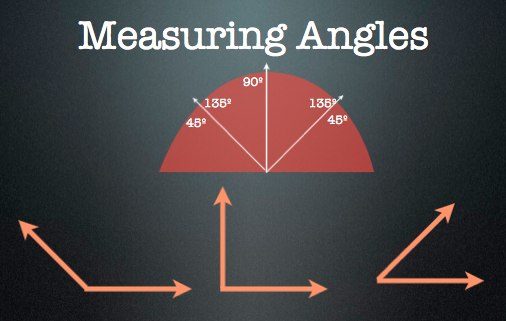
protractorFifth graders at Chamberlayne Elementary have been learning about angles and how to measure them with a protractor. They also have to know how to use a virtual protractor for their online SOL tests. So the teachers wanted me to practice these skills with their students. I thought what better way than to have the students create their own virtual protractors. So we used Keynote and I showed them how to create a protractor shape using the Vector Shape Tool. Next we added the labels and I explained how holding down Shift when drawing lines will snap the lines to 0º, 45º, and 90º. We discussed how a protractor has two labels for each angle since they could be obtuse or acute. So we labeled the parts of our protractors: 0º, 45º/135º, 90º, and 135º/45º. We also made our protractor transparent by changing the opacity. Next we created some angles with the Arrow Tool. I showed them how to use the Option + Drag trick to make a copy of the rays so that they didn’t have to recreate them each time. Finally we used the Group and Front buttons to group all the parts of our protractor together and bring it on top of all the angles. Then students practiced using each others’ protractors to measure the angles. I had a few minutes at the end of the lesson, so I showed the students a new program we have called Scratch. It allows students to create simple programs with an elementary coding language. We wrote a sample program that makes Scratch the Cat draw angles. You can see it by clicking here.


2nd Grade Magnets Animation

Picture 2Second graders at Laburnum Elementary have been learning about magnets (SOL2.2) and today they created Keynotes to explain how magnets work. Keynote is a great program to use for magnets because of its animation features. Students can actually show magnets being attracted to or repelled from each other. First we created the magnets. I showed them how to make two rectangles (red for north, grey for south) using the Shapes tool. We labeled them N and S using Text Boxes. We grouped them all together to make one magnet. Then we copied and pasted the magnet three times to make a total of four magnets. We arranged the magnets so that pairs were opposite each other like in the picture. The last magnet we had to ungroup so we could switch the poles, then we grouped it back together. We added the words “Attract” and “Repel” under the pairs of magnets. Next I showed them how to add the animations. I let them use whatever animations they wanted for the words and the transition, but we had to use specific ones for the magnets. We used the “Move In” animation to make the magnets appear and come together. To show the magnets repelling, we used the “Move Out” animation. Finally I showed them how to record their voice in sync with the animations. They did an excellent job! You can see a few student samples here: Kezah, JaNiya, and Takiyah.


4th Grade Talking Heads

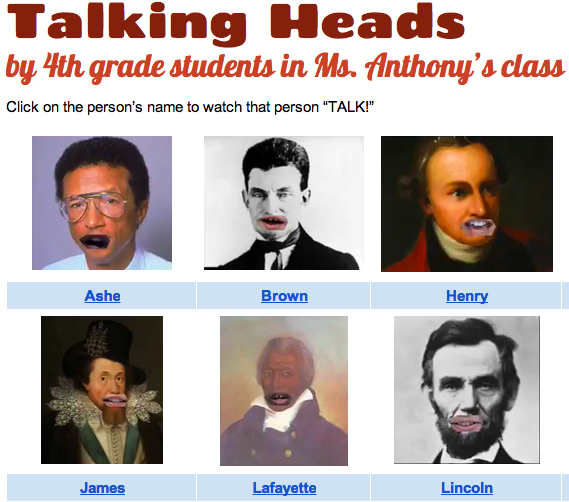
Picture 1Fourth graders at Holladay Elementary are reviewing all the famous Americans they have studied this year. Each student chose a person to research and they will present their information in a “Living Wax Museum” later on in the spring. I’ve been showing them different options to use for the technology part of their presentation, and today we learned how to make a “talking head.” I gave them a Keynote template that you can download by clicking here. The students went online to find a picture of their famous person (a headshot), and they dragged the picture onto their Keynote template. They sent the picture to the back (using the “Back” button in the toolbar), so that the shape with the hole cut out of it was on top. I showed them how to position the shape over the picture so that the mouth was centered in the hole. Next they selected both the shape and the picture (by clicking and dragging across them) and went to Format > Mask with Selected Shape. That left the picture of the famous person with a gaping hole where their mouth used to be. Now we were ready to add the students’ talking mouth to the picture to make it look like the famous person was doing the talking. Students recorded themselves in Photo Booth speaking like they were the famous American telling about his or her life and accomplishments. I told them to keep their heads still while they were recording (so the mouth wouldn’t move around). We dragged the finished videos out of Photo Booth onto the Keynote and sent them to the back with the “Back” button. We had to resize and reposition the video so that the mouth fit in the hole, and then we covered up the remaining pieces of video that showed with black shapes (using the “Shapes” tool). Finally, we exported the Keynote as a video and I published them on a GoogleDoc. You can see them all here.