5th Grade Classifying Our Classmates

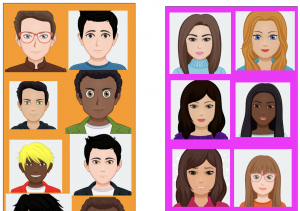
Fifth graders at Holladay Elementary have been learning about classifying objects (SOL5.1a) and organisms (SOL5.5b) using various characteristics. Today, students in Ms. Haislip’s class practiced this skill by classifying their classmates. First, we went to AvatarMaker and created an avatar that looked like us–same hair style, eye color, etc. We downloaded the image as a 200×200 png file (click “Download”). Then we uploaded it to a shared Google slideshow so everyone could see each other’s avatars. Once all the avatars were uploaded, I turned off file sharing so no one would accidentally move or delete the images. I arranged the avatars neatly on the slide then instructed the students to make a copy of the slideshow (File > Make a copy). On their own copies, they duplicated the class slide (Right click > Duplicate slide), and we discussed ways to classify the students into groups with common characteristics. The students had many great ideas: gender, hair color, eye color, glasses, facial expression, etc. They chose a characteristic and typed it in the top of the slide. Next, they clicked and dragged the images to sort them into groups. As an option for making the groups clearer, I demonstrated how to create shapes with the Shapes tool and send them to the back (Arrange > Order > Send to Back). If students finished, they could make additional copies of the slide and create different sorts. You can see some student examples here.

4th Grade Predicting and Graphing Virginia Rivers

Fourth graders at Trevvett Elementary have been learning how to make graphs in Math (SOL4.14), and they have been studying the major rivers of Virginia in Social Studies (VS.2). Today, students in Ms. Catlett’s class predicted and graphed the lengths and discharge rates of the rivers. First we located the rivers on Google Maps. I created the map with different layers so that you can click the check boxes on the side of the map to turn on/off the rivers and/or the Virginia border as you discuss each one. We looked at the map scale at the bottom to try to predict the lengths of each river. If you wanted to show your students the watershed for each river (Science SOL4.9a), a great research tool is Streamer. Click the “Trace Upstream” button at the top, then click on a river, and the entire watershed will show up in red. I was amazed at how big the Potomac watershed was and how far it reached into Virginia! After discussing the lengths of the rivers, we tried to predict the discharge. Discharge is the volume of water flowing out the end of the river, measured in cubic feet per second (cu.ft./s). A cubic foot is about 7.5 gallons. We estimated the discharge rate of each river, taking into account their total length, watershed area, and size of the mouth (where it empties into the bay or ocean). Many students automatically assumed that longer rivers would have greater discharge rates, so I asked them a question to help clarify this misunderstanding. Does a longer hose have more water coming out the end than a shorter hose? What does affect how much water flows out the end of the hose? (Water volume, speed and the width of the hose). Does the discharge rate stay the same for each river, like its length? What would make the discharge rate change? (Amount of rainfall). Students recorded their predictions on this spreadsheet. Then they did some research to find the answers. Wikipedia has the information as well as simply asking Google, “What is the length/discharge of the ___ River?” The students entered the correct data into their spreadsheet and compared it to their predictions. Finally, I showed them how to highlight the data and graph it. The graph makes it very easy to see relationships between the rivers. You can see a few student examples here and in the screenshot above.


Tags:


2nd Grade “Mystery Me” Introductions

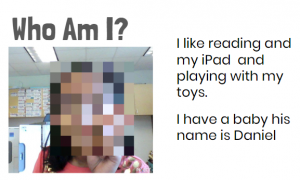
Second graders at Laburnum Elementary got to know each other better today with a fun “Mystery Me” activity. First, they went to Pixect and took a photo of themselves. Pixect is a great tool for taking quick webcam photos. It has an array of filters and timers available to use, but we just saved the photo and uploaded it to FacePixelizer, where the real magic happens. FacePixelizer is another great tool with many instructional uses. We used it today to pixelate our faces, but it can be used to make anything in a photo unidentifiable and mysterious: pixelate a book title, a weather instrument, or an animal, and students can try to guess what it is from various clues. It’s simple to use. Just click and drag across the area you want to pixelate. The amount of pixelation can be adjusted with a slider. Once we pixelated our faces, we downloaded the images and added them to a Google slideshow template that I gave them. The first slide was titled “Who Am I?” with two sentence starters: “I like…” and “I have….” The students completed the sentences with clues about themselves. On the next page they typed “I’m (Name)” and uploaded their original photo from Pixect. When they were finished, I combined all their slideshows together and added a Dissolve transition between them, so the pixelated photo gradually revealed the mystery student. You can see a few student samples here.


5th Grade Green Screen Graffiti Introductions

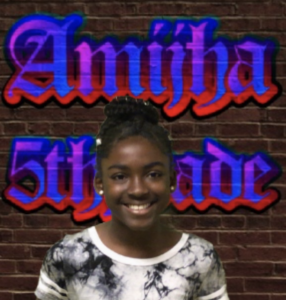
Today was the first day of school at Trevvett Elementary, and the 5th grade classes wanted to start right off with a green screen project! The teachers were looking for a new, creative way for their students to introduce themselves. They thought a graffiti wall with each student’s name and photo would be cool. So we used PosterGen Grafitti Creator to make the wall and added their photos with a green screen app on the iPads called DoInk. First, the students designed their graffiti wall on PosterGen. This free resource allows you to edit all the parts of the graffiti–the font, the outline, the fill color, the glow, and more! Once the students had created their graffiti name on the virtual brick wall, we took a screenshot and saved it to Google Drive. Then we opened the DoInk app on our iPad, stood in front of a green screen, and uploaded the image to replace the background. Our green screen was simply a sheet of green bulletin board paper. Since some students were wearing green (which wouldn’t work on a green screen), we also had a sheet of orange paper as an alternative. The DoInk app can replace any color background, not just green. When we took the photo in DoInk, it looked like they were standing in front of their graffiti wall. You can see a few students samples here.


2018 Summer Elementary Conference

Today we had our 2018 summer elementary conference. Our theme was “Dive into Deeper Learning” because we wanted to focus on the four principles of deeper learning: learning is anytime/ anywhere, student-owned, authentic and connected, and community supported. Along with this focus, we revealed our newly developed Henrico Learner Profile (HLP) which will prepare our students to be #lifeready. We know that successful graduates demonstrate six traits: Quality Character, Global Citizenship, Creative Thinking, Critical Thinking, Collaboration, and Communication. So each session of our conference included one or more of these elements. Lastly, we wanted to train our teachers how to use the new technologies they would be receiving this Fall: new iPads in grades K-1, new Chromebooks for students in grades 2-5, and new teacher laptops with Windows 10. Since teachers from across the county were taking a day of their vacation to attend this conference, we tried to make it fun and informative. We played games, gave away prizes, invited food trucks, and had a DJ playing music! Our “deeper learning” cruise launched with a Love Boat intro video starring the technology instructors, who are now called Innovative Learning Coaches. Then the teachers attended four sessions, or cruise destinations. Alfonso and I taught sessions on: (1) Windows 10 Tips; (2) Civil Debate in the Classroom; (3) Video & Animation; and (4) Blogging with Google Sites. It was a great day of learning from each other! We look forward to doing it again next summer.


1st Grade Push & Pull Animations

First graders at Holladay Elementary have been learning about force and motion, specifically how pushing and pulling can change the motion of an object (SOL1.2c). Today, students in Ms. Wimmer’s class used Wick to create animations showing a push or a pull. First, we discussed and demonstrated different types of pushes and pulls that first graders would be familiar with: kicking a ball, opening a door, fishing, swinging, jumping, running, etc. Next we went to Wick, and the students discovered something I never knew about Wick. (By the way, that’s one thing I absolutely love about teaching technology–the students often teach me things). They showed me that you could click on the letters on the homepage and different animations occur! After that awesome discovery, we launched the editor, and I explained how to use the paint brush tools. In the first frame they painted a picture of someone pushing or pulling something. We clicked the Clone Frame button to make a copy of the image, and I showed them how to group the objects together and drag them with the arrow tool. We continued making copies and moving the objects until we had about five frames. When we clicked “Run,” the students were thrilled to see their animations play out. Since the animations were a little fast, we clicked the Settings gear in the top right and changed the frame rate to 5. Finally, we exported our animations as GIF files (File > Export Animated GIF) and uploaded them to Lino (an online bulletin board similar to Padlet). You can see them all here.


5th Grade Memory Walls

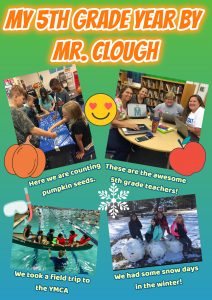
Fifth graders in Ms. Haislip’s class had a great year this year and wanted to remember it by creating a memory wall. There are numerous web tools you could use for a project like this, but today we used DesignCap. It’s a free resource that doesn’t require a sign-in, so it’s quick and easy to use, plus, it has many great features that I’ll describe below. In preparation for this project, Ms. Haislip uploaded photos from the school year to a Google folder and shared the link with her students on Schoology. Each student downloaded the pictures they wanted to use, then uploaded them to DesignCap using the Photo > Add Photo link. Next, they dragged the photos to the poster, rotating and resizing them until they were arranged the way they wanted. We used the Background tool to design a colorful background with gradients, and I showed them how to use the Text tool to add a title and captions to each photo. The text tool on DesignCap is quite robust, providing options for font, fill color, outline color, glow color, and transparency! The students practiced typing complete sentences with correct capitalization and punctuation for their photo captions (which is still a challenge, even for fifth graders). When we were finished, we clicked the Save button and selected the medium size. DesignCap projects can be saved in a variety of sizes up to the very generous XLarge size of 2478 x 3506 pixels. Finally, we uploaded our files to Schoology so we could enjoy viewing each others’ memory walls. You can take a look at them all here.


5th Grade Student-Created Review Activities

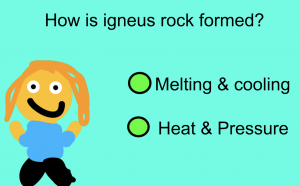
Fifth graders at Varina Elementary have been reviewing science SOLs for the year. Today, students in Ms. Messer’s and Mr. Williams’ classes used Wick to create interactive review questions. First, we brainstormed a list of topics they have studied this year: weather, rocks, cells, oceans, planets, sound, light, force, and elements. Next, students chose a topic and developed a good, thoughtful question with plausible answer choices. We went to Wick, added a background color, and typed our question and answers with the text tool. I showed them how to change the font, size, and color of the text using the toolbar on the right. We used the shapes tool to draw circles next to each answer choice and turned them into clickable buttons with the “Create Button” tool (pointing finger icon). Then, we used the paint tools to draw a character who would respond to the correct or incorrect answer. In order to create the code, the character had to be a named group, so we highlighted all its parts and clicked the “Group Objects” button. Beside “Name” in the Group tool bar, we gave it a name (like “boy” or “girl”). Then we double clicked the character and clicked the “Clone Frame” button to make two copies of it. Frame 2 represented the correct answer, so we gave our character a smile. Frame 3 represented the incorrect answer, so we gave our character a frown. Now we could add code to the buttons. Wick makes coding easy by including code snippets in the library. For the correct button, we used this code (changing the name boy to whatever the group was called):

function mousePressed() {
boy.gotoAndStop(2)
}

For the incorrect button, we used the same code, but just changed the code to gotoAndStop(3) so it went to Frame 3 of the character. We clicked “Run” to test our activity. If everything worked, we exported it as an HTML file and shared it on Schoology for our classmates to try. You can see all their questions here.


Tags:


2nd Grade Coding Magnets

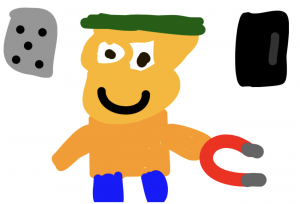
Second graders at Holladay Elementary have been learning about magnets and magnetism (SOL2.2), so today, students in Ms. Edmonds’ class used Wick to code a magnets activity. First, I showed them a finished sample so they could see what they would be creating. Basically, they will have a person, a magnet, and two objects–one that’s magnetic and one that’s nonmagnetic. Then, they will use code to make the person smile when the user clicks on the magnetic object and frown when the user clicks on the nonmagnetic object. We reviewed different objects that were magnetic and nonmagnetic, then we got started. The students used the drawing tools to draw a person, a magnet, and two objects. I showed them how to change the objects into buttons (click the finger icon) and we added some code to the buttons. I like how Wick uses real code, but they keep it simple by including a code library that students can choose from. So instead of typing the code, they just click it. Our code for the buttons read: mousePressed gotoAndStop(2) for the magnetic object and mousePressed gotoAndStop(3) for the nonmagnetic object. Next, we duplicated Frame 1 (right click on it) and changed the face in Frame 2 to be smiling. We did the same thing for Frame 3, but changed the face to be frowning. Finally, we tested our code to be sure it worked and clicked File>Export HTML. That’s it! They just created their own interactive magnets website, which is really impressive for 2nd graders! You can see all of their activities here.


Tags:


3rd Grade Animated Food Chain Relationships

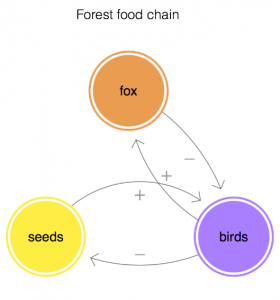
Third graders at Holladay have been learning about the relationships among organisms in aquatic and terrestrial food chains (SOL3.5), so today, students in Ms. Haley’s class created animations with Loopy to illustrate some of those relationships. First, we reviewed the different ecosystems: forest, desert, arctic, freshwater, ocean, etc. Then, students chose one ecosystem and typed the name of it in Loopy using the Text tool. Next, they used the pencil tool to draw a circle to represent a plant. If students didn’t know a plant that lived in their ecosystem, I showed them how to ask Google using the microphone. Next, students added an animal that eats that plant. Again, they could use Google for research. A great feature of Loopy is that it can show positive or negative relationships with arrows. We drew an arrow from the plant to the animal and discussed whether it should be positive or negative. It’s positive because more plants would mean more animals since they have a bigger food source. Then, we drew another arrow from the animal to the plant and made it negative (click the box in the upper right corner). It’s negative because more animals would mean less plants since they eat them. Students could continue adding animals to their web and using arrows to show the relationships between them. Finally, we pressed play and explored what happens when we change the population of each organism (by pressing the up or down arrows). We saved our animations as weblinks and shortened them with bitly. You can see them all here.