1st Grade Fall Videos

First graders at Holladay Elementary have been learning about the fall and how it affects animals, people, and the weather (SOL1.7). Today, students in Ms. Sokolowski’s class used WeVideo to create their own fall videos. First, they chose a partner to work with, and one of the partners signed into WeVideo using their Google account. I showed them how to press the red record button and set up their webcams following the on-screen prompts. Next, we brainstormed ideas to talk about, making sure they understood that the topic was fall (sometimes first graders like to go off topic :). We also discussed the importance of looking at the camera and speaking loudly and clearly. Ms. Sokolowski and I recorded a sample video to model the process for the students.
Finally, the students were ready to record their own videos. We walked around, providing guidance as needed and trying to stay out of their movies. When they were finished, I showed them how to save their videos. We downloaded them and saved them to our Google drive (if you have the free version of WeVideo, the videos will eventually be removed over time, so be sure to download them if you want to keep them). You can see some of the students’ videos here.

Tags:


Varina Library Rap

Varina Elemenatry started a reading incentive program to encourage students to read 40 books or more. Today we recorded a rap video that will be shown to the whole school, explaining the program. Mr. Jones, the PE teacher, and Ms. Jackson, the art teacher demonstrated their rapping skills with raps they wrote themselves! Students also choreographed their own dance routine to accompany the video. My job was to add the green screen effects. Since we didn’t have a green screen, I just hung up some green bulletin board paper. I also hung up some orange bulletin board paper for students who were wearing green (you can use any color, as long as the performers aren’t wearing that color). Then I recorded them using the DoInk Green Screen app on an iPad. Within the app, you can choose the color you want to be transparent and add a background to replace it. I used some generic music video backgrounds that I downloaded. The last step was to add the song files. We shared the finished video on Google drive so all the students could see it. You can watch it here.


Tags:


5th Grade Plate Tectonics

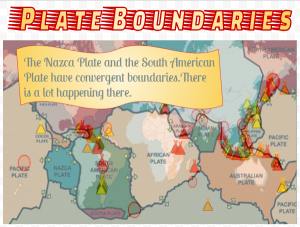
Fifth graders at Varina Elementary have been learning about changes in the Earth’s crust due to plate tectonics (SOL5.7e). Today, students in Ms. Gallahan’s class used their analysis skills to look for correlations between a map of the Earth’s plates and a map of current earthquakes and volcanoes. First, they made a copy of a Google drawing template showing a map of the Earth’s plates (you can get your own copy here). Next, I showed them how to add a fancy title using Word Art (Insert > Word Art). I demonstrated how to change the size, font, fill color, and outline. Then we went to this site to see where there are current volcanoes and earthquakes. The students were surprised to see so many going on all over the world! We took a screenshot of the map with the Snipping Tool (on Chromebooks you can also use the Windows Key + Ctrl + Shift to take a screenshot). We pasted the screenshot into our Google drawing, and I showed them how to make it half transparent using the Format Options menu (Adjustments > Transparency). The tricky part was resizing the screenshot so the continents were the same size and matched up on both maps. Once they were aligned, it was easy to see some correlations. The volcanoes and earthquakes were happening along the plate boundaries! The plates map has arrows showing their movements, so we could figure out which ones were convergent, divergent, and transform boundaries. I instructed the students to get a shape from the Shapes tool, change its color, and type one or two of their discoveries and conclusions in the shape. Finally, we shared our posters in Schoology. You can see some of them here.


4th Grade Virginia Math Quizzes

Fourth graders at Varina Elementary have been learning about Virginia geography in Social Studies (VS.2) and rounding and place value in Math (SOL4.1). Today, students in Ms. Stevens’ class synthesized these concepts, along with research skills, to create Virginia Math quizzes using Google forms. First, I explained that we would be creating 1-question quizzes, but when we took each others’ quizzes, we would end up answering several questions. So their job was to create a really good question about place value or rounding that would make their classmates think. We reviewed types of questions they could ask: What is the value of the digit __? What number is in the __ place? How would you write this number in word form? What is this number rounded to the nearest ten thousand? Next, they had to do research to find a fairly large Virginia number. I showed them how they could use the microphone tool to audibly ask Google a question like: What is the population of Richmond? How tall is the tallest mountain in Virginia? How many chickens live in Virginia? How far is it from Roanoke to Arlington? How long is the James River? Once they had their number and a math question, we opened a blank Google form (New > More > Google Form), and they typed their question. I pointed out that their multiple choice answers should be tricky, based on errors that students typically make. For students who finished early, I showed them how they could change the theme of the form and add images. To turn their regular Google forms into self-grading quizzes, I demonstrated how to go to the gear icon at the top, click the Quizzes tab in the pop-up window, and change it to a quiz. Then, they had to mark the correct answer to their question. Finally, we shared the links to our forms on Schoology, and took each others’ quizzes. You can see them all here.


5th Grade 3-D Models of the Earth

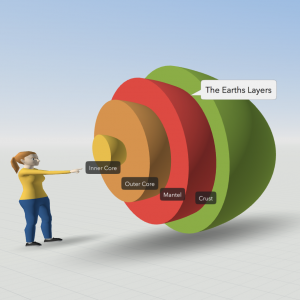
Fifth graders at Laburnum Elementary have been learning about the layers of the Earth in Science (SOL5.7d), so today students in Ms. Johnson’s class created 3-D models of the Earth using CoSpaces. First, I set up a free classroom account, and the students logged in with a code. Usually, the first thing you do in CoSpaces is click the Environment button at the bottom and chose an environment. We decided to use the default environment for this project to save time. Then, we clicked on Library button and chose the Build tab to find the half-sphere shape. We added that to our scene, and I showed them how to use the pop-up tools to raise the shape and rotate it. Right-clicking on the shape brings up a menu that we used to change the color of the shape. Since this represented the crust, we also added a label using the right-click menu. Then, we duplicated the shape, shrunk it a bit, recolored it, and labeled this new half-sphere as the mantle. Some chose to try to push the shape into the crust, while others left theirs out. The students continued in this way, adding the rest of the layers of the Earth. Finally, we chose a character from the characters library to add to the scene. The characters can be customized and given speech bubbles by right-clicking on them. CoSpaces has a coding component as well, but we didn’t have time to code during this lesson. We shared our projects in Schoology, and you can see some student examples here.


2nd Grade Extreme Weather Skip Counting Maps

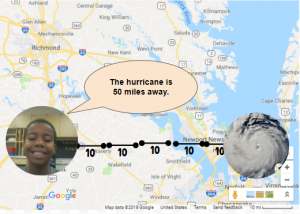
Second graders at Laburnum Elementary have been learning about extreme weather in Science (SOL2.6), skip counting in Math (SOL2.2a), and map skills in History (SOL2.1b). So today, students in Ms. Pope’s class reviewed all three concepts with a Google Drawing project. First, the students decided if they wanted to skip count by 2’s, 5’s, or 10’s, and they chose the corresponding template (you can copy each template by going here). Next, we right-clicked on one image holder and replaced it with a picture of some type of extreme weather (hurricane, tornado, blizzard, flood, etc.) using the “Replace image > Search the web” button. We added our own photo to the other image holder using “Replace image > Camera.” I encouraged the students to look surprised or scared in their photos since the extreme weather was heading their way! Now it was time to practice skip counting. We moved the map scale segments from the bottom to create a line showing the distance from the weather image to our photo. Then we skip counted the segments. Finally, we changed the words inside one of the speech bubbles to say something like, “The weather is ___ miles away.” You can see all their projects here.


3rd Grade Animal Research

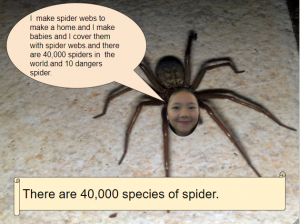
Third graders at Trevvett Elementary have been learning about animal adaptations in Science (SOL3.4) and place value for six-digit numbers in Math (SOL3.1a). Today students in Ms. Hufnell’s class used their research skills to find images and facts about an animal of their choice, including how many exist. This gave us the opportunity to review and read large numbers up to six digits. First, we made copies of a Google drawing template (you can make your own copy here). Then, students clicked the Image button and did a Google image search for their animal. When we added the picture, we noticed that it covered the speech bubble, so I showed them how to click Arrange > Order > Send to back. Next, they clicked the Image button and chose “Webcam.” Each student took a photo of their own face to put in place of the animal’s face. To make it more realistic-looking, we used the cropping tool to make the face into a circle shape. Students typed complete sentences in the speech bubble explaining their animal’s adaptations. Finally, they asked Google: “How many (of my animal) are there?” and they wrote the number in the scroll shape. They could change the color of the speech bubble and scroll with the paint bucket tool when they finished. We shared our projects with each other on Schoology, but you can see them all here.


5th Grade Hurricane Hypothesis

Fifth graders at Varina Elementary have been learning about the scientific method: forming a hypothesis, collecting data, taking measurements, graphing information, and analyzing the results (SOL5.1). Since Virginia is currently facing the threat of Hurricane Florence, and since the 5th graders need to review weather (SOL4.6), we decided to research hurricanes using the scientific method. First, I showed them some photos of past hurricanes and identified the eye of the hurricane. If the “eye” is the center, then the “eyelid” can be the area near the eye, and the “eyebrow” can be a bit further out. What part of the hurricane has the strongest winds? We made a copy of this spreadsheet, and I asked the students to write their hypothesis in the purple box. For example: If the distance from the eye increases, the windspeed will increase (or decrease). Now it was time to make some measurements and collect data. We went to Windy and Earth which show live storms on the Earth. You can click anywhere in the storm to get the windspeed (you may need to go to settings to change the units to mph). We used Accuweather or the National Hurricane Center to get the names of the hurricanes. The students could measure the winds in any hurricane they wanted, and I pointed out that the more data they collect, the more reliable their conclusions will be. They recorded the information in their spreadsheet, including the name of the hurricane and the windspeed measured at the eye, eyelid, eyebrow, and maximum (found by just searching around the storm for the biggest number). Finally, I showed them how to graph the data and customize the colors. We analyzed the results to confirm or revise our hypothesis. Most of us discovered that the strongest winds were in the eyebrow area, so as the distance from the eye increased, the windspeed increased. You can take a look at some student samples here. UPDATE: Schools closed the next day, 9/14, due to Hurricane Florence, and on 9/17 we had tornados!


Graphing with Google Drawings

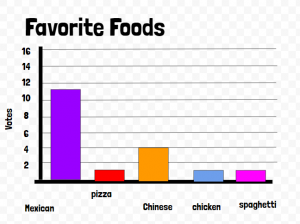
Third graders at Varina Elementary have been learning how to collect data and create graphs (SOL3.15), so today students in Ms. Long’s class made graphs with Google drawing. Usually we use Google sheets to create graphs, but Google drawings are another great option. There are two features that I really like about graphing with Google drawings: You can easily change the color of each bar (in sheets, the default is one color for all bars), and you can resize the bars by clicking and dragging, which provides practice for the technology enhanced items (TEI) on our tests. First, we collected data by asking the students to answer a few polls within Schoology. You could also let the students create their own polls with Google forms, but I wanted to show the teachers this built-in feature of Schoology. The polls were on a variety of topics: favorite sports, foods, and colors. After the students voted, they opened a template (you can make a copy here) and chose the data they wanted to graph. Next, they edited the text boxes so the title and categories matched their data. I showed them how to click and drag the bars to the correct lines and change their colors with the paint bucket. Finally, we shared our graphs in Schoology and analyzed the data. We asked questions, like, “What is the most popular food?” or “How many more people like basketball than football?” The students noticed that graphs make it a lot easier to understand their data. You can see some of their graphs here.


Tags:


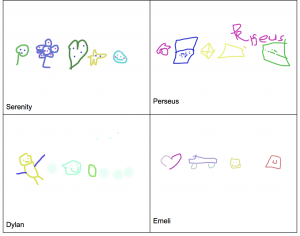
1st Grade Ordinal Numbers

First graders at Laburnum Elementary have been learning about ordinal numbers (SOL1.3). Today, students in Ms. Leibowitz’s class identified the ordinal numbers of objects in a drawing they created. First, we helped the students log into the computers, since they haven’t had much experience with them. Then we went to Kleki, a free drawing site I like because it’s simple to access and use. We started off just scribbling in order to practice using the click and drag technique. This, in itself, is a challenge for young students developing their fine motor skills. Once they got the hang of it, I showed them the Undo button, and we undid all the scribbles. Now it was time to start drawing pictures. I demonstrated how they could change colors using the rainbow. They could draw anything they wanted, as long as the objects were in a row, since we would be identifying their ordinal positions. Some first graders get very concerned if their pictures are not perfect, so I let them know that their pictures could be messy (I did a few messy examples). Even a squiggle could be a snake or a worm. Their drawings could be simple (circles, squares, triangles), or, if they wanted a challenge, they could make them more complex (trees, houses, cars), by combining shapes together. But, I explained, the most important thing was for them to enjoy the process. As they finished, I went around and saved their work (File > Export Image). I also uploaded the pictures to a shared Google doc, accessed with a link shortener so I could navigate to it quickly from each student’s computer. Finally, once all the students’ artwork was uploaded, we looked at the pictures and identified the ordinal position of different objects. For example, what is the position of the flower? What is in third place? You can see their pictures here. UPDATE: I have used Kleki to teach lessons in other first grade classes for shapes (SOL1.11a) Ms. Spencer & Ms. Milteer and patterns (SOL1.14) Ms. Sunseri & Ms. Burnett.