3rd Grade Coding Money and Change

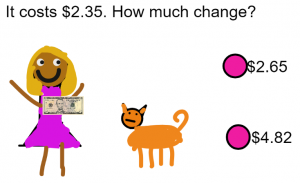
Third graders at Laburnum Elementary have been learning about money and counting change up to five dollars (SOL3.8). Today students in Ms. Hunt’s class used a new coding program called Wick to create an interactive math problem about making change. First, I showed them a couple of examples so they could get an idea of what we were going to do (here and here). I pointed out that their projects could look very different, but they had to have three things: (1) an object to buy with a price under $5; (2) a person with a $5 bill; (3) a right and a wrong answer. To get the students started, I created a template with some money files that you can download here. The students downloaded my template from Schoology, started a new project in Wick, and uploaded the template (File > Open). Now, in the Assets Library on the right, they had some money images to use if they wanted. They illustrated their problem with the drawing tools and typed out the question and answers with the text tool. We created two more frames by copying the first one (right click > Clone frame) and made a few changes to show the correct answer (the person gets the object and is happy) and the incorrect answer (the object leaves and the person is sad). Finally, we added the code to the buttons so that they go to the correct frame. One of the things I really like about Wick is that is uses real code. So we added a stop() code to each frame and programmed the buttons to go to the correct frames gotoAndStop(2) or (3). Wick exports projects as HTML files so they play in any browser. You can see all their projects here.
Tags:


Kindergarten Life Cycle Animations

Kindergarten students at Trevvett Elementary have been learning about life cycles (SOLK.7c), so today, Ms. Gouldman’s class used ABCYa! Animate to create animations of the butterfly life cycle. First, we reviewed the stages a butterfly goes through–from egg, to larva, to chrysalis (metamorphosis), and to adult. Next, we went to ABCYa! Animate, and I showed them how to use the paint tools to draw some butterfly eggs in frame one. We looked at some pictures of butterfly eggs on the Internet so they could see the size and color of them. I pointed out that many butterfly eggs were laid on plants. Why do you think that is? Then, we went to frame two and drew the caterpillar. We looked at caterpillar images online to see the incredible variety in their colors and designs. We continued with the other stages, looking at photos of each stage, and then drawing our own creative ideas. When we were finished, we slowed down the animation using the frame rate button (bottom right), turned on looping so it repeated, and pressed play. The students were excited to see their butterfly move through each stage. Since it loops, it also shows how an adult lays more eggs and the life cycle repeats itself. Finally, we exported our animations as GIFs, and I uploaded them to a Lino page. Lino is similar to Padlet for sharing files, but since I’ve reached my limit on Padlet for the free account, I had to find something different. You can see all their animations here.


2nd Grade Counting Coins with Scratch

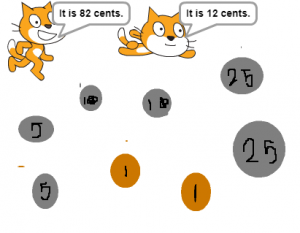
Second graders at Holladay Elementary have been learning how to count coins up to two dollars (SOL2.10a), so today, students in Ms. Brown’s class used Scratch to create a counting coins activity. First, we reviewed the coins and and practiced counting the value of groups of coins. Then I showed them a sample Scratch activity to prepare them for making their own project. Basically, it displays a group of coins with two characters stating different values. If you click on the character who correctly identifies the amount, they congratulate you with a “Good job!” or a similar statement. If you click on the character who is incorrect, they let you know you are wrong in a nice way by saying something like, “Try again!” Once the students got an idea of what they were doing, they were ready to begin their own activity. They started by editing the background and drawing a group of coins. They needed to make the coins easily identifiable by using the correct sizes, colors, and designs. Next, they chose two sprites, or characters, from the library. Using the block code, we programmed the characters to say a right and a wrong value and to let the player know if they chose correctly or incorrectly. Finally, we published our projects and shared the links on Schoology so our classmates could try our activities. You can try them yourself here.


Tags:


1st Grade Plant Sentences

First graders at Holladay have been learning about plants and their needs (SOL1.4). They have also been learning how to write complete sentences starting with capital letters (SOL1.13d,e). Today students in Ms. D’Antonio’s class used ABCYa! StoryMaker to create drawings of plants and write a sentence about plant needs. First, we reviewed the things that most plants need to live: sunlight, water, and soil. Then, we went to StoryMaker, and I showed them how to use the different brush tools to draw a picture of a plant. I suggested that they also include the things that their plant needs. Some students even knew that sunlight + rain make a rainbow, so they used the rainbow brush to add a rainbow to their picture. Next, we clicked the yellow button on the side to go to the writing section. Storymaker has the familiar lined paper and a font that early elementary students can read easily. I showed the students how to use Shift to make a capital letter and how to use the space bar to make spaces between each word. We started our sentences the same way: “A plant needs…,” then they chose the ending and added a period. You can see their plant drawings and sentences here.


3rd Grade Mali Perimeter & Area

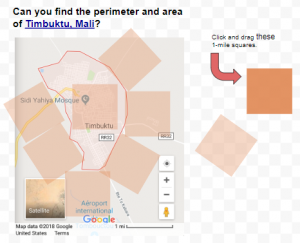
Third graders at Trevvett Elementary have been learning about perimeter and area in Math (SOL3.10), and they have been studying the ancient civilization of Mali in History (SOL3.2). Today, students in Ms. Cockrum’s class found the perimeter and area of the famous Malian city, Timbuktu. First, we found Timbuktu on Google maps and used the scale to estimate its perimeter and area. To record our data, we made a copy of this spreadsheet that I had prepared ahead of time with the correct font sizes and cells. I demonstrated how to make some practice shapes by clicking and dragging through the cells and using the paint bucket to change the fill color. Then we used the squares to calculate the perimeter and area of our shapes and entered the values into the corresponding cells. Now the students were ready to measure Timbuktu, Mali. We made a copy of this Google drawing to make the process a little easier. The students could click and drag the square miles around the perimeter (turning the squares by dragging the blue circle that appears over each one when it’s clicked), and they could drag the squares inside of the city to find the area. The squares are transparent so the students could see what is underneath. Once they found the perimeter and area of Timbuktu with the squares, they entered the values into their spreadsheet. Finally, we clicked the Share button on our spreadsheets and pasted the links into Schoology. You can take a look at them all here.


4th Grade Geometry Posters

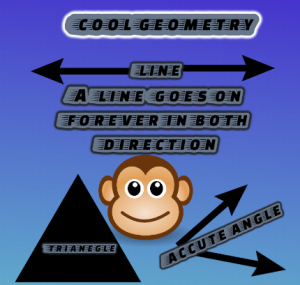
Fourth graders at Varina Elementary have been learning about lines, rays, angles, polygons, and other aspects of geometry (SOL4.10, 4.11, 4.12). Today, students in Ms. Connell’s class used DesignCap to create geometry posters that review these concepts. We started by looking at the sample posters (templates) on the website for inspiration. We noticed that many of them have large text and colorful pictures to convey a clear message. I encouraged the students to try to use similar design elements. Then, we began with a blank poster and changed the background color. I demonstrated how to add text with the text tool and customize the font, size, fill and border colors. Next, I showed them how to add images and clipart by searching the web or using the built-in clipart library. Students used these tools to create posters reviewing geometry concepts of their choice. We exported them as JPG files and shared them on Schoology. You can see all their posters here.


1st Grade Maps

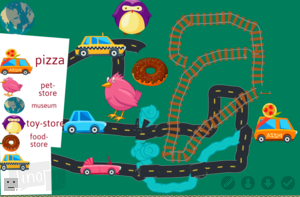
First graders at Trevvett Elementary have been learning about maps (SOL1.4) and how to make maps with symbols and a legend (SOL1.5). Today, students in Ms. Robinson’s class created their own maps with ABCYa! Paint. First, we drew some land and water features. Next, we used the rainbow brush to paint roads, railroads, and rivers on our map. I explained that rivers usually flow into the ocean and roads and railroads need to go to different parts of the land. Then we looked at the stickers and discussed what they could symbolize. For example, a loaf of bread could be a symbol for a bakery and the Earth could be a symbol for a science museum. They added sticker symbols to their map, and they also added them to their map legend. The last step was to use the text tool to type words next to the symbols in the legend, explaining what they mean. We saved our maps and uploaded them to a Lino board (it’s similar to Padlet, which recently changed its policy for free accounts). You can see their finished maps here. (UPDATE: I taught a similar lesson in Ms. Shelly’s class at Holladay, and you can see their maps here).


2nd Grade Animated Famous Americans

Second graders at Holladay Elementary have been learning about some of our famous Americans: George Washington, Abraham Lincoln, Helen Keller, Jackie Robinson, Martin Luther King, Jr., and Susan B. Anthony (SOL2.11). Today, students in Ms. Fournier’s class created animations of a famous American. First, they chose which person they wanted to animate and drew their face on ABCYa! Animate. We did some research online to make sure that we were drawing them correctly. We even asked Google about their hair color and eye color! Next, we used the copy cat button to make a copy of our picture and deleted the mouth. I showed them how to redraw the mouth in a new shape. We repeated the process for a few more pictures and changed the mouth into different shapes so it looked like the person was talking when we pressed the “Play” button. I explained that they could add additional realism by making the person blink or by making their ears and eyebrows move. When we were finished, we exported our animations as .gif files. Then, I showed them how to import their GIFs into WeVideo and add a voiceover to make it look like the person is talking. The voiceovers told about the famous American’s contributions and accomplishments. You can see their videos here. (UPDATE: Unfortunately, WeVideo recently changed their policy for free users so the video links expire after 90 days. However you can see another class’s animations without sound here).


5th Grade Sound eBook

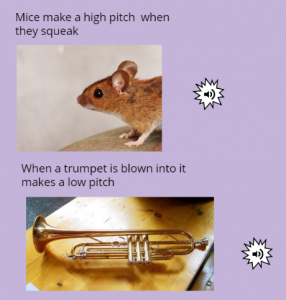
Fifth graders at Trevvett Elementary have been learning about sound (SOL5.2), so today students in Ms. Capano’s class created sound eBooks. I explained that an eBook can do things that a regular book can’t do. It can have videos, animations, and sounds, which make it perfect for a sound book. First, Ms. Capano set up a class in BookCreator, and her students joined with a code. Then we created a new book. I asked them all to choose the square shape, so when we combined the books together at the end, they would all match in size. For the cover, I showed them how to change the color, add a title, pick a font, and search the web for a photo of sound. Inside the book, I instructed them to write complete sentences about sound. If they used a vocabulary word, like frequency or amplitude, then they could make it bold. They could also add photos of objects that make sound or draw sound waves with the pen tool. When they finished their pages, I showed them how to search for and download sounds on SoundBible. Then we uploaded our sounds to our books by clicking the + button and choosing Import > Files. Now we have a book about sound that actually has sounds in it! I combined all their books together into one class book. You can read their book here. (UPDATE: I taught a similar lesson on 3/20 with Ms. DiMatteo’s class at Holladay, and you can read their book here).


Tags:


1st & 2nd Grade Melting Matter

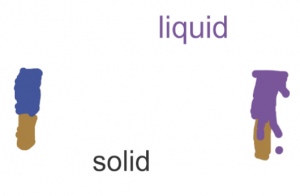
First graders at Holladay Elementary have been studying matter (SOL1.3), and they have learned that matter can be solid or liquid. Today, students in Ms. Milteer’s class created animations showing how a solid can turn into a liquid by melting. First, I showed them some time-lapse videos of various solids melting (ice cream, snowman, ice cube, butter, crayon, chocolate, candle). You may even want to record your own time lapse video of something melting. Many phones and tablets have a time lapse recording feature. Next, we went to ABCYa! Animate, and the students drew a solid object in the first frame. In the second frame, they drew the same object melted into a liquid. Then, we pressed play and slowed down the speed to watch our animations. Finally, we exported the projects as .gif files and shared them on Padlet). You can see them all here. UPDATE: Second graders learn about the states of matter as well (SOL2.3), so here are some student samples from a similar lesson I did with them using BrushNinja.