Tag: video

Kindergarten Signs of Spring Video
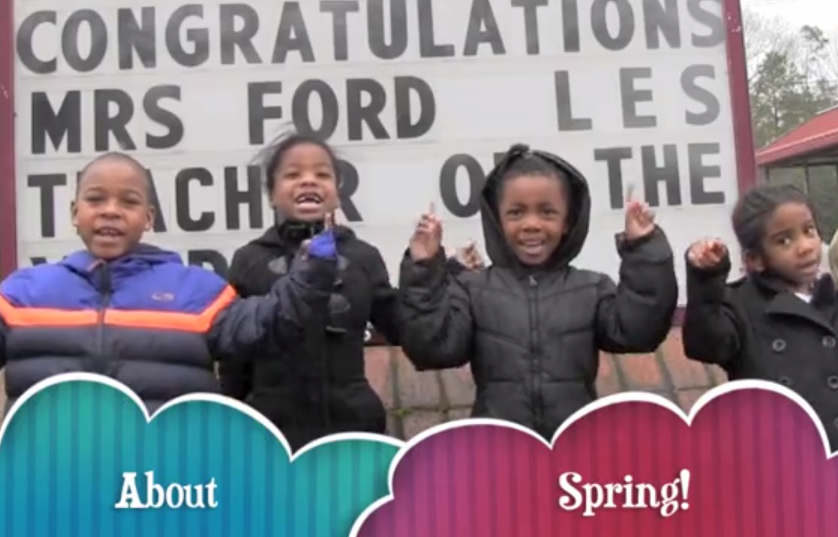
springEvery grade in elementary school learns about seasonal changes and the weather (SOL K.10, 1.7, 2.7, 3.8, 4.8, 5.7) so I have been working with a small group of kindergarten students at Laburnum Elementary to create an informational video announcing the start of spring that would be played on the school-wide morning announcements. Nathaniel, Jaziah, Karen, and Taliyah have been excited about this project since we started it last month. First we met together to discuss the signs of spring and they selected which ones they wanted to do. They came up with four main signs of spring: the weather gets warmer, animals have their babies, flowers start to bloom, and gardens begin to grow. Next they read books and watched videos about the spring to get ideas and background knowledge to share in their video. On some of our project days it was too cold to film outside (and very un-spring-like) so they decided to include some of their artwork in the video. They used Pixie to draw pictures, illustrating their special sign of spring. Finally, today it was warm enough to film, so we explored the grounds of the school looking for signs of spring and filmed at the sites we found. They improvised their lines in the video (there was no written script since we weren’t sure what we’d find, but we had made some predictions). The finished film will be presented on the morning announcements to the entire school and submitted to our county’s H21 website. You can watch it here!

2nd Grade Subtraction Animations

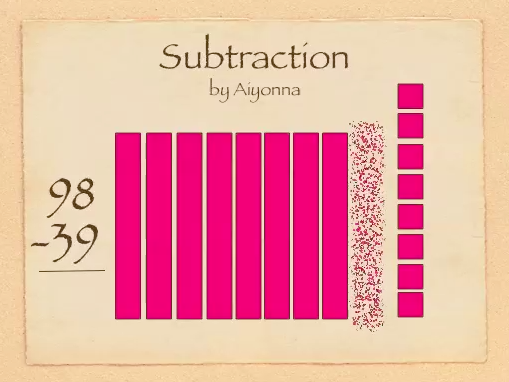
SubSecond graders in Ms. Gardner’s class at Holladay Elementary have been learning the difficult concept of subtracting with regrouping (SOL2.7). Sometimes abstract ideas become clearer when we can visualize them with an animation. It’s even better if we have someone verbally explaining the animation. The best way is to create and explain the animation yourself! So that’s what we did today using Keynote. First we opened up a blank Keynote and I showed them how to add a Title and change the theme. Next, I instructed the students to come up with two numbers less than 99 that would require regrouping to subtract. They added those numbers to their slide with text boxes. Then they used the shapes tool to represent the top number as base-10 blocks (bars for tens and cubes for ones). Now it was time to add the animations. This is where Ms. Gardner and I really got to see which students understood the concept and which ones didn’t. The used the Inspector to add “Build Out” or “Build In” animations to the different bars and cubes. They had to make one ten disappear and ten ones reappear. Next they had to make the correct number of ones and tens disappear to show the subtraction problem. At the end they should have had the same number of base-10 blocks as their answer. They used a text box to make their answer appear, and finally they recorded the voiceovers explaining each step. The students exported their slideshows as a QuickTime video. It was a lot of work for these second graders and took us a couple of days, but they hopefully they have a better understanding of subtraction with regrouping. You can see a couple of student examples here: Giada and Jessie.


3rd Grade Finds the Best Bait for Three Lakes Park

fishingEach year the 3rd grade students at Holladay Elementary take a PE field trip to Three Lakes Park to go fishing. This year they decided to do a science experiment to see which type of bait worked best. In groups, they researched which kinds of fish are at the park and what types of bait to use. The students developed their own hypotheses about which type of bait would work best, and then they tested their hypotheses at the park by keeping track of which types of bait caught which kinds of fish. They also measured the fish as they caught them and took photos. They had practiced measuring fish earlier in Art class using fish rubbings. The photos were posted online here using CoMemories. (CoMemories is a great site for sharing pictures because anyone can contribute with the given link). Back at school, students analyzed the data and drew conclusions. They concluded that worms were, by far, the best bait. I helped them publish their findings in a brochure for the visitors center at Three Lakes Park. They also created group presentations about the different types of fish using a program of their choice (Comic Life, Keynote, Pixie, and/or video). You can take a look at the students’ presentations here. Finally, they scored their projects using a rubric. This project was also Holladay’s entry for Henrico21. Hopefully we’ve helped future 3rd graders and other visitors to Three Lakes Park catch lots of fish!


4th Grade Equivalent Fractions

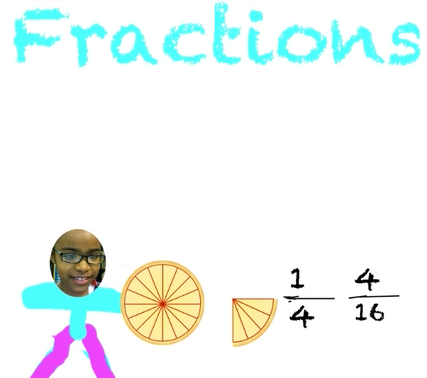
EquivFourth graders in Ms. Thomas’s class at Varina Elementary have been learning about equivalent fractions (SOL4.2b). Today I showed them how to make equivalent fraction videos using Pixie. First they created a picture of themselves using the built-in camera and the paint tool. Next they used the fractions clip art to show a whole and a fraction of that whole. Then they used the text box tool to type the fraction and its equivalent, and they recorded a voiceover explaining how the fractions were equal. I showed them how to go to File > Duplicate Picture and create a few more pictures with voiceovers showing various fractions of the same whole. Finally they exported their pictures as one video by clicking Share > Video > Create. You can take a look at a couple of student examples: Kendall showing fractions of a pizza and Krystal showing fractions of an orange.


1st Grade Videolicious

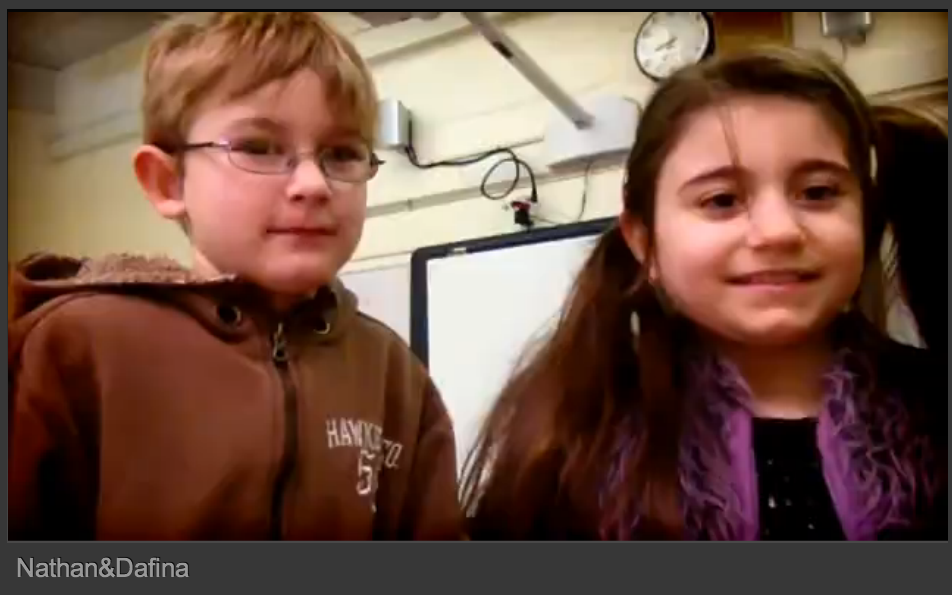
Nathan-GWFirst graders at Davis Elementary have been learning about Famous Americans including George Washington, Abraham Lincoln, Benjamin Franklin, Eleanor Roosevelt, George Washington Carver, and Martin Luther King, Jr. (SOL1.2). For this project, their teachers divided them into pairs and they used books and websites to research facts about one of these people. They had that part completed by the time I arrived. My job was to work with pairs using the iPads and an app called Videolicious to create short 1-minute videos about their famous Americans. First we searched online for images to use in the movie, and they chose about 4-5 pictures they liked. Next they planned out who would say what for each picture, and we started recording. The app makes it very simple to create a video. It uses the built in camera and shows the pictures you selected in a side bar. So you can combine live video with images and voiceovers. When you want a picture to show up, you just click it. The students enjoyed the final steps of adding visual effects and a soundtrack to their videos. We published their finished movies to the Videolicious website, and I added all the links to a Google Doc. You can take a look at them by clicking here.


4th Grade Fractions Animations

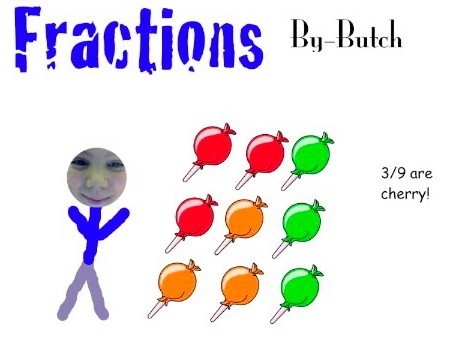
butch Fourth graders in Ms. Cousins’ class at Davis Elementary are just beginning their fractions unit (SOL4.2), so today we used Pixie to make animations showing fractions as part of a group in order to determine their prior knowledge. The students started by drawing a picture of themselves with a set of identical objects (such as 4 cherry pies). Then they duplicated the picture (File > Duplicate Picture) and added a few more different but similar objects to the group (like 3 peach pies). They could duplicate the picture, adding more sets to the group, as many times as they wanted. Finally we added pictures at the end identifying the fraction of the group each set represented. The students added a voiceover to each picture explaining the steps. This made very clear to us which students understood the concept. For example, one student drew a picture of 2 cookies and 1 car (so we could tell he wasn’t clear on making similar sets). Then he wrote the fraction as “3 2s” (in his voiceover he said “three twos”). So that let the teacher know he probably wasn’t ready to start comparing fractions (SOL4.2) and would need some remediation. I won’t post his example, but here are some students who did understand the concept and are ready to move on: Butch, Hannah, and Sryia.


2nd Grade Famous Americans Animations

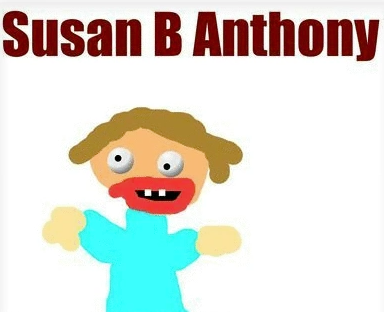
Screen shot 2014-03-25 at 12.57.03 PMSecond graders in Ms. Arnold’s class at Holladay Elementary have been researching famous Americans, and today they created speaking animated characters to share their information. First they drew their famous American in Pixie and typed his or her name. I showed them how to use the 3D brush to make “googly eyes” so their character looked more “cartoonish.” Next we had to make the mouth appear like it was talking. To keep it simple we just added two different mouth shapes. We duplicated the picture and redrew the mouth so that it was in a long shape for making the “ee” sound. Then we duplicated the picture again and redrew the mouth so it was in an O shape for making the “oh” sound. We exported all the pictures as PNG files and saved them to our folders. Next the students went to Voki to create the voice. They clicked the “TTS” button (text to speech) and typed in some factual sentences for their famous American to say about themselves. The fun part was choosing an accent! The students saved their Voki links to their folders as well. That was all we had time for, so it was my job to put the voices together with the drawings. I uploaded the 3 drawings of each character to Glickr in order to make an animated GIF. Then I clicked the link to their Voki. As the GIF and the Voki were playing at the same time I recorded it with Screencast-O-Matic. Take a look at a couple of student examples: Helen Keller by Alana and Susan B. Anthony by Hayden. I uploaded them all to a Google Doc that you can view here.


5th Grade Video Book Reviews

Screen shot 2014-03-25 at 9.35.55 AMFifth graders at Holladay Elementary have been writing reviews for books and posting them to their Edmodo page. The media specialist, Ms. Teague, and the 5th grade reading teacher, Ms. Harris, wanted to expand their audience. Their idea was to publish short student videos of the book reviews that could be linked to each book on the library’s Reading Olympics website. I also suggested linking them with a QR code on each book. Then other students in the school could scan the QR code with a mobile device and watch the book review before deciding whether or not to read the book. So today we had students from each of the three fifth grade classes working with partners to create their videos in Photo Booth. We discussed the importance of showing the book and speaking in a lively manner. One problem with recording in Photo Booth is that the image is backwards so it reverses the words on the book. You can fix it by importing the videos into iMovie, clicking the Crop tool, and flipping the video. However, we didn’t have time to do that today. You can see some of their videos by clicking here or on the school’s Reading Olympics page. There are many free sites for easily generating QR codes: Site1, Site2, Site3, Site4. You could place QR codes around your room for students to scan to visit websites, view presentations, or watch videos. They can even be dynamic where the code stays the same but the link changes weekly (so you don’t have to generate and print a new code). Let me know if you’d like me to help you with a similar project.


Varina Anti-Bullying Video

vimeopicStudents at Varina Elementary, with the help of their tireless guidance counselor, Dina Thibodeau, have been working to create an anti-bullying video set to the tune of “Stand Up” by Sugarland. Each class planned a special part of the video where they used hand motions and signs to convey a message, like “Bullying isn’t cool,” “Diversity Rules,” and “Include Everyone.” The students made their own signs and collaborated on the best way to present their message in a meaningful way. Today I went around to film them, and it was obvious that they had been working hard on this project. Many classes did their part in just one take! I edited them together, added the soundtrack, and this is the result. You might want to show this video to your students and discuss the importance of not bullying. Another resource you could use is this video I created with Alfonso about Internet safety and cyber bullying.


Tags:


5th Grade Spheres of the Earth

Screen shot 2013-11-22 at 4.20.07 PMToday 5th graders in Ms. Hall’s class at Laburnum Elementary used iMovie to make videos about the spheres of the earth: the lithosphere, the biosphere, the hydrosphere, and the atmosphere. First they went online to gather images of each sphere. They saved them to their folders and then imported them into iMovie. I showed them how to arrange the photos, crop them, and adjust them in the timeline. I also showed them how to record a video introduction and a voiceover for the photos. Next we added subtitles to identify the different spheres. Finally the students selected a song from iMovie’s soundtrack library to play during their video. It was a lot to do this early in the school year, but her students did a great job. Take a look at a student example here.