5th Grade Comparing Fractions & Decimals
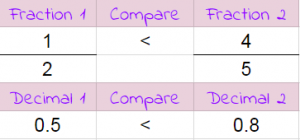
Fifth graders at Varina Elementary have been learning how to compare fractions and decimals (SOL5.2). Today students in Ms. Messer’s class learned how use a spreadsheet to convert fractions to decimals and compare them. First, we opened a blank Google spreadsheet and wrote the following column headers: Fraction 1, Compare, Fraction 2, (Blank), Decimal 1, Compare, Decimal 2. In order to make the two fraction columns look like fractions, I showed them how to click in the numerator cell, then use the cell format button (it looks like 4 squares in the toolbar) to add a line at the bottom. Then they entered a numerator and a denominator for the two fractions. To convert the fractions into decimals, the students needed to write a formula. I explained that the formula would use cell addresses (like A2 or C3) instead of particular numbers so that we could change the numbers and the formula would still work. This is a great way to help students understand the concept of a variable (SOL5.18). They helped me develop the formula =A2/A3 for the first fraction, and I expected them to figure out the formula for the second fraction =C2/C3. The formula for comparing them is a bit more complicated, but they were able to figure it out with guidance:

=IF (E2 > G2, “>”, IF (E2 < G2,"<","="))

Basically it says if the left decimal is greater than the right decimal, show the greater than symbol; if it’s less, show the less than symbol; otherwise show equals. Finally, we added a simple formula to compare the fractions by just copying the same symbol from that cell =F2. The students were excited to see their formulas work, even when they changed the fractions. You can see all their examples here.
3rd Grade Measurement Movies

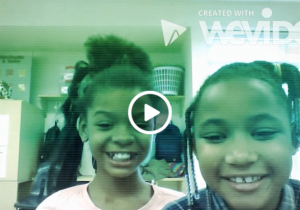
Third graders at Laburnum have been learning about liquid measurement in Math (SOL3.9b), so today students in Ms. Hunt’s and Ms. Gradeles’ classes created measurement movies with WeVideo. Students could choose whether to work alone or with a partner. We reviewed the units of liquid measurement they have been learning about: cup, pint, quart, gallon, and liter. They chose one unit and used books, notes, and the Internet to find examples of liquids that would be measured by their unit. I showed them how to download images from a Google image search by right clicking on them and choosing “Save image as…” Then we went to WeVideo and signed in with our Google accounts. WeVideo starts out in Timeline mode, which is a little complicated, so we switched to Storyboard Mode (click on the 3 lines in the top left corner). This reveals a Title screen at the bottom. I instructed the students to click the pencil icon on the Title screen to change the title to their unit of measurement. Then students pressed the red record button, and (after installing the necessary webcam extension) recorded themselves introducing their topic. I showed them how to upload the images they had saved earlier by clicking the green cloud icon. Students added the images to their video by clicking and dragging them down in the order they wanted them to appear. Finally the students selected a Theme with music by clicking the magic wand button. We found that we needed to switch back to Timeline mode to lower the volume of the music so we could hear our voices. Once our movies were complete, we clicked the Finish button and copied the link into Schoology. Now students can watch each other’s videos for a fun review of the units of liquid measurement! You can see them all here.


Tags:


4th Grade Planet Books

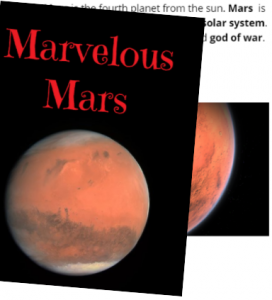
Fourth graders at Holladay Elementary have been learning about the planets in Science (SOL4.7), and they have been identifying nonfiction text structures in Language Arts (SOL4.6a). Today, students in Ms. Anthony’s class used BookCreator to make books about the planets with nonfiction text structures. First, they chose a planet to research and spent a few minutes exploring websites and books about the planet. Next, we reviewed nonfiction text structures they observed in their research: bold print, photos, captions, diagrams, etc. I explained that they would need to include some of those features in their planet book. We signed into Book Creator with our Google accounts and entered the teacher’s class code. Then they clicked the “New Book” button to get started. I showed them how to add text with the + button and how to modify the text font, size and color with the i button. They made their important words bold. We also added images with the built-in image search and typed captions. Some students took photos and video with the webcam feature, but we found that those seemed to take a long time to load. Hopefully that feature gets upgraded in the future. We didn’t use the drawing tool, but that is also available. Finally, we published our planet books, and I linked them all into one book. You can read their finished book here.


3rd Grade Greece & Rome Multiplication Comics

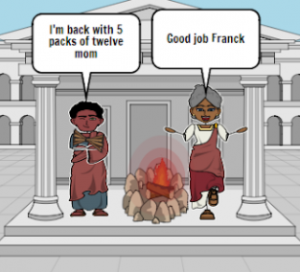
Third graders at Varina Elementary have been studying multiplication in Math (SOL3.5), and they have been learning about Greece and Rome in History (SOL3.1). Today, students in Ms. Lanham’s class used StoryboardThat to create comics about Greece or Rome with a multiplication problem to solve. First, we reviewed the concept of multiplication. It is repeated addition of the same number, or it can be thought of as equal groups. Next, we discussed life in ancient Greece and Rome and brainstormed some possible multiplication problems. Farmers may have problems dealing with the number of grapes or olives they can grow in equal rows or put into jars. Shipbuilders may have to solve how many people can fit in each boat. Priests may have to figure out how many designs are on each column of the temple. Once we had our ideas, we went to StoryboardThat, and I showed them where they could find Greece and Rome backgrounds (Scenes > Historical, Rustic, or Outdoor). There are also Greece and Rome people in Characters > Classical Era. Finally, they added speech bubbles (Textables) to explain the multiplication problem in their comic. The first panel might explain how many items are in each group. The second panel might explain how many equal groups there are in all. The third panel could ask about the total number of items. We took screenshots of our comics and shared them in a Schoology discussion so we could solve each other’s problems. You can see them all here. If you’d like to see more examples, I also taught this lesson to Ms. Cathcart’s and Ms. Haley’s classes.


Tags:


4th Grade 3-D Planet Models

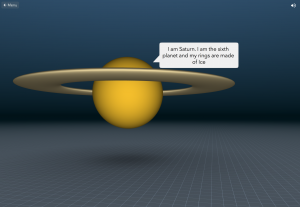
Fourth graders at Laburnum Elementary have been learning about the planets in the solar system (SOL4.7), so today students in Ms. Mayer’s class used CoSpaces to create 3-D models of the planets. A cool idea would be to use this tool to create a 3-D model of all the planets, comparing their sizes like this example, but we didn’t have time for that. The students each chose one planet to research, then they logged into CoSpaces with their Google accounts, and created a new space. First, we clicked the Environment tab at the bottom and selected Night, making the background dark like outer space. Next, we went to the Library tab and clicked Building Blocks. The students selected a sphere and I showed them how to resize it and raise it with the pop-up tools. Double clicking the sphere brings up more tools, and the students used the paint brush tool to change the color of the sphere to match the planet. They also added a speech bubble and typed some facts about the planet. When they finished, they went back to the library and selected additional objects like rings for Saturn or a space ship. Finally, they clicked the Share button at the top, copied the link, and posted it in Schoology for their classmates to see. You can visit all their planets here.


3rd Grade Coding a Food Chain

Third graders at Holladay Elementary have been learning about food chains (SOL3.5), so today students in Ms. Whittaker’s class created an animated food chain using code in Scratch. First, we reviewed the different types of aquatic and terrestrial food chains, and we discussed how all food chains start with the sun. Next, I helped the students set up their Scratch accounts. We started a new project, deleted the cat sprite (the default character), and I showed them how to draw their own sprites. They drew a sun, a plant, an animal to eat the plant (an herbivore), and an animal to eat that animal (a carnivore). Since it was going to be animated, they also drew several costumes for each sprite. For example, their sun sprite had costumes showing the rays shining down on the plant, and their plant sprite had costumes showing how it was being eaten. Finally the students added code to each sprite. The sun code looped through the costumes so it repeatedly sent rays to the plant. The other sprites’ codes programed them to move and cycle through the costumes at different time intervals, making it look like they were eating and getting eaten. We shared our project links on Schoology, but you can see them all here.


Tags:


5th Grade Fact Opinion Posters

Fifth graders at Trevvett Elementary have been learning how to distinguish between facts and opinions (SOL5.6i), and they have been writing with adjectives and adverbs in English (SOL5.8b). Today, students in Ms. Golden’s class used PicMonkey to create winter posters that included facts, opinions, adjectives, and adverbs. First we reviewed clues for differentiating facts and opinions. Facts are undeniable truths that can be proven with evidence. They are true for everyone, even if they don’t believe it. For example, “He is driving quickly over the speed limit” is a fact. It can be proven with measuring devices (even if the driver doesn’t believe it). Opinions are usually based on feelings, and they can be different for different people. For example, “He is a bad driver” is an opinion. You do not have to agree with it. Next, we identified the adjectives and adverbs in the sample sentences (and other sentences the students came up with). I explained that they would be creating winter posters with two sentences about winter. One needed to be a fact and the other needed to be an opinion. Their classmates would try to differentiate them. They also needed to include an adjective and/or adverb in each sentence. To make the posters, we went to PicMonkey and clicked “Edit a photo.” This allows you to edit a photo without logging into an account. The students took photos of themselves with their webcams and uploaded them. Then they used the special Winter effects to decorate their pictures with frost, snow, rosy cheeks, and clip art. I showed them how to use the text tool to write their sentences and how to change the color of the adjective or adverb. They saved their photos and uploaded them to a discussion in Schoology with a question for their classmates to answer (What is the opinion? What is the fact? What is the adverb? What is the adjective?). You can see them all here.


3rd Grade 3-D Animal Reports

Third graders at Holladay Elementary have been studying animals and their habitats in Science (SOL3.4, 3.5, 3.6). They have also been learning about how to write research reports in Language Arts (SOL3.11). Today students in Ms. Ambrose’s class researched an animal of their choice with PebbleGo and created a 3-D report using CoSpaces. First, students selected an animal and used PebbleGo to find out about its habitat and its design, or adaptations. We discussed whether PebbleGo is a reliable website (it is :). Next, we logged into CoSpaces with our Google accounts, and I showed them how to choose a background image that looked like the animal’s habitat. Then we searched for a 3-D model of our animal (or an animal that looked similar). I explained that they can change the color of their animal by right clicking on it. They also needed to use the right-click to make the model accessible in Blockly (the coding language). We wanted to code the animal to speak about itself and share the facts we learned, but before we could do that, we had to record ourselves. We used Vocaroo to record and save an MP3 file (you could also use Audacity). We uploaded the file to CoSpaces using the Upload button. Finally, in Blockly, we added a few bits of code to make the animal speak when you click on it. Some of the students even added code to make the animal move. We published our projects and shared the links on Schoology. You can see them all here.


4th Grade Virginia Tally Marks & Graphs

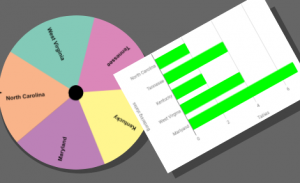
Fourth graders at Varina Elementary have been learning about Virginia geography (VS.2) and Jamestown (VS.3) in Social Studies, and they have been making bar graphs in Math (SOL4.14). Today students in Ms. Belcher’s class chose a Virginia topic, created a spinner out of its subtopics, tallied the spins, and graphed the results. First, we reviewed various topics they could use to generate their spinner subtopics: Virginia Rivers, Virginia Regions, Indian Language Groups, Problems at Jamestown, Bordering States, etc. Next, we created our custom spinners using a cool webtool called WheelDecide. Then they spun the spinner as many times as they could in two minutes and tallied the results on paper. To make the graph, we used a Google spreadsheet. I showed them how to access their Google shortcuts (the array of 9 tiny squares in the top right corner of a Google search page), and we opened a new spreadsheet. In the first column we typed the spinner subtopics, and in the second column we typed the number of tallies for each one. Then we highlighted the columns, pressed the graph button, and a bar graph appeared! I showed the students how to change the colors of the bars, if they wanted. We shared our spreadsheets on Schoology, but you can see them all here. Can you guess the main topics just by looking at the graphs?


3rd Grade Moon Cycle Animations

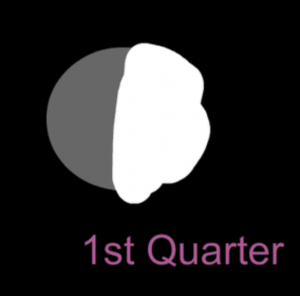
Third graders at Trevvett Elementary have been learning about moon cycles in Science (3.8a) and multiplication in Math (SOL3.5). Today students in Ms. Bae’s class solved multiplication moon problems and created their own moon cycle animation with ABCYa! Animate. First, I posted a discussion on Schoology with an animated image of the phases of the moon so they could get an idea of the type of animation they were going to create. I pointed out that the light starts on the right side and advances over to the left side of the moon. We reviewed the four phases: first quarter, full moon, last (or third) quarter, and new moon. We also talked about why they were called quarters when they look like halves (the moon is always half light and half dark but the cycle is divided into four parts, or quarters). The discussion question stated: “You have learned that the moon goes through four phases in about one month. How many phases would it got through in __ months? Insert your own number in the blank and solve the problem.” Students were able to review their knowledge of multiplication and the moon while using the discussion feature for the first time. Next, we went to ABCYa! Animate, and I showed them how to create a picture of the new moon by creating a black background and adding a grey circle. We used the Text Tool to type “New Moon.” Then we made a copy of the picture with the Copy Cat button. We typed “1st Quarter” and painted the right half white. We continued in this manner, making copies and adding details, until all four phases were illustrated. Finally, we turned on Looping and pressed the Play button. The students loved seeing their own animated moon cycle! We shared the exported GIFs in a Schoology album, but you can see them all here.