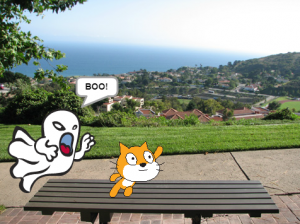
4th Grade Moon Phases with Scratch

Fourth graders at Varina Elementary have been learning about the phases of the moon (SOL4.8), so today, students in Ms.Stevens’ class used Scratch to illustrate the phases. First, we signed into our Scratch accounts and created a new project. I showed them how to click on the background button at the bottom and select a space image from the library. Next, we deleted the default Scratch sprite (right click on the cat sprite and choose “Delete”). The students went to the sprite library and chose a character to be the “instructor” who would identify the different phases of the moon. Then we created a new sprite for the moon and just painted different costumes showing the phases in order. To cycle through the costumes, I demonstrated how to use the “Looks” and the “Control” code blocks to command the sprite to switch to the next costume every second forever. We also had to make sure that it always started at the correct place, so our first bit of code set the “Looks” to the first costume. Once our moon was cycling through its phases, we had to make the instructor identify each one. Again, we used the “Looks” and the “Control” code blocks to control it. We set it to “Say” the moon phase for 1 second (since our costumes were cycling every second) forever. However, we discovered that after a couple of cycles the timing was off, so we changed the time for saying the last phase to 1.3 seconds, and that seemed to fix it. Finally, we published our projects and shared the links on Schoology. You can see them all here.
3rd Grade Plant & Animal Measurements

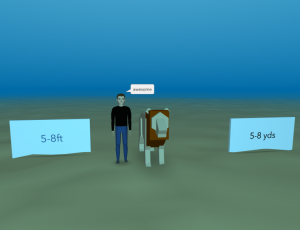
Third graders at Varina Elementary have been learning about plants and animals in Science (SOL3.6) and about measurement in Math (SOL3.9). Today students in Ms. Hummel’s class created a 3-D scene where the visitor can estimate the measurement of a plant or animal, and check their answer. First, we created the 3-D scene using CoSpaces. I showed them how to choose a background with the Environment button and add objects with the Library button. Since there is a limited number of plants and animals in the Library, the students had to choose one of those to measure. Next, they opened a new tab and searched the Internet for the plant’s or animal’s actual measurements. Back in CoSpaces, they added two panels from the Library and typed the correct measurement on one panel, and a different measurement on the other (maybe with a different unit or amount). I showed them how to right click on the objects in the scene and activate them to be used in Blockly (the coding language). Finally, we clicked the code button and programmed the objects so that when the visitor clicks a panel, something lets them know that they are right or wrong (maybe a person says something or an object turns a color). The student’s posted the links to their scenes on Schoology for their classmates to explore, but you can see them all here.


Tags:


5th Grade 3-D Cell Models

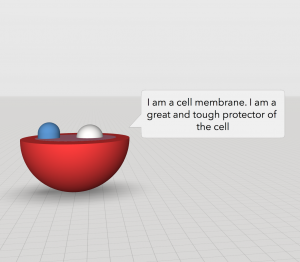
Fifth graders at Varina Elementary have been learning about cells and their different parts in Science (SOL5.5a), and they have been learning how to use adjectives and adverbs in English (SOL5.8b). Today, students in Mr. Williams’ class created 3-D models of cells and wrote descriptive sentences of some of the parts using adjectives and adverbs. We used a great site called CoSpaces to create the 3-D models. First, we logged in using our Google accounts, and I showed them how to pick a background from the Environment tab. Next, we clicked the Library and built a model of a plant or animal cell using the cubes, spheres, and other shapes from the Library. We right clicked on each shape to change its color and activate it for use in Blockly (the coding language). Finally, we used blocks of code to program the cell parts to identify themselves when clicked. The students typed sentences with adverbs and adjectives describing each part’s function. You can see them all here. (UPDATE: I taught this lesson in a couple of other classes as well, so I’ve included some student samples from those lessons on the document. In one class we made the cell parts actually speak by recording ourselves in Vocaroo and uploading the MP3 audio files to CoSpaces).


Tags:


5th Grade Southeastern State or Animal Websites

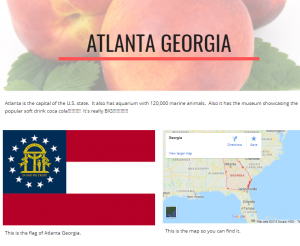
Fifth graders at Laburnum Elementary have been studying the southeastern states in History (SOLSE), and they have been learning about animal survival traits in Science (SOL5.5c). Today students in Ms. Hall’s class chose a southeastern state or an animal to research, and then shared their findings on a Google website. First I explained how to research their topic using books or the Internet. We discussed the importance of checking facts (seeing if the fact was repeated in multiple sources) and using reliable websites. I instructed them to find the answers to three questions they were curious about–like “What is the coolest place to visit in the state?” or “What is the most amazing survival trick of this animal?” Once our research was complete, we went to Google Drive and clicked New > More > Google Sites to create a website. I showed the students how to pick a theme, and how to use the buttons to add different features to their websites. Besides including their three facts, I also wanted them to include a header image, a photo, and a map. When our websites were finished, we published them and copied the links into Schoology. You can see them all here.


4th Grade Measurement Comics

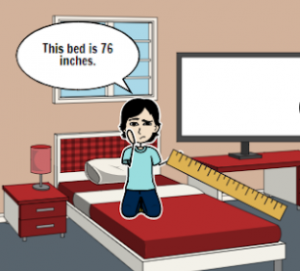
Fourth graders at Holladay Elementary have been learning about measurement in Math (weight SOL4.6, length SOL4.7, and liquid capcity SOL4.8). Today, students in Ms. Truda’s class researched some measurements and created measurement comics using StoryboardThat. First, we reviewed the different customary and metric units. I explained that they could pick one or more things they were curious about and research its measurements. I asked them if one thing could have more than one measurement? For example, how many different measurements would a couch have? (Answer: four – length, width, height, and weight). If the object they chose was something in the classroom, they could actually measure it, but if it was outside the classroom, they could ask Google for its measurements. I demonstrated how to use the microphone on a Google search page to ask a question like, “How tall is a giraffe?” Once they had their measurements, they made their comics on StoryboardThat. StoryboardThat has an amazing collection of clip art, so with a bit of creativity (and use of the search box), students were able to find all the backgrounds and characters they needed to show their measurements. We took screenshots of our comics and posted them to a Schoology album. You can see them all here.


Tags:


5th Grade Programming Cell Parts

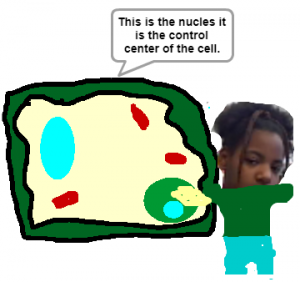
Fifth graders at Laburnum Elementary have been learning about plant and animal cells (SOL5.5a). Today students in Ms. Burgess’s class used Scratch to write a program that identifies the parts of a cell. First, we reviewed the cell parts and their functions and discussed ways that students could research additional information (using books, notes, or the Internet). I explained that we would be writing code today, which is similar to the code that is in each cell. DNA gives directions for things to happen inside the cell, and our code will give directions for things to happen in our diagram. Just like in DNA, if one piece of the code is wrong, it can create a problem. That’s why we teach elementary students to code, because it requires logic and problem solving skills to make sure their code works. After we set up our Scratch accounts, the students created a new project, clicked the background icon, and painted a background image of a plant or animal cell. Next, we deleted the Scratch sprite (the default cat character) and created our own. I showed them how to take their photo with the camera button and turn themselves into a sprite. Finally, we used the coding blocks to build a program that moved our sprite to different parts of the cell and identified their names and functions. You can see all their projects here.


Tags:


1st Grade Earth & Sun Pixie

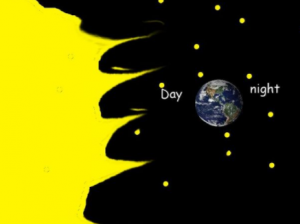
First graders at Holladay Elementary have been learning about the relationship between the Earth and the sun (SOL1.6), so today students in Ms. D’Antonio’s class used Pixie to create a diagram showing that relationship. First, we opened Pixie and used the Paint Bucket to fill the page with the blackness of space. Next, we used the Paint Brush to sprinkle a bunch of stars across the sky. I showed them a picture of the sun compared to Earth so they could see the incredible difference in size. Based on that information, we used the Shapes tool to draw a huge yellow circle for the sun. We made it so big that it didn’t even fit on the page. I also showed them how to use the Smear tool to smear rays from the sun (they liked that a lot 🙂 ). Then we searched the Stickers for an image of the Earth and added it to our picture. Of course, the students could add other stickers to make their pictures more creative. I asked them to identify the day and night sides of the Earth based on which part was facing the Sun. A cool, interactive way to demonstrate this is to go to Google Maps, switch to satellite view, click the 3-D button, zoom all the way out until you can’t zoom anymore, and click and drag the Earth around. You will see the sun and the day/night side of the Earth. The students used the Text tool to type “day” and “night” on the correct sides of the Earth sticker. Finally, we exported our Pixie files as JPG images and uploaded them to Padlet. You can see them all here.


Tags:


2nd Grade American Indian Homophones

Second graders at Holladay Elementary have been learning about American Indians in History (SOL2.2) and homophones in English (SOL2.7a). Today, students in Ms. Fournier’s class chose an Indian tribe (Powhatan, Lakota, or Pueblo) and thought of homophones that they might say (if they spoke English). First, we opened Pixie and used the paint brush and paint bucket tools to draw the correct environment for the tribe we selected (woods for Powhattan, plains for Lakota, desert for Pueblo). Next, we used Stickers to add examples of people, animals, houses, and tools to represent the tribe. Before we wrote the homophone sentence, we brainstormed a list of possible homophones to use. Then the students chose a homophone pair to include in a sentence about their tribe. We exported the images as JPG files and shared them in a Schoology album. You can see a few student examples here.


Tags:


5th Grade Coding Character Traits

Fifth graders at Trevvett Elementary have been learning about character traits and making inferences (SOL 5.5b,i). Today students in Ms. Brown’s class created 3-D scenes where the viewer has to make inferences about the character traits based on what the character does and says. First, we discussed how to show (but not tell) character traits in a story. How can we show that a character is compassionate? short-tempered? clumsy? brave? deceitful? I explained that they would use code to animate a 3-D model, revealing one character trait. We brainstormed a list of traits, and they chose one they wanted to show. Next, we signed into CoSpaces with our Google accounts and created a new scene. I showed them how to click the Environment button at the bottom and select one of the built-in backgrounds. Then we clicked on the Library button and added people and objects to the scene. I demonstrated how to use the buttons that appear above each object to resize, raise/lower, and rotate it. Right clicking on an object reveals a menu for customizing its color and activating it for use in the Blockly code. Finally, we clicked the Code button at the top and added bits of code to make it move and speak and interact with other objects. We published our projects with the Share button and pasted the links to Schoology with a question about the character traits for our classmates to answer. You can see all their projects and questions here.


Tags:


5th Grade Coding Causes & Effects

Fifth graders at Holladay Elementary have been learning about cause-effect relationships (SOL5.5j). Today students in Ms. Neal’s class illustrated cause-effect relationships with animations created in Scratch. First, we brainstormed ideas of different situations that clearly show causality: accidents, sicknesses, successes, failures, surprises, etc. Next, the students logged into their Scratch accounts and created a new activity. I showed them how to add additional sprites and change their costumes. We wanted the costumes to reflect the cause-effect relationships. For example, if the milk spoiled, one costume would show good fresh milk, and the other costume would show green rotten milk. The person drinking it could have two costumes as well, one with a happy face and one with a disgusted face. In order to build the animation, we used the codes for Motion, Looks, and Control. Each sprite had its own code telling it when and how to move. The code also programmed the sprites to “say” things and change their costumes at specific times. One of the great features of Scratch, is that every project has a “Look Inside” button that you can click to see the code. Take a look at all of their projects here.


Tags: