1st Grade Animated Services

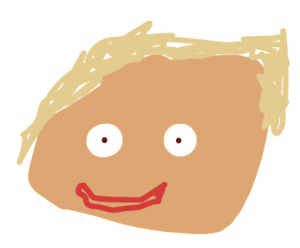
First graders at Holladay Elementary have been learning about goods and services (SOL1.7), so today, students in Ms. Wimmer’s class created animated services with ABCYa! Animate. First, we discussed the differences between goods and services and identified various jobs that provide services (fireman, policeman, doctor, nurse, dentist, teacher, barber, plumber, etc). The students chose a service they wanted to animate, and we headed over to ABCYa! Animate to draw a picture of a big head. We wanted it to be big so we could show the mouth moving. I explained that they could add a hat to show the uniform, but I don’t think anyone did that. Next, we used the Copy Cat button to make a copy of the face. We deleted the mouth (with the X tool) and drew another mouth in a different shape to make it look like it was talking. I showed them various mouth shapes for making different sounds (Oh, EE, L, F, Th, etc). We noticed that in some mouth shapes you can see the teeth or tongue. After making a couple of additional copies of the face with different mouth shapes, we pressed the Loop button (so it repeated) and exported it as an animated GIF. Now it was time to add the voice. We used Vocaroo to make an mp3 recording of the students explaining the services. Then we posted our animations and recordings on a Padlet. I combined them all into a video that you can see here. Later, I realized it might be easier to upload the animated GIFs to WeVideo and record a voiceover there. I’ll try that in another lesson!


3rd Grade Life Cycle Movies

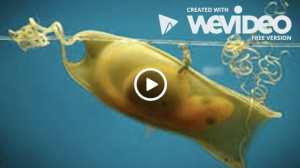
Third graders at Holladay Elementary have been studying animal life cycles (SOL3.8b), so today students in Ms. Haley’s class researched an animal life cycle of their choice and created a video about it. I asked them to pick an animal they were curious about. To help spark their curiosity, I asked questions like: Do sharks lay eggs? What does a baby firefly look like? Do jellyfish go through metamorphosis? Once they had their ideas I gave them a few minutes to research online. We discussed reliable and unreliable websites: encyclopedias, museums, and science websites would be reliable, whereas a personal website or blog would be less reliable. I also explained how to tell the difference between real photos and fake photos. A real photo will have several examples that look similar. For example we did a search for “jellyfish eggs” (they don’t lay eggs) and found an image of a fried egg jellyfish (which isn’t quite what we were looking for, but it’s an actual thing). A better search phrase would be “life cycle of a jellyfish” (we discovered that its life cycle is quite complicated). After the students gathered their facts and photos, we logged into WeVideo with their Google accounts. We switched to Storyboard mode, which is simpler, by clicking the three lines at the top left. I demonstrated how to import their photos with the green cloud icon, and we changed the title of our video. Next, the students recorded an introduction using the webcam feature. We dragged our photos from the media folder down into the timeline and recorded a voiceover. Finally we selected a theme with music, turned down the volume of the music so it didn’t drown out our voiceovers, and published our videos. You can see them all here.


Tags:


3rd Grade Famous Americans Come To Life!

Third graders at Varina Elementary have been learning about famous Americans (SOL3.11b George Washington; Thomas Jefferson; Abraham Lincoln; Rosa Parks; Thurgood Marshall; Martin Luther King, Jr.; and Cesar Chavez;). Today, students in Ms. Long’s class used SitePal to make them come to life. First, the students chose one of the famous Americans to represent, and we made sure that each person was picked by at least one student. Next, we did some quick research to find some facts and pictures of the person. I instructed the students to find a photo that showed their face up close so we could use it in the animation. We downloaded the image by right clicking it and selecting “Save image as.” Then, we went to SitePal and clicked the Demo button. We uploaded our image and followed the site’s instructions to add special markers to the eyes, nose, ears, mouth, and chin. Once that was done, the students were surprised to see the famous American blinking and looking around! To add the voice, students clicked the TTS (Text to Speech) tab and typed some sentences with good facts from their research. SitePal has customized male and female voices to choose from that read the text aloud. Finally, we used the Screencastify Chrome extension to record our animation. It’s amazing how realistic and life-like they look! You can see all the videos here.


4th Grade Moon Fractions

Fourth graders at Varina Elementary have been learning about the phases of the moon in Science (4.8c) and about fractions in Math (SOL4.2). Today students in Ms. Belcher’s class illustrated the fractional parts of the lunar cycle with ABCYa! Animate. First we divided the lunar cycle into eight parts and discussed the fraction representing each part. I pointed out that some of the fractions can be reduced, and they even provide names for some of the phases. For example, 2/8 of the cycle is called the first quarter because it is actually 1/4 of the way through. On each frame of their animations the students illustrated a different phase of the moon and wrote its corresponding fraction (new moon = 0/8, waxing crescent = 1/8, first quarter = 2/8 or 1/4, waxing gibbous = 3/8, full moon = 4/8 or 1/2, etc). We used the copy cat button to make sure that the moon stayed in the same place so that when the animation played, it would look like the phases of the moon were really happening. You can see them all here.


5th Grade Mean, Median, Mode, and Range

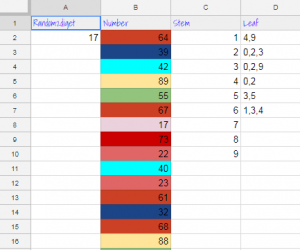
Fifth graders at Varina Elementary have been learning how to find the mean, median, mode, and range of a set of data (SOL5.16c). They have also been making stem-and-leaf plots (SOL5.15). Today students in Ms. Primrose’s class discovered how to accomplish these tasks using a Google spreadsheet. First, we opened a blank spreadsheet by clicking the shortcut button (the 9-squares at the top of a Google search page). We discussed how the spreadsheet grid is similar to a map grid, with letters along the top and numbers along the side. Each cell has a name based on its letter and number (such as B6 or D9). The cell name stays the same, even if the data inside it changes. I explained that we will be using the cell names to create our formulas for mean, median, mode, and range. This concept of cell names is a great way to help students understand variables (SOL5.18a). Next, we labeled each column: Random, Number, Stem, Leaf, Mean, Median, Mode, Range. I showed them how they could highlight the whole row by clicking 1 on the side and change the font, size, and color. We clicked in A2 and typed our first formula for generating a random 2-digit number: =RANDBETWEEN(10,99). Then we clicked in B2 and typed the number we saw in A2. When we pressed the Enter key we went down to B3 and typed the new random number we saw in A2. We continued doing that until we had about 20 random numbers down column B. To make it easier to create the stem-and-leaf plot, we added some conditional formatting to column B (highlight the column by clicking the B at the top, then click Format > Conditional formatting). We added 9 rules making the cell a different color if the number was between two tens (for example, make the cell red if the value is between 20-29). Now we clicked in the C column (Stem) and typed 1-9 down the cells for our stems. Since the leaves had to be next to the stems, we highlighted the D column (Leaf) and changed the alignment from right to left using the Horizontal align button at the top. Then we used our colors to help us count and enter the numbers. Finally, we used formulas to calculate the mean, median, mode and range in their respective columns:

=AVERAGE(B2:B21)
=MEDIAN(B2:B21)
=MODE(B2:B21)
=MAX(B2:B21)-MIN(B2:B21)

To show the value of using variables (cell names, like B2), I instructed the students to change some of the numbers in Column B. The formulas instantly recalculated their values! We shared our spreadsheets with each other on Schoology, and you can see them all here.


3rd Grade Measurement Books

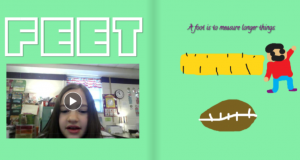
Third graders at Holladay Elementary have been learning about U.S. Customary and Metric units of measurement for length, capacity, and mass (SOL3.9). Today, students in Ms. Whittaker’s class created their own interactive measurement ebook. First we reviewed the different units and each student selected one. We tried to make sure that most of the units were chosen and that there weren’t too many duplicates. Next, we signed into BookCreator with the teacher’s class code. On the first page each student typed the name of their unit and drew a picture of it with the drawing tools. On the second page, they typed a sentence explaining what kinds of things are measured with that unit–big things, little things, light things, heavy things, liquids, etc. We also recorded a video, but those had problems loading, so next time I would probably just add a photo. On the last page students used the built-in image search to add photos of objects that could be measured with the unit. When they finished, the teacher combined the individual student chapters into one book that you can read here. (UPDATE: I taught a similar lesson to Ms. Cathcart’s class at Varina, and you can read their book here).


Tags:


2nd Grade Seasonal Adaptations Comics

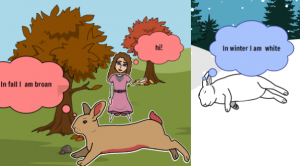
Second graders at Trevvett Elementary have been learning about ways that animals adapt to the changing seasons (camouflage, hibernation, migration, etc.)(SOL2.7a). Today students in Ms. Myers’ class created comics showing an animal of their choice adapting to the fall, winter, and spring. First we discussed different types of animals and what they do in winter. I demonstrated how to do a Google search if they didn’t know what their animal does. For example, I asked Google, “What to ladybugs do in winter?” (ANSWER: They hibernate in groups). Once we had our information, we went to StoryboardThat to make our comics. Since there are three panels in the comic, we made the first one fall, the second one winter, and the third one spring. The students dragged down scenes to represent their animal’s habitat. I showed them how to click the blue “Edit Scene” button to change the weather for the seasons. Next we clicked the Characters tab and went to Animals to find our animal. The Animals have an “Edit Pose” button that could be used to put the animal into different positions and change its colors. Finally we added “Textables,” or speech bubbles, with complete sentences explaining what the animals do to adapt to the different seasons. To save our comics, we took a screenshot using the Snipping Tool, then posted them to Schoology. You can see them all here.


Tags:


4th Grade Space Animations

Fourth graders at Trevvett Elementary have been learning about the causes of Earth’s seasons (SOL4.8b) and the phases of the moon (SOL4.8c) in Science. A great way to demonstrate understanding of these concepts is to create animations of the movements of the Earth and moon. That’s exactly what students in Ms. Towns’ class did today using ABCYa!Animate. First, we reviewed the four seasons and the eight phases of the moon with their respective vocabularies (revolution, orbit, rotation, axis, waxing, waning, gibbous, etc). We discussed the position of the Earth relative to the sun to cause the different seasons and the position of the moon relative to the Earth to cause the different phases. We also asked some questions to stir their curiosity… What season is it on the other side of the Earth? Do other moons have phases? Do other planets have seasons? Why does the same side of the moon always face the Earth? Does the Earth move clockwise around the sun? Does the moon travel counterclockwise around the Earth? Those last two questions are important for drawing the animations correctly (ANSWER: both move counterclockwise when looking down from above the orbit, but clockwise when looking up from below the orbit). Once we had our facts straight, we drew the first image of our animation. I instructed them to include a drawing of what phase or season is happening at that position. For the subsequent frames we copied the drawing, then moved or redrew the objects. When we finished all the steps, we turned on looping and slowed down the speed. Then we exported our animations and shared them on Schoology. You can see them all here. (UPDATE: I added some animations from Ms. Hirth’s 4th grade class at Holladay Elementary as well).


3rd Grade Loopy Cycles

Third graders at Holladay Elementary have been learning all about cycles: animal life cycles, plant life cycles, seasons, and the phases of the moon (SOL3.8). Today students in Ms. Ambrose’s class used a website called Loopy to demonstrate how one of these cycles works. First we reviewed the steps in each cycle and pointed out that most of them have four parts. The students could choose which cycle they wanted to illustrate. I explained that a cycle is kind of like a circle because it continues around and around. Then we went to Loopy and I showed them how to create each step of the cycle by drawing circles and labeling them. The students could also change the colors of each circle. Next, we drew arrows to show the order and relationships between each step. We discussed why the order was important. Could the steps happen out of order? The way Loopy works is you click up or down arrows in each circle and see how having more or less of that part influences the other parts (it was designed to study simulations). So it illustrates life cycles best. If there are more eggs there will be more butterflies or frogs, but if the number of eggs goes down, so does the number of adults. You can change the relationships, too, by making the arrows positive or negative. That would be great for illustrating food chains and food webs (if there are more predators, there would be less prey – a negative relationship, but if there are more prey, there would be more predators – a positive relationship). When we were finished, we published our Loopy projects, and it provided a link to shorten with Bit.ly. We shared our links on Schoology, but you can see them all here.


Kindergarten Martin Luther King, Jr. Animations

Yesterday was Martin Luther King, Jr. Day so kindergarten students at Holladay Elementary have been learning about his life and his famous “I Have A Dream” speech. Today students in Ms. Connolly’s class created animated pictures of Martin Luther King, Jr. speaking. First, we went to ABCYa! Animate, and I explained that we would draw two pictures of Dr. King. One would have his mouth in one shape, and the other would have his mouth in a different shape. When we played the pictures together, one after another, it would look like he was talking. In order to draw him accurately, we looked at photos of him. We saw that he had brown skin, black hair, and a mustache. The students tried to draw him on the first frame, then we copied the frame (using the copycat button), deleted his mouth, and redrew it differently. Some students made the mouth open and closed. Others added teeth or a tongue. I showed them how to turn on looping (so it keeps playing), and we exported our animations as .gif files. Finally, we uploaded them to a Padlet so we could see everyone’s. You can play audio from his speech while viewing the animations, and it will look like Dr. King is actually speaking!