Category: Kindergarten

Kindergarten Beginning Sounds Pixie
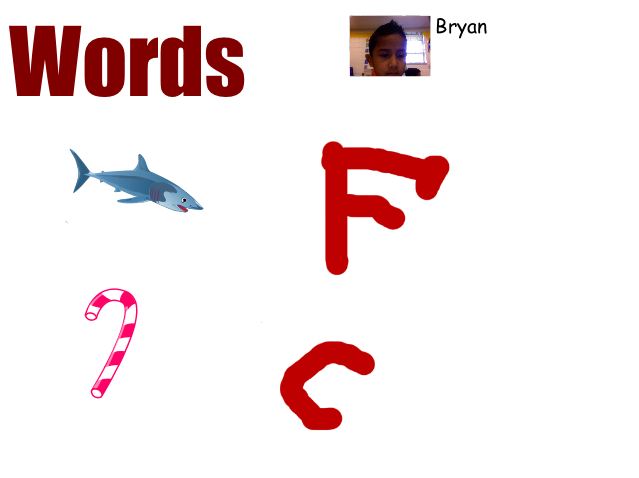
KBeginningSoundPeople outside of work are often surprised when I tell them that I teach kindergarten students how to use the computer. But I tell them that kindergarteners often catch on very quickly, more quickly than adults sometimes. It certainly was true today for Ms. Miller’s kindergarten students at Holladay Elementary. It was my first lesson with them using Pixie, and they did an impressive job. They have been studying beginning sounds, so I showed them how to find pictures of two different objects of their choice in the Stickers library. Then they used the paint brush tool to draw the letter each object started with. Since each child selected a different picture, they couldn’t copy each others’ like they may have been able to do with a worksheet. That’s one of the advantages of technology over worksheets because of the ability to customize it for each child based on their personal choices. We also practiced typing their names (using Shift to make the initial capital letter), and they added a photograph of themselves using the webcam tool. Finally they recorded their voices telling the name of the object and it’s beginning sound. You can see a couple of student examples by clicking here.

Tags:


Kindergarten Frog Life Cycles

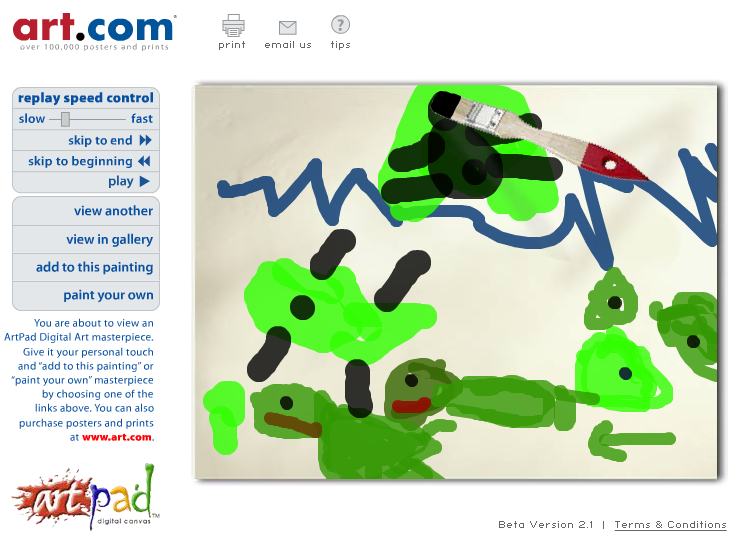
Screen shot 2013-08-14 at 12.48.18 AMToday the kindergarteners in Ms. Brown’s class at Holladay Elementary showed that when students are given many opportunities to use the computers, they can do amazing things! Sometimes I can’t even believe it. In just under an hour, they were able to create a digital drawing of the frog life cycle using ArtPad, record their voices explaining the cycle using a site called RecordMP3, and upload their links using a Google Form. You can see their links by clicking here. My job afterwards was to combine their mp3 recordings with their drawings to make a movie. You can see their finished movies here. But you might also want to check out the direct links to their Artpad drawings because Artpad has a cool feature where it shows the painting as it happened. So it’s a great way to create a simple animation.


Kindergarten Living & Nonliving Keynotes

Screen shot 2013-08-07 at 12.14.12 PMKindergarten students in Ms. Fennell’s class at Laburnum created their own Keynote presentations about living and nonliving things today (SOL K.6). Just as with any skill, students have to have a good grasp of the basics before they can apply their knowledge to new situations and projects that require higher-level thinking and problem-solving. So the earlier you can teach the basics of various programs, the sooner students can start doing more advanced tasks with them. It’s amazing what even the youngest students can do with a few simple instructions! For this project, they chose their own themes, added a text box, and typed their title with capital letters. Then I explained that their job was to find pictures on the Internet of a living and a nonliving thing of their choice. I showed them how to do a Google Image search and drag their pictures onto their Keynotes under the correct headings. They were very creative in the types of images they searched for! Allowing students to find their own pictures, of course, requires teacher supervision and guidance, but it often leads to interesting, thought-provoking discussions. Like one student found a picture of Sponge Bob and classified him as a nonliving thing, while another student found a drawing of a pig and classified it as a living thing. Aren’t they both cartoon representations (nonliving) of living things (sponges and pigs)? So what’s the difference? Comparing these pictures and asking students to explain why they classified them the way they did helps clarify the concepts in their minds. Finally they added animations of their choice and recorded voiceovers for their presentations. It would be good to ask them to explain why their picture is living or nonliving in the recording, but due to time constraints (we did this activity in under an hour), we just stated the obvious. Take a look at their projects by clicking here.


Tags:


Kindergarten Spring Video

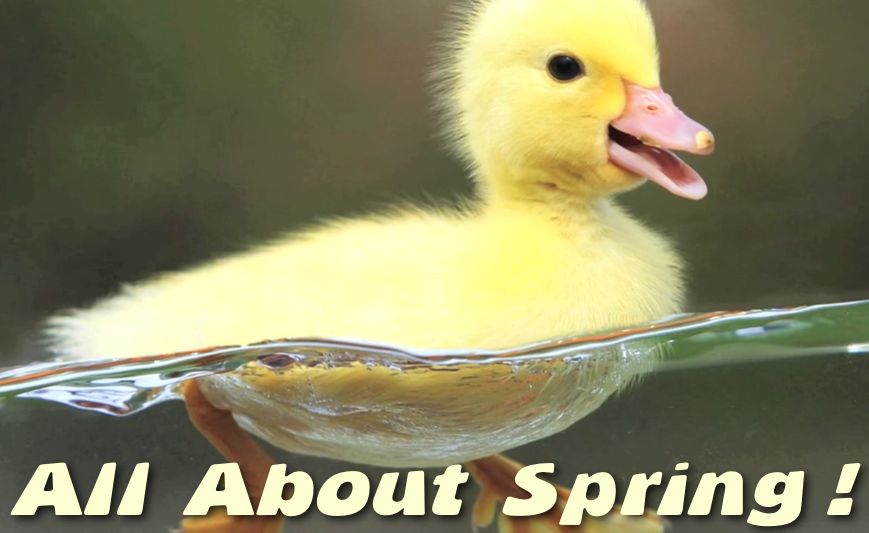
Picture 1Kindergarten students in Ms. Brown’s class at Holladay Elementary have been learning about the spring and how it affects the weather, plants, and animals. So today I showed them how to create a movie about Spring using iMovie. First we opened up iMovie and they recorded themselves saying something like, “Hi, my name is Whatever, and I’m going to tell you all about spring.” I showed them how to highlight the good part of their video and drag it into the project (that is always the most difficult part of iMovie for students to understand). Next we generated a list of search terms for finding spring pictures. They came up with words like sun, flower, chick, duckling, lamb, rain, butterfly, etc. They selected one word they wanted and I showed them how to do a Google Image Search. I thought they would be able to drag the picture right into iMovie, but since they couldn’t, I had to help with that part. (I discovered that feature is in a later version of iMovie so I had to drag the picture into a folder and then drag it into iMovie). Then I showed them how to record a voiceover telling about the picture. Finally they exported their videos as QuickTime movies (yep, they did it all by themselves!). Later, I combined all their videos into one movie and added a soundtrack. You can see it here.


ActivEngage in 2nd Grade

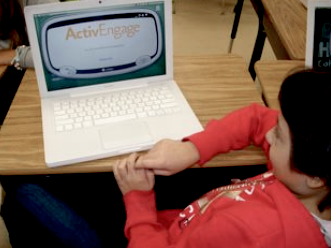
activeRecently I have been training the staff at my schools how to use the ActivEngage software. It turns the cart laptops into a student responders so that teachers can get instant feedback. You can learn more about it here. I’m happy to do a demo lesson in your class if you’d like to see it in action. Today I showed 2nd graders at Laburnum how to use it. I asked them a few questions about the famous Americans they’ve been studying (SOL2.11) using a simple GoogleDoc but then I sent them to TodaysMeet to generate their own questions. You can see some of their questions here. Even though ActivEngage works with ActivInspire flipcharts, you can actually use anything (PDFs, Word documents, websites, etc) to display the questions you want to ask. You just need the ExpressPoll program to be open so that you can receive the students’ input. Another free option that’s available if you want to implement a student response system in your class is to try Socrative. You set up a quiz on the website, and then then your students log in with the link to your class. They can respond in many different ways and even play online competitions.


Kindergarten Magnetic & Nonmagnetic Objects

Picture 3I often like to use web tools with kindergarten students because if they can work with kindergarteners, then they can work for anyone! So today at Laburnum Elementary I tried out a couple of the sites that I used last week with the 2nd graders, and the kindergarteners in Ms. Orr’s room did a fantastic job with them! They have been studying magnetism (SOL K.3), so first we discussed what makes something magnetic or non magnetic. Then they went to DrawSave and drew a magnetic or a nonmagnetic object of their choice. They saved the pictures themselves and they only needed a little help copying the weblink. Next they clicked one of two links (magnetic or nonmagnetic depending on what they drew) to go to an online Padlet board. Adding their picture was as simple as clicking on the board and pasting in the weblink. The students really enjoyed seeing each others’ pictures and it lead to some good discussions as they tried to figure out what their friends drew (I later added the descriptive words since I didn’t know what some of them were either). You can see their work here: Magnetic and Nonmagnetic. The students caught on surprisingly fast and in just one hour many of them had drawn and uploaded two pictures. It was a great way to review magnetism, especially since it’s online and students can look at it at home with their families.


Kindergarten Coin Match Up

ChristianThe kindergarten students in Ms. Miller’s class at Holladay have been learning about the coins and their values. Pixie is a great program for reviewing the coins because there are coin stickers in the clip art library. However, this class was already familiar with Pixie, so I wanted to try something new with them. I was impressed with ABCYa’s Animation Site, so I figured I’d use their Painting Site and see how it went. I like it because it’s similar to Pixie with drawing tools, text, stamps, and clip art, plus you can save your pictures as a JPEG file. However, sometimes you can’t tell how a website will work until you test it with a whole class, and unfortunately, I ran into some problems with saving that I’ll explain later. Most of the site worked very well. I showed the students how to use the clip art to get a picture of a child that looked like them. Then they typed their names. They used the stamp tool to stamp out one of each type of coin (a penny, a nickel, a dime, and a quarter). Next, for the coin values, we used the number cupcakes from the clip art library. Finally, the students used different color paints to draw a line from the coin to its value. To save, we clicked the save button and navigated to our folders, but when we checked, many students’ pictures were not saved this way. So we took screenshots (Apple + Shift + 3). I uploaded all their pictures to Comemories and you can see them here.


Kindergarten Timelines About Martin Luther King, Jr.

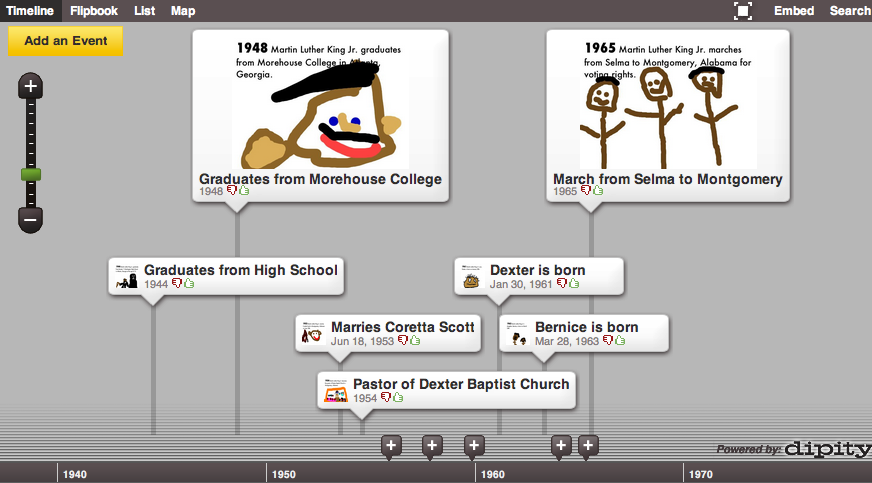
timelineKindergarteners at Holladay Elementary have been learning about Martin Luther King, Jr. since his birthday is this month (SOL K.1b). Today we created a timeline of his life using Dipity (site no longer works 4/2/2020). Dipity makes it easy to create a cool, interactive timeline (you can see ours embedded below – deleted 4/2/2020). First I took them to my Martin Luther King, Jr. site to hear his speech and see a sample timeline. Then I gave them each an event in his life to illustrate using Pixie. You can download the folder of events by clicking here. I also showed them various photos of each event so they could get some ideas for their drawings. You can download the folder of pictures by clicking here. After the students drew the pictures, I showed them how to export them as a JPEG file so we could upload them to Dipity. Once they were uploaded, Dipity does some cool things with the information. You can view it as a timeline, of course, but you can also view it as a flipbook, a list, and even a map showing where the events took place! You can access those different views by clicking the links at the top left of the timeline. You can see our timeline here, or embedded below (links deleted because they no longer work 4/2/2020)


Kindergarten School Maps

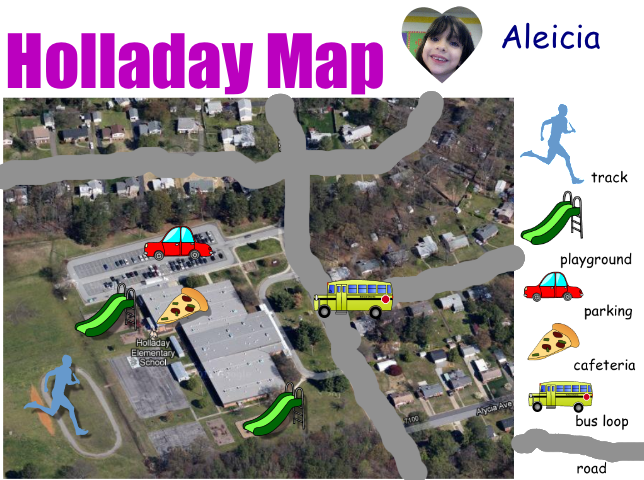
kmapKindergarten students at Holladay Elementary have been learning all about maps (SOL K.4 & K.5) so today they created simple maps of their school. First I showed them how to find their school in Google Earth, and I pointed out that maps show how places look from above. Next we opened a Pixie template that included a screenshot of the school from Google Earth and a few map symbols to include. You can download the template with the symbols by clicking here (just add a picture of your own school). Students identified the places in the school (playground, cafeteria, track, etc) and dragged the correct map symbols to the map. We discussed the purpose of the map key or legend, and I explained that they would be adding their own symbol to the key. Using the paint brush tool, the students traced over the roads in the picture, then they added a mark in the key to identify the symbol (color) they used for the roads. Finally the students added their own photo and name. You can see a student sample by clicking on the picture.


Kindergarten Martin Luther King Jr. Videos

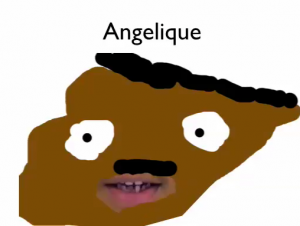
MLKSampleKindergarten students have been learning about Martin Luther King, Jr. since his birthday is coming up (today is actually his real birthday, but we’re celebrating it on Monday). They have learned that Dr. King gave many speeches, so today they recorded a speech of their own, saying things that he would say. Then, to make it look like he was actually talking, we created a mask in Pixie. They painted his face very large, gave him a mustache, and then erased the part where his mouth was. I showed them how to export it as a PNG file with a transparent background. Next I put their video into Keynote and dragged the Pixie mask on top of it, trying to line up the hole in the mask with their talking mouth in the video. I exported the Keynote as a QuickTime movie and posted a few online. You can see some of their examples here: Angelique, Duncan, Paul.