Category: 5th Grade

4th Grade Data Collection
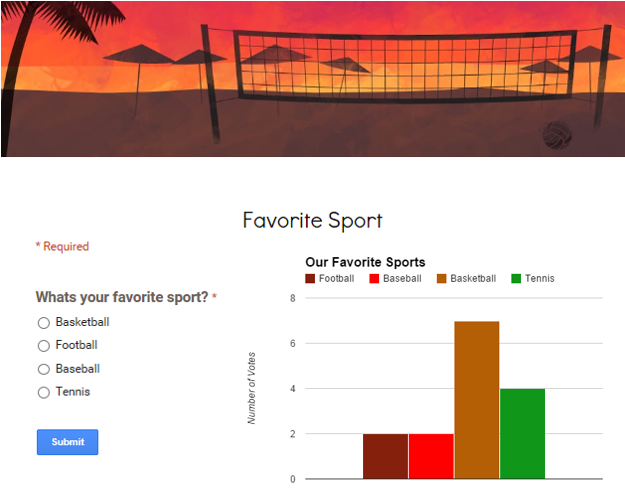
4thWhiteFourth graders at Davis Elementary are learning about data collection and graphs (SOL4.14), so today, Ms. White’s students collected data from their classmates using Google forms. They chose a topic of interest to them and selected their own Google form template. Then they wrote their question, such as “What is your favorite thing to read?” or “Who is your favorite singer?” and provided four choices. I showed them how to load the live form, then they traveled around the room completing each others’ forms. At the end of the process, each student had between 16-20 responses. Now it was time to do some data analysis. They looked at the Google spreadsheet with the responses and counted the votes for each choice. Next they added that information to their spreadsheet and graphed the results. I showed them how to customize the fonts, colors, and labels of the graph. You can see all their graphs and forms by clicking here.

5th Grade Rocks Slideshow

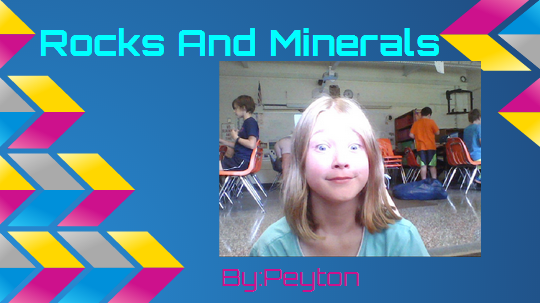
5thRocksFifth graders at Davis Elementary are currently studying rocks and the rock cycle in science (SOL5.7a,b). Today Ms. Elsea’s students created Google slideshows with animations to share what they have learned. First they logged into their Google accounts and created a Google slideshow document. I showed them how to customize their slides in a variety of ways: they could change the template or background color, change the font, size, and color, or even use a photo as the background image (some students really liked that). Next they created several slides showing the different types of rocks (igneous, metamorphic, sedimentary), examples of each, and a diagram of the rock cycle. They added photos using Insert > Image > Search. Some students also created their own rock cycle diagram using shapes like Breana. The last step was to add transitions and animations to the slides. I pointed out that those special effects add a unique feature that regular documents don’t have, which is the ability to engage their viewers. For example, a picture of the rock can appear first, and the viewer can guess what type of rock it is before the answer appears. Or the viewer can try to guess the next step in the rock cycle before it appears. You can take a look at all their slideshows here (and here are some from a similar lesson I taught at Holladay).


5th Grade Distributive Property

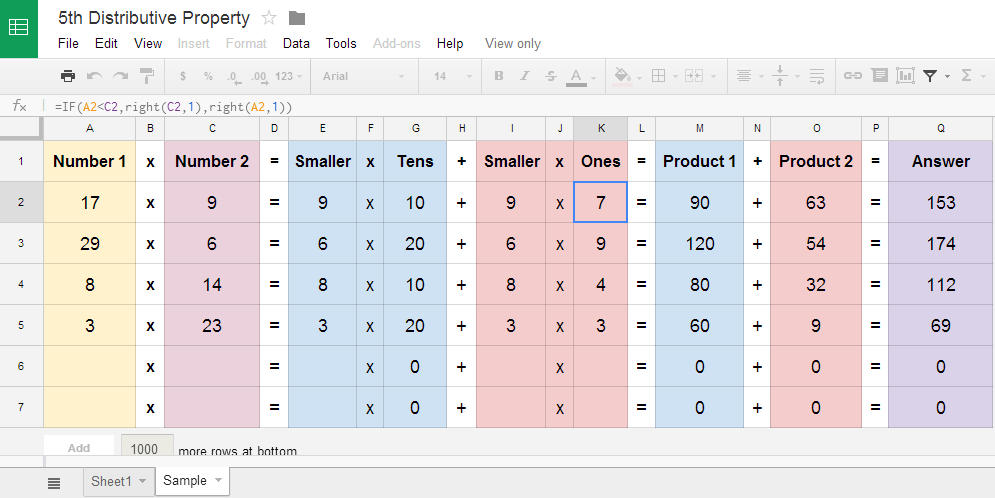
5thDistributiveFifth graders at Laburnum Elementary have been learning about the distributive property of multiplication (SOL5.19), and today students in Ms. Conway’s class broke the process down into its steps using a spreadsheet. First they logged into Google classroom and I gave them a template to get started. I explained that formulas are what computer programmers use to solve math problems quickly. Formulas also give students practice with using variables, another 5th grade math concept (SOL5.18). So they started by typing a variety of 2-digit and 1-digit numbers into columns A & C. It didn’t matter which cell they typed the 2-digit or 1-digit numbers, and I told them to mix them up. All the rest of the cells would be filled in automatically by our formulas. The first formula in column E would identify which of the two numbers was the 1-digit number. I helped the students figure out that the formula would be =IF(A1C2,left(A2,1)*10,LEFT(C2,1)*10) which basically finds the left digit of the 2-digit number and multiplies it by 10. Once I helped them with those two formulas, they could figure out the other formulas on their own without much help. The magic happens when they click and drag the blue dot in the corner of the formula cells down through the other cells. All the answers automatically pop up! The students really enjoyed seeing the results of all their hard thinking… and now they have a better understanding of the distributive property. You can use the template with your students by opening the template and clicking File > Make a copy. Sheet 2 has a finished sample for your reference.


5th Grade Video Book Reviews

Screen shot 2014-03-25 at 9.35.55 AMFifth graders at Holladay Elementary have been writing reviews for books and posting them to their Edmodo page. The media specialist, Ms. Teague, and the 5th grade reading teacher, Ms. Harris, wanted to expand their audience. Their idea was to publish short student videos of the book reviews that could be linked to each book on the library’s Reading Olympics website. I also suggested linking them with a QR code on each book. Then other students in the school could scan the QR code with a mobile device and watch the book review before deciding whether or not to read the book. So today we had students from each of the three fifth grade classes working with partners to create their videos in Photo Booth. We discussed the importance of showing the book and speaking in a lively manner. One problem with recording in Photo Booth is that the image is backwards so it reverses the words on the book. You can fix it by importing the videos into iMovie, clicking the Crop tool, and flipping the video. However, we didn’t have time to do that today. You can see some of their videos by clicking here or on the school’s Reading Olympics page. There are many free sites for easily generating QR codes: Site1, Site2, Site3, Site4. You could place QR codes around your room for students to scan to visit websites, view presentations, or watch videos. They can even be dynamic where the code stays the same but the link changes weekly (so you don’t have to generate and print a new code). Let me know if you’d like me to help you with a similar project.


5th Grade Cell Comics

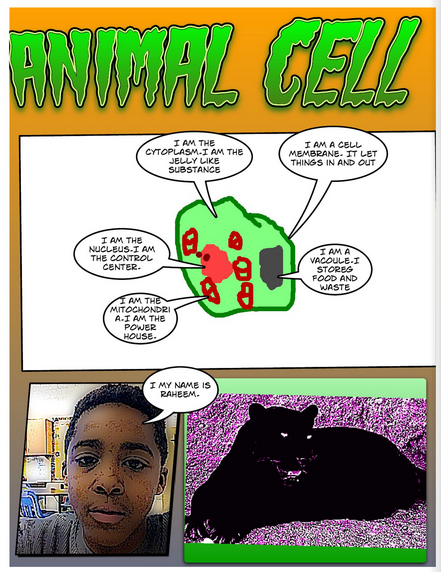
cellFifth graders in Ms. Payne’s class at Laburnum Elementary have been learning about plant and animal cells (SOL5.5). Today they made a comic book to review the different parts and their functions. The students could chose whether they wanted to illustrate an animal or a plant cell. They started by drawing the cell and its organelles in Pixie. Then they exported it as a PNG file and dragged it into a Comic Life document. Next they used the speech bubbles to make each part of the cell “talk” and describe its function. I stressed to them the importance of writing complete sentences with correct grammar and spelling. Then they did a Google Image search and found a photo of a plant or animal to accompany their cell diagrams. They also used the built-in webcam to take a picture of themselves to add to their comic. I combined all the pages together into one document, saved it as a PDF, and uploaded it to Youblisher. Youblisher is a site like Flipsnack that allows you to upload PDFs and it publishes them as online flipbooks. You can see their finished comic here.


5th Grade Interactive Graphs

Screen shot 2014-03-17 at 2.48.04 PMToday 5th graders in Mr. Peters’ class created interactive graphs using Numbers. They started out with a template that you can download by clicking here. They picked a topic they were interested in graphing, such as favorite sport or favorite candy and wrote the title. Then they went to Shapes, created a shape, changed the color, and copied and pasted it about 20 times so there were enough counters for each student in the class. Next they went around the room and clicked and dragged the shapes on their classmates documents to vote on their favorite things. When they got back to their own document, they counted the markers for each choice and typed in the number. Then I showed them how to graph the data. For the interactive part, I told them to come up with a multiple step problem about the data that would challenge their peers. For example, one student came up with the question “How many more people like Skittles and Twix than M&Ms and Hersheys?” Next I taught them how to create a formula that would check the answer. It went something like this: “If the student response equals the real answer, then say ‘Way to go!’ Otherwise say, ‘You need to study more!'” They could come up with their own replies, and some were rather creative. Finally they tested their formulas by switching with a friend and solving each others’ problems. You can download a couple of student examples here: Amber and Jamilah.


5th Grade Coding with Scratch

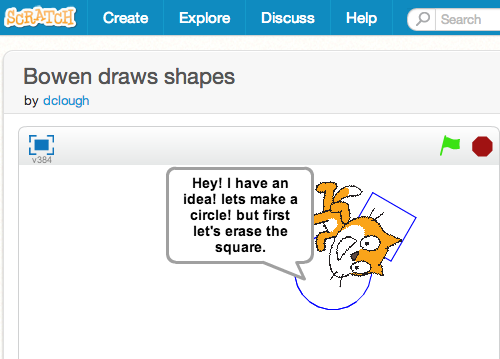
scratchComputer Science Education week is coming up (Dec 9-15) and the goal is to give students the opportunity to practice coding and computer programming in a fun, simple way. The motive behind it is that computer programming jobs continue to be in high demand, but few students are exposed to writing code in school. So the Computer Science Education Week website has a cool video of famous people talking about the importance of learning code and they give ideas for teaching an Hour of Code in school. The teachers at Davis Elementary want to participate in the Hour of Code, so I’ve been introducing them to a kid-friendly program developed by MIT called Scratch. It’s already installed on the student computers. Today I was showing the fifth graders in Ms. Elsea’s class how to use it. First I showed them a sample I created here. It’s not super exciting, but it shows how Scratch can not only animate, but it can take user inputs and do calculations. I gave the students about 5 minutes to just explore the program and they caught on very quickly. Next I gave them a task to program the cat to make a square. I told them to be as succinct and efficient with their code as possible. Maggie’s code won because she figured out how to make a square in just 7 lines of code. On the link you can click the “See inside” button to see the code she used. Some of the students went on and made their cats speak, sing, or even change colors. Take a look at Bowen’s code to see what I’m talking about. If students can do that in just one hour, imagine what they can do with more practice. I heard a couple of students say they were going to download Scratch at home, so I look forward to seeing what they create!


Tags:


5th Grade 3-D Ocean Model

Screen shot 2013-12-08 at 3.36.44 PMFifth graders in Ms. Payne’s class at Laburnum Elementary have been studying the ocean (SOL5.6), and she wanted me to help them review the different parts of the ocean floor. One of my goals this year is to help our students improve in math, so I’ve been trying to incorporate math into as many of my lessons as possible. I figured we could use the 3-D area graph in Numbers to create a model of the ocean and then import it into Keynote to animate it like this example. I wanted the students to gather their own data, but just graphing that wouldn’t produce a good looking model. So I created a template that you can download by clicking here that takes the data they enter and turns it into a model of the ocean floor. The students used Google Earth to gather the data for the graph. First I told them to find a continental shelf and measure the depth. Google Earth automatically tells the ocean depth or land elevation for whatever spot your mouse is hovering over… just be sure it’s in meters and not feet or my formulas won’t work (you could add a bit more math by having them convert the units). Next the students find a continental slope, continental rise, abyssal plain, and sea mount to measure. After entering all that data, I told them to do some research online to find the depth of the Mariana Trench. I gathered a bunch of sites for oceans research into a BundleNut that they could use, but one of the coolest infographics I found was this one. Once they entered that last bit of data, the 3-D graph should look like a model of the ocean floor. Then they copied the graph and pasted into a Keynote to animate it. Keynote has a sharp-looking animation for graphs called “3-D grow.” The students used text boxes to label the different parts, and the final step (if we got to it, which we didn’t) would be to record a voiceover explaining each part of the ocean floor.


5th Grade Multiplying Decimals

multiplyformulasFifth grade students in Ms. Bailey’s class at Davis Elementary have been learning how to multiply decimals by two-digit numbers using paper and pencil (and sometimes calculators). Today I showed them how to write formulas in a Numbers spreadsheet that will do the same thing. This activity helps them break up the process into logical steps so they can see how it all works together. First I gave them a template that you can download by clicking here. They typed in a number of their choice with a decimal (to the hundreds place) and another 2-digit number to multiply by. Next I showed them how to write the first couple of formulas to multiply the ones digit in the bottom factor by different digits in the top factor. Once they got the hang of it, they were able to complete the rest of the formulas on their own. Then we wrote formulas for multiplying the tens digit of the bottom factor by each digit in the top factor. It was a great review of place value and the distributive property! The next step was to add up all the products to get the final answer. Finally, we wrote a formula multiplying the two numbers to check if it equaled the sum of all the products of the individual digits. It really seemed to click with the students. The only problem was, when they wrote a new number, they would have to rewrite all the formulas. So afterwards I came up with another activity that you can download by clicking here. It breaks up any number they write into place value digits (that was hard to figure out!). Then they can write formulas that will work with any number.


Tags:


5th Grade Graphing Latitude Temperatures

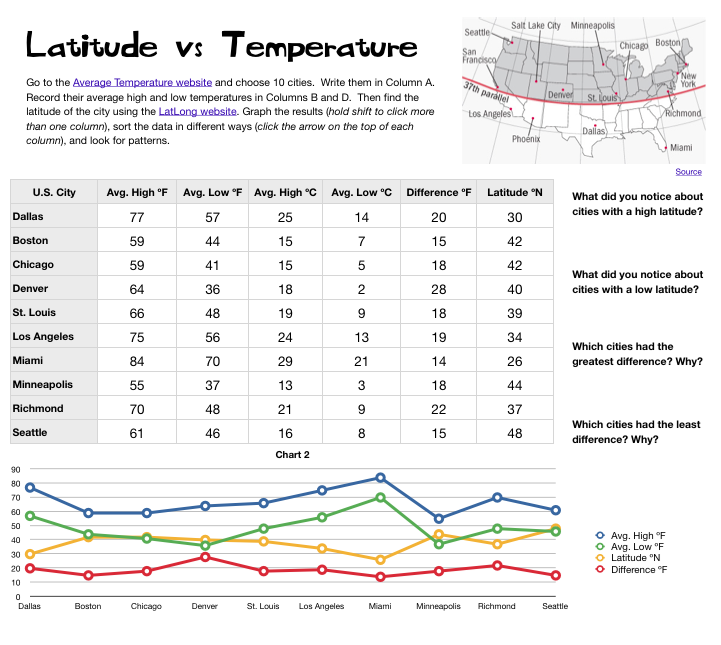
5th LatVsTemp PictureMs. Elsea at Davis Elementary had a great idea to challenge some of her math students. She wanted them to research the high and low temperatures of cities at different latitudes in the United States. Then she wanted them to compare the data, look for patterns, and try to infer reasons for the differences. So she asked me to help them with the graphing part. I created a Numbers template for them to use that you can download by clicking here. After students entered their data, I showed them how to graph it as a line graph. Even though a line graph is traditionally used for showing changes over time, it works well with this data since there were several things we were looking at and the relationships wouldn’t have been as obvious with a bar graph. Once we graphed the data, some relationships were very clear. As predicted, cities with the lowest latitudes had the highest temperatures. But one of the most surprising pieces of data was that cities in the mid-latitudes had the greatest differences between their high and low temperatures. We discussed possible reasons for that. Then we tried sorting the data in different ways. I showed them how they could click a column heading (like high temperature or latitude) to sort by that category. They were surprised how their graphs automatically changed as well. This lead to more interesting discussions. Overall, the students learned a lot about the relationship between latitudes and temperatures that they can take back to their classmates to share with them.