Category: 4th Grade

4th Grade Civil War People
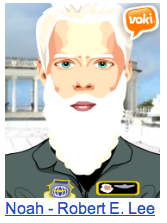
noahFourth graders in Ms. Cousins’ class at Davis Elementary have been studying the Civil War for several weeks now (SOLVS.7), and today they wanted a fun way to review the important people. I listed all of them on the board and the students chose one that they wanted to research. I explained that they would be making animated characters using Voki and they should try to make them look as much like the real people as possible. So part of their research involved looking at old photos of them. I showed them how to change the skin, hair, and eye color, and how to add different backgrounds and clothing. Once their character looked relatively realistic, they clicked the voice tab and chose text to speech. They typed a few facts for their person to say, explaining who they were and their important accomplishments. Then I showed them how to pick an accent, which is one of the best parts! Another thing I really like about Voki is that students can publish their creations without having to create an account. So each student published their animation and saved the link to their folder. I put all the links together on one Google Doc that you can see here.
4th Grade Probability Spinners

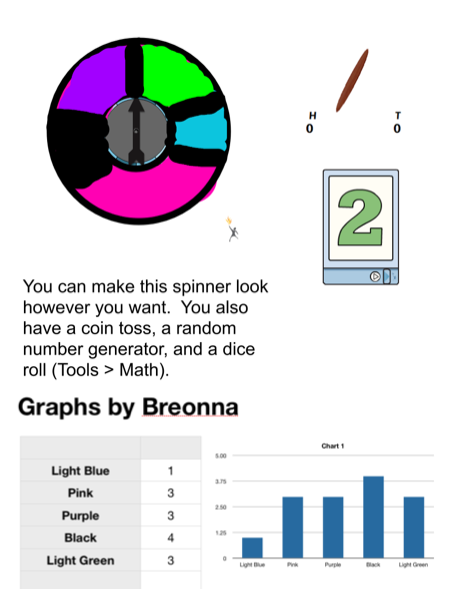
probabilityMs. Thomas’s 4th graders at Varina Elementary have been learning about probability and predicting the outcome of events (SOL4.13) so today we created digital spinners to test our predictions. A gave them a Promethean flipchart that you can download by clicking here. It has a pre-made spinner, a coin toss, and a random number generator. I showed the students how they could use the paint tools to make the spinner have different sections of different colors. If they made the sections different sizes, we discussed how that would affect their predictions of the spinner’s outcomes. Next we opened a Numbers template (found in the same download link above) so they could record the results of their spins. The spreadsheet automatically generates a graph based on the data, but you could delete that if you want your students to create the graph themselves. Your students could also add a text box telling about their predictions and whether they were right or wrong. If you’d like to see a student example, click the image to see it larger (Breonna’s original files are also included in the download).


4th Grade Fractions Flipchart

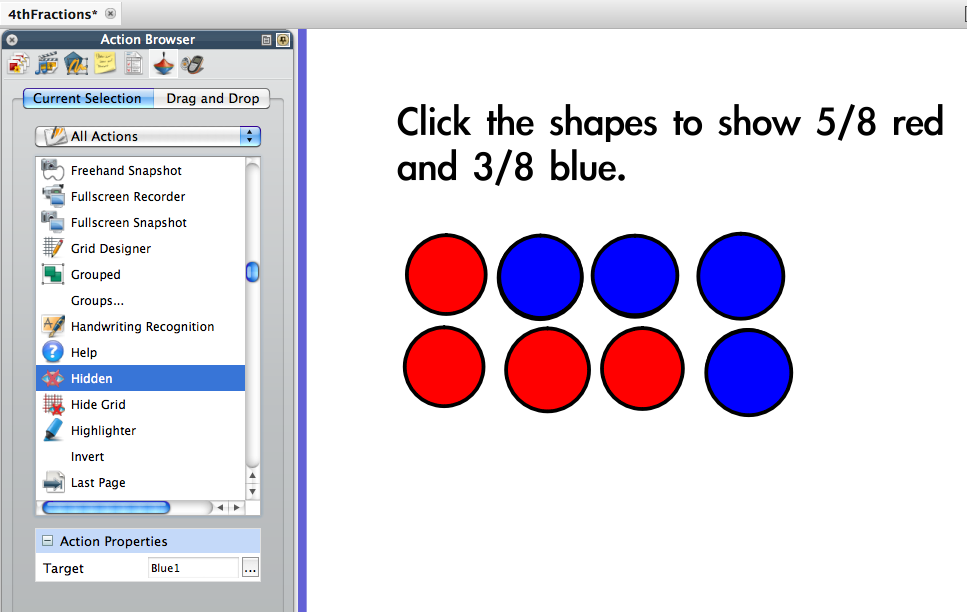
ScreenshotFourth graders at Davis Elementary have been preparing for the upcoming SOL tests. Some of the questions are what is called TEI, or Technology Enhanced Items. They have been practicing these types of questions using pre-made Promethean flipcharts. Today I wanted to show students in Ms. White’s class how they could make their own TEI samples for each other to solve. I only had 30 minutes, so it was a quick lesson. Our goal was to create a fraction question where the user would have to click on some shapes to change their color so that picture represented a fraction. We opened a blank flipchart and then added a shape of their choice. I showed them how to change the color and outline of the shape. We also gave it a name in the Properties Browser (like “circle1”). Next they made as many copies of the shape as they wanted (less than 10 though). Now it was time to put identical shapes of a different color on top. So we made another copy of the shape, changed its color, duplicated it, and placed the duplicates on top of the first shapes. Adding the interactive part was a little trickier. The students had to go to the Actions browser and find the “Hidden” action. They added this action to each of the top shapes, making the Target the shape itself so that when it was clicked it would become “hidden” revealing the shape below. Finally, they added a text box and typed a question to solve, such as “Click the shapes to show 2/5 orange and 3/5 yellow.” You can download a sample flipchart by clicking here.


4th Grade Equivalent Fractions

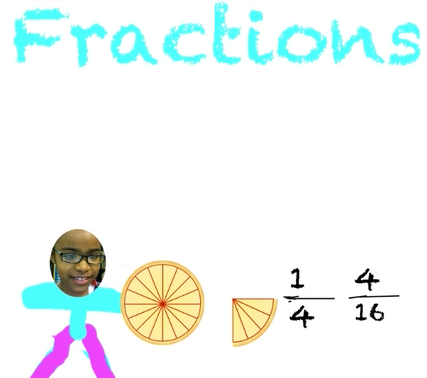
EquivFourth graders in Ms. Thomas’s class at Varina Elementary have been learning about equivalent fractions (SOL4.2b). Today I showed them how to make equivalent fraction videos using Pixie. First they created a picture of themselves using the built-in camera and the paint tool. Next they used the fractions clip art to show a whole and a fraction of that whole. Then they used the text box tool to type the fraction and its equivalent, and they recorded a voiceover explaining how the fractions were equal. I showed them how to go to File > Duplicate Picture and create a few more pictures with voiceovers showing various fractions of the same whole. Finally they exported their pictures as one video by clicking Share > Video > Create. You can take a look at a couple of student examples: Kendall showing fractions of a pizza and Krystal showing fractions of an orange.


4th Grade Virginia Studies Timeline

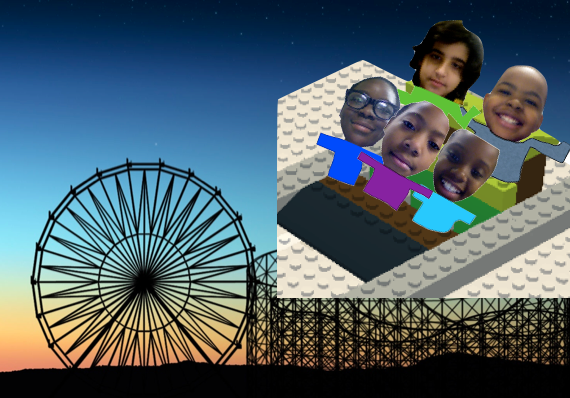
coasterI’ve been working with a small group of fourth grade students from Ms. Daniel’s class at Laburnum Elementary on their Henrico21 project. Today we were able to finish it. It all started about a month ago when the students came up with the idea of making a “Roller Coaster through the Curriculum” to help other 4th graders review for the upcoming SOL Tests. Each student chose a period of Virginia history and they were instructed to find 5 important events from that period to include on the timeline. They gathered their information and images from a variety of online sources and collected them into a Google Doc. They also recorded videos of themselves introducing their topics using the Photo Booth roller coaster background. Kenan used BuildWithChrome to make a virtual Lego model of the roller coaster. Once their research was complete, they used two websites to build the timelines. The first was JSTimeline which automatically generates a timeline from the Google Doc data. The second one was Dipity (this site no longer works 4/2/2020) which not only generates a timeline, but it also turns the data into a flip book and an interactive map! Finally they created a webpage to share their timelines with the other 4th grade students using a site called Yola. Their project turned out great! You can take a look at it here (link was removed because it no longer works 4/2/2020).


4th Grade Revising with Google Docs

Screen shot 2014-03-31 at 9.42.52 AMToday I showed the fourth grade students in Ms. Cousins’ class at Davis Elementary how to log into their new Google accounts. They are preparing for the writing SOL test so I wanted to show them how to use Google Docs to help with editing and revising their writing. We created a new document and gave it a creative title. I told them to write a plain boring sentence, like “I have a cat.” Then I showed them how to use the Research Tools to find a picture to represent their sentence. When we dragged it over into our document, I pointed out that Google automatically generates a citation for the photo. Next we discussed the need for revising our writing. Using my example, we can’t picture this cat in our minds. We don’t know what it looks like or any details about it. So sometimes it helps to get someone else’s input. I showed them how to share their documents with a neighbor by entering their neighbor’s email address and then how to find those shared documents in their document list. Each student picked a new color and typed suggestions to their neighbor for writing a better sentence. Then the original author selected a different color and, incorporating their peer editor’s suggestions, rewrote the sentence. That’s all we had time for today, but now they are equipped to use Google Docs to help with the revision process. If you’d like to look at some student examples, I listed the links here.


4th Grade Fractions Animations

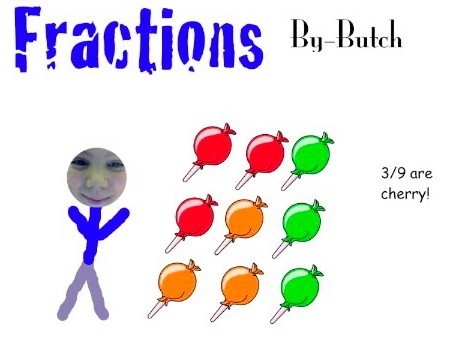
butch Fourth graders in Ms. Cousins’ class at Davis Elementary are just beginning their fractions unit (SOL4.2), so today we used Pixie to make animations showing fractions as part of a group in order to determine their prior knowledge. The students started by drawing a picture of themselves with a set of identical objects (such as 4 cherry pies). Then they duplicated the picture (File > Duplicate Picture) and added a few more different but similar objects to the group (like 3 peach pies). They could duplicate the picture, adding more sets to the group, as many times as they wanted. Finally we added pictures at the end identifying the fraction of the group each set represented. The students added a voiceover to each picture explaining the steps. This made very clear to us which students understood the concept. For example, one student drew a picture of 2 cookies and 1 car (so we could tell he wasn’t clear on making similar sets). Then he wrote the fraction as “3 2s” (in his voiceover he said “three twos”). So that let the teacher know he probably wasn’t ready to start comparing fractions (SOL4.2) and would need some remediation. I won’t post his example, but here are some students who did understand the concept and are ready to move on: Butch, Hannah, and Sryia.


4th Grade Technology Enhanced Items (TEI)

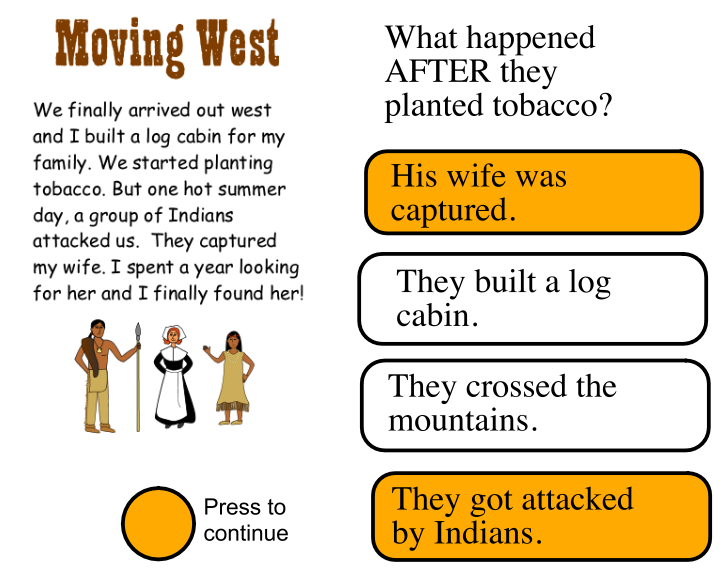
Screen shot 2014-03-26 at 11.22.32 AMFourth graders in Ms. Tonello’s class at Holladay Elementary are preparing for the upcoming SOL tests with Technology Enhanced Items (TEI). There are several pre-made flipcharts that the teachers have been using with their students for practice, but Ms. Tonello wanted her students to learn how to create their own so they’d have a variety of items to share with each other. Today I showed them how to make a typical reading passage question using ActivInspire. Since they’ve been learning about the westward migration of Virginia’s settlers (SOLVS.6c), I asked them to write a story about that for their reading passage. We wrote it in Pixie so we could use the clip art and paint if we needed to. They drew a line down the middle of their Pixie page and wrote half of their story on each side. Then they took a screenshot of each half. Next we opened a blank ActivInspire flipchart. They dragged their two screenshots to the page and placed them on top of each other so only one was showing. I told them to create a shape for a button that could be clicked to switch from one screenshot to the next as their story was read. The trick to making TEI items is the Actions panel (it looks like a red and blue top in the Browser window). We clicked the button shape and added an action that made the top screenshot “Hidden”. In order to test the button you have to be in the Blue Design Mode (small square button in the top right). In order to edit the button you have to be in the Red Design Mode. Once we got it working, it was time to create a good sequence question. The students made a question about events that happened BEFORE or AFTER other events in their story. We wanted the correct answers to be highlighted like the TEI so I instructed them to make two shapes, one white and one a highlight color of their choice. We put the white shape on top of the highlighted shape and put the answer text boxes on top of both. Then we clicked the answer text and the white shape and added a “Hidden” action to them so that they would hide the white shape when clicked, making the highlighted shape underneath show up. It’s probably easier to understand when you see it in action. So download a couple of student examples and take a look: Chahad, Ndi, and a sample I created.


4th Grade Poetry with Google Docs

Screen shot 2014-03-25 at 12.03.27 PMMs. White’s fourth graders at Davis Elementary have been writing different forms of poetry such as limericks and cinquains. Today I showed them how they could publish their poems using their new Google accounts. Since this was their first time, I helped them sign in and change their passwords. They created a new document and used the Styles button to write a title and subtitle (their name). Next they typed their poem and I showed them how to change the font and size of their text and use the Tools button to check their spelling. I also wanted them to know how to use Google Docs for research so we clicked the Research Tools and searched for a picture and a fact about something in their poem. They dragged the picture from the built-in search box to add it to their poem and a citation was automatically created! Then they rewrote their fact in their own words and clicked the “Cite” button to create another automatic citation. Finally I showed them how to publish and share their poems. I posted all their poem links to a Google Doc that you can explore here.


4th Grade Flower Comic Book

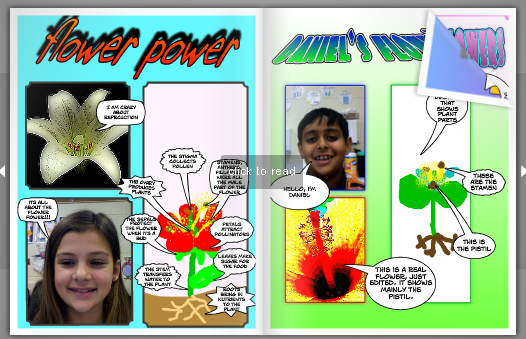
4thFlowerBookFourth graders in Ms. White’s class at Davis Elementary have been learning about the parts of a flower (SOL 4.4). So today they used Comic Life to create a flower comic book. I wanted to show them three ways to get pictures into a Comic Life project: (1) upload your own, (2) grab a picture from the Internet, or (3) take a photo with the camera. First I showed them how to upload their own pictures. We drew a quick diagram of a flower using Pixie and exported it to our folders. Then we opened Comic Life, added three panels, and dragged our picture into one of the panels. Next, we did a google image search for a flower and dragged one of those pictures into the second panel. Then we used the built-in camera feature to take photos of ourselves and added those to the last panel (if you have live flowers, that would actually be better to photograph, but we didn’t). I showed them how to add speech bubbles to label the parts and describe what each part does. The last step was to use the Style button to change the style of the title and photos. I combined all of their comics into one document, saved it as a PDF, and uploaded it to Flipsnack. You can see their finished flower comic book here.