Category: 1st Grade

1st Grade Force & Motion Movie
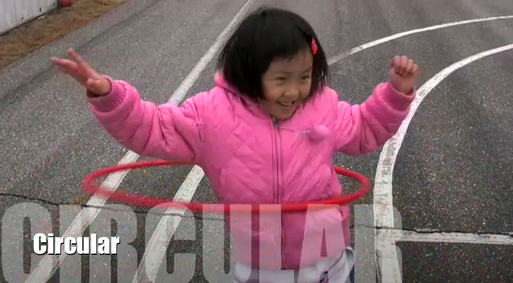
Today, Mrs. Favale’s 1st grade class at Holladay Elementary made force and motion movies with me. She assigned each of them a concept from SOL 1.2. The students thought of a way to demonstrate the concept and I filmed them. We had students showing pushes, pulls, circular motion, back and forth motion, vibration, and friction. Once the filming was done, I edited it in iMovie. For older students, iMovie is a great program for making quick simple movies, but for first graders, the teacher may need to do most of the work since it can be a little complicated. After editing the video, the last step was to add the music. You can find copyright free music for video projects like this on Freeplay Music. The song I used was called “Building Blocks Underscore.” You can see the final movie by clicking here. If you’d like to do a video project with your class, please feel free to ask me for help. That’s what I’m here for!

Tags:


1st Grade Earth & Sun Keynote

Inspired by my friend Frank’s post, I worked with 1st graders today to make an animated Keynote showing the motions of the Earth (SOL 1.6). I prepared a template ahead of time that you can download by clicking here. The students had to complete sentences on each slide with the correct terms and they had to drag or delete objects to make the animation work properly. The slides describe day and night, the relationship between the sun and the Earth, and how shadows change through the day. When the students hit the play button their show starts automatically, complete with music (thanks to Frank). If they found a mistake in their show they went back and corrected it. You can see the final animation by clicking here. This project shows you some of the amazing that you can do with Keynote animations!


Tags:


1st Grade Proscope Pictures on Scribblar

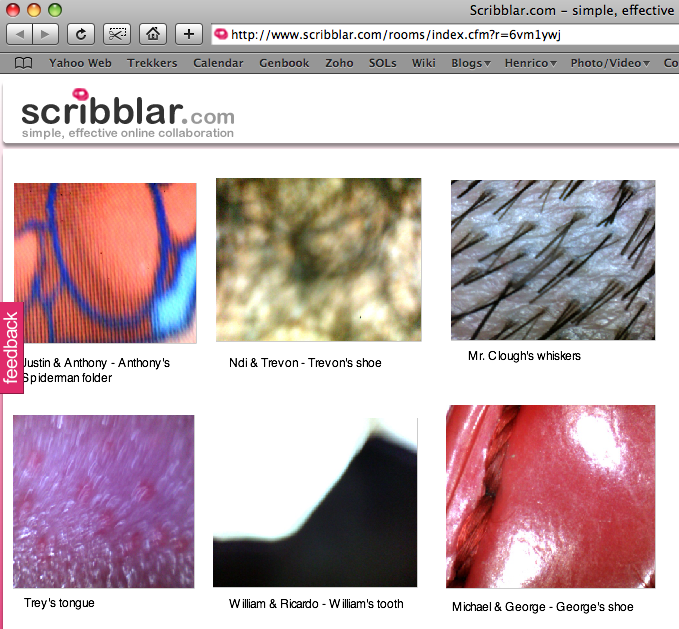
Today I used Proscopes and Scribblar with first graders at Holladay Elementary. Proscopes are USB magnifiers that take pictures of objects up close. I’ve used them before (you can find those lessons by clicking the proscope tag in the tag cloud on the right), but this lesson was different because I wanted the students to share their pictures and try to identify them. I figured this was a perfect opportunity to use Scribblar again. So after the students took pictures of everything from their hair to their shoes, I had them log in to this Scribblar page. Yep, even first graders can log in… and you can too, just by typing your name. The cool thing about Scribblar is that everything is instant. So the students could see each others’ pictures as soon as they uploaded them. Then they tried to guess what they were. That was the fun part! The Scribblar room that they used is locked now, but if you want to try out an open room and see all the cool features, click here. If you want to learn more about Proscopes, click here.


1st Grade Symbols

Today at Chamberlayne Elementary, first graders created animated Keynote presentations about the U.S. symbols (SOL 1.11). I created a template for them to use that you can download by clicking here. The students took photos of themselves using Photo Booth and added them to each slide. Then they recorded their narration describing each of the symbols: the flag, the Statue of Liberty, the bald eagle, and the Washington Monument. You can see a sample by clicking here. I want you to notice something about that example. There are some great facts but not all of them are accurate (30 stripes, George Washington died when we were alive). Oftentimes teachers ask how they can grade a project like this. They say that it’s not as clear cut as grading a worksheet or a test. However, in the example, you can tell which facts the child knows and which ones she doesn’t understand. So using a simple rubric or checklist of facts will help you generate a number grade. The advantage of doing a project as opposed to a worksheet or test is that the child can express facts that he or she knows that may not be assessed on paper. However, it’s important to allow children to go back and fix their mistakes in projects like this, so that when others watch them, the information is correct. Another idea for teaching patriotic symbols can be found on my blog here.


1st Grade Animated Graphs with ActiVotes

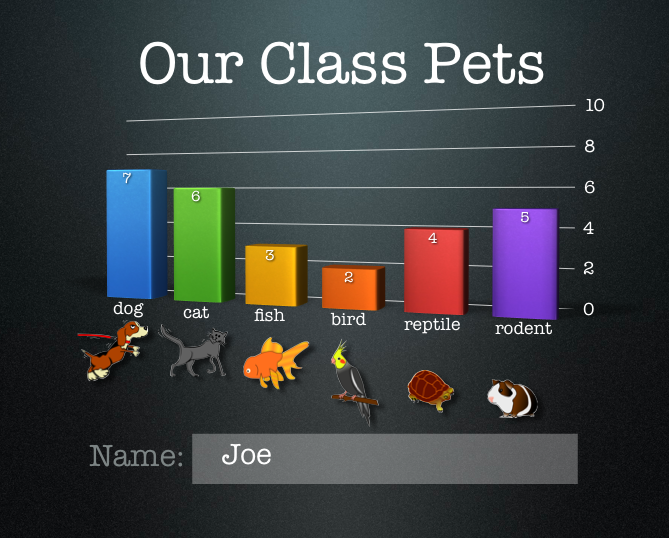
First graders at Holladay created animated graphs about their pets today. First we used the ActiVotes to collect the data. I’ve explained how to use the ActiVotes without a Promethean board on my blog here, They are a great way to get instant responses from all your students and to review graphing. Once the students voted on their pets they opened a Keynote template that you can download by clicking here. The students entered the data through the Inspector (they clicked Chart Inspector > Edit Data) and the graph automatically appeared. The reason I wanted to do it in a Keynote rather than Numbers is because in Keynote there is a special animation for graphs called 3-D Grow. It’s really cool. You can see it in action by clicking here. I also like Keynote because you can click Themes and the graph changes along with the theme. You can see how the slides look different in the Animoto video below. By the way, Animoto is a great way to present photos on your website.


1st Grade Citizenship Podcasts

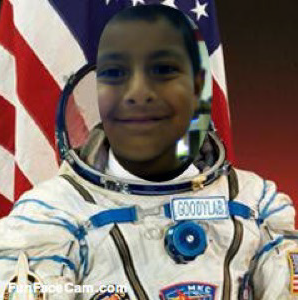
First graders are learning about good citizenship here at the start of the school year (SOL 1.10) One class created citizenship podcasts to tell what it means to be a good citizen. First we took their patriotic picture using FunFaceCam, but I limited their choices to just a few that I posted on a special site. Next they opened up a Garage Band template that you can download by clicking here. They recorded their voice describing what it means to be a good citizen. Then they were supposed to choose one of four patriotic songs to go along with their podcast. Finally we added their picture to it. You can see a few examples here: Gustavo, Thomas, Natalia, and Brandon. An alternative, if GarageBand isn’t working (it gave us a few problems to be honest), is to use an online voice recorder like Vocaroo.


First Day of School in First Grade

I was excited to already have a technology lesson on the first day of school. Ms. Favale, first grade teacher at Holladay, wanted her students to take pictures of themselves so she could make a back-to-school night slideshow. Even on the first day of school, these very young first graders were able to log in, open up Photo Booth and take a snapshot. Some even took more than one! They were asked to take a normal picture for the parent slideshow, but then they could experiment with the different effects. Letting students experiment on their own is a great way to let them learn about the computer. An article I read this summer on an educational blog told about an experiment where they put computers in slums in India just to see if the children could figure them out on their own… and they did! You can read more about it here. So let your students have some time to explore on their own… they’ll surprise you with how much they can learn!


1st Grade Maps Keynote

This maps activity is similar to the Kindergarten Keynote I did last week, but it is more geared towards the first grade SOLs (1.4) where they need to identify the capital of the United States and the capital of Virginia. So first we looked at them in Google Earth. I took screenshots of the places and put them into the Keynote template that you can download by clicking here. The students also identified their classroom at their school (Trevvett in this case, but you can change that slide to fit your school). On each slide the students labeled the cardinal directions as well. If you’d like to see a finished sample, click here (you will also need to click to advance the slides in the online version).


1st Grade Wild Tame Spreadsheet

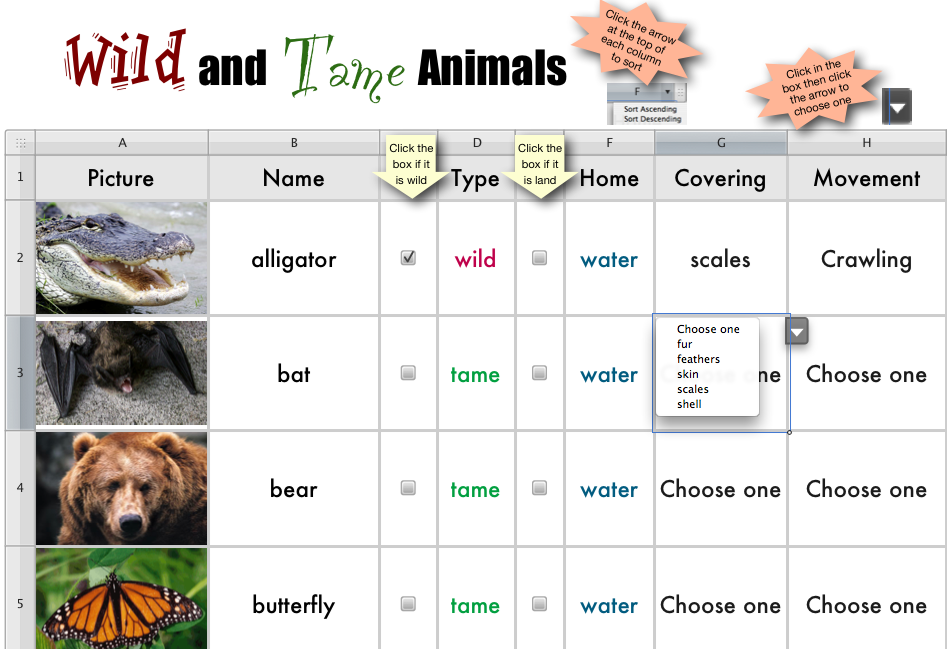
Even first graders can do spreadsheets! On this spreadsheet students identify wild and tame animals (SOL 1.5) They also tell where the animals live, what kinds of body coverings they have, and how they move. There is no typing involved, just selecting the correct information. Once all the data is entered students can click on the different column headings to sort the animals in different ways (like grouping all the water and land animals together or finding all the animals that fly). So this activity also helps your students understand databases. You can download the file by clicking here.


1st Grade Pixie Word Problems

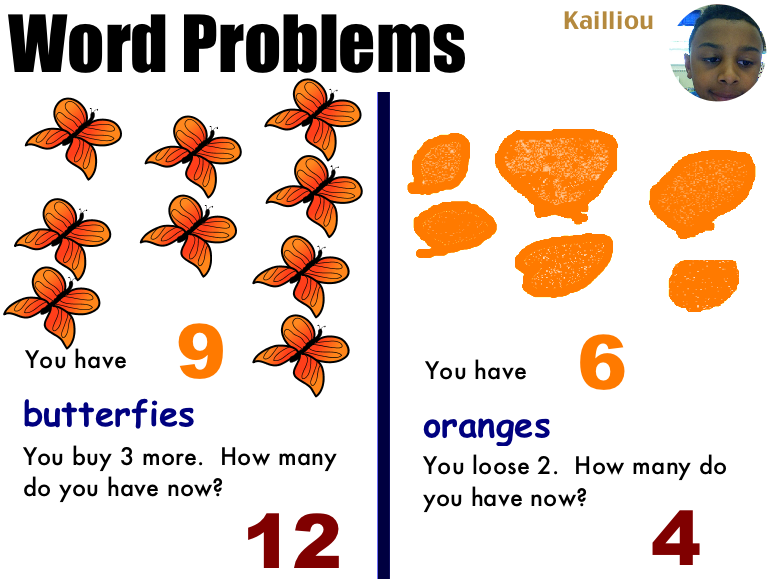
Ms. Baker’s first grade class at Chamberlayne Elementary created some great word problems today using Pixie. I gave them a template to use that you can download by clicking here. They wrote their names on it and took their pictures using the built-in webcam feature on Pixie. The first word problem was addition, so the students got as many stickers as they wanted to illustrate it. Then they entered the numbers and solved the problem. The second one was subtraction. This time they drew the objects using the paint brush tool. Then they entered the numbers and solved that problem as well. You could also have them work with a partner on this part. Finally the students recorded themselves explaining the word problem… and as you can tell from this example, some of the students were very enthusiastic about their explanations.


Tags: