Category: Math

Kindergarten Measurement

Screen shot 2014-03-17 at 7.34.08 PMKindergarten students in Ms. Dunkum’s class at Davis Elementary have been learning how to measure and compare objects using nonstandard units (K.10) so today we practiced those skills using digital tools. I tried this lesson with another class previously where they found a picture of an object online and measured it using shapes in Keynote, however, it took too long to get the picture, and we didn’t have time to write the unit of measurement. So many students ended up saying “inches” or “feet” even though we weren’t using those units. You can see a couple of those student examples here: Belladona and JR. Since I wanted them to have time to include the correct unit of measurement in their presentation, I decided to give the students a quicker way to make a variable picture. I gave them some shapes and told them to build a snowman out of them. You can download the template by clicking here. Next the students selected a shape from the Shapes tool and measured their snowmen with the shapes. Last, they added a text box with the nonstandard unit of measurement such as “5 stars” or “4 triangles.” I showed them how to add animated builds to the shapes and text box, and then they recorded a voiceover narration. Here are some student examples: Mackenzie, Ryan, and Wyatt.

Tags:


3rd Grade Quadrats

Screen shot 2014-03-17 at 1.41.18 PMThird graders in Ms. Ford’s class at Laburnum Elementary have been learning about multiplication in math (SOL 3.5) and animals in science (SOL 3.4 & 3.5) so today we showed how real life scientists use those skills to calculate animal populations. Many scientists use a tool called a quadrat to figure out how many animals live in a certain area. A quadrat is basically a large square that they place in a habitat and count the creatures in the square. Then they multiply the amount of total squares that would fill the area by the number of animals they counted to get an estimated population for the total area. In order to demonstrate this, the students first drew an animal in Pixie. We exported it as a PNG file and dragged it into a Keynote template that you can download here. Then they made several copies of their animal to place in the quadrat. They also colored the grid to match the animal’s habitat (green for woods, yellow for grasslands, blue for water, etc). Next they made a text box with the multiplication problem and solution (Example: 4 electric eels in the quadrat x 9 total quadrats in the area = Est. population of 36 electric eels). Finally they recorded their voices like they were giving a report to their “boss” and we exported their Keynotes as QuickTime videos. I posted them all to a Google doc that you can take a look at here.


2nd Grade Rounding Videos

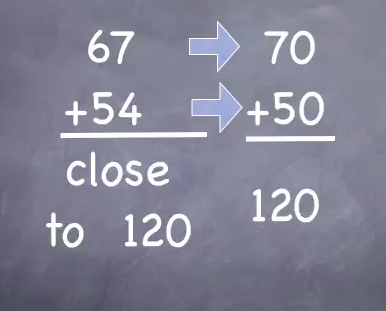
2ndroundingStudents often learn a lot by teaching each other, and there is great value in breaking down the process of solving a math problem step-by-step in order to explain it to someone else. Today 2nd grade students in Ms. Ambrose’s class at Holladay Elementary made videos to teach their classmates about rounding (SOL 2.1) and estimating (SOL 2.6). We used Keynote and the students chose a theme, created a 2-digit addition problem of their choice using text boxes and shapes. I showed them how to add builds to each step so that they would appear in sequence. Then the students recorded their voices explaining the steps in rounding and estimating the sum. We exported the Keynotes to QuickTime videos. Now Ms. Ambrose can use the students’ videos to review. She can pause the videos at different spots to see if her students can solve them, and the students will be motivated by seeing their own videos presented to the class. Now that they know how to do it, they can continue making how-to videos. I posted all their rounding/estimating videos to a Google Doc that you can see here.


Tags:


3rd Grade Greek Multiplication

adityarThird graders in Ms. Dickey’s class at Davis Elementary have been learning about the ancient Greeks in social studies (SOL3.4) and multiplication in math (SOL3.2). So today we made Greek multiplication problems using Pixie and Keynote. First the students opened a blank Pixie document and used a combination of the painting tools and stickers to create a picture of one group of items that would be found in ancient Greece: like a ship with 7 jugs of olive oil, or a row of 8 grapevines, or a Medusa with 6 snakes coming out of her head. We exported the pictures as PNG files with transparency (so there wasn’t a background). Then we opened a blank Keynote, added a title and our name, and dragged the PNG file onto the slide. We shrunk it down and copied and pasted it as many times as we needed. Next the students made text boxes to write out the multiplication problem and its solution. I showed them how to click on each object in the order they want it to appear and add a build in animation using the Inspector. Finally the students recorded their voices telling about the multiplication problem and skip counting until they got their answer. I exported the Keynotes as QuickTime videos and posted them on this page.


5th Grade Interactive Graphs

Screen shot 2014-03-17 at 2.48.04 PMToday 5th graders in Mr. Peters’ class created interactive graphs using Numbers. They started out with a template that you can download by clicking here. They picked a topic they were interested in graphing, such as favorite sport or favorite candy and wrote the title. Then they went to Shapes, created a shape, changed the color, and copied and pasted it about 20 times so there were enough counters for each student in the class. Next they went around the room and clicked and dragged the shapes on their classmates documents to vote on their favorite things. When they got back to their own document, they counted the markers for each choice and typed in the number. Then I showed them how to graph the data. For the interactive part, I told them to come up with a multiple step problem about the data that would challenge their peers. For example, one student came up with the question “How many more people like Skittles and Twix than M&Ms and Hersheys?” Next I taught them how to create a formula that would check the answer. It went something like this: “If the student response equals the real answer, then say ‘Way to go!’ Otherwise say, ‘You need to study more!'” They could come up with their own replies, and some were rather creative. Finally they tested their formulas by switching with a friend and solving each others’ problems. You can download a couple of student examples here: Amber and Jamilah.


1st Grade Adding U.S. Symbols

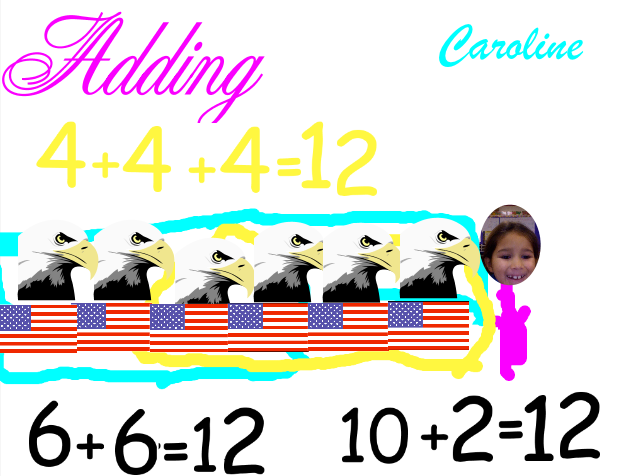
CarolineFirst graders in Ms. Collins class at Holladay Elementary have been learning about the U.S. Symbols in social studies (SOL 1.11) and addition strategies in math (SOL 1.6) so today we combined the two topics and created an “Adding U.S. Symbols” Pixie. First we opened up a blank Pixie template and the students typed the title and their names. Next I showed them how to use the paint brush tool to paint a picture of themselves. We used the built-in camera feature to take a picture of their faces. Then I showed them where to find stickers of the U.S. Symbols that they’ve been learning about (it’s in Stickers > Symbols > American). They created their own addition problem with a maximum sum of 18 using two of the symbols. For example, they might add 5 bald eagles and 7 flags. Next they used the stamp tool to write out their sums, like 5 + 7 = 12. One of their addition strategies has been to “make a 10” so I told them to use the paint brush and circle 10 symbols. They used the stamp tool to write out another sum showing their new grouping, like 10 + 2 = 12. Some of the students even had time to show one of their other strategies, “make doubles.” So for my example, they would circle six and write out 6 + 6 = 12. You can take a look at a couple of student examples: Caroline, Jassem, and Matei.


Tags:


3rd Grade Multiplication Arrays

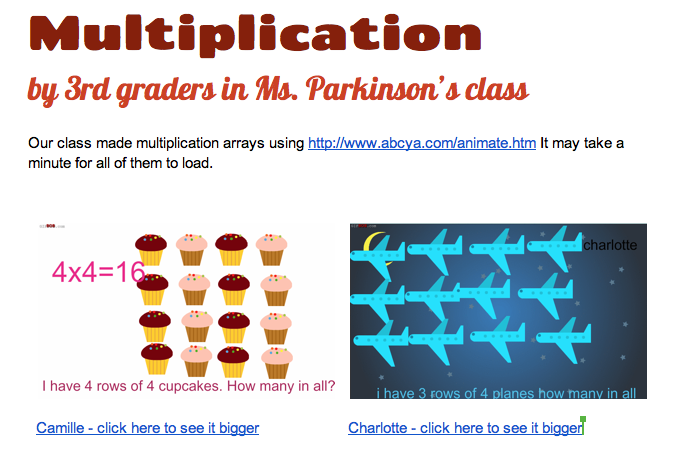
3rd arraysThird graders in Ms. Parkinson’s class at Davis Elementary are starting to learn about multiplication, and one of the ways they learn how to multiply is by making arrays. So today I taught them how to make animated multiplication arrays using ABCYa! Animate. First the students decided what numbers they wanted to multiply together. We discussed how one of those factors is the number of objects in a group and the other factor is the number of equal groups. They used pictures from the clipart library to create one row of objects representing a group. Then they typed out a simple sentence to describe their array such as “I have 3 rows of 4 trees. How many in all?” We duplicated that picture a couple of times (so our animation wouldn’t go too fast) and then added another row. We continued duplicating pictures and adding rows until we had a complete array. One problem we encountered was that some of the pictures would automatically group together. The only way we found to ungroup them was to delete them and start over. On our last picture we typed out the multiplication sentence and the answer, like “3 x 4 = 12.” Animating the array helps students understand the concept because as each group appears they can skip count until they get the total amount. Furthermore, they can review their multiplication facts by viewing each others’ animations (which they are always eager to show off to each other… and since they are online, they can show off and review at home too). If an animation ends up being too fast, I found a site called GifBob that will slow down a .gif file. You can see all the students’ multiplication arrays here.


Kindergarten Counting Pumpkins

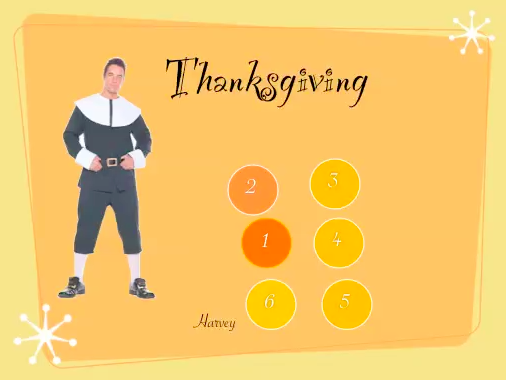
Screen shot 2014-02-17 at 10.40.01 AMKindergarten students at Holladay Elementary created their own Keynote animations today to showcase how they have learned to count up to 10. They started with a blank Keynote (so there’s no template to download) which means they made these animations from scratch–a pretty remarkable feat for kindergarteners! First they typed the word “Thanksgiving” for the title, then they added their names. They also chose a theme for their Keynote by clicking the Themes button. I showed them how to do a Google Image search for a “pilgrim.” They clicked on the pilgrim picture they liked and dragged it onto their Keynote (the teacher and I had to help a lot with this part, but a few students were able to do it on their own). Then I showed them how to click the Shapes tool, choose a circle, and change the color to orange so it looked like a pumpkin. They typed the number 1 in the pumpkin. I told them they could choose how many pumpkins they wanted to make, from 1-10. They created the rest of their pumpkins and typed in the numbers. Next we opened the Inspector and added animations to each pumpkin using the Build-In tool. We also added an ending using the Transitions tool. Finally I taught them how to record their voices, and I pointed out that they needed to sound like they were on a TV show, talking about counting. Take a look at a couple of student examples: Harvey and Muhaimen.


Tags:


3rd Grade World Weather

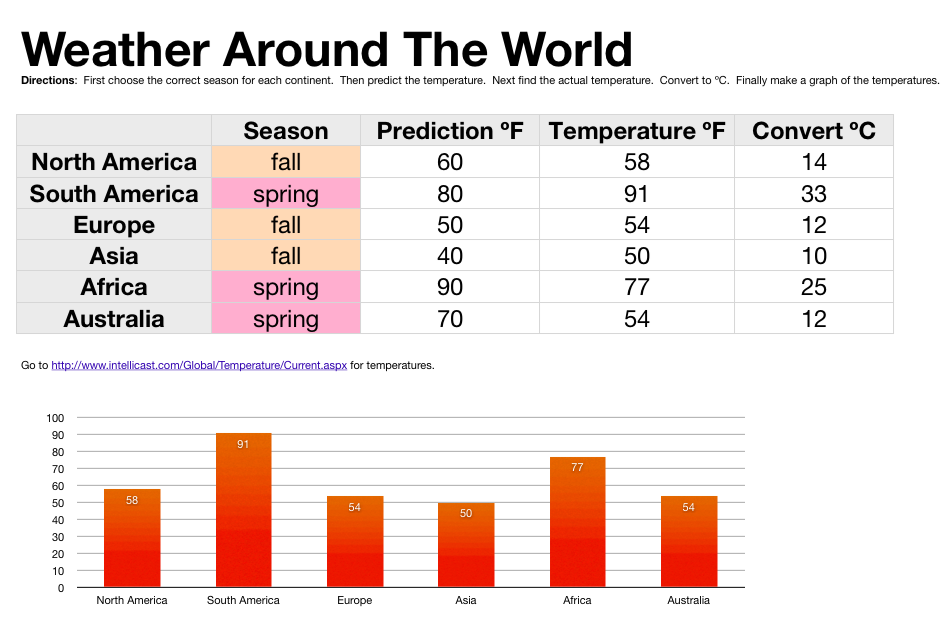
sampleThird grade students in Ms. Strickler’s class at Varina Elementary have been studying the continents and hemispheres in social studies (SOL3.5) and temperature in math (SOL3.13) so today we looked at the relationship between hemispheres and temperatures. I gave them a Numbers template that you can download by clicking here. First, in Column B, the students tried to figure out which season each continent was having based on which hemisphere it was in (we discussed how seasons are opposite in the northern and southern hemispheres). Next they predicted the temperature for each place in Column C. To get today’s temperature from different spots around the globe we went to this website. In my research I also found this cool weather website, but it’s not as simple as the other one. The students entered that data into Column D. Since they were learning about Celsius and Fahrenheit I instructed them to create a new Column E and title it “Convert ÂșC.” You can make the degree symbol by holding down Option + 0 (zero). I showed them how to write a formula for converting from Fahrenheit to Celsius. Then they dragged the little white dot in the corner of the cell down through the other cells to copy the formula into them. The students were impressed with how quickly the temperatures were converted. Our last step was to create a graph of the temperatures so we could visualize quickly which continent was hottest, coldest, etc. I told the students to come up with some questions about their data for a friend to answer (like, “How much warmer is it in Africa than North America?”). Now that it’s complete, the students can open this spreadsheet during a different season, enter new temperatures, and the formulas and graphs would change according to the data.


5th Grade 3-D Ocean Model

Screen shot 2013-12-08 at 3.36.44 PMFifth graders in Ms. Payne’s class at Laburnum Elementary have been studying the ocean (SOL5.6), and she wanted me to help them review the different parts of the ocean floor. One of my goals this year is to help our students improve in math, so I’ve been trying to incorporate math into as many of my lessons as possible. I figured we could use the 3-D area graph in Numbers to create a model of the ocean and then import it into Keynote to animate it like this example. I wanted the students to gather their own data, but just graphing that wouldn’t produce a good looking model. So I created a template that you can download by clicking here that takes the data they enter and turns it into a model of the ocean floor. The students used Google Earth to gather the data for the graph. First I told them to find a continental shelf and measure the depth. Google Earth automatically tells the ocean depth or land elevation for whatever spot your mouse is hovering over… just be sure it’s in meters and not feet or my formulas won’t work (you could add a bit more math by having them convert the units). Next the students find a continental slope, continental rise, abyssal plain, and sea mount to measure. After entering all that data, I told them to do some research online to find the depth of the Mariana Trench. I gathered a bunch of sites for oceans research into a BundleNut that they could use, but one of the coolest infographics I found was this one. Once they entered that last bit of data, the 3-D graph should look like a model of the ocean floor. Then they copied the graph and pasted into a Keynote to animate it. Keynote has a sharp-looking animation for graphs called “3-D grow.” The students used text boxes to label the different parts, and the final step (if we got to it, which we didn’t) would be to record a voiceover explaining each part of the ocean floor.