2nd Grade Thanksgiving Rounding

Second graders at Trevvett Elementary have been learning about Thanksgiving in Social Studies (SOL2.5h) and how to round two-digit numbers to the nearest ten in Math (SOL2.1d). Today students in Ms. Fletcher’s class created Google slideshows featuring Thanksgiving foods rounded to the nearest ten. First, we discussed their favorite Thanksgiving foods and why we might want to round the amounts. Rounding makes numbers easier to remember and use. It also helps with estimating. We reviewed how to round numbers down (if the ones place digit was 0, 1, 2, 3 or 4) and how to round numbers up (if the ones place digit was 5, 6, 7, 8 or 9). Then, we opened a blank Google slideshow and chose a theme. We typed a title and our name in the text boxes on the first slide, and I showed the students how to add another slide with the + button. We chose the “Big Number” slide template. In the smaller text box, the students typed a sentence telling how many items of a particular Thanksgiving food they had. They could choose any two-digit number they wanted, as long as it wasn’t already rounded. We typed the rounded number in the big text box. Since we wanted our classmates to solve our problems, I showed them how to add a transition to the number so it faded in later, revealing the answer only after the problem had been solved. Finally, we used the built-in Google image search to add a picture of the food. The students shared their slideshows on Schoology, but you can see them all here.
1st Grade Jamestown Comics

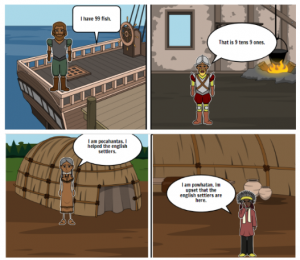
First graders at Trevvett Elementary have been learning about Jamestown in History (SOL 1.1c, 1.2a, 1.3abc). This is a new SOL for first grade (it is also taught in 4th grade), so many teachers are eager for new ideas. Today, I showed Ms. Burnett’s class how to use StoryboardThat to create Jamestown comics. We visited the site and clicked the “Create” button. The default comic has three panels, which was perfect since the students need to know three important people from Jamestown: Powhatan, Pocahontas, and Christopher Newport. First, we clicked Scenes > US History to find backgrounds relating to Jamestown. After the students added the scenes to each frame, they clicked Characters > 1600s to 1800s and added people who looked like Jamestown colonists and Powhatan Indians. Then we clicked Textables to add speech bubbles to each person. First graders are learning how to write complete sentences with capitals, punctuation, and correct spelling (1.13), so we practiced those skills as we typed in the speech bubbles. I encouraged the students to include facts about Jamestown in their sentences. Finally, we published our comics and shared the links on Schoology. You can see some examples here. (UPDATE: In Math, 1st graders are are learning about place value, so we did a similar Jamestown comic with another class, but this time the characters talked about place value).


Tags:


4th Grade Planets Websites

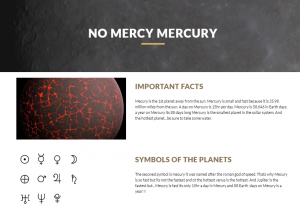
Fourth graders at Holladay Elementary have been studying the planets of the solar system and their relative sizes (SOL4.7)–always a favorite topic for 4th graders. Today, students in Ms. Anthony’s class created their own planets websites with Google Sites. First, the students chose a planet to research. They could use books or the Internet. A few great sites for solar system research are: (1) ESA Kids (basic facts about each planet, easiest to read); (2) NASA (interactive 3D solar system, compare planets’ sizes); (3) Solar System Scope (interactive 3D solar system, explore planets’ interiors with cut-away diagrams); and (4) Star Atlas (shows which planets you can see in the sky tonight). One interesting fact we learned from our research was the the symbols for male and female came from the ancient symbols for Mars and Venus. After the students gathered the facts they found interesting, they opened a new Google Site via their Google Drive (New > More > Google Sites). They typed a creative title, changed the header image, and selected a theme. Then I showed them how to choose a layout and add images and text. They worked hard writing complete sentences, using their own words. When they finished, they clicked the “Publish” button, copied the link, and shared their planet website with their classmates on Schoology. You can take a look at all their websites here.


3rd Grade China & Egypt Multiplication

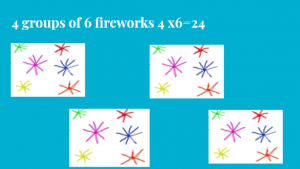
Third graders at Holladay Elementary have been learning about ancient Egypt and China in History (SOL3.2) and multiplication in Math (SOL3.4), so today students in Ms. Pumphrey’s class created multiplication problems about the inventions and contributions of these great civilizations. We began with a blank Google slideshow and chose a theme. Then they decided if they wanted to solve a problem about China or Egypt and included that in the title slide. On the next slide, we started building our multiplication problem. One concept that is often difficult for third graders to understand is that multiplication is really just multiple groups that are equal. To help them grasp this idea, I instructed them to make one group of objects from Egypt or China with a story explaining the grouping. For example, one family has three kites, or one piece of paper is made from seven papyrus plants, or one silk cloth is produced by ten silkworms. They typed a sentence and illustrated the group. Some students used a Google image search to find pictures, while others drew their own pictures using Kleki. On the next slide, the students made multiple groups by copying and pasting the one group. Then they asked the multiplication question, like, “How many kites do four families have?” or “How many silkworms would make five cloths?” On the final slide, students recorded the answer (you may want to leave the answer off, and let classmates solve each others’ problems). They shared their slideshows on Schoology, but you can see them all here.


2nd Grade U.S. Symbols Place Value

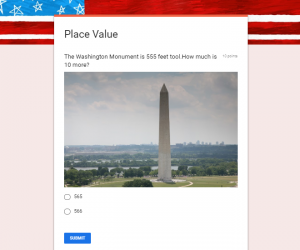
Second graders at Holladay Elementary have been learning about the U.S. symbols in History (SOL2.13) and how to calculate 10 or 100 more or less in Math (SOL2.1b). Today, students in Ms. Edmonds class created Google forms to review these concepts. First, each student chose a U.S. symbol to research (bald eagle, flag, Washington Monument, or the Statue of Liberty). They could use the Internet or books, and I instructed them to find a number related to their symbol. Some examples would be finding the height or weight of their symbol or identifying the number of objects on their symbol (stars, stripes, steps, etc.). Next, we went to our Google Drive and opened a New > Google Form. The students added a title, like, “Place Value.” Then they typed a problem to solve involving their symbol’s number and calculating 10 or 100 more or less. For the answer choices, they typed the right one and a few wrong ones. We discussed how to make the wrong choices tricky by thinking about common mistakes. If your question asks for 10 more, one of the wrong choices could be 10 less. I showed the students how to add an image of their symbol using the built-in Google image search. Finally, we went into settings and changed the form into a quiz, marked the correct answer, and shared the link on Schoology so our classmates could solve our problem. You can take a look at some student samples here.


3rd Grade Patterns and In-Out Boxes

Third graders at Varina Elementary have been learning how to identify, create, and extend patterns in Math (SOL3.16), so today students in Ms. Lanham’s class created patterns with Google Sheets. First, I gave the students a template to use that has fewer cells and a larger font size than Google’s default spreadsheet. Since this was the first time many of them had seen a spreadsheet, I explained that each row in a spreadsheet has a number, each column has a letter, and each cell is labeled with a combination of both (like A2 or C4). This is important to understand when it comes to writing formulas later. The top row usually has the column names, so I showed them how to highlight the row by clicking the number 1 on the left, and we made it all bold by clicking the Bold button in the toolbar. Then we typed the column names: In, Out, and Pattern. In-Out boxes are a great way to get students thinking about patterns because they focus on just two numbers (the number that goes “In” the box and the number that comes “Out”) and infer what happens inside the “Box.” The students typed a few random numbers in the first column. In the second column, they wrote simple formulas such as =A2+5 or =A3-3, and when they pressed “Enter,” they saw what came out of the “Box” they created. Some people may think spreadsheets are boring, but students get very excited when they see their formulas work. They especially enjoy this next trick to continue the pattern: click on a cell in the second column (one with a formula) and a blue box should appear; click and drag the bottom corner of the blue box across the rest of the row, and it automatically fills with the continued pattern! Finally, I showed the students how they could click the “Explore” button in the bottom right corner of the spreadsheet and choose their Formatting colors (or they could highlight rows and columns and make them whatever colors they wanted). We shared our spreadsheets on Schoology so their classmates could guess the patterns by typing a reply like, “Row 3 is +5.” You can see their spreadsheets here.


5th Grade Oceans Websites

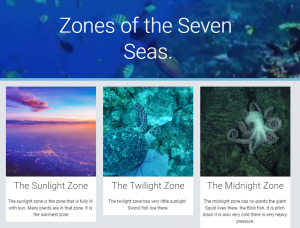
Fifth graders at Trevvett Elementary have been studying the characteristics of ocean environments (SOL5.6), so today, students in Ms. Poland’s class created their own oceans websites using Google sites. First, the students accessed their Google Drive and clicked New > More > Google Sites. This opened up a starter template. They typed a creative title (with capitals), selected a background header image, and a theme. Next the students chose a layout and began typing the information they wanted to share. Some wrote about ocean life, others wrote about the ocean zones, and a few wrote about ocean topics that weren’t necessarily taught in class, but were interests of theirs. I usually guide students to write before searching for images, because the image search can become distracting and time consuming. However, I also understand that images can inspire further writing. So once the students had some focused typing time (ten minutes or so), I let them search for photos, even if they weren’t finished writing. After they added their photos, they went back and revised their writing until it was polished and complete. Finally, I showed them how to publish their webpages, copy the links, and share them on Schoology for their classmates to see. You can take a look at some of their work here (UPDATE: I taught this lesson in a few other classes and added their examples to the document).


3rd Grade Habitat Word Problems

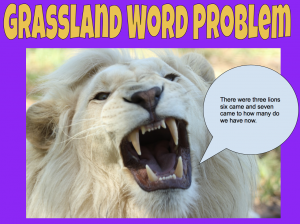
Third graders at Trevvett Elementary have been solving addition and subtraction word problems in Math (SOL3.3b) and studying habitats in Science (SOL3.6ab), so today students in Ms. L’Heureux’s class created their own habitat word problems with Google Drawings. First we reviewed several different habitats and the animals that live in them (desert, grasslands, rainforest, arctic, etc). Next we thought about what kind of number problems could happen in their ecosystem and whether they involved addition or subtraction: animals could have babies, animals could die, animals could migrate, etc. The students came up with some creative ideas! Then we went to Google Drive and opened Google Drawings (New > More > Google Drawings). We created a background by clicking the Shapes tool, selecting a square, and using the Paint Bucket tool to give it a solid or gradient fill color. To add the title, we clicked Insert > Word Art, typed the title, pressed Enter, and changed the font, fill and outline colors. Then the students used the built-in Google image search to find a picture of an animal in its habitat. Finally, they added a speech bubble from Shapes and typed their addition or subtraction word problem inside it. We shared the links to our drawings in Schoology so our classmates could solve them in the comments. You can try to solve some of them for yourself here. (UPDATE: I adapted this lesson using Google Slides instead of Google Drawings for other classes because we wanted to make the answer appear at the end. I added some of those examples to the document).


4th Grade Decimals Calculator

Fourth graders at Trevvett have been learning about decimals up to thousandths. They have learned how to compare decimals and round them (SOL4.3). Today, students in Ms. Cockrum’s class created their own decimals calculators with Google sheets. First, I asked if they knew of a calculator that could add or subtract decimals. They all did. Then I asked if they knew of a calculator that could compare or round decimals. None of them did, so they were very surprised when I explained that they would create a calculator that could do that. I pointed out that they would be coders today, and I wanted them to go through the same process that coders go through when creating a new program or app. Coders often start out with a flowchart to make sure that each step of the code is in the correct order. We discussed the steps a calculator would need to go through to compare two decimals. It would have to decide if one of the numbers was equal to (=), greater than (>) or less than (<) the other. Then it would have to display the correct symbol. A decision on a flowchart is usually a diamond shape, and the answer is either "yes" or "no." So our first decision could be, "Is A greater than B?" If the answer is "yes," the code would display a ">” symbol. If the answer was “no,” the code would continue to the next decision. The next decision might be, “Is A less than B?” and so on. The decisions could be in any order, but the final step isn’t really a decision, it would be a command to display the only symbol that was left. The shape for output in a flowchart is usually a parallelogram, but I told them they could use whatever shape they wanted. We used Google draw to make the flowcharts, then we opened this template in Google sheets to create the code. I instructed the students to type any decimal they wanted in the decimals columns. Then we wrote code, or formulas, in the other columns. Rounding is the easiest, so we started with that. I showed them the code for rounding to the ones place, then I let them figure out the code for rounding to the other places. The code for rounding a number in cell E2 is: ones place =ROUND(E2,0); tenths place =ROUND(E2,1); hundredths place =ROUND(E2,2). Next, we used our flowcharts to write the code for comparing decimals. If decimals are in cells A2 and C2, the code to display the symbol would go between them in cell B2. It may look something like this (but it could be in a different order):

=IF(A2 > C2,”>”, IF(A2 < C2,"<","="))

The students were excited to see their calculators working, and if they didn’t work, the students had to think critically and problem-solve to figure out the reasons. That’s actually one of the most valuable lessons of learning how to code. Our final step was to share the links to our spreadsheets on Schoology. You can see some samples from Ms. Cockrum’s class and Ms. Messer’s class (5th grade) here.


5th Grade Henrico Election Posters

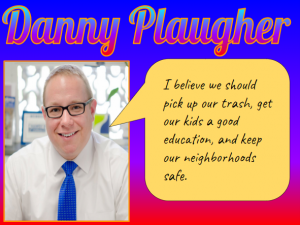
Fifth graders at Trevvett Elementary have been learning about Henrico county government (HC.2) in Social Studies, and they’ve been identifying the main idea and summarizing nonfiction text in Language Arts (SOL5.6d,e). Since elections are coming up in November, students in Ms. Harris’s class and Ms. Brown’s class conducted research to find information about the candidates running for office in Henrico County. Then we summarized our findings to create campaign posters. First, we used this site to see the list of candidates. Each student chose a candidate they weren’t familiar with since many of them already had a family favorite, and I wanted them to be exposed to different viewpoints. Next, they did a Google search for their candidate and explored their campaign website. I showed them where to look to find the “Beliefs” or “Issues” sections. After the students read some of their viewspoints, we discussed ways to summarize their views into a couple of sentences for the campaign poster. Students could use Google Docs, Google Slides, or Google Drawings (as well as other tools like DesignCap) to make posters, but we chose to use Google Drawings since we hadn’t used that tool yet. For the poster’s background, we added a square shape, made it as large as the poster, and changed the fill color so it was a solid color or gradient. Then we clicked “Insert > Word Art” and typed the candidate’s name. I showed them how to change the font, fill, and outline color of the text. We imported a photo of the candidate using the Google image search feature. Finally, we added a speech bubble with the Shapes button and typed a summary of the candidate’s beliefs. We shared our campaign posters on Schoology, but you can see them all here.