Tag: keynote

3rd Grade “A Person I Admire” Videos
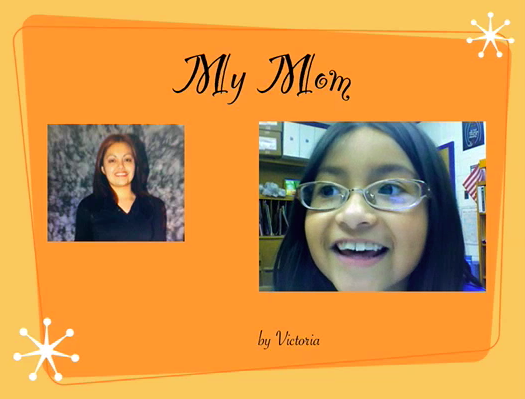
Third grade students in Ms. Cowart’s class at Holladay Elementary have been writing about people they admire. They chose historical figures, athletes, politicians, or even people they know personally. Then they wrote a paragraph explaining why they admire that person with an introduction, supporting details, and a conclusion. Instead of reading their paragraphs to the class, Ms. Cowart asked me to help them create a digital project that can be viewed by the other students and posted online. So we made Keynotes with videos. The Keynotes had just one side with the person’s name and the student’s name. I helped them find pictures online, or if their person wasn’t famous they brought in photographs from home and we used Photo Booth to digitize them. We put the pictures into a Smart Build which is a cool feature of Keynote that makes a slideshow within a slideshow. Next we recorded their video in Photo Booth and added that to the Keynote. Finally we exported the final product as a QuickTime movie. You can see a couple of examples here: John F. Kennedy, Michael Jordan, Helen Keller, and mom!

1st Grade Place Value Movies

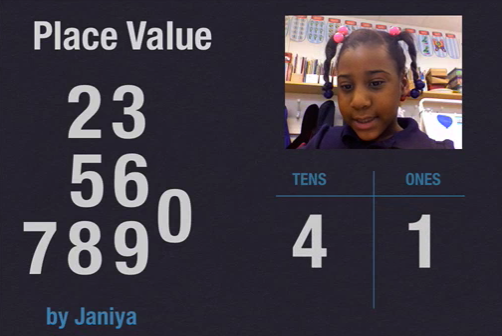
Ms. Hancock’s first grade students at Laburnum Elementary made place value movies today. I gave them a Keynote template that you can download by clicking here. The students recorded a video of themselves instructing a friend to show a two-digit number, like “Can you show me 47?” You could skip this step by just doing an audio voiceover right in Keynote, but the video makes it more interesting, plus students can replay it if they missed a part. Then we helped them drag the video onto their Keynote. Next they went to a friend’s computer and showed the number by dragging the digits to the correct spot in the place value chart. I added the animation at the end. Students could continue trying each others’ problems for additional practice. You can see a couple of examples here and here.


1st Grade Earth & Sun Keynote

Inspired by my friend Frank’s post, I worked with 1st graders today to make an animated Keynote showing the motions of the Earth (SOL 1.6). I prepared a template ahead of time that you can download by clicking here. The students had to complete sentences on each slide with the correct terms and they had to drag or delete objects to make the animation work properly. The slides describe day and night, the relationship between the sun and the Earth, and how shadows change through the day. When the students hit the play button their show starts automatically, complete with music (thanks to Frank). If they found a mistake in their show they went back and corrected it. You can see the final animation by clicking here. This project shows you some of the amazing that you can do with Keynote animations!


Tags:


Kindergarten 5 Senses

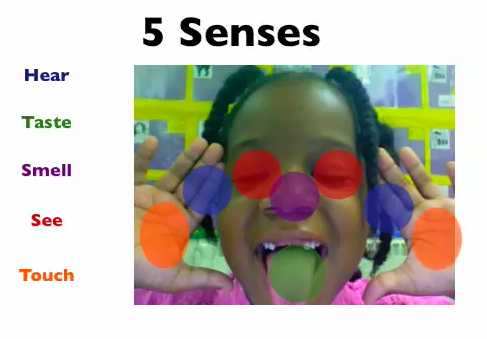
Kindergarten students had a great time telling about their five senses using Keynote today (SOL K.2). I gave them a template to use that has some animations already built into it. You can download it by clicking here. The students had to take their picture using Photo Booth… but they had to do a very special pose. They had to stick out their tongues and hold up their hands. That’s because after they dragged their photos into the Keynote they had to drag the colored dots onto the correct spot. So red dots for seeing went on their eyes, blue dots for hearing went on their ears, and so on. The last step was to record their voices as the slideshow played identifying the five senses. You can see some student samples here and here.


5th Grade Plate Tectonics

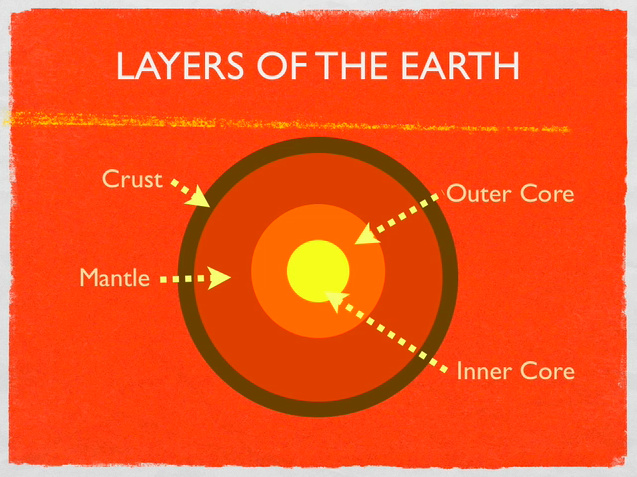
Today 5th graders at Holladay Elementary made animated Keynotes to explain plate tectonics (SOL 5.7). Using the Builds feature in the Inspector, the students were able to demonstrate the different motions of the Earth’s crust (divergent, convergent, and transform boundaries). They also enjoyed using the Flame Effect to describe volcanoes around the Ring of Fire. You can check out a sample video by clicking here. To get them started, I gave them a template and a folder of pictures to use that you can download by clicking here. Inside the folder are cool photos of volcanoes and earthquakes, links to websites, and various diagrams. You might also want to check out this blog post and this website for additional volcano resources.


4th Grade Animal Classification

Fourth graders at Chamberlayne have been learning about animal habitats (SOL4.4) and scientific investigation (SOL4.1) so we decided to combine both of these skills using Keynote. You can download the template by clicking here. The first slide shows a bunch of animals and the students have to classify them by habitat (land, water, air, land & water). Then they took that information and graphed it on the second slide. The graph helped show discrepancies between different classification systems the students used. For example, some students classified beetles in the land habitat, while others classified them in the air habitat. This provided opportunities for discussion and problem solving. The Keynote has some animations built into it which you can see by clicking here.


Tags:


4th Grade Investigations

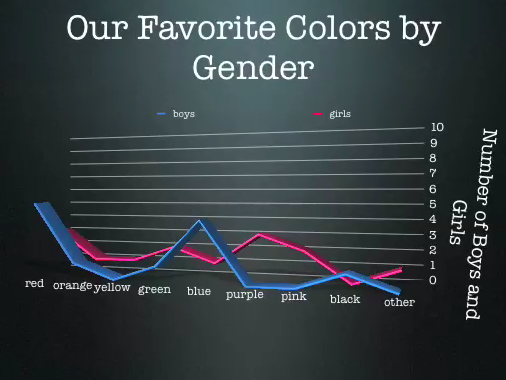
Today third and fourth graders at Laburnum worked on scientific investigations (SOL 3.1, 4.1) using Google Docs and Keynote. First they opened the Keynote template that you can download by clicking here. They made an hypothesis about which color was going to be the majority of the class’s favorite color, and they also hypothesized about the favorite color of the boys and the girls. Next they went to a Google Form online (you can see it by clicking here) and voted on their favorite colors. One of the advantages of using a Google Form is that it can instantly be sorted out in a Google Spreadsheet. So we looked at the spreadsheet (click here to see it), and I set it up with formulas to break the data down by whole class as well as gender. They used that to graph the results in their Keynote. Finally they added a conclusion at the end saying whether their hypothesis was right or wrong. You can check out a final version by clicking here.


1st Grade Symbols

Today at Chamberlayne Elementary, first graders created animated Keynote presentations about the U.S. symbols (SOL 1.11). I created a template for them to use that you can download by clicking here. The students took photos of themselves using Photo Booth and added them to each slide. Then they recorded their narration describing each of the symbols: the flag, the Statue of Liberty, the bald eagle, and the Washington Monument. You can see a sample by clicking here. I want you to notice something about that example. There are some great facts but not all of them are accurate (30 stripes, George Washington died when we were alive). Oftentimes teachers ask how they can grade a project like this. They say that it’s not as clear cut as grading a worksheet or a test. However, in the example, you can tell which facts the child knows and which ones she doesn’t understand. So using a simple rubric or checklist of facts will help you generate a number grade. The advantage of doing a project as opposed to a worksheet or test is that the child can express facts that he or she knows that may not be assessed on paper. However, it’s important to allow children to go back and fix their mistakes in projects like this, so that when others watch them, the information is correct. Another idea for teaching patriotic symbols can be found on my blog here.


1st Grade Animated Graphs with ActiVotes

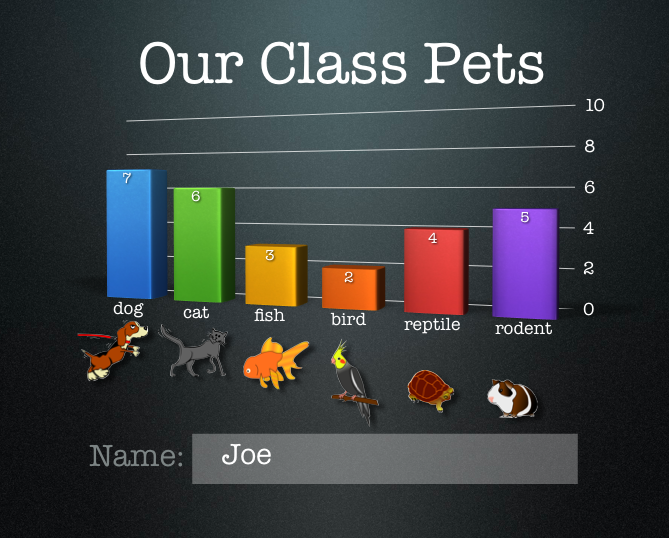
First graders at Holladay created animated graphs about their pets today. First we used the ActiVotes to collect the data. I’ve explained how to use the ActiVotes without a Promethean board on my blog here, They are a great way to get instant responses from all your students and to review graphing. Once the students voted on their pets they opened a Keynote template that you can download by clicking here. The students entered the data through the Inspector (they clicked Chart Inspector > Edit Data) and the graph automatically appeared. The reason I wanted to do it in a Keynote rather than Numbers is because in Keynote there is a special animation for graphs called 3-D Grow. It’s really cool. You can see it in action by clicking here. I also like Keynote because you can click Themes and the graph changes along with the theme. You can see how the slides look different in the Animoto video below. By the way, Animoto is a great way to present photos on your website.


3rd Grade Animals Keynote

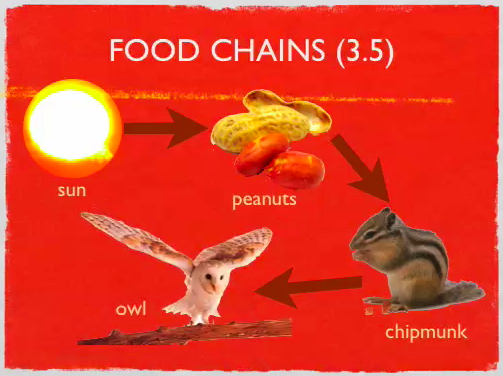
Third graders start the year off studying animals and habitats, and there are so many cool projects you can do with this unit. I’ve described a few ideas on this blog beflore such as creating a comic, a video, a “Mystery Animal” or a podcast. But here’s another idea that one class did this week: they created Keynotes to summarize the important information. There’s a slide about adaptations (SOL 3.4), a slide about food chains (SOL 3.5), and a slide about habitats (SOL 3.6). I created a template and gave them a folder of pictures to use that you can download by clicking here. Students chose the pictures they wanted to use to illustrate each concept, then they added their own text box explanations. Using the Inspector they added transitions and animations. You could also have your students do a voiceover if you wanted. You can see a sample by clicking here. If your students would like an animal that isn’t in my folder of pictures, or if they just need information, they could search this online database or this one. Wikipedia is also a safe place to search for animal pictures.