Tag: pixie

2nd Grade Famous Americans Animations

Screen shot 2014-03-25 at 12.57.03 PMSecond graders in Ms. Arnold’s class at Holladay Elementary have been researching famous Americans, and today they created speaking animated characters to share their information. First they drew their famous American in Pixie and typed his or her name. I showed them how to use the 3D brush to make “googly eyes” so their character looked more “cartoonish.” Next we had to make the mouth appear like it was talking. To keep it simple we just added two different mouth shapes. We duplicated the picture and redrew the mouth so that it was in a long shape for making the “ee” sound. Then we duplicated the picture again and redrew the mouth so it was in an O shape for making the “oh” sound. We exported all the pictures as PNG files and saved them to our folders. Next the students went to Voki to create the voice. They clicked the “TTS” button (text to speech) and typed in some factual sentences for their famous American to say about themselves. The fun part was choosing an accent! The students saved their Voki links to their folders as well. That was all we had time for, so it was my job to put the voices together with the drawings. I uploaded the 3 drawings of each character to Glickr in order to make an animated GIF. Then I clicked the link to their Voki. As the GIF and the Voki were playing at the same time I recorded it with Screencast-O-Matic. Take a look at a couple of student examples: Helen Keller by Alana and Susan B. Anthony by Hayden. I uploaded them all to a Google Doc that you can view here.


5th Grade Cell Comics

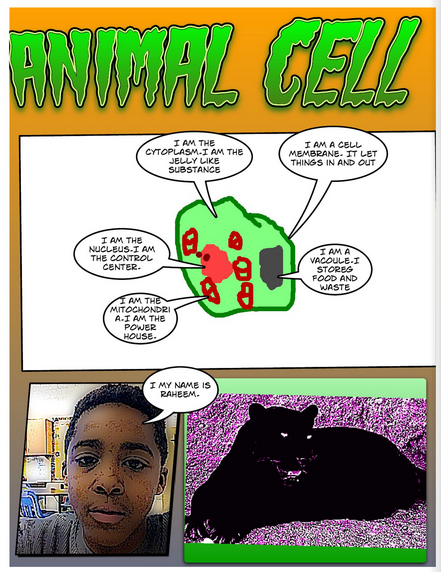
cellFifth graders in Ms. Payne’s class at Laburnum Elementary have been learning about plant and animal cells (SOL5.5). Today they made a comic book to review the different parts and their functions. The students could chose whether they wanted to illustrate an animal or a plant cell. They started by drawing the cell and its organelles in Pixie. Then they exported it as a PNG file and dragged it into a Comic Life document. Next they used the speech bubbles to make each part of the cell “talk” and describe its function. I stressed to them the importance of writing complete sentences with correct grammar and spelling. Then they did a Google Image search and found a photo of a plant or animal to accompany their cell diagrams. They also used the built-in webcam to take a picture of themselves to add to their comic. I combined all the pages together into one document, saved it as a PDF, and uploaded it to Youblisher. Youblisher is a site like Flipsnack that allows you to upload PDFs and it publishes them as online flipbooks. You can see their finished comic here.


3rd Grade Quadrats

Screen shot 2014-03-17 at 1.41.18 PMThird graders in Ms. Ford’s class at Laburnum Elementary have been learning about multiplication in math (SOL 3.5) and animals in science (SOL 3.4 & 3.5) so today we showed how real life scientists use those skills to calculate animal populations. Many scientists use a tool called a quadrat to figure out how many animals live in a certain area. A quadrat is basically a large square that they place in a habitat and count the creatures in the square. Then they multiply the amount of total squares that would fill the area by the number of animals they counted to get an estimated population for the total area. In order to demonstrate this, the students first drew an animal in Pixie. We exported it as a PNG file and dragged it into a Keynote template that you can download here. Then they made several copies of their animal to place in the quadrat. They also colored the grid to match the animal’s habitat (green for woods, yellow for grasslands, blue for water, etc). Next they made a text box with the multiplication problem and solution (Example: 4 electric eels in the quadrat x 9 total quadrats in the area = Est. population of 36 electric eels). Finally they recorded their voices like they were giving a report to their “boss” and we exported their Keynotes as QuickTime videos. I posted them all to a Google doc that you can take a look at here.


4th Grade Flower Comic Book

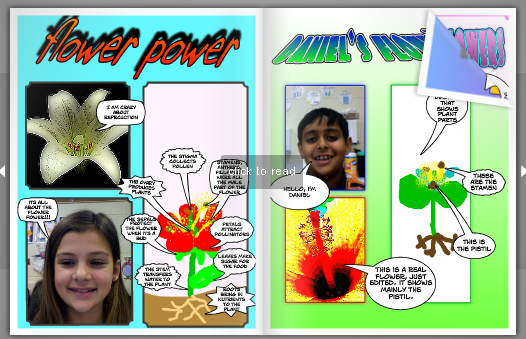
4thFlowerBookFourth graders in Ms. White’s class at Davis Elementary have been learning about the parts of a flower (SOL 4.4). So today they used Comic Life to create a flower comic book. I wanted to show them three ways to get pictures into a Comic Life project: (1) upload your own, (2) grab a picture from the Internet, or (3) take a photo with the camera. First I showed them how to upload their own pictures. We drew a quick diagram of a flower using Pixie and exported it to our folders. Then we opened Comic Life, added three panels, and dragged our picture into one of the panels. Next, we did a google image search for a flower and dragged one of those pictures into the second panel. Then we used the built-in camera feature to take photos of ourselves and added those to the last panel (if you have live flowers, that would actually be better to photograph, but we didn’t). I showed them how to add speech bubbles to label the parts and describe what each part does. The last step was to use the Style button to change the style of the title and photos. I combined all of their comics into one document, saved it as a PDF, and uploaded it to Flipsnack. You can see their finished flower comic book here.


3rd Grade Greek Multiplication

adityarThird graders in Ms. Dickey’s class at Davis Elementary have been learning about the ancient Greeks in social studies (SOL3.4) and multiplication in math (SOL3.2). So today we made Greek multiplication problems using Pixie and Keynote. First the students opened a blank Pixie document and used a combination of the painting tools and stickers to create a picture of one group of items that would be found in ancient Greece: like a ship with 7 jugs of olive oil, or a row of 8 grapevines, or a Medusa with 6 snakes coming out of her head. We exported the pictures as PNG files with transparency (so there wasn’t a background). Then we opened a blank Keynote, added a title and our name, and dragged the PNG file onto the slide. We shrunk it down and copied and pasted it as many times as we needed. Next the students made text boxes to write out the multiplication problem and its solution. I showed them how to click on each object in the order they want it to appear and add a build in animation using the Inspector. Finally the students recorded their voices telling about the multiplication problem and skip counting until they got their answer. I exported the Keynotes as QuickTime videos and posted them on this page.


1st Grade Adding U.S. Symbols

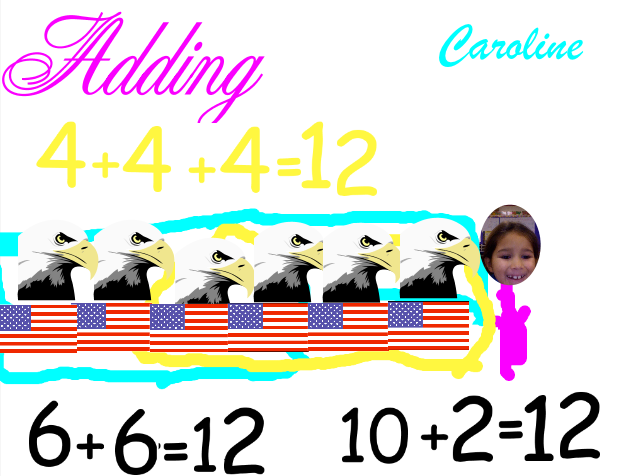
CarolineFirst graders in Ms. Collins class at Holladay Elementary have been learning about the U.S. Symbols in social studies (SOL 1.11) and addition strategies in math (SOL 1.6) so today we combined the two topics and created an “Adding U.S. Symbols” Pixie. First we opened up a blank Pixie template and the students typed the title and their names. Next I showed them how to use the paint brush tool to paint a picture of themselves. We used the built-in camera feature to take a picture of their faces. Then I showed them where to find stickers of the U.S. Symbols that they’ve been learning about (it’s in Stickers > Symbols > American). They created their own addition problem with a maximum sum of 18 using two of the symbols. For example, they might add 5 bald eagles and 7 flags. Next they used the stamp tool to write out their sums, like 5 + 7 = 12. One of their addition strategies has been to “make a 10” so I told them to use the paint brush and circle 10 symbols. They used the stamp tool to write out another sum showing their new grouping, like 10 + 2 = 12. Some of the students even had time to show one of their other strategies, “make doubles.” So for my example, they would circle six and write out 6 + 6 = 12. You can take a look at a couple of student examples: Caroline, Jassem, and Matei.


Tags:


4th Grade Bartering Videos

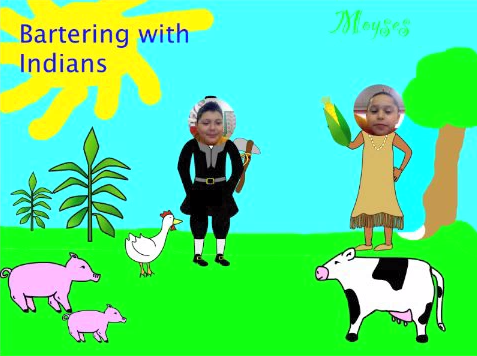
Screen shot 2014-02-17 at 3.13.26 PMFourth graders in Ms. Lara’s class at Holladay have been learning about how the colonists often bartered with the American Indians and with each other (VS.4d). Today they created short bartering videos using Pixie. First we discussed what kinds of products the Virginia colonists and Indians would have available to trade with each other, and we discussed what they might say during a bartering transaction. I pointed out that they would often have to go back and forth making changes in their trades until both parties could agree. Next we opened a blank Pixie and painted a colonial scene. I showed them how to search the Stickers library for the people and their products. They pasted a picture of themselves to one of the people, and then they got a partner to paste a photo to the other person. Next, both pairs acted out a bartering conversation and recorded it. I exported them as QuickTime videos and added a link to each video on a Google Doc where they could all be easily accessed. You can take a look at them here.


Tags:


1st Grade Counting by Tens

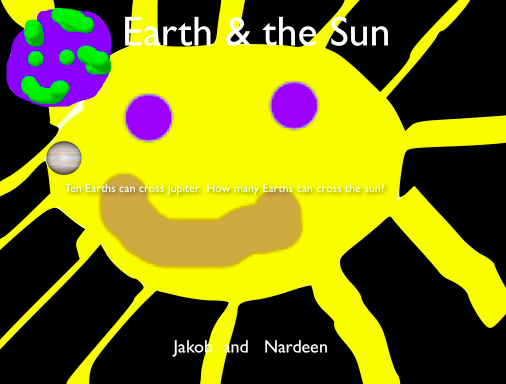
earthsunFirst grade students in Ms. Gerrard’s class at Davis Elementary have been learning how to county by tens to 100 in math (SOL1.2). They have also been studying about the Earth and sun in science (SOL1.6). So today we combined both topics into one lesson using Pixie & Keynote… a big task for first graders, but they were up for it! In my research I learned that the sun is about 870,000 miles in diameter and the Earth is about 8,000 miles in diameter, so about 100 (more like 110) Earths can cross the sun. But I wanted to find a unit they could use to count by tens, and I discovered that Jupiter is the perfect unit. It is about 87,000 miles in diameter. So about 10 Earths can cross Jupiter (more like 11) and 10 Jupiters can cross the sun. I created a Keynote template with most of the animations for this activity pre-built into it. You can click here to download it. I’ve done my work, now it’s time for the students to do their work. First they opened Pixie and, working with a partner, one drew a big picture of the sun and the other drew a picture of the Earth. We helped them take screenshots of their pictures and place them into their Keynotes. Next they added some transitions and animations using the Inspector. Finally they recorded their voices telling about how big the sun is and counting the Earths by tens to a hundred. You can see some student examples here: Mickaelly & Adin, Jakob & Nardeen.


2nd Grade Math Word Problems

sampleToday 2nd grade students in Ms. Ambrose’s class at Holladay Elementary created simple Pixie animations to show addition and subtraction word problems that they made up themselves. First they went to the Stickers library and selected a certain number of whichever object they wanted. That was their beginning number, and they added the number using the stamp tool. Then I told them to come up with a word problem where they either added to or subtracted from that number. We discussed different actions that would cause their number to increase (buying new objects, getting more as a gift, finding more, etc) or decrease (losing objects, selling objects, giving them away, etc). So there was a lot of student choice involved because not only did they pick their object, they also decided whether to add or subtract, and what was the reason for the change. Some of them were very creative, and that’s exactly what you want! Next we duplicated the picture (for the animation effect) and either added or subtracted the stickers. They also used the stamp tool to complete the math sentence (example 5 – 2). Finally, we duplicated the picture one last time and they got a friend to solve the problem. They recorded their voices and added their photos for each step of the animation and exported them together as a video. You can see two student videos here: DJ & Devon.


Tags:


Kindergarten Beginning Sounds Pixie

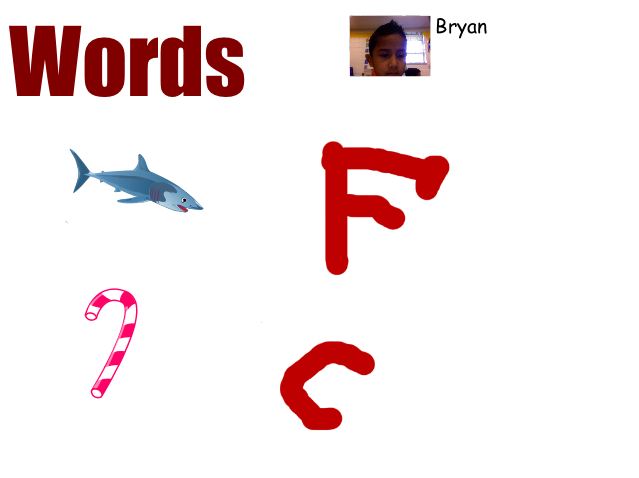
KBeginningSoundPeople outside of work are often surprised when I tell them that I teach kindergarten students how to use the computer. But I tell them that kindergarteners often catch on very quickly, more quickly than adults sometimes. It certainly was true today for Ms. Miller’s kindergarten students at Holladay Elementary. It was my first lesson with them using Pixie, and they did an impressive job. They have been studying beginning sounds, so I showed them how to find pictures of two different objects of their choice in the Stickers library. Then they used the paint brush tool to draw the letter each object started with. Since each child selected a different picture, they couldn’t copy each others’ like they may have been able to do with a worksheet. That’s one of the advantages of technology over worksheets because of the ability to customize it for each child based on their personal choices. We also practiced typing their names (using Shift to make the initial capital letter), and they added a photograph of themselves using the webcam tool. Finally they recorded their voices telling the name of the object and it’s beginning sound. You can see a couple of student examples by clicking here.


Tags: