Tag: photobooth

2nd Grade American Indian Projects

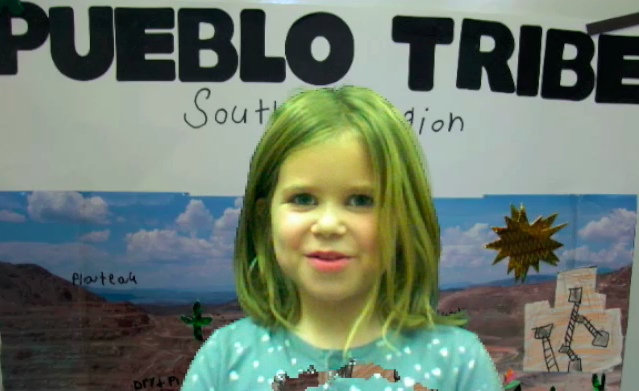
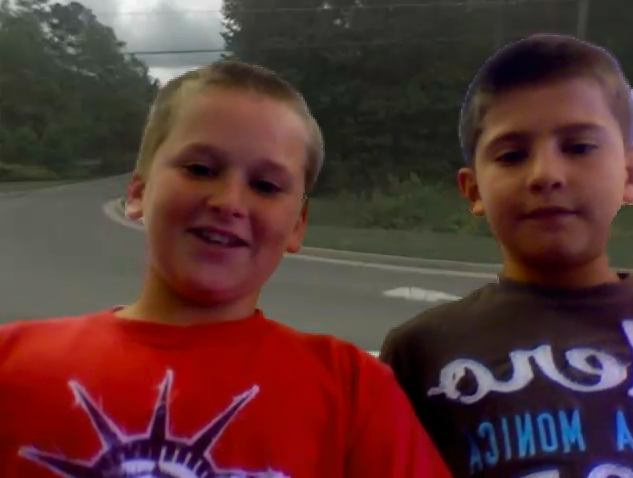
All the second grade students at Pinchbeck Elementary have worked hard on their American Indian projects so they wanted a special way to share what they have done. Each teacher took photos of their students’ projects and we used them as backgrounds in Photo Booth. Then with their project behind them, each child read a line from a script that told one important fact about the tribe. I edited the videos in iMovie and added a soundtrack from Freeplay Music. So when all the videos were put together, it made a fun and informative study guide for the American Indian Tribes (SOL 2.4). You can take a look at a sample from Ms. King’s class about the Pueblo Tribe here.


Kindergarten 5 Senses

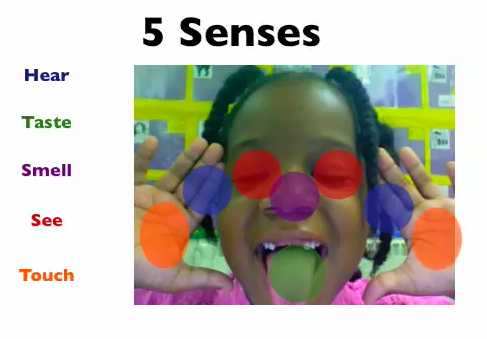
Kindergarten students had a great time telling about their five senses using Keynote today (SOL K.2). I gave them a template to use that has some animations already built into it. You can download it by clicking here. The students had to take their picture using Photo Booth… but they had to do a very special pose. They had to stick out their tongues and hold up their hands. That’s because after they dragged their photos into the Keynote they had to drag the colored dots onto the correct spot. So red dots for seeing went on their eyes, blue dots for hearing went on their ears, and so on. The last step was to record their voices as the slideshow played identifying the five senses. You can see some student samples here and here.


1st Grade Symbols

Today at Chamberlayne Elementary, first graders created animated Keynote presentations about the U.S. symbols (SOL 1.11). I created a template for them to use that you can download by clicking here. The students took photos of themselves using Photo Booth and added them to each slide. Then they recorded their narration describing each of the symbols: the flag, the Statue of Liberty, the bald eagle, and the Washington Monument. You can see a sample by clicking here. I want you to notice something about that example. There are some great facts but not all of them are accurate (30 stripes, George Washington died when we were alive). Oftentimes teachers ask how they can grade a project like this. They say that it’s not as clear cut as grading a worksheet or a test. However, in the example, you can tell which facts the child knows and which ones she doesn’t understand. So using a simple rubric or checklist of facts will help you generate a number grade. The advantage of doing a project as opposed to a worksheet or test is that the child can express facts that he or she knows that may not be assessed on paper. However, it’s important to allow children to go back and fix their mistakes in projects like this, so that when others watch them, the information is correct. Another idea for teaching patriotic symbols can be found on my blog here.


4th Grade Virginia Regions Interactive Map

Fourth grade is currently studying the regions of Virginia. I’ve described some technology projects you can do for this unit earlier in my blog: here’s a video project and here’s a Keynote project. But today at Pinchbeck, Mr. Stein’s class wanted to make an embedded map like I did this summer. So first we used PhotoBooth to create videos about the regions. You could either download a folder of pictures to use as backgrounds by clicking here, or you can let your students take their own pictures of the different regions! How? Go to GoogleMaps and zoom down into a region, then go to Street View and take a screenshot of an interesting place. You take a screenshot by holding down the Apple (or Command) key + Shift + 4. The screenshots are saved in the Documents folder. Then use those pictures as backgrounds in PhotoBooth. If your students are having trouble finding a good spot to take a picture, I have some saved on this website. After the students made their videos, Mr. Stein created a embedded map with markers representing each student, so when you click on the marker you can view the student’s video. Take a look at the finished map here. The cool thing about putting the project on an embedded map on your website is that students are eager to show it off to their parents and friends so the motivation to review is built into the project.


5th Grade Henrico Place Names

The Henrico History unit in 5th Grade presents a great opportunity for you to try some technology projects with your class. You could make a comic in Comic Life, a slideshow in Keynote, or a podcast in Garage Band. Examples of these types of projects are found throughout my blog. Today at Pinchbeck we made movies about the history of the different street names… and students went to those streets virtually via Google Maps! First partners were assigned a road to research using the Henrico website. Then they went to Google Maps and typed in the name of the road. Once they found it, they located an intersection and went to street view to see if they could get an image of the road with a road sign. They snapped a picture of it using Apple+Shift+4 (snapshots now go into the Documents folder), and used the picture as a background image in Photo Booth. Finally they recorded a video of themselves standing in front of the picture of the road, sharing what they learned about its history. Here’s a great student example about Pouncey Tract Road. And this guy is destined to be a TV announcer. Here’s the sample video I showed the students. If you’d like to download the activity click here.


5th & 3rd Grade “All About Me” Pages

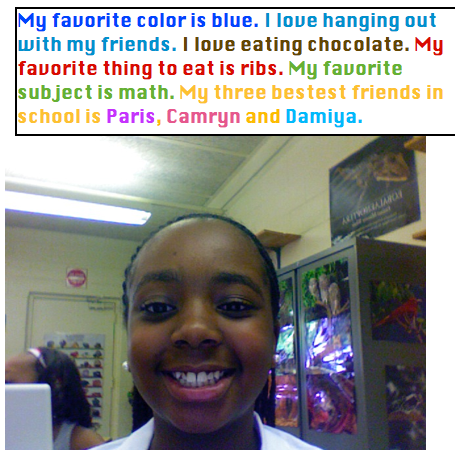
Fifth and third graders at Chamberlayne Elementary used Photo Booth and Pages to write “All About Me.” This is a great first week activity. First they opened up Photo Booth and took their picture. Then they dragged it into a Pages document and wrote about themselves. I showed them how to change the font, size, and color, and they got very creative as you can see in the example. Each teacher published the activity in a different way. Ms. Bradlee (5th grade) printed them out and hung them up on the walls for parents to see at back-to-school night. Mr. Mayo took screenshots and pasted them into a Keynote with music for a back-to-school night sideshow. It’s fantastic to see so many teachers jumping right into technology projects on the first week of school!


4th Grade Student Interviews with Keynote

Today fourth grade students at Laburnum Elementary interviewed each other in a 21st century remix of the traditional first week of school activity. Each teacher had their students prepare questions ahead of time and grouped them into partners. Then I came in and explained the principles of being a good interviewer (asking probing questions, responding positively to answers, being enthusiastic) as well as being a good interviewee (replying with more than yes or no answers, elaborating, being upbeat and friendly). We modeled an interview, and then the students opened up Photo Booth and got to work video taping their interviews. Next the students put their videos into Keynotes so that they could add text to them. You can click here to see a finished Keynote. And click here to see a great example of how well the students learned the lesson of being a good interviewer and interviewee (notice their enthusiasm and elaboration). At the end of the lesson, Ms. Norris said that she would love to do this for book studies… students could make a different video and Keynote slide for each chapter. Great idea! I love it when teachers make connections like that!


First Day of School in First Grade

I was excited to already have a technology lesson on the first day of school. Ms. Favale, first grade teacher at Holladay, wanted her students to take pictures of themselves so she could make a back-to-school night slideshow. Even on the first day of school, these very young first graders were able to log in, open up Photo Booth and take a snapshot. Some even took more than one! They were asked to take a normal picture for the parent slideshow, but then they could experiment with the different effects. Letting students experiment on their own is a great way to let them learn about the computer. An article I read this summer on an educational blog told about an experiment where they put computers in slums in India just to see if the children could figure them out on their own… and they did! You can read more about it here. So let your students have some time to explore on their own… they’ll surprise you with how much they can learn!


Summer School Web Tools

This summer I taught a two week long technology enrichment class for 4th and 5th graders at Colonial Trail Elementary. My focus was using web tools to teach the new 5th grade SOLs about the regions of the United States. Each student chose a state and made a website about the state. We used Weebly to create the websites. First the students researched their state, then they made videos using Pixie, Keynote, and Photo Booth. We uploaded the videos onto a cool site for making online posters called Glogster. Next the students made songs about their states using Aviary for the music, SitePal for the vocals, and GarageBand to put them all together. They uploaded their songs to Glogster as well, then we evaluated sample Glogs using Voicethread. Another cool web tool we used is Tikatok to make online books about the states. Finally students embedded their Glog, added a Google map and a BuzzDash poll, and made a link to their book… all on their website. It’s really amazing. You can check out our finished website here. It has links to all the student websites as well as my blog and a video of our end of the summer party. All the students’ websites were fantastic but since you probably don’t have time to look at them all, here are two spotlights: Nicholas and Adina (password is clough). Below I have embedded an Animoto video of our class.


5th Grade Oceans Videos

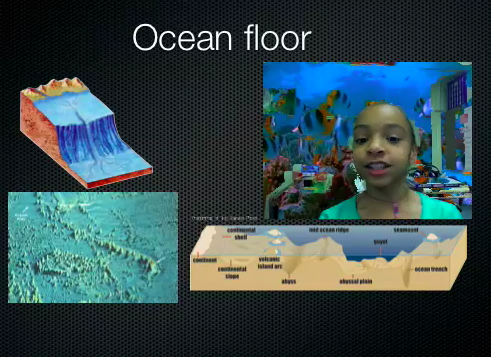
5th grade students have been working on a special project to review the oceans. Unfortunately they weren’t able to finish in time, but I’m going to go ahead and post what they did. Using a Keynote template I created for them (which you can download by clicking here) they added pictures to each slide to explain the different concepts like the ocean floor, ocean tides, and an ocean food chain (SOL 5.6). Then they recorded videos of themselves explaining the concepts using Photo Booth. The first slide turned out great! You can see some students samples here and here. Since they weren’t able to finish all the slides, you can take a look at my completed sample by clicking here. Doing a special project like this is a great way to review a topic the students are having trouble remembering. One thing I might do differently next time is have different groups of students complete a slide about each topic, then we can put them together. That way we could finish the project more quickly and still explain all the concepts. Live and learn!