Tag: keynote

3rd Grade Famous African Americans
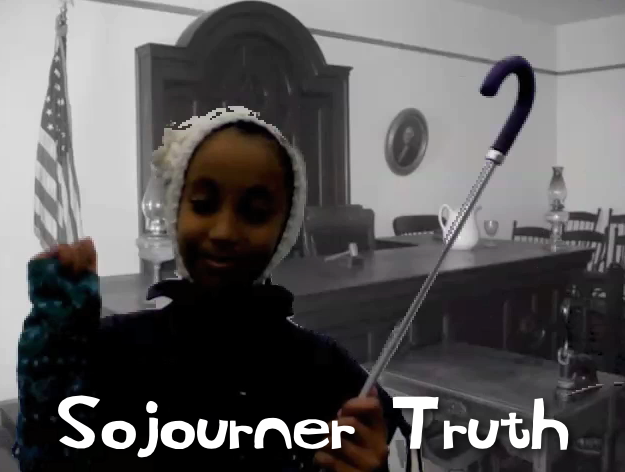
Picture 4As a special enrichment project for Black History Month, a small group of third grade students in Ms. Marion’s class at Holladay Elementary researched, created, and presented their own videos about famous African Americans. The three pairs of students selected Sojourner Truth, Malcolm X, and Rosa Parks for their projects. First, with the help of the media specialist, they gathered information about their person using books from the library and various websites. Then I helped them with some of the technology for their presentation. Some wanted to do a Keynote, and others wanted to do an iMovie project. These students already knew the basics of the programs, but I showed them how to use the advanced features like adding backgrounds, music, and special effects. They did all of the scripting and editing themselves. They also selected their own pictures and music to use. They even designed their own costumes and props! When they finished, I exported their projects as QuickTime videos and uploaded them to Vimeo so the students could share them with their classmates and families. You can check them out here: Sojourner Truth, Malcolm X, and Rosa Parks.
2nd Grade Indian Animations

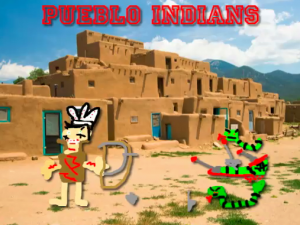
Picture 2Second graders in Ms. Marable’s class at Laburnum Elementary made animations about the different Indian tribes using Keynote today. First each student selected a tribe: Lakota, Powhatan, or Lakota. Then they opened up Keynote and did a Google image search for a picture of the region occupied by their tribe. I showed them how to drag the image into Keynote and resize it so it took up the whole background. Next they opened Pixie and drew a picture of an Indian from their tribe, a typical home, and an animal from that region. They exported their pictures as PNG files with a transparent background, and I helped them cut the pictures apart so they were separate. They dragged their pictures to the Keynote and added animations using the Build Inspector. Finally they recorded a narration explaining how their American Indian tribe lived. I exported those as QuickTime videos. You can see a few student examples here: Powhatan, Pueblo, Lakota.


4th Grade Planet Books

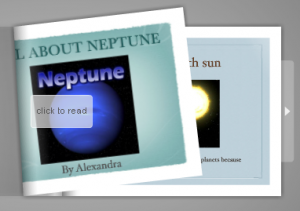
Picture 2Fourth graders in Ms. Tonello’s class at Holladay Elementary have been working on planet research projects. Each student chose a planet and gathered information from library books and websites. Today they were ready to share their information using Keynote. I taught them how to create a title slide and add new slides using different masters and themes. Next they did a Google Image search to gather pictures of their planets. They dragged the pictures into their slideshow and I showed them how to add transitions and animations. Finally they added text boxes and typed in their information. An additional step, that we didn’t have time for, would be to record a voiceover narration for their slideshow. With audio, you would export the slideshow as a video, but since we didn’t have audio, we exported them as PDF documents. Then I uploaded them to Flipsnack and converted them into an online flipbook. You can see a student sample about Neptune by clicking here.


3rd Grade Animal Research Projects

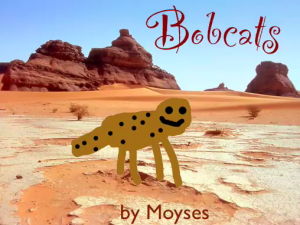
bobcatOne of the major research projects in 3rd grade is the Animal Report. Students choose an animal, think of questions they have about that animal, then go to the library and find information about its habitat, eating habits, predators, and other interesting facts. Once they have gathered their information, they must present it to their classmates in an interesting way. Of course, using technology is a great way to present their reports, and there are many exciting options for students to chose from. You can find many ideas on my blog here, here, here, here, and here. But today the students could chose between making an animated video or a Comic Life ebook. For the animated video, students drew a picture of their animal in Pixie, exported it as a PNG file (with transparency), and then brought it into Keynote. In Keynote, they added a picture of the animal’s habitat from an Internet search, then used one of the animated builds to make the animal move into its habitat. They also recorded a narration explaining the important facts about their animal. You can see a sample student video here. For the Comic Life ebook the students gathered their own animal/habitat pictures from the Internet and used them to create a comic in the Comic Life program. Then they added information using the speech bubbles. I combined them together into one PDF so we could publish it as an ebook using FlipSnack. You can see the student sample here.


3rd Grade Place Value Animation

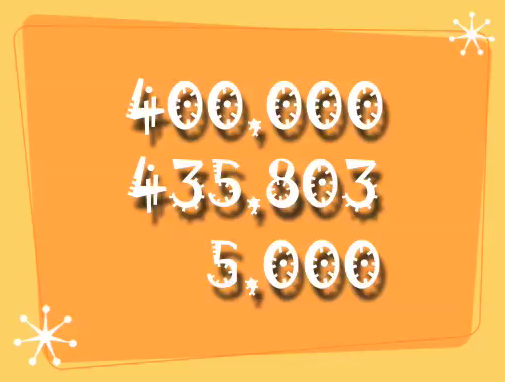
As a former third grade teacher, I know that place value is a difficult concept for students to grasp. One thing I found effective with my class was to get them to teach each other. And if they could record their teaching as a video that could be watched by other students as needed, it became even more effective. Making educational videos has become very popular, especially with the Khan Academy and the rising popularity of the flipped classroom. So today I showed two third grade classes how to create educational videos about place value using Keynote. First the students came up with a six-digit number. Next they had to choose one of the thousands digits and identify its place value. They did the same thing with one of the ones digits. A cool feature of Keynote is the ability to make animations so I showed the students how to animate their numbers. Finally they recorded a voiceover explaining the place value of the digits. You can see a student sample by clicking here.


Tags:


Kindergarten Addition Keynotes

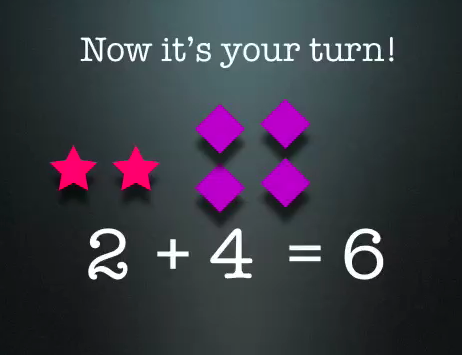
Today at Johnson Elementary, kindergarten students created Keynotes to demonstrate their understanding of addition problems. I gave them a template that you can download by clicking here. We looked at the template as an example of what an animated addition problem looked like. The students were excited about the cool animations and eager to try it out for themselves. So first they came up with their own addition problem. Then they had to create the problem using different color shapes. So I showed them how to make a shape, change its color, and copy and paste it. Next we added text boxes to write the math problem in 3 parts. Then they opened the Inspector and added animations to the text boxes. Finally they recorded themselves saying the math problem along with the animations. That’s a lot of different skills for kindergarteners, but they did it all in just under an hour! You can see some students samples here: Katy and Marina.


Tags:


4th Grade Talking Heads VS.6

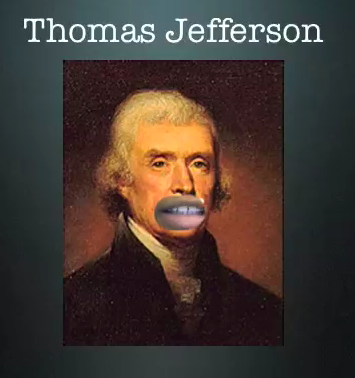
Fourth graders at Laburnum Elementary have been studying famous Virginians and the early documents they wrote declaring our rights and freedoms as Americans (SOL VS.6). We wanted our Founding Fathers to explain the documents themselves, and this is possible with Blabberize, but since we were having trouble with that website, we decided to try something different (you have to be flexible with technology, right?). I gave them a folder of pictures to use that you can download by clicking here. We cut away their mouths in Pixie and exported the pictures as PNG files with transparency (so their mouths would be empty holes). Then we brought them over into Keynote and added a title. Next we used Photo Booth to record ourselves speaking for the famous people, explaining their accomplishments. We put the video into our Keynote and put the picture on top of it, aligning our mouths with the hole in the picture. Then when we played our Keynotes, it looked like the famous person was talking! Take a look at a couple of student examples: Alicia – Thomas Jefferson and Nyesha – George Washington.


Kindergarten Presidents Day Birthday Presents

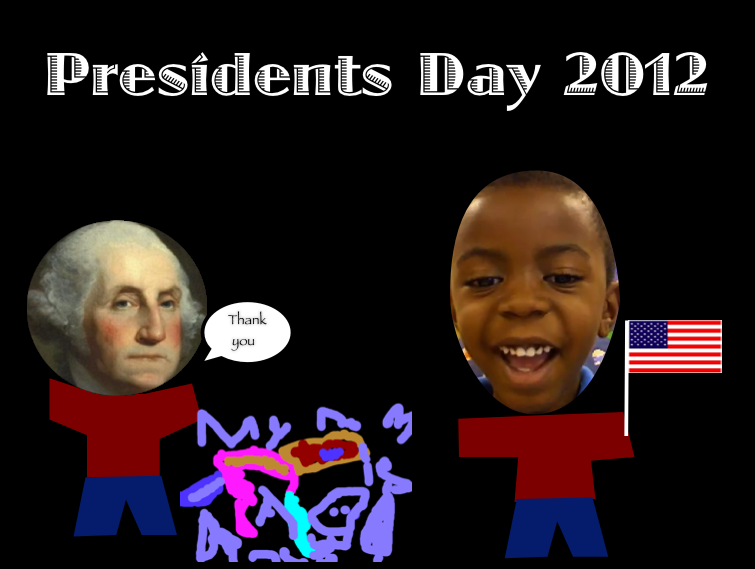
Today kindergarten students at Holladay Elementary thought about what they could give George Washington or Abraham Lincoln for Presidents Day. We talked about how they lived in the past so we couldn’t give them presents that we would want, like Xbox or Legos. We also discussed presents that would be meaningful for them, relating to what they did or what they enjoyed. The students did a great job coming up with ideas: books, axes, top hats, and a big 16 for Abraham Lincoln; a horse, new teeth, a lantern, and a big #1 for George Washington. Next students drew their ideas in Pixie and exported the picture as a PNG file so that it would have a transparent background. We helped them put the picture into a Keynote template that you can download by clicking here. Then the students filmed themselves giving a birthday message to the president, explaining why they gave him that gift. They placed the video in the template as well. You can see some finished projects here:
Daisy giving a horse to Lincoln
Harrison giving an axe to Lincoln
Jack giving a tricorn hat to Washington


3rd Grade Animal Research Presentations

Third graders at Holladay Elementary have been researching animals for a couple of weeks and today they created Keynotes to present their findings. They chose the animal they wanted to research and were instructed to find information about its adaptations (SOL3.4), food chains (SOL3.5), and habitats (SOL3.6). They could also include any interesting facts that they discovered. When I arrived, they had all their research complete and ready, so I gave them a Keynote template to get them started. You can download it by clicking here. Students added facts and pictures to each slide. I also showed them how to add special effects like transitions and animations. If we had more time we would have recorded a voiceover (if you do this with your class, you might want to try that since it is a great way to develop oral presentation skills). You can see a couple of student samples here: Ashley – Grey Wolf and Stephanie – Horned Lizard.


Tags:


Kindergarten Coin Flashcards

Today kindergarten students at Johnson Elementary created their own interactive flashcards using Keynote. I gave them a template which you can download by clicking here. The first slide has some animations so we watched that first so the students would know what an animation was. Their task was to create two slides. One would ask viewers to identify the name of the pictured coin, and the other would ask viewers to identify the value of the pictured coin. Students could choose which coin they wanted to use. So on each slide, they added a text box and typed the answer. Then they copied and pasted a coin from the first slide onto the other slides to cover the answers. Finally they added an animation to the coins so that when the viewer clicked on it, the answer would be revealed. The students could watch each others’ slideshows for practice and they could even be posted online, like this student sample (be sure to click repeatedly to see the animations).


Tags: