3rd Grade Animal Rules & Laws

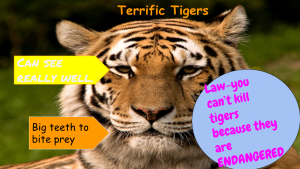
Third graders at Holladay Elementary have been learning about the difference between rules and laws in Social Studies (SOL3.10a), and they have been studying animal adaptations in Science (SOL3.4). So today students in Ms. Whittaker’s class created slideshows that identified animal adaptations and also included a rule or a law about that animal. First they opened a blank Google slideshow, and I showed them how to add a background image of their animal. Next we added some shapes to point out different features on the animal (Example – deer have antlers to fight with). If the students needed to do some research, they could open a new tab and do a quick Google search. I demonstrated how to change the color and type a fact in each shape. Then we added another shape and typed in a rule or a law about the animal (Example – Rule: Don’t feed the deer; Law: You can only shoot two deer with antlers per season). Finally, we used the Transitions button to add animations to the shapes. Students shared their slideshows on Schoology, and you can see them all here.


5th Grade Multiple Meaning Words

Fifth graders at Trevvett Elementary have been learning about words with multiple meanings and homophones (SOL5.4). Today students in Ms. Brown’s class created a Google slideshow to illustrate two different meanings of a word or a pair of homophones using context clues. First we utilized the Schoology discussion feature to brainstorm multiple-meaning words. You can see a short sample of the discussion by clicking on the photo accompanying this post. Notice the student names and photos are blurred out. You can do that using a cool site called FacePixelizer. Next the students opened a blank Google slideshow (the quickest way is to give them a direct link to their Google slides). I showed them how to search for an background image that isn’t too distracting by clicking the Background button > Image > Choose > Search. Some good search terms to use are “texture” or “bokeh” (blurred lights). Then we changed the title to “Multiple Meaning Words” and added their name to the subtitle. I also demonstrated how they could change the font, size, and color of the words. On the next slide we typed a sentence using both meanings of the word or homophone, and we underlined them. I explained how to add transitions and animations to the slide as well. Finally, I showed them how to add an image illustrating the sentence. We shared our slideshows with each other on Schoology. You can see them all here. (UPDATE: I taught a similar lesson with Ms. Hall’s class at Holladay on 10/10, but we did it a little differently. I have added them to that page).


4th Grade Graphing Virginia Resources

Fourth graders at Laburnum Elementary have been learning about graphing in Math (SOL4.14) and Virginia natural resources in Science (SOL4.9), so today students in Ms. Waltz’s class researched and graphed Virginia products. First I shared two websites for research: Virginia Farm Products & Virginia Minerals. These sites provide the amount in dollars or tons for each resource. We discussed why the units were different (it wouldn’t make sense to compare farm products in tons because of their different sizes: cows weigh a lot more than chickens). Next we opened a Google spreadsheet and wrote “Product” in Column A and “Amount in (tons or dollars)” in Column B. They had to choose the unit that corresponded with their products. Then they typed three products of their choice in Column A and entered the amount of each in Column B. Now that they had entered their data, it was time to graph it. Google Sheets has a new “Explore” feature that can be accessed by clicking the star shaped icon in the bottom right corner. They chose a color scheme from the pop up menu and added the graph to their spreadsheet. I also showed them how to change the color of the bars (click on a bar and choose a color from the side menu). Finally we shared our spreadsheets on Schoology so we could learn from each other. Click here to see all their graphs (UPDATE: I did the same lesson with Ms. Dowling’s class on 9/27, so those have been added as well).


4th Grade Mapping the Hurricanes

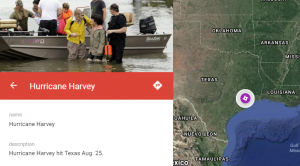
Fourth graders at Holladay Elementary have been learning about weather in Science (SOL4.6) and maps in Social Studies (SOL4.1), so today students in Mr. Rivara’s class created Google maps showing this season’s hurricanes. The 2017 hurricane season has been rough, with Hurricane Harvey hitting Texas at the end of August, and Hurricane Irma currently hitting Florida! First I showed them a few webtools that are great for tracking hurricanes: Earth and Meteoearth both show wind directions across a 3-D globe, while Windy shows wind directions on a flat map. Next, we went to My Google Maps and created a new map. I showed them how to add a marker to show where Hurricane Harvey hit in Texas. We added a title and a descriptive sentence with a fact about the hurricane. The students had to do some quick research to get their fact by opening a new tab and typing “Hurricane Harvey” in the search box. I wanted them to find a fact with a number, since they are learning about place value in Math (SOL4.1a). Finally, we added a photo of the hurricane, and I explained how to customize the marker by changing the color and icon. We had time to add one more marker for Hurricane Irma. They will continue using the map to track other hurricanes this season. You can see all their maps here.


2nd Grade Ordinal Numbers

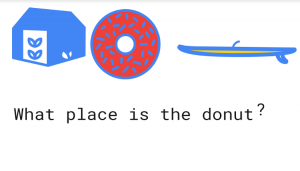
Second graders at Trevvett Elementary have been learning about ordinal numbers (SOL2.2), so today students in Ms. Smith’s class created ordinal number questions for their classmates to solve. First, we used to Google’s Autodraw to draw a series of objects. AutoDraw can guess what you are drawing and offer suggestions. For example, if you draw a rough circle, it will provide a perfect circle to replace it with, or it may suggest an orange, a ball, or a wheel. So it’s a great way for students to practice their drawing skills without worrying about being perfect. I explained that their series of objects needed to be in one straight line so their classmates could tell the ordinal positions correctly. Then we used the text tool to type a question. They could either give the position of an object and ask for its identity (“What is in the 3rd place?“) or they could name the object and ask for its position (“In what place is the apple?”). When they finished, the students downloaded their images and shared them in an album on Schoology. Now they can answer each other’s questions in the comments or Ms. Smith can present them on the projector for a review. You can see them all here (and here’s a link to Mr. Gunter’s class at Holladay, who did the same project).


New Teacher Academy

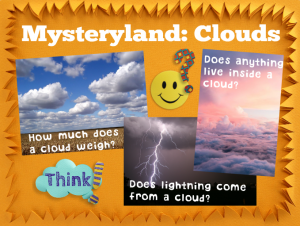
Today was New Teacher Academy, our county’s training session for newly hired teachers. My team’s job was to share ideas for using technology in the classroom. Alfonso and I presented a session called “Mysteryland” with the 4th grade teachers. Mysteryland is a music festival that I attended one summer, but it could also be your classroom, because classrooms are places for exploring mysteries. When you present topics as mysteries to solve, it stimulates students’ natural curiosity and increases motivation to learn. We used clouds (SOL4.6) as an example to show that every topic has plenty of mysteries to investigate: How much does a cloud weigh? Why does a cloud form in one spot and not another? Does anything live inside a cloud? Does lighting come down from clouds or up from the ground? Do clouds protect us from anything? Does wind speed and direction have anything to do with cloud cover? (Look here or here and turn on cloud cover)? Technology can be used by teachers to present these mysteries to the students in creative ways, but once a few mysteries have been presented, technology can be used by students to share their own questions with each other, research the answers collaboratively, and publish their findings online. We shared a variety of webtools for accomplishing these tasks. For example, we asked each new teacher to research a cloud mystery and post their answers on a shared Google spreadsheet. Try adding an element of mystery to your lessons this year!


Field Day of the Future

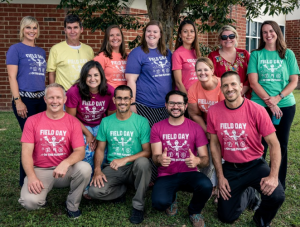
Today was our annual teacher conference, and this year our theme was “Field Day of the Future.” We trained our teachers to flex their technology muscles in new ways. We even had an inspirational video to get them pumped up at the beginning. My teammate, Alfonso, and I shared various webtools in our session, “Funky Tech CafĂ©.” The tools were arranged by TSIP categories: Delightful Research, Scruptious Problem Solving, Savory Creativity, and Palatable Collaboration. For Research, we looked at Kiddle (a kid-friendly search engine) and the new Google Earth online (you might need to open an Incognito window in Chrome to visit the site). For Problem Solving, we shared CoSpaces (a site for creating virtual 3-D worlds with the ability to code different elements) and ABCYa! Animate (a site for making animations). Our Creativity webtools were StoryboardThat (for creating comics) and WeVideo (for making movies). Finally, we shared two websites to help with Collaboration: Padlet (an online bulletin board with many updated features) and TodaysMeet (an easy-to-use private chat room that you can customize). If you’d like to try some of these tools, let me know, and if you missed this year’s conference, be sure to attend next summer!


5th Grade Virtual Tours of U.S. Regions

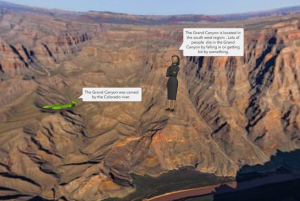
Fifth graders at Holladay Elementary have been learning about the different regions of the United States, so today students in Ms. Sharpe’s class created virtual tours of the U.S. regions using CoSpaces. First, the students selected a region from the five possible choices: northeast, southeast, midwest, southwest, and west. Next, they used their notes and the Internet to research important facts about their region. I also instructed them to find and download a 360 degree photo of an interesting place in their region (search place name + 360 – NOTE: a 360 degree photo will appear somewhat curved). Then we were ready to start creating our virtual tour. We signed into CoSpaces with our Google accounts and created a new project. We clicked the Environment button at the bottom to upload our 360 degree background photo. I showed them how to add 3-D people and objects using the Library. In order to customize the objects’ positions, poses, sizes, and colors, we right clicked on them and selected the appropriate buttons from the pop-up menu. The students added speech bubbles to explain important facts about their regions. We tested our VR scene by clicking the play button (you can move around the scene by clicking and dragging or using the arrow keys). If students weren’t satisfied with where the camera view started out, I showed them how to adjust that with the “Special” button in the Library. Finally we clicked the “Share” button at the top and copied our links into Google classroom so we could view each other’s tours. You can see them all here.


Tags:


5th Grade Review with Chatbots

Fifth graders at Holladay Elementary have been reviewing for exams, so today students in Ms. Neal’s class created review questions for each other in the form of a chatbot. A chatbot is an online virtual assistant that you’ve probably already had interactions with if you’ve used the chat feature on a business website. The chatbot is programmed to ask you questions and give replies based on your answers. We used a website called Fobi.io which turns any Google form into a cool-looking chatbot. First we created the Google Form by going to our Google drive and choosing New > More > Google Forms. I explained that the first question should be: “What is your name?” Then the students had to come up with two multiple choice educational questions about any topic they’ve learned about this year in 5th grade (we brainstormed a list of topics, in case they had trouble remembering). They could also create additional questions of their own if they had time. We published our forms by clicking the “Send” button and copied the link. Next we went to Fobi.io and pasted the link to our form. Now we could program the chatbot Fobio to reply to each of the questions. For example, if an answer was correct, he could say, “Great job!” or if it was wrong, he could say, “Try again!” The students were very creative in their responses. You can take a look at some of their chatbots here.


Henrico 21 & Student 21

Today we celebrated all the amazing technology projects teachers and students have created this year across the county at our annual Henrico 21 Ceremony and Student 21 Fair. Teachers and students were chosen from every elementary, middle, and high school to showcase projects related to 21st century learning (hence the 21 in the name). During the H21 Ceremony, each teacher’s lesson was summarized in a video as they walked across the stage. You can download all their lessons on the Henrico 21 website. For the Student 21 Fair, each school had a table with a display of the students’ projects. Parents and members of the community could wander from table to table, visiting with the students and listening to them proudly explain what they created. There is an interactive map showing all the projects here, and you can read more about each one on the Student 21 blog. Our hope is that you will be inspired to try similar projects in your own classroom… and maybe you’ll be featured at next year’s ceremony! Let me know if you are interested in participating.