Category: Kindergarten

Kindergarten Coins Pixie
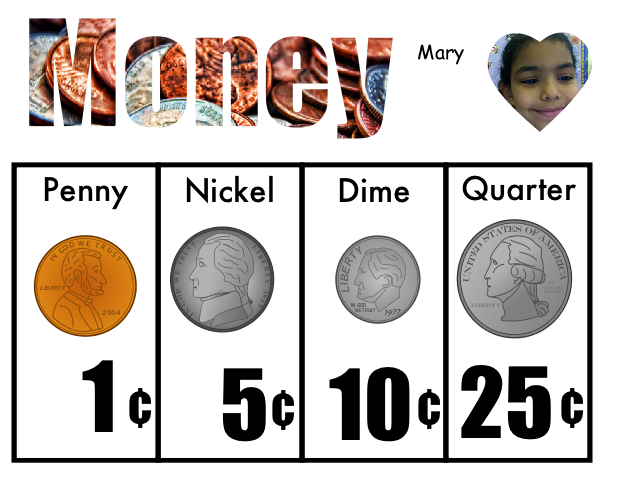
Today kindergarten students reviewed their coins using Pixie. You can download the template by clicking here. First students had to drag the coins to the correct column to identify them. Next they typed the value in the text boxes. Finally they took their photo and recorded themselves naming each coin telling its value. You can look at a sample here. Making audio recordings in Pixie to go along with a project is a great way to have your students clarify their understanding as well as practice oral language skills. If you notice, the template has a picture of coins inside the word “Money.” This is called Word Art, and it’s easy to do in Pixie. You drag a picture to your document, paste it down with the glue tool, then add a text box on top of the picture and type your words. Finally, click the word and click the “Word Art” button over the color selection box.
Tags:


Kindergarten Matter Sort

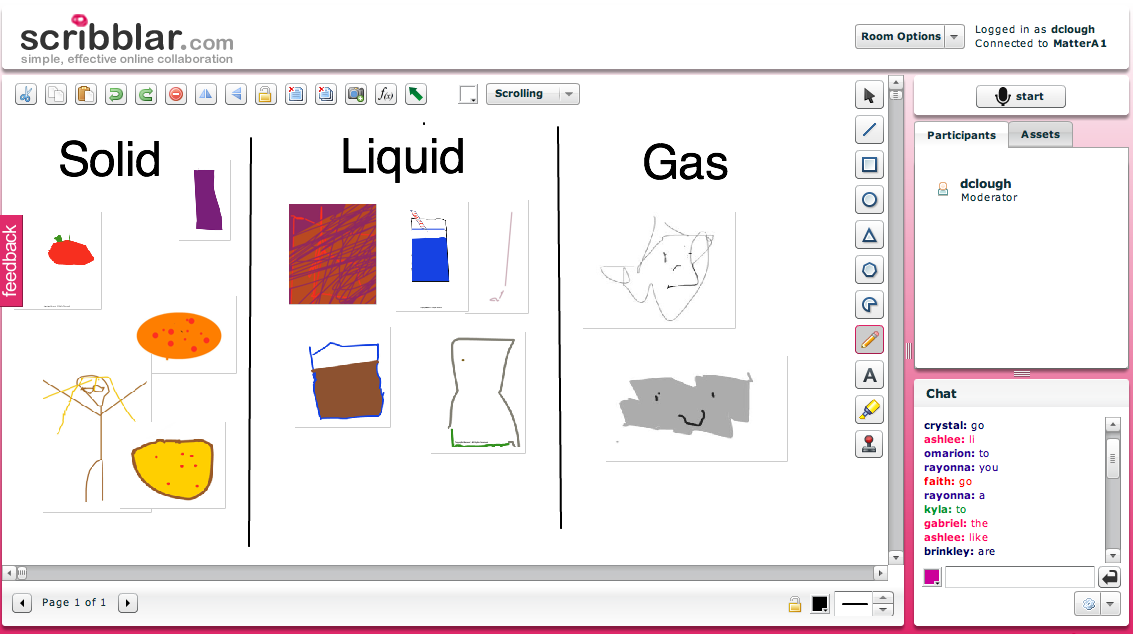
Kindergarten students at Chamberlayne Elementary have been learning about solids, liquids, and gases (SOL K.5). I posted an idea here about a Pixie activity you could do on this topic, but since I’d already taught a couple of Pixie lessons to these classes, I decided to try something different. First we went to Kerpoof (which is an amazing site by the way) and each student drew a picture of either a solid, a liquid, or a gas. We saved them as JPEG files, then we went to a Scribblar link which I prepared ahead of time and they uploaded their pictures. Yes, little kindergarteners were uploading photos to the Internet today… it was really incredible how quickly they caught on! While they were waiting for the files to upload, some of them even “texted” their sight words to each other in the Scribblar room as you can see in the photo (click it to make it larger). Finally we sorted their pictures into solids, liquids, and gases. You might also want to check out two other resources I have for this unit. One is a a website about the states of water and the other is a website about sink and float.


3rd Grade Martin Luther King Comic

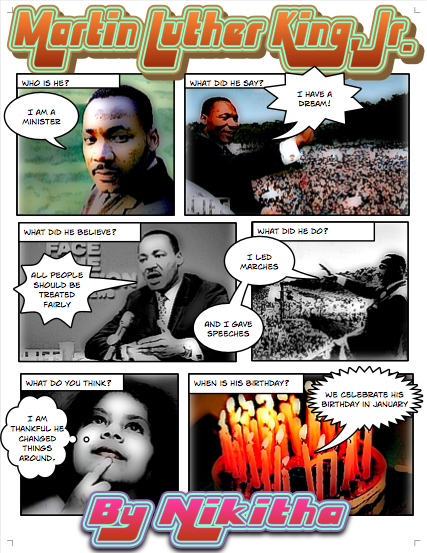
Yesterday was Martin Luther King Day, so several classes wanted to do a project to honor him. This could actually be adapted for kindergarten and 2nd grades as well since each of those grades learn about him too (SOL K.1b, 2.11, 3.11b). I gave the class a Comic Life template to use and a folder of pictures which you can download by clicking here. The template has speech bubbles already partially completed so the students only have to enter the important words. This is helpful for the students who have problems typing. However, for your good typists, you could differentiate by letting them type what they want in each speech bubble. The students add pictures of their choice to each block of the comic, complete the sentence, and then add special effects to it. You can see a sample project by clicking on the picture to see it larger. You might also want to visit my Martin Luther King webpage where you can watch part of his famous “I have a dream” speech and see a timeline of his life.


Kindergarten Measurement

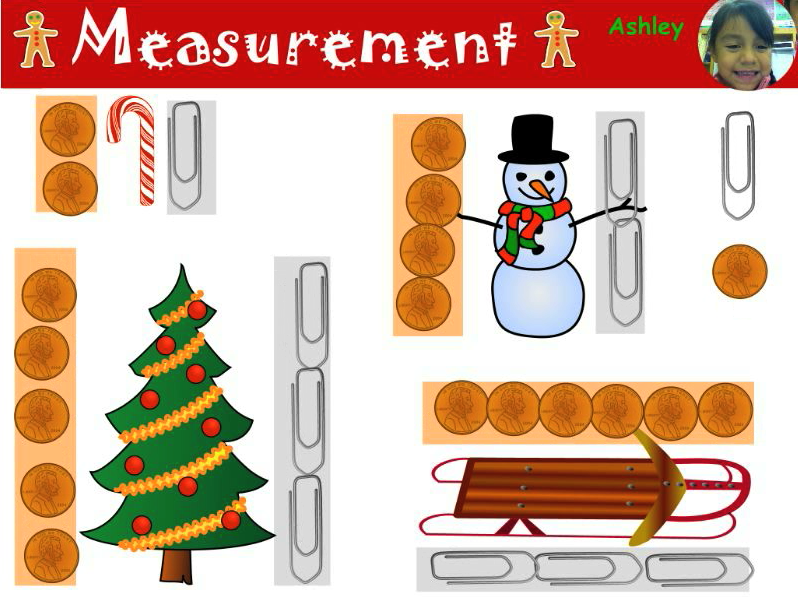
Kindergarten students at Pinchbeck and Holladay Elementary Schools have been learning about measurement. At Holladay they just got Pixie installed, so I set up a Pixie measurement lesson that you can download by clicking here. I had several holiday stickers for them to measure using different units (pennies and paper clips). Then they recorded themselves saying the measurements. You can check out their video by clicking here. At Pinchbeck, I had already done several Pixie activities so I wanted to try something different. I set up a Scribblar grid workspace with each child’s name in a box. After the students logged in by typing their names, they each drew a simple object in their boxes. Next they got a friend to measure their object using either the star or diamond stamps. Then they wrote the number of units in the box. You can check out the activity here.


Kindergarten 5 Senses

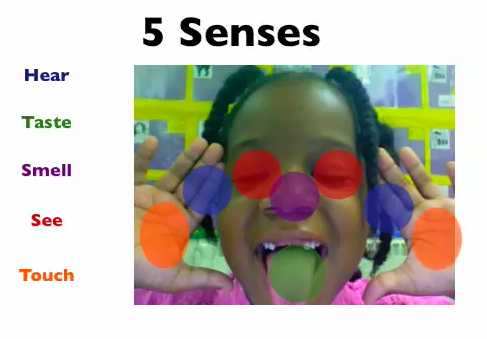
Kindergarten students had a great time telling about their five senses using Keynote today (SOL K.2). I gave them a template to use that has some animations already built into it. You can download it by clicking here. The students had to take their picture using Photo Booth… but they had to do a very special pose. They had to stick out their tongues and hold up their hands. That’s because after they dragged their photos into the Keynote they had to drag the colored dots onto the correct spot. So red dots for seeing went on their eyes, blue dots for hearing went on their ears, and so on. The last step was to record their voices as the slideshow played identifying the five senses. You can see some student samples here and here.


Kindergarten Fall Patterns

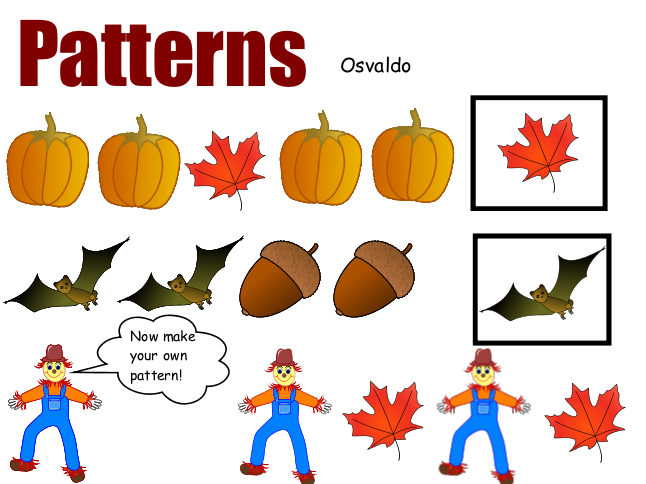
Kindergarten students have been learning about the seasons and patterns, so this Pixie activity reviews both, plus it gives you the opportunity to introduce Pixie to your class. I’ve been using this lesson with several of my kindergarten classes now that Pixie has been installed on all computers. Let me know if you still don’t have Pixie. First the students open the template which you can download by clicking here. Then they type their names in the box. Be sure that your students capitalize their names using the Shift key instead of Caps Lock. This prepares them for two-hand typing later. Next they click and drag the stickers to complete the sample fall patterns in the first two rows. For the bottom row, they click and drag the stickers to create their own pattern. It’s also a good idea to have your students verbalize the patterns, so we use the record button and students record their voices reading the patterns aloud.


Tags:


Trackpad Practice in Kindergarten

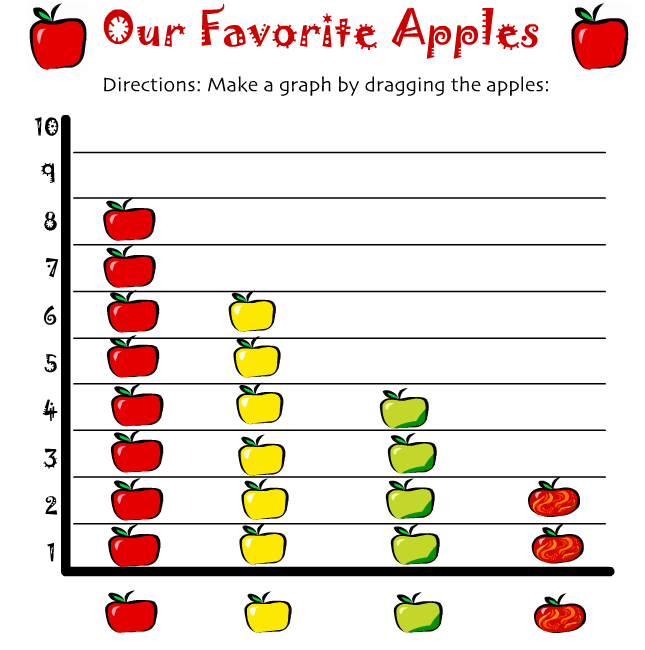
It’s great to see kindergarten students already using the computers this week! One of the first lessons we do in kindergarten is to show them how to use the trackpad, especially how to click and drag. At this age, they are still developing their fine motor skills, so they need lots of practice. I created this online apple graphing activity to help get them started. First we vote on our favorite apples (red, yellow, green, or other), count the results (or use the ActiVote clickers), and then drag the apples on the graph to show the correct amounts. It not only gives them practice clicking and dragging, but it also reviews some important math concepts. Finally, I’ve gathered together several other websites that give additional practice using the trackpad here.


Tags:


Kindergarten States of Water Pixie

I posted about a sink or float (SOL K.5c) activity for kindergarten here, but I had a few teachers who wanted to review the states of water (SOL K.5a). So I created another interactive website about that topic here. It’s actually one of my old Hyperstudio projects, but since we don’t have that program anymore I turned it into Flash so it could be online. It reviews the different states of water (solid, liquid, gas), how water travels downhill (SOL K.5b), and water conservation (SOL K.10c). After they complete the online activities they can do this Pixie activity where they use the different drawing tools and stickers to identify the states of water.


Kindergarten Maps & GoogleEarth

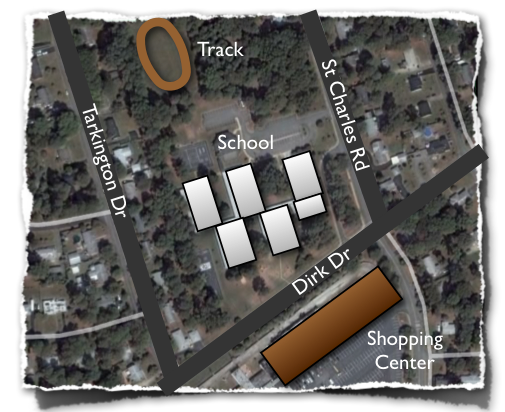
Today in kindergarten at Chamberlayne Elementary, students worked on creating Keynote slideshows about maps (K.4, K.5). First I showed them Google Earth so they could get an idea of how maps are made. We zoomed down and found their school. This is a fantastic tool to use with all grade levels but especially with lower grades because they can actually see familiar buildings and roads from above. I used screenshots from Google Earth to make the Keynote template which the students opened next. You can download it by clicking here. The template already has directions and some built-in animations, so students just need to follow the directions on each slide and press play. You can see a sample by clicking here. If you have time, a good idea would be for the students to use the audio record feature of Keynote to record themselves explaining each slide.


Kindergarten Spelling & Sight Words

A kindergarten teacher wanted her students to practice spelling and sight words with technology so I created two activities that you might find useful, or you can change them to fit your specific words. The first one (pictured) is a Numbers activity to review their spelling words. The students look at the picture by each word and click the sound button to listen to the word read aloud. Then they choose the correct vowel from a drop down menu to complete the word. The spreadsheet is self-correcting so a smile will appear if they are right and a sad face appears if they are wrong. You can download the spelling Numbers activity by clicking here. The second one is a Keynote slideshow to review sight words. Basically the students record themselves reading the words as they appear on the screen, then the teacher has a record of which words the students know. You can download the sight words Keynote activity by clicking here.