Category: 5th Grade

5th Grade Sound eBook
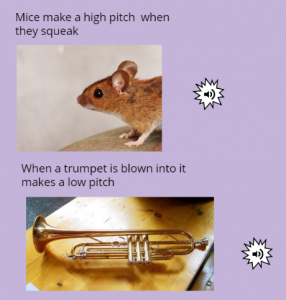
Fifth graders at Trevvett Elementary have been learning about sound (SOL5.2), so today students in Ms. Capano’s class created sound eBooks. I explained that an eBook can do things that a regular book can’t do. It can have videos, animations, and sounds, which make it perfect for a sound book. First, Ms. Capano set up a class in BookCreator, and her students joined with a code. Then we created a new book. I asked them all to choose the square shape, so when we combined the books together at the end, they would all match in size. For the cover, I showed them how to change the color, add a title, pick a font, and search the web for a photo of sound. Inside the book, I instructed them to write complete sentences about sound. If they used a vocabulary word, like frequency or amplitude, then they could make it bold. They could also add photos of objects that make sound or draw sound waves with the pen tool. When they finished their pages, I showed them how to search for and download sounds on SoundBible. Then we uploaded our sounds to our books by clicking the + button and choosing Import > Files. Now we have a book about sound that actually has sounds in it! I combined all their books together into one class book. You can read their book here. (UPDATE: I taught a similar lesson on 3/20 with Ms. DiMatteo’s class at Holladay, and you can read their book here).


Tags:


5th Grade Energy Animations

Fifth graders at Varina Elementary have been reviewing potential and kinetic energy (SOL4.2), so today, students in Ms. Primrose’s class created animations to illustrate these concepts. For this lesson, we used a different way to animate that I learned about from a fellow ITRT, Michael Price. He showed me how to create an auto-playing animation with Google slides. First, we reviewed potential and kinetic energy and brainstormed several examples (pulling back on a bow and arrow, squatting before a dive or a basketball throw, twisting a rubber band, squashing a spring, blowing up a balloon before releasing it, etc). I explained that we would be animating both the potential and kinetic energy of an action, so the students needed to choose one they found interesting. Next, we opened a blank Google slide, and clicked the Background button. The students used the built-in Google image search to look for a background that would fit their action. Then we added Shapes to make our characters and objects. We copied the slide (right click > Duplicate slide), and moved the shapes around slightly to make it look like the characters and objects were moving. We continued copying slides and making adjustments until our animations were complete. Now it was time to add the animation magic! We clicked File > Publish to the web and chose “Auto advance slides every second.” We also clicked the two boxes so that it would start automatically and repeat when it was finished. When the link appeared, we changed the number that came after “delayms=” to 100 to speed up the animation. You can see their final projects here.


5th Grade Physical & Chemical Changes

Fifth graders at Laburnum Elementary have been learning about how matter can change physically or chemically (SOL5.6), so today, students in Ms. Hall’s class created animations to illustrate some of these changes. First, we reviewed the differences between physical and chemical changes and looked at some examples. Then, the students chose a type of change they wanted to animate, and I explained how to download a suitable background image with a Google image search. Next, we went to ABCYa!Animate to create our animations. We clicked the “Edit Background” button and uploaded our background image. Then, we used the paint tools or the image library to create our first frame. I demonstrated how to copy the frame and make small changes in each subsequent frame so that when they press “Play,” it shows matter changing over time. When we were finished, we exported our animations as .gif files and shared them on Schoology. You can see them all here.


5th Grade Science Review Comics

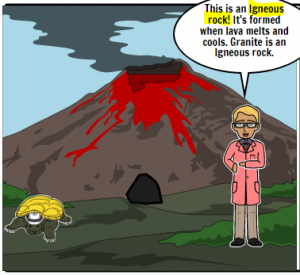
Fifth graders at Trevvett Elementary have been reviewing various science topics in preparation for Benchmark testing. A fun way to review is to make a comic study guide. Today students in Ms. Capano’s class used StoryboardThat to make comics about science topics of their choice. First, we reviewed the units they have been studying, such as rocks (SOL5.7), oceans (SOL5.6), and cells (SOL5.5). Then, they selected an idea they were interested in and went to StoryboardThat where they chose background scenes to best represent that topic. I showed them how they could use the “Edit Scene” button to change its weather or appearance. Next we clicked the Characters tab at the top and added people or animals. They could customize the characters as well by clicking the “Edit Pose” button. Finally, we added speech bubbles with the Textables tab. The students wrote complete sentences providing facts and information for review. Many of them even added bold or highlighted words, which they’ve learned are text features of nonfiction (SOL5.6a). In order to save and share our comics, we took screenshots and posted them to Schoology. You can see them all here.


5th Grade Mean, Median, Mode, and Range

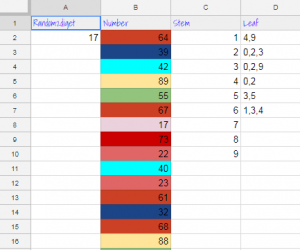
Fifth graders at Varina Elementary have been learning how to find the mean, median, mode, and range of a set of data (SOL5.16c). They have also been making stem-and-leaf plots (SOL5.15). Today students in Ms. Primrose’s class discovered how to accomplish these tasks using a Google spreadsheet. First, we opened a blank spreadsheet by clicking the shortcut button (the 9-squares at the top of a Google search page). We discussed how the spreadsheet grid is similar to a map grid, with letters along the top and numbers along the side. Each cell has a name based on its letter and number (such as B6 or D9). The cell name stays the same, even if the data inside it changes. I explained that we will be using the cell names to create our formulas for mean, median, mode, and range. This concept of cell names is a great way to help students understand variables (SOL5.18a). Next, we labeled each column: Random, Number, Stem, Leaf, Mean, Median, Mode, Range. I showed them how they could highlight the whole row by clicking 1 on the side and change the font, size, and color. We clicked in A2 and typed our first formula for generating a random 2-digit number: =RANDBETWEEN(10,99). Then we clicked in B2 and typed the number we saw in A2. When we pressed the Enter key we went down to B3 and typed the new random number we saw in A2. We continued doing that until we had about 20 random numbers down column B. To make it easier to create the stem-and-leaf plot, we added some conditional formatting to column B (highlight the column by clicking the B at the top, then click Format > Conditional formatting). We added 9 rules making the cell a different color if the number was between two tens (for example, make the cell red if the value is between 20-29). Now we clicked in the C column (Stem) and typed 1-9 down the cells for our stems. Since the leaves had to be next to the stems, we highlighted the D column (Leaf) and changed the alignment from right to left using the Horizontal align button at the top. Then we used our colors to help us count and enter the numbers. Finally, we used formulas to calculate the mean, median, mode and range in their respective columns:

=AVERAGE(B2:B21)
=MEDIAN(B2:B21)
=MODE(B2:B21)
=MAX(B2:B21)-MIN(B2:B21)

To show the value of using variables (cell names, like B2), I instructed the students to change some of the numbers in Column B. The formulas instantly recalculated their values! We shared our spreadsheets with each other on Schoology, and you can see them all here.


5th Grade 3-D Cell Models

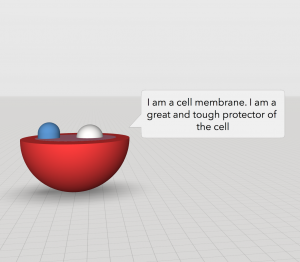
Fifth graders at Varina Elementary have been learning about cells and their different parts in Science (SOL5.5a), and they have been learning how to use adjectives and adverbs in English (SOL5.8b). Today, students in Mr. Williams’ class created 3-D models of cells and wrote descriptive sentences of some of the parts using adjectives and adverbs. We used a great site called CoSpaces to create the 3-D models. First, we logged in using our Google accounts, and I showed them how to pick a background from the Environment tab. Next, we clicked the Library and built a model of a plant or animal cell using the cubes, spheres, and other shapes from the Library. We right clicked on each shape to change its color and activate it for use in Blockly (the coding language). Finally, we used blocks of code to program the cell parts to identify themselves when clicked. The students typed sentences with adverbs and adjectives describing each part’s function. You can see them all here. (UPDATE: I taught this lesson in a couple of other classes as well, so I’ve included some student samples from those lessons on the document. In one class we made the cell parts actually speak by recording ourselves in Vocaroo and uploading the MP3 audio files to CoSpaces).


Tags:


5th Grade Southeastern State or Animal Websites

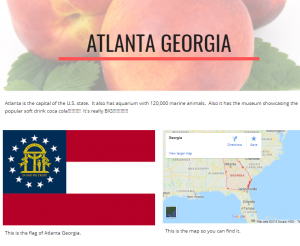
Fifth graders at Laburnum Elementary have been studying the southeastern states in History (SOLSE), and they have been learning about animal survival traits in Science (SOL5.5c). Today students in Ms. Hall’s class chose a southeastern state or an animal to research, and then shared their findings on a Google website. First I explained how to research their topic using books or the Internet. We discussed the importance of checking facts (seeing if the fact was repeated in multiple sources) and using reliable websites. I instructed them to find the answers to three questions they were curious about–like “What is the coolest place to visit in the state?” or “What is the most amazing survival trick of this animal?” Once our research was complete, we went to Google Drive and clicked New > More > Google Sites to create a website. I showed the students how to pick a theme, and how to use the buttons to add different features to their websites. Besides including their three facts, I also wanted them to include a header image, a photo, and a map. When our websites were finished, we published them and copied the links into Schoology. You can see them all here.


5th Grade Programming Cell Parts

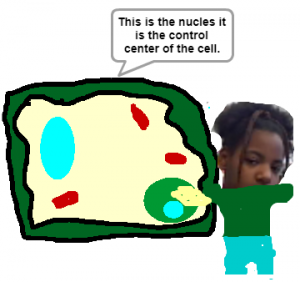
Fifth graders at Laburnum Elementary have been learning about plant and animal cells (SOL5.5a). Today students in Ms. Burgess’s class used Scratch to write a program that identifies the parts of a cell. First, we reviewed the cell parts and their functions and discussed ways that students could research additional information (using books, notes, or the Internet). I explained that we would be writing code today, which is similar to the code that is in each cell. DNA gives directions for things to happen inside the cell, and our code will give directions for things to happen in our diagram. Just like in DNA, if one piece of the code is wrong, it can create a problem. That’s why we teach elementary students to code, because it requires logic and problem solving skills to make sure their code works. After we set up our Scratch accounts, the students created a new project, clicked the background icon, and painted a background image of a plant or animal cell. Next, we deleted the Scratch sprite (the default cat character) and created our own. I showed them how to take their photo with the camera button and turn themselves into a sprite. Finally, we used the coding blocks to build a program that moved our sprite to different parts of the cell and identified their names and functions. You can see all their projects here.


Tags:


5th Grade Coding Character Traits

Fifth graders at Trevvett Elementary have been learning about character traits and making inferences (SOL 5.5b,i). Today students in Ms. Brown’s class created 3-D scenes where the viewer has to make inferences about the character traits based on what the character does and says. First, we discussed how to show (but not tell) character traits in a story. How can we show that a character is compassionate? short-tempered? clumsy? brave? deceitful? I explained that they would use code to animate a 3-D model, revealing one character trait. We brainstormed a list of traits, and they chose one they wanted to show. Next, we signed into CoSpaces with our Google accounts and created a new scene. I showed them how to click the Environment button at the bottom and select one of the built-in backgrounds. Then we clicked on the Library button and added people and objects to the scene. I demonstrated how to use the buttons that appear above each object to resize, raise/lower, and rotate it. Right clicking on an object reveals a menu for customizing its color and activating it for use in the Blockly code. Finally, we clicked the Code button at the top and added bits of code to make it move and speak and interact with other objects. We published our projects with the Share button and pasted the links to Schoology with a question about the character traits for our classmates to answer. You can see all their projects and questions here.


Tags:


5th Grade Coding Causes & Effects

Fifth graders at Holladay Elementary have been learning about cause-effect relationships (SOL5.5j). Today students in Ms. Neal’s class illustrated cause-effect relationships with animations created in Scratch. First, we brainstormed ideas of different situations that clearly show causality: accidents, sicknesses, successes, failures, surprises, etc. Next, the students logged into their Scratch accounts and created a new activity. I showed them how to add additional sprites and change their costumes. We wanted the costumes to reflect the cause-effect relationships. For example, if the milk spoiled, one costume would show good fresh milk, and the other costume would show green rotten milk. The person drinking it could have two costumes as well, one with a happy face and one with a disgusted face. In order to build the animation, we used the codes for Motion, Looks, and Control. Each sprite had its own code telling it when and how to move. The code also programmed the sprites to “say” things and change their costumes at specific times. One of the great features of Scratch, is that every project has a “Look Inside” button that you can click to see the code. Take a look at all of their projects here.


Tags: