Category: 4th Grade

4th Grade Predicting and Graphing Virginia Rivers

Fourth graders at Trevvett Elementary have been learning how to make graphs in Math (SOL4.14), and they have been studying the major rivers of Virginia in Social Studies (VS.2). Today, students in Ms. Catlett’s class predicted and graphed the lengths and discharge rates of the rivers. First we located the rivers on Google Maps. I created the map with different layers so that you can click the check boxes on the side of the map to turn on/off the rivers and/or the Virginia border as you discuss each one. We looked at the map scale at the bottom to try to predict the lengths of each river. If you wanted to show your students the watershed for each river (Science SOL4.9a), a great research tool is Streamer. Click the “Trace Upstream” button at the top, then click on a river, and the entire watershed will show up in red. I was amazed at how big the Potomac watershed was and how far it reached into Virginia! After discussing the lengths of the rivers, we tried to predict the discharge. Discharge is the volume of water flowing out the end of the river, measured in cubic feet per second (cu.ft./s). A cubic foot is about 7.5 gallons. We estimated the discharge rate of each river, taking into account their total length, watershed area, and size of the mouth (where it empties into the bay or ocean). Many students automatically assumed that longer rivers would have greater discharge rates, so I asked them a question to help clarify this misunderstanding. Does a longer hose have more water coming out the end than a shorter hose? What does affect how much water flows out the end of the hose? (Water volume, speed and the width of the hose). Does the discharge rate stay the same for each river, like its length? What would make the discharge rate change? (Amount of rainfall). Students recorded their predictions on this spreadsheet. Then they did some research to find the answers. Wikipedia has the information as well as simply asking Google, “What is the length/discharge of the ___ River?” The students entered the correct data into their spreadsheet and compared it to their predictions. Finally, I showed them how to highlight the data and graph it. The graph makes it very easy to see relationships between the rivers. You can see a few student examples here and in the screenshot above.

Tags:


4th Grade Geometry Posters

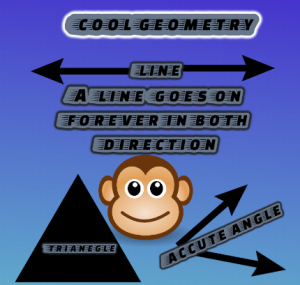
Fourth graders at Varina Elementary have been learning about lines, rays, angles, polygons, and other aspects of geometry (SOL4.10, 4.11, 4.12). Today, students in Ms. Connell’s class used DesignCap to create geometry posters that review these concepts. We started by looking at the sample posters (templates) on the website for inspiration. We noticed that many of them have large text and colorful pictures to convey a clear message. I encouraged the students to try to use similar design elements. Then, we began with a blank poster and changed the background color. I demonstrated how to add text with the text tool and customize the font, size, fill and border colors. Next, I showed them how to add images and clipart by searching the web or using the built-in clipart library. Students used these tools to create posters reviewing geometry concepts of their choice. We exported them as JPG files and shared them on Schoology. You can see all their posters here.


4th Electrical Circuit Animations

Fourth graders at Laburnum Elementary have been learning about electrical circuits (SOL4.3b), so today, students in Ms. Waltz’s class created animated circuit diagrams using ABCYa! Animate. First, we reviewed the parts of a simple electrical circuit and how the parts work–batteries, switches, and objects that turn on. We discussed a variety of electrical objects so everyone didn’t draw the same one (lights, radios, toys, televisions, computers, washing machines, ovens, robots, etc.). If your students need some extra help with circuits before doing this activity they can practice building their own here, here, here, or here. Next, we went to ABCYa! Animate, and I explained the process of creating the animation: (1) draw the complete circuit with an open switch in the first frame, (2) slowly close the switch in the next few frames, (3) show the flow of electricity however you like, (4) turn on your object in an interesting way. Finally we saved our animations as .gif files and shared them on Schoology. You can see them all here.


4th Grade Social Studies Videos

Fourth graders at Laburnum Elementary have been reviewing the regions of Virginia (VS.2b) and famous people from the Civil War era (VS.7c), so today Ms. Mayer’s class created Social Studies videos on these topics to help them review. First, they chose a partner to work with and decided together on a Virginia region or a Civil War person to research. Next, we spent a few minutes looking over our notes and finding information online to share. I showed them how to download and save online images about their topic to use in their video. Then we logged into WeVideo to begin making our movies. WeVideo starts out in Timeline mode, which is a little complicated, so we switched to the simplified Storyboard Mode (click the three lines in the top left). Storyboard Mode already has a Title page set up in the timeline. We clicked the Edit icon on the Title page and typed our title, remembering to use capital letters. Now it was time to record our intro. I guided them through the process of installing the webcam extension and modeled how to record an effective intro (speak loudly with enthusiasm while stating your names and your topic). After the students had recorded themselves, we uploaded the pictures we had saved and dragged them into the movie timeline. The students planned what they would say about each image, but before they recorded their voiceover, they chose their Theme by clicking the magic wand icon. I found that it is helpful to choose the theme before recording the voiceover because the theme sometimes changes the duration of the video. Just be sure to mute the audio while recording the voiceover so it’s not playing while you are recording. The students recorded their voiceovers, providing facts about each picture. Finally we published our videos and shared the links on Schoology. You can see them all here.


4th Grade Moon Fractions

Fourth graders at Varina Elementary have been learning about the phases of the moon in Science (4.8c) and about fractions in Math (SOL4.2). Today students in Ms. Belcher’s class illustrated the fractional parts of the lunar cycle with ABCYa! Animate. First we divided the lunar cycle into eight parts and discussed the fraction representing each part. I pointed out that some of the fractions can be reduced, and they even provide names for some of the phases. For example, 2/8 of the cycle is called the first quarter because it is actually 1/4 of the way through. On each frame of their animations the students illustrated a different phase of the moon and wrote its corresponding fraction (new moon = 0/8, waxing crescent = 1/8, first quarter = 2/8 or 1/4, waxing gibbous = 3/8, full moon = 4/8 or 1/2, etc). We used the copy cat button to make sure that the moon stayed in the same place so that when the animation played, it would look like the phases of the moon were really happening. You can see them all here.


4th Grade Moon Phases with Scratch

Fourth graders at Varina Elementary have been learning about the phases of the moon (SOL4.8), so today, students in Ms.Stevens’ class used Scratch to illustrate the phases. First, we signed into our Scratch accounts and created a new project. I showed them how to click on the background button at the bottom and select a space image from the library. Next, we deleted the default Scratch sprite (right click on the cat sprite and choose “Delete”). The students went to the sprite library and chose a character to be the “instructor” who would identify the different phases of the moon. Then we created a new sprite for the moon and just painted different costumes showing the phases in order. To cycle through the costumes, I demonstrated how to use the “Looks” and the “Control” code blocks to command the sprite to switch to the next costume every second forever. We also had to make sure that it always started at the correct place, so our first bit of code set the “Looks” to the first costume. Once our moon was cycling through its phases, we had to make the instructor identify each one. Again, we used the “Looks” and the “Control” code blocks to control it. We set it to “Say” the moon phase for 1 second (since our costumes were cycling every second) forever. However, we discovered that after a couple of cycles the timing was off, so we changed the time for saying the last phase to 1.3 seconds, and that seemed to fix it. Finally, we published our projects and shared the links on Schoology. You can see them all here.


4th Grade Measurement Comics

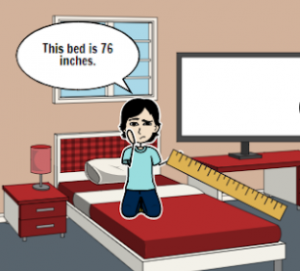
Fourth graders at Holladay Elementary have been learning about measurement in Math (weight SOL4.6, length SOL4.7, and liquid capcity SOL4.8). Today, students in Ms. Truda’s class researched some measurements and created measurement comics using StoryboardThat. First, we reviewed the different customary and metric units. I explained that they could pick one or more things they were curious about and research its measurements. I asked them if one thing could have more than one measurement? For example, how many different measurements would a couch have? (Answer: four – length, width, height, and weight). If the object they chose was something in the classroom, they could actually measure it, but if it was outside the classroom, they could ask Google for its measurements. I demonstrated how to use the microphone on a Google search page to ask a question like, “How tall is a giraffe?” Once they had their measurements, they made their comics on StoryboardThat. StoryboardThat has an amazing collection of clip art, so with a bit of creativity (and use of the search box), students were able to find all the backgrounds and characters they needed to show their measurements. We took screenshots of our comics and posted them to a Schoology album. You can see them all here.


Tags:


4th Grade Planet Books

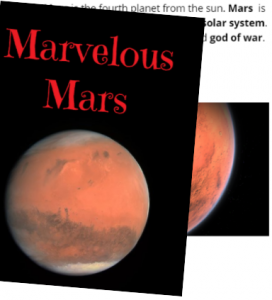
Fourth graders at Holladay Elementary have been learning about the planets in Science (SOL4.7), and they have been identifying nonfiction text structures in Language Arts (SOL4.6a). Today, students in Ms. Anthony’s class used BookCreator to make books about the planets with nonfiction text structures. First, they chose a planet to research and spent a few minutes exploring websites and books about the planet. Next, we reviewed nonfiction text structures they observed in their research: bold print, photos, captions, diagrams, etc. I explained that they would need to include some of those features in their planet book. We signed into Book Creator with our Google accounts and entered the teacher’s class code. Then they clicked the “New Book” button to get started. I showed them how to add text with the + button and how to modify the text font, size and color with the i button. They made their important words bold. We also added images with the built-in image search and typed captions. Some students took photos and video with the webcam feature, but we found that those seemed to take a long time to load. Hopefully that feature gets upgraded in the future. We didn’t use the drawing tool, but that is also available. Finally, we published our planet books, and I linked them all into one book. You can read their finished book here.


4th Grade 3-D Planet Models

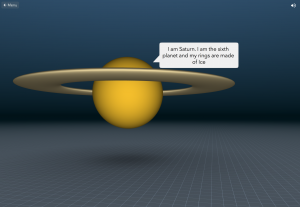
Fourth graders at Laburnum Elementary have been learning about the planets in the solar system (SOL4.7), so today students in Ms. Mayer’s class used CoSpaces to create 3-D models of the planets. A cool idea would be to use this tool to create a 3-D model of all the planets, comparing their sizes like this example, but we didn’t have time for that. The students each chose one planet to research, then they logged into CoSpaces with their Google accounts, and created a new space. First, we clicked the Environment tab at the bottom and selected Night, making the background dark like outer space. Next, we went to the Library tab and clicked Building Blocks. The students selected a sphere and I showed them how to resize it and raise it with the pop-up tools. Double clicking the sphere brings up more tools, and the students used the paint brush tool to change the color of the sphere to match the planet. They also added a speech bubble and typed some facts about the planet. When they finished, they went back to the library and selected additional objects like rings for Saturn or a space ship. Finally, they clicked the Share button at the top, copied the link, and posted it in Schoology for their classmates to see. You can visit all their planets here.


4th Grade Virginia Tally Marks & Graphs

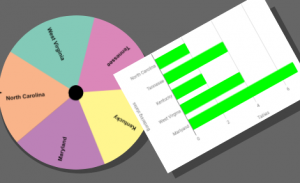
Fourth graders at Varina Elementary have been learning about Virginia geography (VS.2) and Jamestown (VS.3) in Social Studies, and they have been making bar graphs in Math (SOL4.14). Today students in Ms. Belcher’s class chose a Virginia topic, created a spinner out of its subtopics, tallied the spins, and graphed the results. First, we reviewed various topics they could use to generate their spinner subtopics: Virginia Rivers, Virginia Regions, Indian Language Groups, Problems at Jamestown, Bordering States, etc. Next, we created our custom spinners using a cool webtool called WheelDecide. Then they spun the spinner as many times as they could in two minutes and tallied the results on paper. To make the graph, we used a Google spreadsheet. I showed them how to access their Google shortcuts (the array of 9 tiny squares in the top right corner of a Google search page), and we opened a new spreadsheet. In the first column we typed the spinner subtopics, and in the second column we typed the number of tallies for each one. Then we highlighted the columns, pressed the graph button, and a bar graph appeared! I showed the students how to change the colors of the bars, if they wanted. We shared our spreadsheets on Schoology, but you can see them all here. Can you guess the main topics just by looking at the graphs?