Category: 4th Grade

4th Grade Animated Graphs
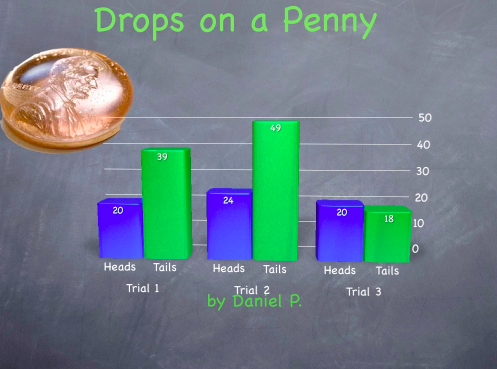
animatedgraph2Fourth graders in Ms. White’s class at Davis Elementary recently did an experiment where they predicted which side of a coin could hold more drops of water. Then they tested their hypothesis by counting the drops they placed on each side of a penny for several trials. Today my job was to show them how to create an animated graph of their data using Keynote. First I showed them how to choose a theme in Keynote and add a picture of a penny that they downloaded off the Internet. Next we clicked the Charts button and added a 3-D bar graph. I showed them how to use the Inspector to edit the data, the labels, and the colors of the graph. Then we used the Build Inspector to add a 3-D Grow build to the graph. We also animated the title, picture, and our names. Finally I showed them how to use the Document Inspector to record their voiceover (the Record button can be found in the the Audio tab). Their animated graphs turned out great. Take a look at Kate’s and Paige’s.
Tags:


4th Grade Plant Prezis

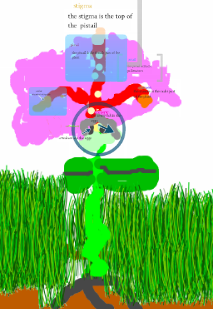
AzariahFourth graders at Chamberlayne Elementary have been studying the parts of a flowering plant (SOL 4.4) so today they made interactive diagrams of a flower using Prezi. First they drew a picture of a flower in Pixie. They looked at online photos to get different ideas for the type of flower they wanted to draw. I explained that they needed to include all the parts of a flower (pistil, stamen, anther, sepal, petal, ovary, ovule, stigma, etc) in their picture. Next they exported their Pixie drawings as PNG files with transparent backgrounds. The transparent background makes it look better in Prezi. Then they logged into Prezi and uploaded their pictures. I showed them how to use the selection tools to zoom into a part of the flower. They added text to label each part and to write a description. When they were finished, they viewed their presentations to make sure they worked correctly. When you click the arrows underneath a Prezi, it zooms into the different spots. It’s a very effective way to present information. Their projects turned out great, and you can see them all by clicking here.


4th Grade Civil War Instabloggs

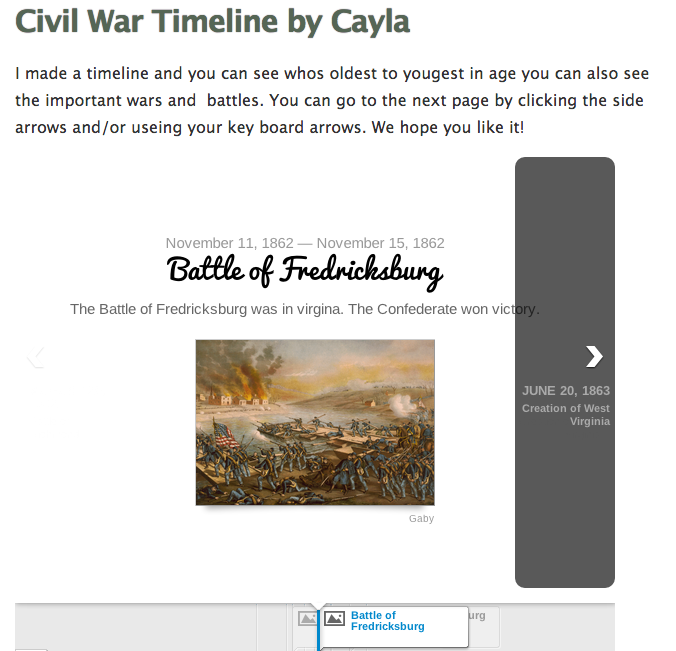
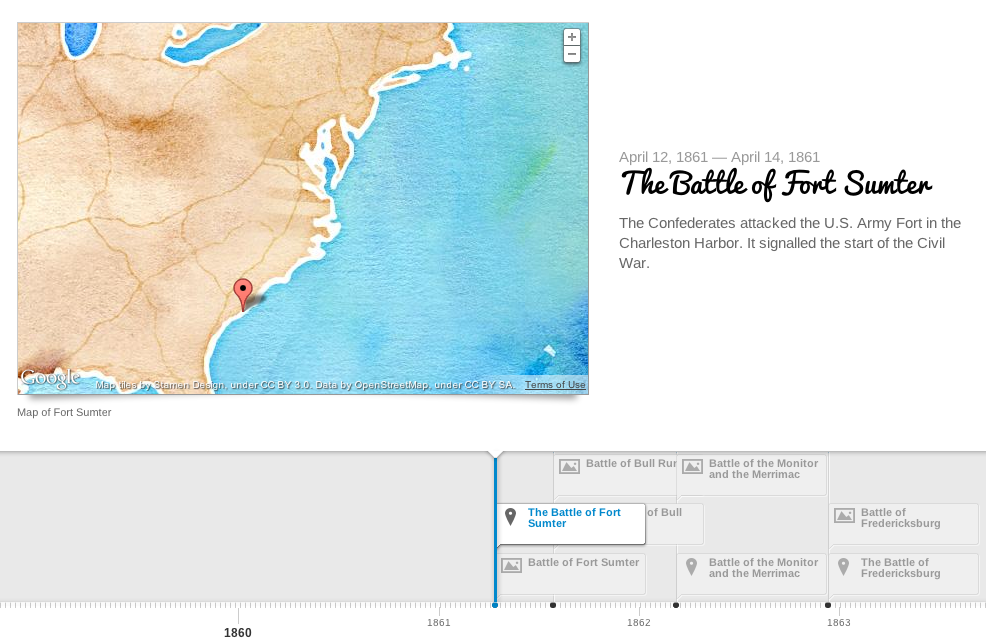
timelinesampleEarlier, on this post, I described a lesson where students created Civil War timelines using TimelineJS. I was teaching that lesson today with a different group of students at Holladay Elementary and wanted a good way for them to save and display their timelines. Instablogg is one of the best sites I have found for students to easily publish projects that have an embed code. I like it because there is no sign in required, it allows comments, and it gives students a link where they can go back and continue editing. To add embed code, you just click on the “Code” button. We did find that we couldn’t use the exact embed code that TimelineJS gave us, so I showed them how to go into the code and adjust the size to this: height=”650″ width=”600″ and that seemed to work well. You can see all the students’ Instabloggs by clicking here (but remember that the timelines will all be the same since they use data from the same spreadsheet).


4th Grade Civil War Timelines

Picture 2Fourth graders at Chamberlayne Elementary are currently studying the Civil War. There are a lot of people, places, and battles they have to remember, and making a timeline helps keep everything in perspective. My supervisor, Tom Woodward, just told me about a cool webtool, TimelineJS, that can create a timeline from a Google spreadsheet. So I decided to try it out with the fourth graders today. First I set up a Google Spreadsheet for each class using the template found on the website. Then the students choose a partner to work with, and we generated a list of people, events, and battles from the Civil War. Each team selected one topic and conducted some very quick research. They also found a picture and made a Google Map to embed in the timeline. They were assigned rows on the spreadsheet corresponding to their student numbers (it doesn’t matter if the events are listed in order on the spreadsheet… the webtool sorts it all out). They entered the information into the correct columns and copied/pasted the link to the picture or map. It was a great example of crowdsourcing because in just a few minutes we had collected enough information to make a timeline about the Civil War without having to enter all the data individually. What’s really cool is, each student can use the same data to create their own customized timeline. All they need to do is copy the document link into the TimelineJS Embed Generator, choose the font and style they like, and press a button! I have some samples I created as well as the student projects linked here.


4th Grade Talking Heads

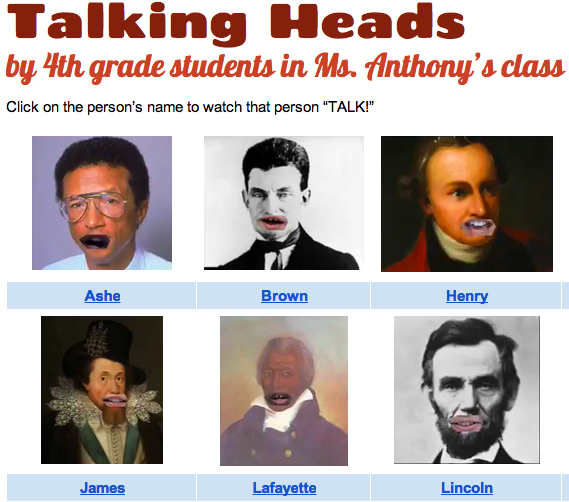
Picture 1Fourth graders at Holladay Elementary are reviewing all the famous Americans they have studied this year. Each student chose a person to research and they will present their information in a “Living Wax Museum” later on in the spring. I’ve been showing them different options to use for the technology part of their presentation, and today we learned how to make a “talking head.” I gave them a Keynote template that you can download by clicking here. The students went online to find a picture of their famous person (a headshot), and they dragged the picture onto their Keynote template. They sent the picture to the back (using the “Back” button in the toolbar), so that the shape with the hole cut out of it was on top. I showed them how to position the shape over the picture so that the mouth was centered in the hole. Next they selected both the shape and the picture (by clicking and dragging across them) and went to Format > Mask with Selected Shape. That left the picture of the famous person with a gaping hole where their mouth used to be. Now we were ready to add the students’ talking mouth to the picture to make it look like the famous person was doing the talking. Students recorded themselves in Photo Booth speaking like they were the famous American telling about his or her life and accomplishments. I told them to keep their heads still while they were recording (so the mouth wouldn’t move around). We dragged the finished videos out of Photo Booth onto the Keynote and sent them to the back with the “Back” button. We had to resize and reposition the video so that the mouth fit in the hole, and then we covered up the remaining pieces of video that showed with black shapes (using the “Shapes” tool). Finally, we exported the Keynote as a video and I published them on a GoogleDoc. You can see them all here.


ActivEngage in 2nd Grade

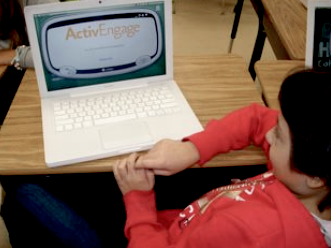
activeRecently I have been training the staff at my schools how to use the ActivEngage software. It turns the cart laptops into a student responders so that teachers can get instant feedback. You can learn more about it here. I’m happy to do a demo lesson in your class if you’d like to see it in action. Today I showed 2nd graders at Laburnum how to use it. I asked them a few questions about the famous Americans they’ve been studying (SOL2.11) using a simple GoogleDoc but then I sent them to TodaysMeet to generate their own questions. You can see some of their questions here. Even though ActivEngage works with ActivInspire flipcharts, you can actually use anything (PDFs, Word documents, websites, etc) to display the questions you want to ask. You just need the ExpressPoll program to be open so that you can receive the students’ input. Another free option that’s available if you want to implement a student response system in your class is to try Socrative. You set up a quiz on the website, and then then your students log in with the link to your class. They can respond in many different ways and even play online competitions.


4th Grade Interactive Animals

Picture 5The fourth graders at Chamberlayne Elementary have been learning all about animals and their ecosystems (SOL 4.5). They have also been individually researching an animal of their choice. So today they shared their information in a variety of ways. Students in two classes made interactive images of their animals using Thinglink. Thinglink allows students to put hotspots on different parts of a picture so when visitors scroll over the hotspots, a fact pops up. It was perfect for pointing out the various physical adaptations that help their animals survive. Take a look at a few student samples: Giraffe, Frog, and Dolphin. Other students wanted to create talking pictures with Blabberize. This was a little more difficult to do because they had to record an mp3 first (you can record one using Vocaroo or RecordMP3). Then they had to upload the mp3 file to Blabberize along with a picture. But the videos turned out great! Here are a couple of student samples: Peacock and Wild Boar. Still other students wanted to create Pixie pictures of their animals with recorded voiceovers. These projects provided an excellent way to review since the students were eager to share their work with their classmates and families. I put all the links onto a Google Doc that you can see here. UPDATE: Ms. Waggoner’s class continued this project and created webpages with Instablogg, embedding their videos and pictures into their sites. I posted the links here.


3rd & 4th Grade Videos with Green Screen Effects

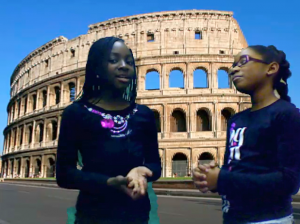
Picture 3Third and fourth grade students at Chamberlayne Elementary learned how to use green screen effects for videos today, just like the ones professional movie producers use. The green screen effect is great for making it look like you are standing right in front of a historical landmark, or a habitat you are studying in science, or a setting from a book, and it can be used right in Photo Booth! First we did a Google image search to find a good background. The third graders were making movies about Greece & Rome while the fourth graders were making Revolutionary War videos. We allowed them to choose their topic, but if too many students were picking the same topic, we encouraged them to select another one. The background photo cannot be directly dragged into Photo Booth, so they had to drag the pictures into their folders. From there we dragged them into the Photo Booth backgrounds (found at the end of all the Effects). Next I modeled how to use the green screen effect in Photo Booth. I also gave them an informal rubric to use for evaluating their videos for Content, Clarity, and Creativity. It’s important to have a plain backdrop when using this effect so I provided them with plastic colored table cloths to hang or hold behind them. Now it was time to start filming. The students acted like they were news reporters or talk show hosts interviewing people. When they were finished they saved the movies to their folders. Teachers could then post the videos on their blogs or somewhere else online for publishing. Here’s a 3rd grade example (Rome) and a 4th grade example (Declaration of Independence)


4th Grade Blog Posts for MLK Day

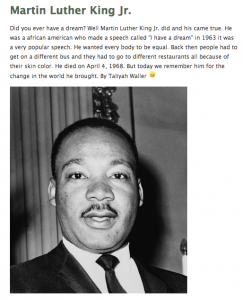
Picture 1Martin Luther King, Jr. Day is coming up on Monday, so fourth grade students in Ms. Tonello’s class created blog posts about him using Instablogg. I’ve been using this site a lot lately because it’s easy to use, there’s no login required, and it provides a link to go back and edit the site later. Ms. Tonello’s been teaching them how to add good details to their writing, so we started with an activity using Today’s Meet. Today’s Meet is a great way to have a class discussion and get many students to participate. Plus, it leaves a written transcript that you wouldn’t have with a regular class discussion. I gave them a simple sentence: I feel sick. I told them to write the same sentence in a better way. We discussed their responses and tried to guide them to make better sentences. Then we tried it again with another simple sentence: We took a trip. I encouraged them to give more details like who, where, when, etc. You can see the transcript of our discussion here. Now that they were warmed up, we went to Instablogg and I told them to either write about Dr. Martin Luther King, Jr. or about a dream that they have for making the world a better place. I gave them a quick informal rubric to rate their own writing, and they had about fifteen minutes to write. When they finished, I showed them how to do a Google image search to find a picture and add the link to their post. If a picture is too large, you can easily resize it by typing in a number in the size box. I usually tell students to type “400” in the width box. Finally we published their blog posts and dragged the links to their folders. We also made sure to drag the editing links to their folders as well. Comments are disabled at school, but I encouraged them to read each others’ posts at home and write constructive comments that would help improve their writing (like we learned in our introductory activity). Another way to edit each others’ writing is to use Markup.io which I mentioned in a previous post. You can see a sample that I edited here. If you would like to read some of their posts and even write some comments you can click here.


4th Grade Review Sites by Students

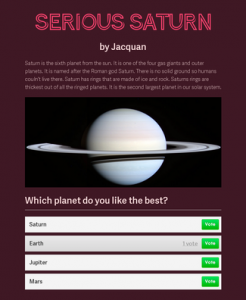
4thSaturnToday fourth grade students in Ms. Hall’s class at Laburnum Elementary created websites for each other (and anyone else) to help them review for upcoming tests. First I told them to pick a topic that they know a lot about. It could be from Math, Science, or Social Studies. Next we went to CheckThis which is a site I have often used with students to create webpages since it doesn’t require a login. I showed them how to type a title, subtitle (name), and their information. It’s important to finish the writing part first before going onto the fun stuff because otherwise students get too distracted. Next we did a Google image search to find a relevant picture and added the link to their webpage. I also showed them how to add a poll. We wanted to create these sites for review so we discussed what makes a good question. After they published their pages, I would usually go around and write down the last 4 digits of their websites (since the first part is the same for all of them) and add it to a GoogleDoc for sharing, but I didn’t have much time today, so I made a quick Google form that you can see here, and asked the students to enter the last 4 digits themselves. Then I published the results as a webpage with all the links. You can see it by clicking here. Try visiting a couple of sites and answering their poll questions. One last thing, in trying to take a screenshot of one of the sites for the sample picture on this post, I found it difficult to capture the whole site since it wouldn’t fit on my screen. Then I discovered a cool webtool called Site2Pic that did the trick! UPDATE 2/5/15: Here are a few more examples from a similar lesson with Ms. Bennett’s class at Davis.