Category: 3rd Grade

3rd Grade Place Value

3rdPlaceValueToday students in Ms. Wells’ class at Varina Elementary learned how to write some basic computer code for calculating place value (SOL3.1). They logged into Google classroom and I gave them a template to get started. I already entered most of the formulas into the template, but I wanted the students to experience writing some formulas as well. I explained that some of them may grow up to write computer codes for designing games and apps, and they would need to know how to write formulas. Plus formulas are fun! First they wrote any 4 digit number that they wanted in cell B1. The spreadsheet automatically separates the number into its digits in the following cells. Underneath each digit the students wrote a formula to show that digit’s value. For example, if an 8 was in the hundreds place and it was in cell D1, their formula would be =D1*100 to get 800. Using cell references (D1) instead of the actual number (8) allows the students to enter new 4-digit numbers into B1 without changing their formulas. So the students are also getting exposed to the idea of variables. Finally, they answer a couple of place value questions that I created, then they create their own question for a neighbor to answer. If you would like to use the template with your class, just open the template and click File > Make a copy. There is a finished sample for your reference on Sheet 2 of the template.


3rd Grade Simple Machines Animations

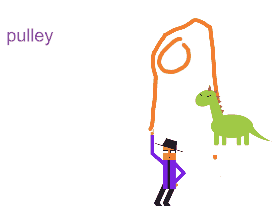
machinesThird graders in Ms. Leo’s class at Varina Elementary have been learning about simple machines (SOL3.2). Since simple machines involve motion, making animations is a great way to demonstrate and understand how they work. Today we used ABCYa! Animate to create short animations of the simple machines: lever, pulley, wheel and axle, wedge, inclined plane and screw. The students picked a simple machine to illustrate and then used the drawing tools and the clip art to design their animations. They could also use the text tool to label their machines. Most of the animations were just two frames long so they move kind of quickly, but you can slow them them down by clicking the Copy Cat button a couple of times for each picture. The students downloaded their animated GIFs, and I published them online. You can take a look at their projects by clicking here. UPDATE 2/3/15: Here are a few more examples from Ms. Middleton’s class at Holladay. UPDATE 3/25/16: I taught a similar lesson with Ms. Johnson’s class at Laburnum, but this time students had to identify each others’ simple machines in the comments. You can see those here.


3rd Grade ActivEngage2 Review with Padlet

padletThird graders in Ms. Eller’s class at Davis Elementary are getting ready for their upcoming SOL tests, and they have been reviewing the ancient civilizations from 2nd and 3rd grade: China, Egypt (SOL2.1), Greece, Rome (SOL3.1), and Mali (SOL3.2). Ms. Eller wanted to practice reviewing with ActivEngage2, a student response system by Promethean. So while the students created questions using Padlet I showed her how to set up her computer to access the ActivEngage2 hub. Padlet is a great way to generate lots of review questions because the students are motivated to write difficult questions to stump their friends. They also enjoy seeing all their classmate’s notes appear instantly (although it can get confusing). Another thing I like about Padlet is the students can only edit and move their own notes, the other notes are locked for them. Teachers, of course, and edit and move all the notes as they wish. I usually leave the layout as Freeform while the students are typing, but when it comes time to display the questions for review, I switch to the Stream layout and project them on the Promethean Board right from Padlet. You can take a look at their questions by clicking here. The students answered their questions using the ActivEngage2 format, giving instant feedback to their teacher, but if you don’t have that, you could do the same thing using an online tool like Socrative or Infuse Learning. You can see more examples of this lesson from other 3rd grade classes I’ve taught: Ms. Ford’s class from Laburnum and Ms. Middleton’s class from Holladay.


3rd Grade 3-D Shapes

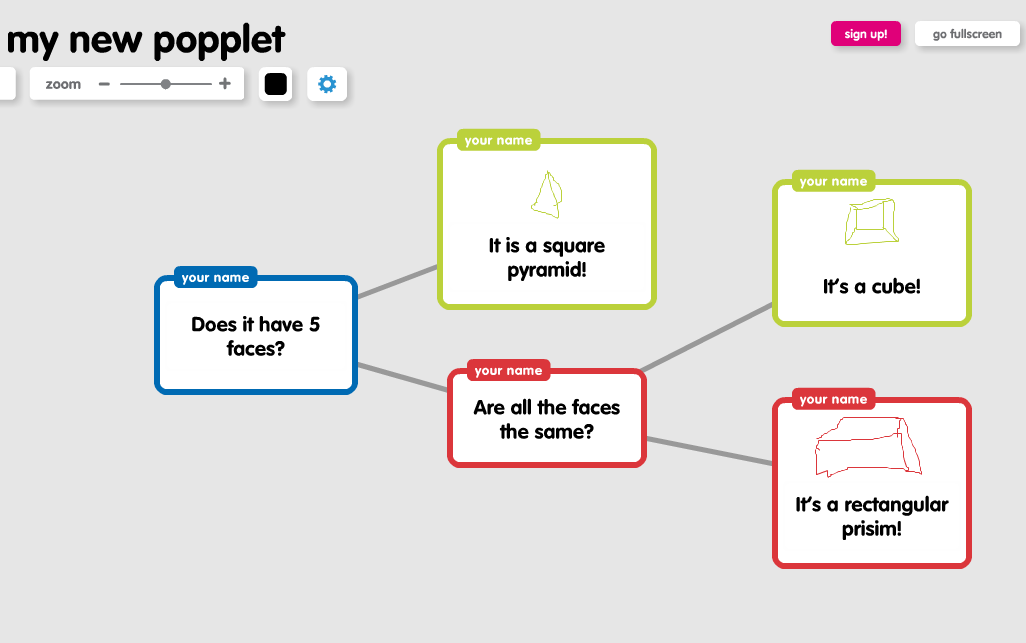
mackenzieThird graders in Ms. Leo’s class at Varina Elementary have been learning about solid shapes (SOL3.14). They had to be able to identify the number of angles, edges, vertices, and faces of each shape. Today I showed them how to create a program that would identify the shape based on its features. We started out, like most programmers do, by making a flowchart. I thought about using Gliffy because there is no sign in required to create one (although you can’t save it), and it has the ability to type on the connectors, so we could have typed “yes” or “no” like this example. However, I decided to go with Popplet since it was much easier to use and you can draw pictures in the shapes. Since we couldn’t write on the connectors like with Gliffy, we worked around it by making the shapes green for “yes” and red for “no”. Their flowchart was basically a decision tree for identifying the shape based on its faces (so it was limited to the cube, rectangular prism, and square pyramid). They created their flowchart, drew pictures of the 3-D shapes, and then took a screenshot. You can see a couple of student examples here: Lauryn and McKenzie. Next I showed them how a spreadsheet and a formula can be used to identify the shape in a similar way. You can download the Numbers spreadsheet I used by clicking here. After looking at the example, I wanted them to write a simple formula on their own for distinguishing a cone and a cylinder. They had to come up with one good “yes” or “no” question and then write the formula (which was something like this: “IF ANSWER=”YES” THEN “CONE,” IF NOT, THEN “CYLINDER”). There is a sample included with the template, if you download it, so you can see how it works.


3rd Grade Finds the Best Bait for Three Lakes Park

fishingEach year the 3rd grade students at Holladay Elementary take a PE field trip to Three Lakes Park to go fishing. This year they decided to do a science experiment to see which type of bait worked best. In groups, they researched which kinds of fish are at the park and what types of bait to use. The students developed their own hypotheses about which type of bait would work best, and then they tested their hypotheses at the park by keeping track of which types of bait caught which kinds of fish. They also measured the fish as they caught them and took photos. They had practiced measuring fish earlier in Art class using fish rubbings. The photos were posted online here using CoMemories. (CoMemories is a great site for sharing pictures because anyone can contribute with the given link). Back at school, students analyzed the data and drew conclusions. They concluded that worms were, by far, the best bait. I helped them publish their findings in a brochure for the visitors center at Three Lakes Park. They also created group presentations about the different types of fish using a program of their choice (Comic Life, Keynote, Pixie, and/or video). You can take a look at the students’ presentations here. Finally, they scored their projects using a rubric. This project was also Holladay’s entry for Henrico21. Hopefully we’ve helped future 3rd graders and other visitors to Three Lakes Park catch lots of fish!


3rd Grade Explorers Maps

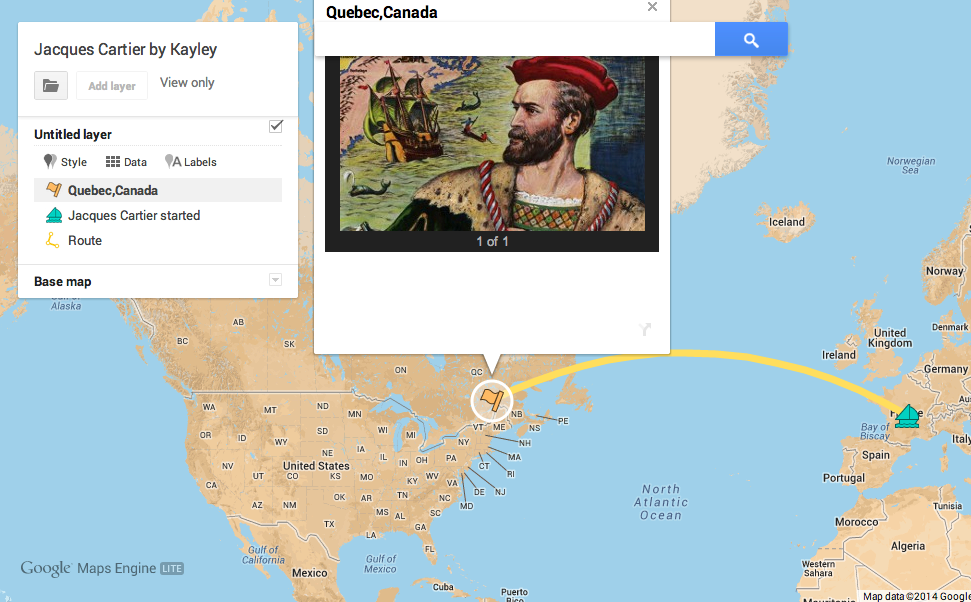
Screen shot 2014-03-31 at 10.29.48 AMThird graders in Ms. Remley’s class at Davis Elementary have been learning about the Explorers (SOL3.3). Today I showed them how to make their own interactive maps using Google Maps Engine. First I let them choose which explorer they wanted to research: Columbus, Cartier, Newport, or Ponce de Leon. Next they placed a marker on the country that sponsored their trip. I showed them how they could change the color of the marker or even the icon itself. We also created a pop-up label for the marker. The students wrote the name of the country and a sentence about the reasons for the voyage, then they added a picture to represent that country. They placed another marker on the final destination and added a similar pop-up label to it. They also drew a line to show the route the explorer took. I showed them how to change the color and size of the line. Finally they customized the look of their map and published it. I posted all their links to a Google Doc that you can take a look at here. UPDATE 3/24/16: I taught a very similar lesson in Ms. Marion’s class at Holladay, but this time we also rounded the length of the journey since they were learning how to round to the thousands place (SOL3.1b). You can see those here.


3rd Grade Library Project

libraryToday I worked with small groups of third graders at Holladay Elementary to create videos for a contest. The theme was “The Library is the Heart of the School.” The students had to extend that analogy and think of creative ways to express it. I was really impressed with the ideas they came up with. Like Jacob thought of this excellent analogy: “The library pumps in people and the hallways are like the veins. Then it pumps out people with books. The people with the books are like the clean blood and the people with no books are like the dirty blood.” Some of the students gave a walking tour of the four parts of the library, comparing it to the four chambers of the heart. Others pointed out that the heart is often considered the place of emotions, and the books in the library make you feel all kinds of emotions like happiness, sadness, and fear. The students used Photo Booth to film themselves and iMovie to edit the videos. Some of them also added Keynote slides. Their projects turned out great! Take a look at them here: Group 1 and Group 2.


3rd Grade Conclusions Comics

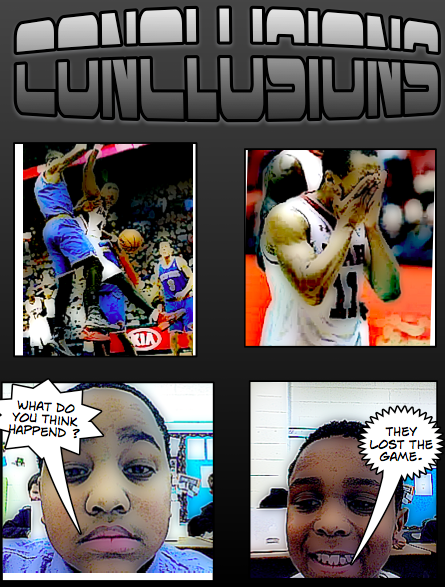
Screen shot 2014-03-28 at 4.17.00 PMThird graders in Ms. Leo’s class at Varina Elementary have been learning about drawing conclusions when they read. So today they created comics that told an ambiguous story and their friends had to draw conclusions about what they think happened. We practiced the skill first with some sample picture stories. I did a quick image search of a girl with some presents and then I showed a picture of the girl crying. They drew the conclusion that the girl didn’t get what she wanted. Then I showed a picture of a dog chasing a cat followed by a picture of a sad dog, and they drew the conclusion that the dog didn’t get the cat. Once they got the idea, they opened up a blank Comic Life and added a title “Conclusions”. Then they dragged over four panels. I instructed them to do a Google image search for pictures that would tell an ambiguous story, similar to the examples I modeled for them. They dragged the pictures into the top two panels. They put a picture of themselves in the third panel and added a speech bubble saying something like, “Can you guess what happened?” Then they switched with a partner and their partner added their picture and wrote their conclusion in the speech bubble. I combined all their comics together and saved it as a PDF. Then I uploaded it to FlipSnack where you can read it online here.


3rd Grade Simple Machines with Prezi

Screen shot 2014-03-25 at 11.21.24 AMThird graders at Holladay Elementary have been learning about simple machines (SOL3.2) so today I showed two classes (Ms. Marion’s & Ms. Cowart’s) how to make an interactive presentation about the simple machines using Prezi. First they selected a theme and wrote the title. We did the first slide together for the lever. I showed them how to make a picture of a lever using the shapes tool. For each subsequent slide they wrote the name of the simple machine, a brief description of how it helped make work easier, and added a picture. I showed them 3 ways to add pictures: they could draw it with the shapes, they could use the built-in clip art, or they could search online for a picture. On the last slide I showed them how they could upload their own picture from Photo Booth. Their final presentations look great! Take a look at a couple of student examples: Gavin’s from Ms. Marion’s class and Omayma’s from Ms. Cowart’s class. I posted all of the presentations to a Google Doc that you can also check out: Ms. Marion’s class and Ms. Cowart’s class.


Tags:


3rd Grade Synonyms & Antonyms with Prezi

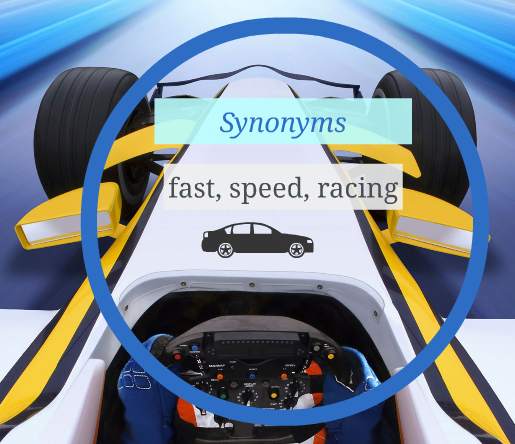
Screen shot 2014-03-25 at 10.36.59 AMMs. Wells at Varina Elementary has been teaching her third grade class about synonyms and antonyms. So today I showed them how to use Prezi to make a cool interactive presentation about the words they have been studying. First we logged into our Prezi account and I told them to pick a word and think of synonyms and antonyms for that word. We discussed what resource would help us if we couldn’t think of many words, and most of the students knew that a thesaurus would be helpful. A good site to use is thesaurus.com. Once they selected their word, we picked a theme in Prezi and typed some synonyms for that word in the first slide. I also showed them how to add a picture from the built in clip art or with a Google image search. On the next slide they typed antonyms for their word and added a picture. For the last slide, I showed the students that they could upload their own picture from Photo Booth. Finally we published our Prezi presentations and I posted all the links to a Google Doc that you can see here. Take a look at a couple of student examples: Kahmauri (synonyms and antonyms for “big”) and Jonathan (synonyms and antonyms for “fast”).


Tags: