Category: 2nd Grade

2nd Grade Rounding Videos
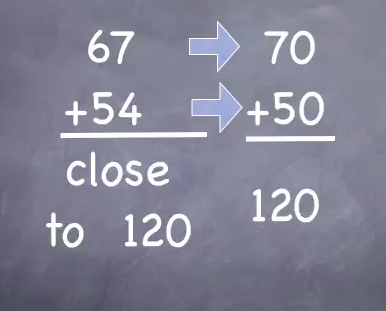
2ndroundingStudents often learn a lot by teaching each other, and there is great value in breaking down the process of solving a math problem step-by-step in order to explain it to someone else. Today 2nd grade students in Ms. Ambrose’s class at Holladay Elementary made videos to teach their classmates about rounding (SOL 2.1) and estimating (SOL 2.6). We used Keynote and the students chose a theme, created a 2-digit addition problem of their choice using text boxes and shapes. I showed them how to add builds to each step so that they would appear in sequence. Then the students recorded their voices explaining the steps in rounding and estimating the sum. We exported the Keynotes to QuickTime videos. Now Ms. Ambrose can use the students’ videos to review. She can pause the videos at different spots to see if her students can solve them, and the students will be motivated by seeing their own videos presented to the class. Now that they know how to do it, they can continue making how-to videos. I posted all their rounding/estimating videos to a Google Doc that you can see here.

Tags:


2nd Grade Using the GoTemp

Screen shot 2014-02-17 at 12.49.20 PMSecond graders in Ms. Jefferson’s class at Davis Elementary have been learning about temperature (SOL 2.14) so she wanted to practice using the GoTemps with them. Each school has 2 GoTemps, which are basically digital thermometers that can plug into the USB port on the computers. The technology instructors (like me) can bring in a whole class set, so that’s what I did today. I showed the students how to plug them in and then open the GoTemp software (also called Logger Lite). I explained that we were going to be dipping the thermometers into ice water and asked what they thought would happen to the temperature. All of them guessed that it would go down, so I asked them to predict what temperature it would drop down to and how long it would take. They drew their predictions on the graph using the GoTemp software. Then they dipped the thermometers into the ice water and the software automatically graphed the temperature over time, so they could compare it to their prediction. Next I asked them to think of a way to increase the temperature as quickly and as high as they could. Some of them started breathing on the GoTemp, some put it under their armpits, but we discovered that the best way was to rub it rapidly between their palms. Finally we exported the data into a Numbers spreadsheet and I showed them how to turn it into a graph and change the colors. Now her class is all ready to start using the GoTemps for other experiments!


Tags:


2nd Grade Weathering & Erosion Comic

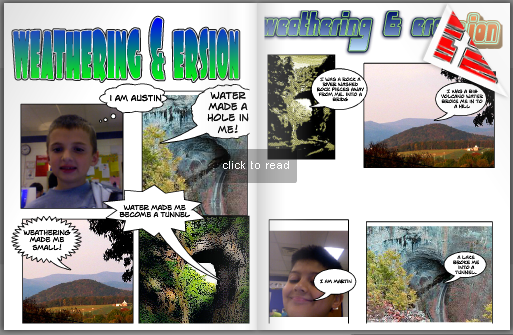
2ndWeatheringErosionStudents in Ms. Crostic’s class at Holladay Elementary have been learning about weathering and erosion (SOL 2.7b), so today they created a comic book about places in Virginia that show evidence of weathering and erosion. First I showed them pictures of the Natural Bridge, the Natural Tunnel, and Mole Hill (once a large volcano, but now just a small hill). We discussed what forces could have created each feature. The students were able to figure out that weathering and erosion were at work. I explained that they were going to create a comic about the places where each place would “talk” about how water and/or wind created it. First they opened a blank Comic Life and dragged over four panels. I gave them a folder of pictures to use (you can download it by clicking here). They added the pictures and dragged speech bubbles to each one. Then they typed what the feature would say if it were explaining how it was made. For the last panel of the comic, they used the built-in camera and took a picture of themselves. I combined all their comics into one Comic Life, saved it as a PDF, and uploaded it to Flipsnack. You can read it online here.


2nd Grade Math Word Problems

sampleToday 2nd grade students in Ms. Ambrose’s class at Holladay Elementary created simple Pixie animations to show addition and subtraction word problems that they made up themselves. First they went to the Stickers library and selected a certain number of whichever object they wanted. That was their beginning number, and they added the number using the stamp tool. Then I told them to come up with a word problem where they either added to or subtracted from that number. We discussed different actions that would cause their number to increase (buying new objects, getting more as a gift, finding more, etc) or decrease (losing objects, selling objects, giving them away, etc). So there was a lot of student choice involved because not only did they pick their object, they also decided whether to add or subtract, and what was the reason for the change. Some of them were very creative, and that’s exactly what you want! Next we duplicated the picture (for the animation effect) and either added or subtracted the stickers. They also used the stamp tool to complete the math sentence (example 5 – 2). Finally, we duplicated the picture one last time and they got a friend to solve the problem. They recorded their voices and added their photos for each step of the animation and exported them together as a video. You can see two student videos here: DJ & Devon.


Tags:


2nd Grade Famous Americans iMovies

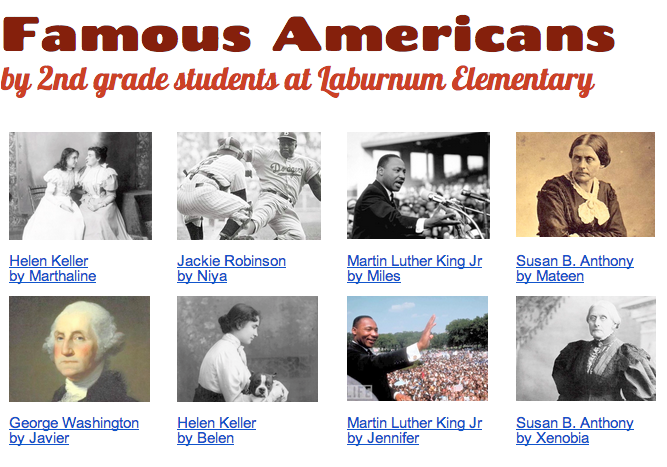
Screen shot 2013-08-07 at 1.49.26 PMiMovie is one of the more complicated programs on the MacBook computers, so I usually save that one for later in the school year. I’ve been working a lot with the second graders at Laburnum Elementary, and they have showed me they were ready to try iMovie. Since they’ve been reviewing the famous Americans (SOL 2.11) for upcoming tests, we decided to create movies about the famous Americans that they (and other classes) could use for review. Each child selected a person they were interested in and did a bit of research to refresh their memories. I showed them how to open up iMovie and add a title screen. Next they recorded themselves introducing the person using the built in video camera. I taught them how to select the part of the video they wanted to use and drag it up into their project. Then we did a Google Image Search for pictures of their famous person and added those to the video. I explained how to adjust the Ken Burns effect if necessary and they recorded a voiceover narration to accompany the photos. Finally I showed them how to add music to their video using the Audio Inspector. We exported the finished videos, and I posted them to a Google Doc which you can see by clicking here.


2nd Grade China & Egypt Websites

egyptSecond graders in Ms. Jones’ class at Laburnum Elementary created their own websites about Egypt & China (SOL 2.1) today. We used CheckThis which allows the students to make a quick webpage with pictures and maps. First they picked Egypt or China and wrote the title. Then they had to write a few sentences about the ancient civilization, including information about its location, landmarks, and contributions. Next they did a Google search for an image that would represent their civilization. I gave them a word bank to use, or they could choose their own search terms. Once they found a picture, they just added the link to it in their CheckThis website. I also wanted them to include a map, so we went to Google Maps, searched for the country, copied the link, and pasted it into CheckThis. If we had more time, the students could have added a poll or a question to their site. I copied all their links and posted them to a Google Doc for easy access. You can see a couple of student samples here: China, Egypt, or see them all by clicking here.


2nd Grade Magnets Animation

Picture 2Second graders at Laburnum Elementary have been learning about magnets (SOL2.2) and today they created Keynotes to explain how magnets work. Keynote is a great program to use for magnets because of its animation features. Students can actually show magnets being attracted to or repelled from each other. First we created the magnets. I showed them how to make two rectangles (red for north, grey for south) using the Shapes tool. We labeled them N and S using Text Boxes. We grouped them all together to make one magnet. Then we copied and pasted the magnet three times to make a total of four magnets. We arranged the magnets so that pairs were opposite each other like in the picture. The last magnet we had to ungroup so we could switch the poles, then we grouped it back together. We added the words “Attract” and “Repel” under the pairs of magnets. Next I showed them how to add the animations. I let them use whatever animations they wanted for the words and the transition, but we had to use specific ones for the magnets. We used the “Move In” animation to make the magnets appear and come together. To show the magnets repelling, we used the “Move Out” animation. Finally I showed them how to record their voice in sync with the animations. They did an excellent job! You can see a few student samples here: Kezah, JaNiya, and Takiyah.


ActivEngage in 2nd Grade

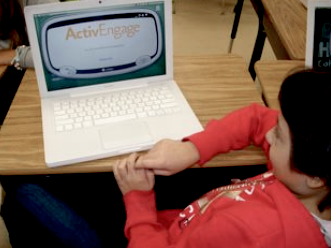
activeRecently I have been training the staff at my schools how to use the ActivEngage software. It turns the cart laptops into a student responders so that teachers can get instant feedback. You can learn more about it here. I’m happy to do a demo lesson in your class if you’d like to see it in action. Today I showed 2nd graders at Laburnum how to use it. I asked them a few questions about the famous Americans they’ve been studying (SOL2.11) using a simple GoogleDoc but then I sent them to TodaysMeet to generate their own questions. You can see some of their questions here. Even though ActivEngage works with ActivInspire flipcharts, you can actually use anything (PDFs, Word documents, websites, etc) to display the questions you want to ask. You just need the ExpressPoll program to be open so that you can receive the students’ input. Another free option that’s available if you want to implement a student response system in your class is to try Socrative. You set up a quiz on the website, and then then your students log in with the link to your class. They can respond in many different ways and even play online competitions.


2nd Grade Choose-Your-Own-Ending Stories

inkle2A couple of days ago I was searching for a way that students could make an online classification system for living things (SOL5.5). I wanted them to be able to answer questions about a living thing and have their search get narrowed until they were able to classify it. I found a site called Inklewriter that was pretty cool. It allows you to write “choose-your-own-ending” stories. It was perfect for the classification lesson, and I made a sample that you can see here. Unfortunately, that lesson was cancelled because of testing. However, I was able to try it out today with a couple of 2nd grade classes as part of a creative writing assignment. I explained the idea that their stories had to have a dilemma with two choices for the reader to make. One choice should result in something good happening, and the other should result in something bad happening. Each student typed up their stories and wrote the two choices. Then I showed them how to add a picture by searching for an image of something in their story and pasting in the weblink to that image. Next they wrote about the results of each choice. Inklewriter was fun and easy to use and it didn’t require any login to write the stories (although you need a login to save them… we did run into a little problem when we all tried logging into the same account, so I just saved their stories one at a time afterwards). Their stories turned out great! You can try a couple of student samples here and here, or you can find all their stories here: Marable and Street. (PS. This site would also work great with an economics lesson on choices and opportunity costs SOL3.9).


2nd Grade States of Matter

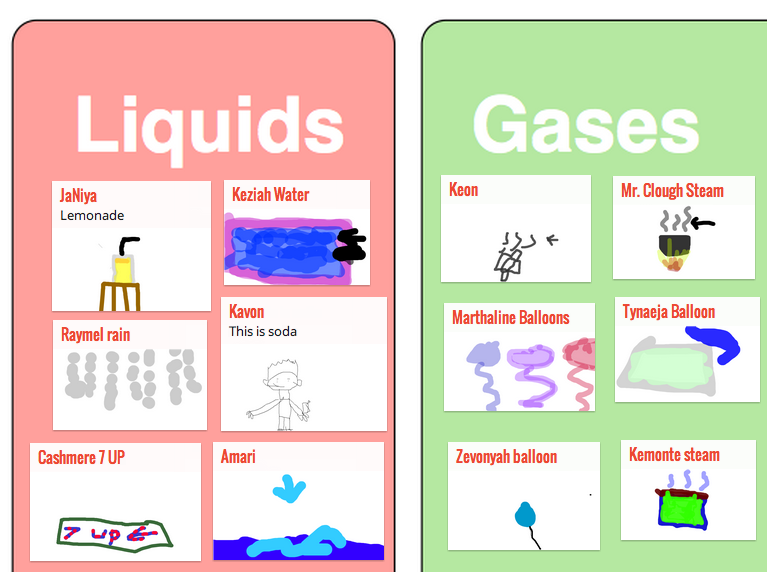
Picture 2Second graders at Laburnum Elementary have been studying the three states of matter (solids, liquids, and gasses). So today we discussed the differences between each state, and I gave them a task to draw one of the states of matter using an online drawing tool called DrawSave. It’s a great tool because it’s simple to use, there is no login, and it gives you a link to your picture when you are finished. I wanted to create a sorting activity like this one that I made using Flash, so I was searching for an online tool that would let students upload their photos and then drag them around. I found a couple that worked, but each one had some limitations that I’ll go over. Scribblar is a good one that I’ve used many times. It has a simple login (your name), it allows students to upload their photos, and they can drag the pictures around. You can see a sample I created with the students’ artwork here. The only limitation is that it’s too easy for the students to mess it up. They can scribble all over it and delete each others’ pictures. Another site I tried was LinoIt. It was easy enough to upload the pictures, but the students could not drag them around and the background chart was repeated. You can see that sample here. I also tried RealTimeBoard, but that required students to have an email in order to move things around (see my sample here). Finally I decided to use Padlet (previously Wallwisher). It was easy for students to upload their picture, they were able to add labels, and it looks really sharp. You can see what the students did here. The only problem was students could not move each other’s pictures around, only their own (this could be a good thing, but for my lesson I wanted them to be able to sort each others’ pictures). The students enjoyed seeing each others’ pictures pop up instantly on their screens and it was a great way to review the three states of matter. I never did find the perfect tool, but I found some really good ones in the process!