Category: Social Studies

3rd & 4th Grade Videos with Green Screen Effects
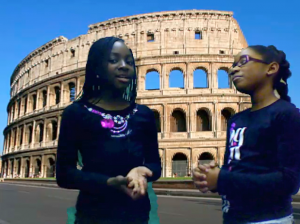
Picture 3Third and fourth grade students at Chamberlayne Elementary learned how to use green screen effects for videos today, just like the ones professional movie producers use. The green screen effect is great for making it look like you are standing right in front of a historical landmark, or a habitat you are studying in science, or a setting from a book, and it can be used right in Photo Booth! First we did a Google image search to find a good background. The third graders were making movies about Greece & Rome while the fourth graders were making Revolutionary War videos. We allowed them to choose their topic, but if too many students were picking the same topic, we encouraged them to select another one. The background photo cannot be directly dragged into Photo Booth, so they had to drag the pictures into their folders. From there we dragged them into the Photo Booth backgrounds (found at the end of all the Effects). Next I modeled how to use the green screen effect in Photo Booth. I also gave them an informal rubric to use for evaluating their videos for Content, Clarity, and Creativity. It’s important to have a plain backdrop when using this effect so I provided them with plastic colored table cloths to hang or hold behind them. Now it was time to start filming. The students acted like they were news reporters or talk show hosts interviewing people. When they were finished they saved the movies to their folders. Teachers could then post the videos on their blogs or somewhere else online for publishing. Here’s a 3rd grade example (Rome) and a 4th grade example (Declaration of Independence)
4th Grade Blog Posts for MLK Day

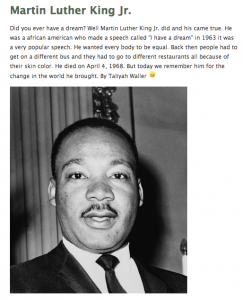
Picture 1Martin Luther King, Jr. Day is coming up on Monday, so fourth grade students in Ms. Tonello’s class created blog posts about him using Instablogg. I’ve been using this site a lot lately because it’s easy to use, there’s no login required, and it provides a link to go back and edit the site later. Ms. Tonello’s been teaching them how to add good details to their writing, so we started with an activity using Today’s Meet. Today’s Meet is a great way to have a class discussion and get many students to participate. Plus, it leaves a written transcript that you wouldn’t have with a regular class discussion. I gave them a simple sentence: I feel sick. I told them to write the same sentence in a better way. We discussed their responses and tried to guide them to make better sentences. Then we tried it again with another simple sentence: We took a trip. I encouraged them to give more details like who, where, when, etc. You can see the transcript of our discussion here. Now that they were warmed up, we went to Instablogg and I told them to either write about Dr. Martin Luther King, Jr. or about a dream that they have for making the world a better place. I gave them a quick informal rubric to rate their own writing, and they had about fifteen minutes to write. When they finished, I showed them how to do a Google image search to find a picture and add the link to their post. If a picture is too large, you can easily resize it by typing in a number in the size box. I usually tell students to type “400” in the width box. Finally we published their blog posts and dragged the links to their folders. We also made sure to drag the editing links to their folders as well. Comments are disabled at school, but I encouraged them to read each others’ posts at home and write constructive comments that would help improve their writing (like we learned in our introductory activity). Another way to edit each others’ writing is to use Markup.io which I mentioned in a previous post. You can see a sample that I edited here. If you would like to read some of their posts and even write some comments you can click here.


Kindergarten Martin Luther King Jr. Videos

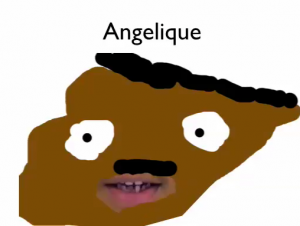
MLKSampleKindergarten students have been learning about Martin Luther King, Jr. since his birthday is coming up (today is actually his real birthday, but we’re celebrating it on Monday). They have learned that Dr. King gave many speeches, so today they recorded a speech of their own, saying things that he would say. Then, to make it look like he was actually talking, we created a mask in Pixie. They painted his face very large, gave him a mustache, and then erased the part where his mouth was. I showed them how to export it as a PNG file with a transparent background. Next I put their video into Keynote and dragged the Pixie mask on top of it, trying to line up the hole in the mask with their talking mouth in the video. I exported the Keynote as a QuickTime movie and posted a few online. You can see some of their examples here: Angelique, Duncan, Paul.


4th Grade Review Sites by Students

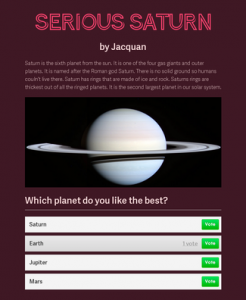
4thSaturnToday fourth grade students in Ms. Hall’s class at Laburnum Elementary created websites for each other (and anyone else) to help them review for upcoming tests. First I told them to pick a topic that they know a lot about. It could be from Math, Science, or Social Studies. Next we went to CheckThis which is a site I have often used with students to create webpages since it doesn’t require a login. I showed them how to type a title, subtitle (name), and their information. It’s important to finish the writing part first before going onto the fun stuff because otherwise students get too distracted. Next we did a Google image search to find a relevant picture and added the link to their webpage. I also showed them how to add a poll. We wanted to create these sites for review so we discussed what makes a good question. After they published their pages, I would usually go around and write down the last 4 digits of their websites (since the first part is the same for all of them) and add it to a GoogleDoc for sharing, but I didn’t have much time today, so I made a quick Google form that you can see here, and asked the students to enter the last 4 digits themselves. Then I published the results as a webpage with all the links. You can see it by clicking here. Try visiting a couple of sites and answering their poll questions. One last thing, in trying to take a screenshot of one of the sites for the sample picture on this post, I found it difficult to capture the whole site since it wouldn’t fit on my screen. Then I discovered a cool webtool called Site2Pic that did the trick! UPDATE 2/5/15: Here are a few more examples from a similar lesson with Ms. Bennett’s class at Davis.


2nd Grade Indian Animations

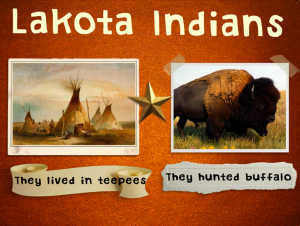
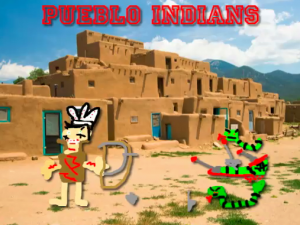
Picture 2Second graders in Ms. Marable’s class at Laburnum Elementary made animations about the different Indian tribes using Keynote today. First each student selected a tribe: Lakota, Powhatan, or Lakota. Then they opened up Keynote and did a Google image search for a picture of the region occupied by their tribe. I showed them how to drag the image into Keynote and resize it so it took up the whole background. Next they opened Pixie and drew a picture of an Indian from their tribe, a typical home, and an animal from that region. They exported their pictures as PNG files with a transparent background, and I helped them cut the pictures apart so they were separate. They dragged their pictures to the Keynote and added animations using the Build Inspector. Finally they recorded a narration explaining how their American Indian tribe lived. I exported those as QuickTime videos. You can see a few student examples here: Powhatan, Pueblo, Lakota.


1st Grade Goods & Services Town

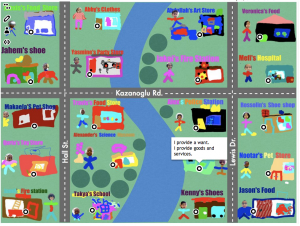
Picture 9Today first graders at Chamberlayne Elementary combined their knowledge of map skills (SOL1.4) and goods and services (SOL1.7) in a special project. Each class created their own interactive town map where you could click on a building and see whether it produced goods or services. Here’s how we did it. First we discussed what goods and services the people in a town would need or want. Then I instructed the students to choose one and design their store in Pixie. If we noticed that too many students were picking one type of store, we’d say, “We have a lot of pet stores in our town, what is something else our town should have?” I asked them to include several elements in their Pixie drawings: their names, their stores’ names, pictures of themselves, and pictures of what they sell or provide. I also asked them to highlight whether they provided goods or services or both. They exported their finished pictures as PNG files with transparent backgrounds. Next I added their buildings to a town map in Keynote (you can download the files we used for this project here). I uploaded the map to ThingLink and added the clickable hotspots. Since ThingLink sometimes has ads, I didn’t want to directly link to those, so I embedded them into Instabloggs. You can see the finished products from each class by clicking the links: Ms. Gardner, Ms. McLean, Ms. Kazanoglu. Teachers could then use these maps to review knowledge and encourage critical thinking: Is our town lacking anything? Which side of the river would you live on and why? Which direction would you travel to get from one specific store to another? Parents can also view the maps from home and leave comments!


3rd Grade Greece & Rome Websites

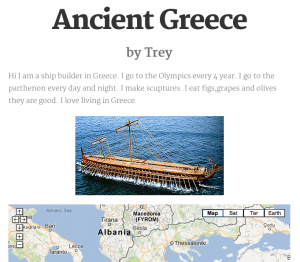
3rdSiteThird graders at Holladay Elementary have finished their study of Greece & Rome and were ready today for a final project to review and share what they have learned. I showed them how to create free websites using CheckThis. First they had to decide which ancient civilization they wanted to review. We wrote that in the title. Next they had to pretend that they actually lived in ancient Greece or Rome and tell about their lives. They had to include facts about land features, occupations, trade, sports, art, etc. They wrote a paragraph, or as much as they could in the alloted time (you can save if you log into an account, but since we didn’t, we had to finish the website in the hour we had together). I showed them how to add a picture from the Internet, but I also just learned today that CheckThis has a webcam feature you can use to add pictures. So I was able to test it out with Ms. Marion’s class. They took pictures from classroom books about Greece and Rome. We also added a Google map of the region that was fully interactive. Finally, we wrote poll questions for site visitors to answer. You can see all the websites by clicking on the teacher links below:
http://tinyurl.com/checkthismarion
http://tinyurl.com/checkthisbarnes
http://tinyurl.com/checkthiscowart


2nd Grade Beeclip Indian Posters

Picture 5Second graders at Laburnum Elementary have been studying the different American Indian tribes (SOL 2.2 & 2.4). So today they chose a tribe and made an online poster using a cool free site called Beeclip (although it was just updated to Biteslide). First I showed them how to select a background from the side menu. Then we added a title using the text button. They wrote the name of their tribe, and I showed them how to change the font, size, and color. Next we used the built-in safe image search to find pictures about the tribes. We discussed various search terms they could use to find specific photos. After dragging their pictures onto the poster, I showed them how to add frames and stickers for decoration. Some of the stickers could even be written on using a text box. Since you can’t save your posters without an account, we clicked the full screen button and took a screenshot. Then we saved those to our folders. The only problem with that is they can’t go back later and edit their work. I took all their screenshots and uploaded them to a CoMemories gallery that you can see by clicking here.


4th Grade Jamestown iMovies

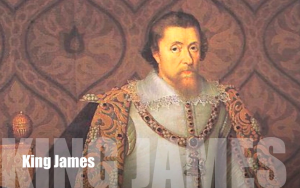
Picture 4Fourth graders in Ms. Hall’s class at Laburnum Elementary recently took a field trip to Jamestown. Today she wanted to see how much they had learned there, and she also wanted them to practice using iMovie. I explained that our iMovie project would need to be completed within the one hour class period since iMovie projects cannot be saved to the student folders (if you want them to keep working on them, they have to get the same computer that they started with since the projects are saved to the hard drive). I explained that we didn’t expect perfect videos due to the time restraints, but I wanted them to learn as much as they could about the features of iMovie. First, in order to show them how iMovie can use both pictures and video, we did a Google image search to find pictures of Jamestown. I pointed out that they could search for other topics besides just “Jamestown.” They could search for important people, events, and resources as well. Once the students found four or five good pictures, they dragged them into their folders and imported them into iMovie (you can’t drag pictures directly from the Internet into iMovie). I also showed them how to adjust the Ken Burns effect using the cropping tool since some parts of their pictures were cut off. Next we added text to each picture and recorded a voiceover with additional details. I think their favorite part was adding the music soundtrack. A nice feature of iMovie is that it automatically lowers the volume of the soundtrack during the voiceover, but I also showed them how they could adjust it manually. Finally we added video at the end using the built-in webcam. We exported their projects as QuickTime videos and saved them to their folders. Now that they are familiar with the most important features of iMovie, they will be able to continue using it for future projects. You can see a student sample by clicking here.


1st Grade Boat Diagrams

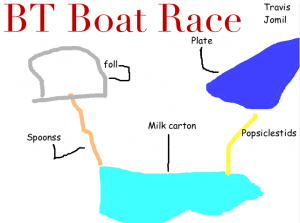
boatdiagramFirst grade students in Esra Kazanoglu’s class at Laburnum Elementary are preparing for a boat race! After studying Christopher Columbus’s ship (SOL 1.3) and understanding the principles of force and motion (SOL 1.2), each group of students must design a boat using various materials supplied by the teacher (milk cartons, cups, spoons, popsicle sticks, foil, paper plates, etc). Then they will test their boats in water in order to determine what adjustments they need to make before the big race. On the day of the race, the groups will attempt to make their boat go the farthest down a water-filled gutter within a certain time limit. They will measure the distance and record the race using the iPads. As you can see, this is an great example of cross-curricular project-based learning. So my job today was to help them create a diagram of their ship using Pixie. Since this was a group project, we discussed the importance of taking turns at the computer and the jobs of the students who weren’t on the computer at that time (to gather the materials in order to draw them correctly, to research spelling, to brainstorm ideas, etc.). First I showed the students how to add a creative title and change the font, size, and color of it. Next I explained how to draw a clear diagram using the paint tools. Finally, I taught them how to add text boxes for the labels and use a small paintbrush to connect them to the correct spot on the diagram. Using Pixie instead of paper and pencil allowed the students to move things around and make corrections easier (especially after their “test” run), plus the diagrams were a lot neater. You can see all the group’s diagrams by clicking here.


Tags: