Category: Science

3rd Grade Animal Habitats Graph
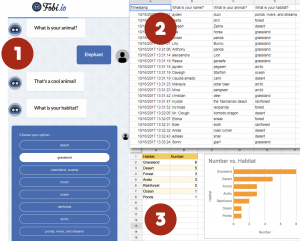
We’re on an animal habitats streak here! In previous posts I’ve shown how your habitats unit (SOL3.4) can reinforce the skills you are teaching in Social Studies and Reading. Now we’ll see how it can reinforce Math concepts as well. At Trevvett Elementary, third graders have been learning about graphing (3.17), so today students in Ms. Bae’s class practiced graphing animal’s habitats. First we had to collect some data. I used Fobio to convert a Google form into a chatbot to make the process a bit more interesting. You can try the chatbot out for yourself by clicking here. Once the students had entered their information, I took a screenshot of the results spreadsheet and posted it to Schoology (step 2 in the graphic accompanying this post). Next the students opened a blank Google spreadsheet and typed the habitats in Column A and the number of animals in Column B. I showed them how to use the new “Explore” feature by clicking the star shape in the bottom right corner. From the pop-up window they could change the colors of the rows and automatically add a bar graph (step 3 in the graphic). I explained that they could also change the colors of the bars by double clicking on one of them, then clicking the paint bucket in the pop-up window. The students shared the links to their spreadsheets on Schoology. You can see an example here. (UPDATE: The next day at Holladay, Ms. Haley’s class combined Math & Science by writing math word problems about animals. See them here).

3rd Grade Animal Nonfiction Books

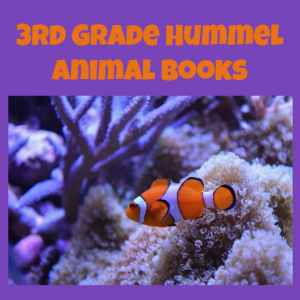
Third graders at Varina Elementary have been learning about animals in Science and nonfiction text elements in Reading (SOL3.6c). Today students in Ms. Hummel’s class used Book Creator to design a nonfiction book about an animal. First the students chose an animal and did some quick research online to find interesting facts about their animal. Then they signed into Book Creator with the teacher’s class code (to get the code, teachers should click on their class library from the drop down menu and click “Invite”). Students chose “New Book” and clicked the i button to choose a color for their book. They added a title by clicking the + button and selecting “Text.” I demonstrated how to customize the text’s font, size, and color using the i button. Next, they added a photo of their animal using the built-in image search by clicking the + button and “Import.” We flipped to the next page and started typing facts. Since we wanted to include nonfiction text features like bold text, captions, and photos, I showed them how to make important words bold by highlighting them and clicking the “B.” Finally we created an “About the Author” page. Book Creator has a special feature that let’s students take photos and videos right within the app, so they added photos or videos of themselves. I combined all the books together in one book (click the “books” button, then “Combine books”). You can read it here (I did similar book projects today with 5th Grade Oceans and 4th Grade Weather).


3rd Grade Animal Rules & Laws

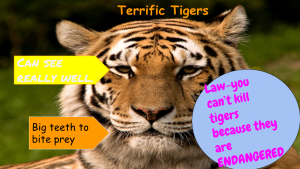
Third graders at Holladay Elementary have been learning about the difference between rules and laws in Social Studies (SOL3.10a), and they have been studying animal adaptations in Science (SOL3.4). So today students in Ms. Whittaker’s class created slideshows that identified animal adaptations and also included a rule or a law about that animal. First they opened a blank Google slideshow, and I showed them how to add a background image of their animal. Next we added some shapes to point out different features on the animal (Example – deer have antlers to fight with). If the students needed to do some research, they could open a new tab and do a quick Google search. I demonstrated how to change the color and type a fact in each shape. Then we added another shape and typed in a rule or a law about the animal (Example – Rule: Don’t feed the deer; Law: You can only shoot two deer with antlers per season). Finally, we used the Transitions button to add animations to the shapes. Students shared their slideshows on Schoology, and you can see them all here.


4th Grade Mapping the Hurricanes

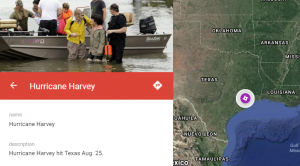
Fourth graders at Holladay Elementary have been learning about weather in Science (SOL4.6) and maps in Social Studies (SOL4.1), so today students in Mr. Rivara’s class created Google maps showing this season’s hurricanes. The 2017 hurricane season has been rough, with Hurricane Harvey hitting Texas at the end of August, and Hurricane Irma currently hitting Florida! First I showed them a few webtools that are great for tracking hurricanes: Earth and Meteoearth both show wind directions across a 3-D globe, while Windy shows wind directions on a flat map. Next, we went to My Google Maps and created a new map. I showed them how to add a marker to show where Hurricane Harvey hit in Texas. We added a title and a descriptive sentence with a fact about the hurricane. The students had to do some quick research to get their fact by opening a new tab and typing “Hurricane Harvey” in the search box. I wanted them to find a fact with a number, since they are learning about place value in Math (SOL4.1a). Finally, we added a photo of the hurricane, and I explained how to customize the marker by changing the color and icon. We had time to add one more marker for Hurricane Irma. They will continue using the map to track other hurricanes this season. You can see all their maps here.


5th Grade Review with Chatbots

Fifth graders at Holladay Elementary have been reviewing for exams, so today students in Ms. Neal’s class created review questions for each other in the form of a chatbot. A chatbot is an online virtual assistant that you’ve probably already had interactions with if you’ve used the chat feature on a business website. The chatbot is programmed to ask you questions and give replies based on your answers. We used a website called Fobi.io which turns any Google form into a cool-looking chatbot. First we created the Google Form by going to our Google drive and choosing New > More > Google Forms. I explained that the first question should be: “What is your name?” Then the students had to come up with two multiple choice educational questions about any topic they’ve learned about this year in 5th grade (we brainstormed a list of topics, in case they had trouble remembering). They could also create additional questions of their own if they had time. We published our forms by clicking the “Send” button and copied the link. Next we went to Fobi.io and pasted the link to our form. Now we could program the chatbot Fobio to reply to each of the questions. For example, if an answer was correct, he could say, “Great job!” or if it was wrong, he could say, “Try again!” The students were very creative in their responses. You can take a look at some of their chatbots here.


Kindergarten Butterfly Life Cycle Animations

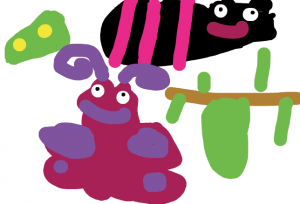
Kindergarten students at Holladay Elementary have been learning about the butterfly life cycle (SOLK.7c), so today Ms.Hartwell’s and Ms.Ambrose’s classes created animations showing the life cycle from egg to adult. First, we reviewed the four stages: egg, larva, chrysalis (pupa), and adult butterfly. We used two different websites to create our animations: in Ms. Hartwell’s class we used SketchToy, and in Ms. Ambrose’s class we used ABCYa!Animate, but the process was basically the same for both. We started by drawing the egg. I showed them examples of real butterfly eggs using a Google image search. We noticed that most eggs were white or yellow and were laid on plants. Next we used the drawing tools to draw the larva. Again, I used a Google image search to show examples. We repeated those steps for the chrysalis and the adult butterfly. Finally, we published our animations. SketchToy generates a link which replays the drawing. ABCYa!Animate makes a GIF file that we uploaded to Padlet. You can see Ms.Hartwell’s class projects here and Ms.Ambrose’s class projects here.


4th Grade VR Review Worlds

Fourth graders at Laburnum Elementary have been reviewing for their upcoming SOL Tests, so today students in Ms. Mauck’s class created virtual-reality review worlds about a topic using CoSpaces. First, we reviewed different topics to get them thinking. They’ve learned about motion (SOL4.2), electricity (SOL4.3), plants (SOL4.4), animals (SOL4.5) weather (SOL4.6), space (SOL4.7), Virginia history (Virginia Studies), and more. There were plenty of topics to choose from! Next, we signed into CoSpaces with our Google accounts. I showed the students how to choose a background image (you can also upload your own 360 photo as a background image). Next we went to the Library (at the bottom) and added a person. The older objects are currently more customizable than the newer (low-poly) models. I showed them how to click on an object to resize or raise it using the buttons that appear above it (you have to click and drag the actual button). You can also rotate objects with the rotate button. To customize the object, we right clicked on it and changed the colors or typed something for it to say. We also made walls using the “Building blocks” in the library. Students added photos of their topic to the walls by clicking “Web image search,” then right clicking the image to make it a “Panel,” and attaching it to the wall with the “Attach” button. CoSpaces even has a coding feature, but the students didn’t have time to use that (look at my example to see some coding features). Finally, we published our projects and pasted the links to Google classroom so everyone could explore our virtual worlds for review. You can take a look at them here.


Tags:


5th Grade Planet Websites

Fifth graders at Varina Elementary have been reviewing the planets in our solar system (SOL4.7), so today students in Ms. Primrose’s class researched a planet of their choice and created a website about it using the new Google sites. First we reviewed the planets, their order, and interesting facts about each one to get the students thinking. We discussed how the Earth is unique in space, and is not named after a god. The other planets are mostly named after Roman gods, except Uranus, which is named after a Greek god. (By the way, did you know Uranus was first named after King George)? After the students chose a planet that interested them, they conducted their research online. There are several good sites, but the ones we used are ESA Kids (good facts, written at on elementary reading level), Solar System Scope (an interactive, animated solar system), and the basic Google search page. Other websites sites that your students can explore in a center or station are PixelSpace (shows the vast scale of the solar system if the moon were the size of a pixel); Scale of the Universe (shows not only the relative sizes of the planets, but many other objects in the universe), and Neave Planetarium (shows students where the planets and constellations are in the sky tonight). Next, it was time to create our website using Google sites. Students went to their Google drive and clicked New > More > Google sites. The students typed a creative title for their planet webpage, then typed some facts in their own words (we discussed the problems with plagiarism). Finally, students added photos using the built-in Google image search. We published our websites, and shared the links on Google classroom. You can see them all here.


5th Grade Light & Sound Animations

Fifth graders at all my schools have been learning about light (SOL5.3) and sound (SOL5.2), so these past few weeks we have been using ABCYa!Animate to illustrate light and sound waves. First we reviewed waves, frequencies, and amplitudes using a variety of websites: IKnowThat, Virtual Oscilloscope, Wave On A String, Digital Keyboard, Bouncy Balls, and the Interactive Ear. We also discussed how waves can be reflected or refracted. Students had to choose one of these principles to illustrate in their animation. We went to ABCYa!Animate, and I showed them how to choose a background image or use the square tool to make a solid-colored background. Next, they chose images from the Images library or drew their own images with the paint tool. Once they finished their first frame, I explained how to copy the image with the Copy Cat button and move things around a little bit or add things in each subsequent frame to give the illusion of motion. We also used the Text tool to write labels or descriptive sentences. You can see their light animations here, their sound animations here, and some students combined light and sound in the same animation. You can see those here. (NOTE: Ms.Sharpe’s class had already created animations this year, so we tried something different–movies with WeVideo).


Kindergarten Living & Nonliving Things

Kindergarten students at Holladay Elementary have been learning about living and nonliving things in Science (SOL K.6) and how to spell words phonetically to describe pictures in Language Arts (SOL K.12c). Today students in Ms. Ambrose’s class used ABCYa!Storymaker to draw and write about a living or nonliving thing. First we brainstormed a variety of things so that the students weren’t all drawing the same ones. Then they used the paint tools to draw a picture of the item they chose. This requires the students to practice clicking and dragging, which is an important computer skill. They also quickly learned how to use the undo button to fix mistakes (and we explained that, unfortunately, life doesn’t have an undo button). Next, we clicked the writing button on the side and a familiar-looking sheet of lined paper appeared on the screen. I showed them how to use Shift to make a capital letter, and we all typed the first word of our sentence, “I.” Then we typed “am a,” and the students finished their sentences with the name of their object, spelled phonetically. You can see them all here.