Category: Math

Graphing with Google Drawings
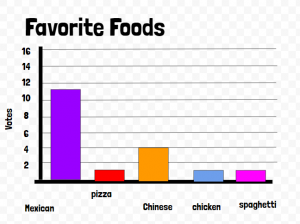
Third graders at Varina Elementary have been learning how to collect data and create graphs (SOL3.15), so today students in Ms. Long’s class made graphs with Google drawing. Usually we use Google sheets to create graphs, but Google drawings are another great option. There are two features that I really like about graphing with Google drawings: You can easily change the color of each bar (in sheets, the default is one color for all bars), and you can resize the bars by clicking and dragging, which provides practice for the technology enhanced items (TEI) on our tests. First, we collected data by asking the students to answer a few polls within Schoology. You could also let the students create their own polls with Google forms, but I wanted to show the teachers this built-in feature of Schoology. The polls were on a variety of topics: favorite sports, foods, and colors. After the students voted, they opened a template (you can make a copy here) and chose the data they wanted to graph. Next, they edited the text boxes so the title and categories matched their data. I showed them how to click and drag the bars to the correct lines and change their colors with the paint bucket. Finally, we shared our graphs in Schoology and analyzed the data. We asked questions, like, “What is the most popular food?” or “How many more people like basketball than football?” The students noticed that graphs make it a lot easier to understand their data. You can see some of their graphs here.

Tags:


1st Grade Ordinal Numbers

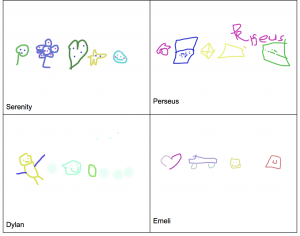
First graders at Laburnum Elementary have been learning about ordinal numbers (SOL1.3). Today, students in Ms. Leibowitz’s class identified the ordinal numbers of objects in a drawing they created. First, we helped the students log into the computers, since they haven’t had much experience with them. Then we went to Kleki, a free drawing site I like because it’s simple to access and use. We started off just scribbling in order to practice using the click and drag technique. This, in itself, is a challenge for young students developing their fine motor skills. Once they got the hang of it, I showed them the Undo button, and we undid all the scribbles. Now it was time to start drawing pictures. I demonstrated how they could change colors using the rainbow. They could draw anything they wanted, as long as the objects were in a row, since we would be identifying their ordinal positions. Some first graders get very concerned if their pictures are not perfect, so I let them know that their pictures could be messy (I did a few messy examples). Even a squiggle could be a snake or a worm. Their drawings could be simple (circles, squares, triangles), or, if they wanted a challenge, they could make them more complex (trees, houses, cars), by combining shapes together. But, I explained, the most important thing was for them to enjoy the process. As they finished, I went around and saved their work (File > Export Image). I also uploaded the pictures to a shared Google doc, accessed with a link shortener so I could navigate to it quickly from each student’s computer. Finally, once all the students’ artwork was uploaded, we looked at the pictures and identified the ordinal position of different objects. For example, what is the position of the flower? What is in third place? You can see their pictures here. UPDATE: I have used Kleki to teach lessons in other first grade classes for shapes (SOL1.11a) Ms. Spencer & Ms. Milteer and patterns (SOL1.14) Ms. Sunseri & Ms. Burnett.


4th Grade Predicting and Graphing Virginia Rivers

Fourth graders at Trevvett Elementary have been learning how to make graphs in Math (SOL4.14), and they have been studying the major rivers of Virginia in Social Studies (VS.2). Today, students in Ms. Catlett’s class predicted and graphed the lengths and discharge rates of the rivers. First we located the rivers on Google Maps. I created the map with different layers so that you can click the check boxes on the side of the map to turn on/off the rivers and/or the Virginia border as you discuss each one. We looked at the map scale at the bottom to try to predict the lengths of each river. If you wanted to show your students the watershed for each river (Science SOL4.9a), a great research tool is Streamer. Click the “Trace Upstream” button at the top, then click on a river, and the entire watershed will show up in red. I was amazed at how big the Potomac watershed was and how far it reached into Virginia! After discussing the lengths of the rivers, we tried to predict the discharge. Discharge is the volume of water flowing out the end of the river, measured in cubic feet per second (cu.ft./s). A cubic foot is about 7.5 gallons. We estimated the discharge rate of each river, taking into account their total length, watershed area, and size of the mouth (where it empties into the bay or ocean). Many students automatically assumed that longer rivers would have greater discharge rates, so I asked them a question to help clarify this misunderstanding. Does a longer hose have more water coming out the end than a shorter hose? What does affect how much water flows out the end of the hose? (Water volume, speed and the width of the hose). Does the discharge rate stay the same for each river, like its length? What would make the discharge rate change? (Amount of rainfall). Students recorded their predictions on this spreadsheet. Then they did some research to find the answers. Wikipedia has the information as well as simply asking Google, “What is the length/discharge of the ___ River?” The students entered the correct data into their spreadsheet and compared it to their predictions. Finally, I showed them how to highlight the data and graph it. The graph makes it very easy to see relationships between the rivers. You can see a few student examples here and in the screenshot above.


Tags:


3rd Grade Coding Money and Change

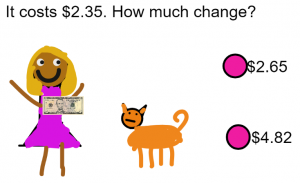
Third graders at Laburnum Elementary have been learning about money and counting change up to five dollars (SOL3.8). Today students in Ms. Hunt’s class used a new coding program called Wick to create an interactive math problem about making change. First, I showed them a couple of examples so they could get an idea of what we were going to do (here and here). I pointed out that their projects could look very different, but they had to have three things: (1) an object to buy with a price under $5; (2) a person with a $5 bill; (3) a right and a wrong answer. To get the students started, I created a template with some money files that you can download here. The students downloaded my template from Schoology, started a new project in Wick, and uploaded the template (File > Open). Now, in the Assets Library on the right, they had some money images to use if they wanted. They illustrated their problem with the drawing tools and typed out the question and answers with the text tool. We created two more frames by copying the first one (right click > Clone frame) and made a few changes to show the correct answer (the person gets the object and is happy) and the incorrect answer (the object leaves and the person is sad). Finally, we added the code to the buttons so that they go to the correct frame. One of the things I really like about Wick is that is uses real code. So we added a stop() code to each frame and programmed the buttons to go to the correct frames gotoAndStop(2) or (3). Wick exports projects as HTML files so they play in any browser. You can see all their projects here.


Tags:


2nd Grade Counting Coins with Scratch

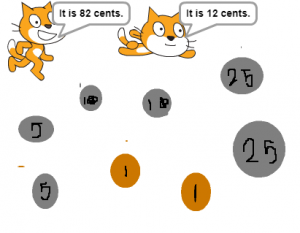
Second graders at Holladay Elementary have been learning how to count coins up to two dollars (SOL2.10a), so today, students in Ms. Brown’s class used Scratch to create a counting coins activity. First, we reviewed the coins and and practiced counting the value of groups of coins. Then I showed them a sample Scratch activity to prepare them for making their own project. Basically, it displays a group of coins with two characters stating different values. If you click on the character who correctly identifies the amount, they congratulate you with a “Good job!” or a similar statement. If you click on the character who is incorrect, they let you know you are wrong in a nice way by saying something like, “Try again!” Once the students got an idea of what they were doing, they were ready to begin their own activity. They started by editing the background and drawing a group of coins. They needed to make the coins easily identifiable by using the correct sizes, colors, and designs. Next, they chose two sprites, or characters, from the library. Using the block code, we programmed the characters to say a right and a wrong value and to let the player know if they chose correctly or incorrectly. Finally, we published our projects and shared the links on Schoology so our classmates could try our activities. You can try them yourself here.


Tags:


3rd Grade Mali Perimeter & Area

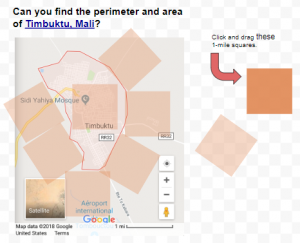
Third graders at Trevvett Elementary have been learning about perimeter and area in Math (SOL3.10), and they have been studying the ancient civilization of Mali in History (SOL3.2). Today, students in Ms. Cockrum’s class found the perimeter and area of the famous Malian city, Timbuktu. First, we found Timbuktu on Google maps and used the scale to estimate its perimeter and area. To record our data, we made a copy of this spreadsheet that I had prepared ahead of time with the correct font sizes and cells. I demonstrated how to make some practice shapes by clicking and dragging through the cells and using the paint bucket to change the fill color. Then we used the squares to calculate the perimeter and area of our shapes and entered the values into the corresponding cells. Now the students were ready to measure Timbuktu, Mali. We made a copy of this Google drawing to make the process a little easier. The students could click and drag the square miles around the perimeter (turning the squares by dragging the blue circle that appears over each one when it’s clicked), and they could drag the squares inside of the city to find the area. The squares are transparent so the students could see what is underneath. Once they found the perimeter and area of Timbuktu with the squares, they entered the values into their spreadsheet. Finally, we clicked the Share button on our spreadsheets and pasted the links into Schoology. You can take a look at them all here.


4th Grade Geometry Posters

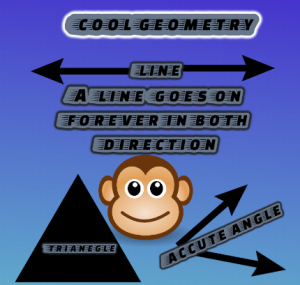
Fourth graders at Varina Elementary have been learning about lines, rays, angles, polygons, and other aspects of geometry (SOL4.10, 4.11, 4.12). Today, students in Ms. Connell’s class used DesignCap to create geometry posters that review these concepts. We started by looking at the sample posters (templates) on the website for inspiration. We noticed that many of them have large text and colorful pictures to convey a clear message. I encouraged the students to try to use similar design elements. Then, we began with a blank poster and changed the background color. I demonstrated how to add text with the text tool and customize the font, size, fill and border colors. Next, I showed them how to add images and clipart by searching the web or using the built-in clipart library. Students used these tools to create posters reviewing geometry concepts of their choice. We exported them as JPG files and shared them on Schoology. You can see all their posters here.


3rd Grade Fractions Book

Third graders at Laburnum Elementary have been learning about fractions as parts of a whole and as parts of a group (SOL3.3). Today students in Ms. Forrester’s class made fractions books to show examples of each type using BookCreator. First, Ms. Forrester set up her account and gave the access code to her students. Once they were logged into her class, I showed them how to create a new book. We all picked the square size since we will be combining our individual books into one class book. On the cover of our book, we typed a creative title, picked a background color, and added our photo using the built-in webcam feature. On the next page, we illustrated a fraction as part of a group using the shapes tool. We made several shapes one color and other shapes a different color. Then we typed a sentence identifying the fraction. I asked them to illustrate a fraction as part of a group on the last page. They used the image search feature to find a photo of an object that could be divided into parts (food seemed to work well). Then they used the drawing tool to draw the parts and “cut out” some of them. They also typed a sentence identifying the fraction. This gave them practice using all the different tools BookCreator has available. Finally, the students published their books online and I combined them into a class book. You can read their book here. (UPDATE: I taught a similar lesson in Ms. Long’s class at Varina, and you can read their book here).


Tags:


2nd Grade Probability Book

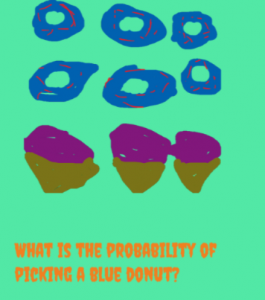
Second graders at Holladay Elementary have been learning about probability (SOL2.18) and predicting whether an outcome is likely or unlikely. Today, students in Ms. Edmonds’ class created a Probability Book with BookCreator. After reviewing several examples of probability, we logged into BookCreator with the teacher code and created a new book. On the first page the students added a text box and typed “Probability.” Then they added a photo of themselves using the built-in webcam feature. I also showed them how to change the background color. On the next page, they drew a group of different colored objects and typed a sentence like, “What is the probability of picking a yellow ___ ?” Finally, on the last page, they typed the answer (LIKELY or UNLIKELY) and added a photograph from the Internet. This gave them practice using the three different ways to get images in BookCreator (using the webcam, drawing, or uploading a photo). Once all their pages were finished, I combined them into one book and published the link on Schoology. Now, as they read their class book, they are reviewing probability and its terms in a fun way! You can read their book here.


Tags:


5th Grade Mean, Median, Mode, and Range

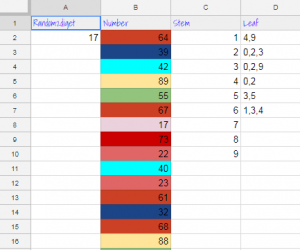
Fifth graders at Varina Elementary have been learning how to find the mean, median, mode, and range of a set of data (SOL5.16c). They have also been making stem-and-leaf plots (SOL5.15). Today students in Ms. Primrose’s class discovered how to accomplish these tasks using a Google spreadsheet. First, we opened a blank spreadsheet by clicking the shortcut button (the 9-squares at the top of a Google search page). We discussed how the spreadsheet grid is similar to a map grid, with letters along the top and numbers along the side. Each cell has a name based on its letter and number (such as B6 or D9). The cell name stays the same, even if the data inside it changes. I explained that we will be using the cell names to create our formulas for mean, median, mode, and range. This concept of cell names is a great way to help students understand variables (SOL5.18a). Next, we labeled each column: Random, Number, Stem, Leaf, Mean, Median, Mode, Range. I showed them how they could highlight the whole row by clicking 1 on the side and change the font, size, and color. We clicked in A2 and typed our first formula for generating a random 2-digit number: =RANDBETWEEN(10,99). Then we clicked in B2 and typed the number we saw in A2. When we pressed the Enter key we went down to B3 and typed the new random number we saw in A2. We continued doing that until we had about 20 random numbers down column B. To make it easier to create the stem-and-leaf plot, we added some conditional formatting to column B (highlight the column by clicking the B at the top, then click Format > Conditional formatting). We added 9 rules making the cell a different color if the number was between two tens (for example, make the cell red if the value is between 20-29). Now we clicked in the C column (Stem) and typed 1-9 down the cells for our stems. Since the leaves had to be next to the stems, we highlighted the D column (Leaf) and changed the alignment from right to left using the Horizontal align button at the top. Then we used our colors to help us count and enter the numbers. Finally, we used formulas to calculate the mean, median, mode and range in their respective columns:

=AVERAGE(B2:B21)
=MEDIAN(B2:B21)
=MODE(B2:B21)
=MAX(B2:B21)-MIN(B2:B21)

To show the value of using variables (cell names, like B2), I instructed the students to change some of the numbers in Column B. The formulas instantly recalculated their values! We shared our spreadsheets with each other on Schoology, and you can see them all here.