Category: Math

2nd Grade Subtraction Animations
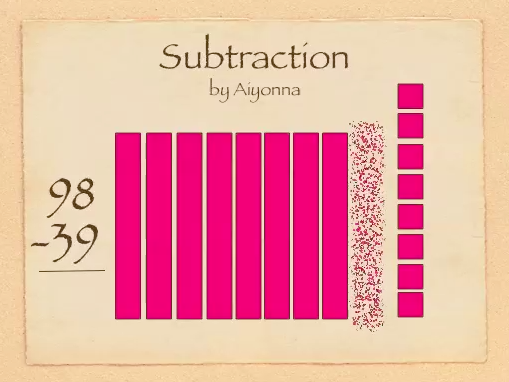
SubSecond graders in Ms. Gardner’s class at Holladay Elementary have been learning the difficult concept of subtracting with regrouping (SOL2.7). Sometimes abstract ideas become clearer when we can visualize them with an animation. It’s even better if we have someone verbally explaining the animation. The best way is to create and explain the animation yourself! So that’s what we did today using Keynote. First we opened up a blank Keynote and I showed them how to add a Title and change the theme. Next, I instructed the students to come up with two numbers less than 99 that would require regrouping to subtract. They added those numbers to their slide with text boxes. Then they used the shapes tool to represent the top number as base-10 blocks (bars for tens and cubes for ones). Now it was time to add the animations. This is where Ms. Gardner and I really got to see which students understood the concept and which ones didn’t. The used the Inspector to add “Build Out” or “Build In” animations to the different bars and cubes. They had to make one ten disappear and ten ones reappear. Next they had to make the correct number of ones and tens disappear to show the subtraction problem. At the end they should have had the same number of base-10 blocks as their answer. They used a text box to make their answer appear, and finally they recorded the voiceovers explaining each step. The students exported their slideshows as a QuickTime video. It was a lot of work for these second graders and took us a couple of days, but they hopefully they have a better understanding of subtraction with regrouping. You can see a couple of student examples here: Giada and Jessie.
2nd Grade Money Websites

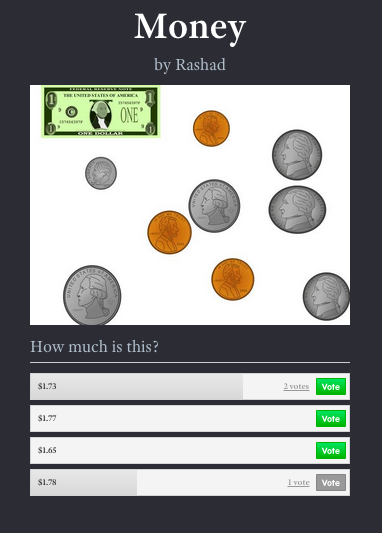
1stMoneySecond graders in Ms. Crostic’s class have been learning about counting money up to $2.00 (SOL2.10). Today they created money websites to practice this skill with their classmates (and anyone else who visits their websites). First they created a money picture using the clip art in Pixie, then they counted the coins and bills in their picture to figure out the total amount. They exported it as a JPG image and saved it to their folder. Next they went to CheckThis, a free site for making quick webpages without having to sign into an account. They changed the title to “Money” and typed their name for the subtitle. Then they uploaded their money picture. They also added a poll question asking site visitors to identify the amount of money in the picture. Finally they changed the theme of their site and published it. I posted all their links to a Google Doc that you can check out by clicking here (and feel free to answer their questions… they love seeing those votes)!


1st Grade Telling Time iMovies

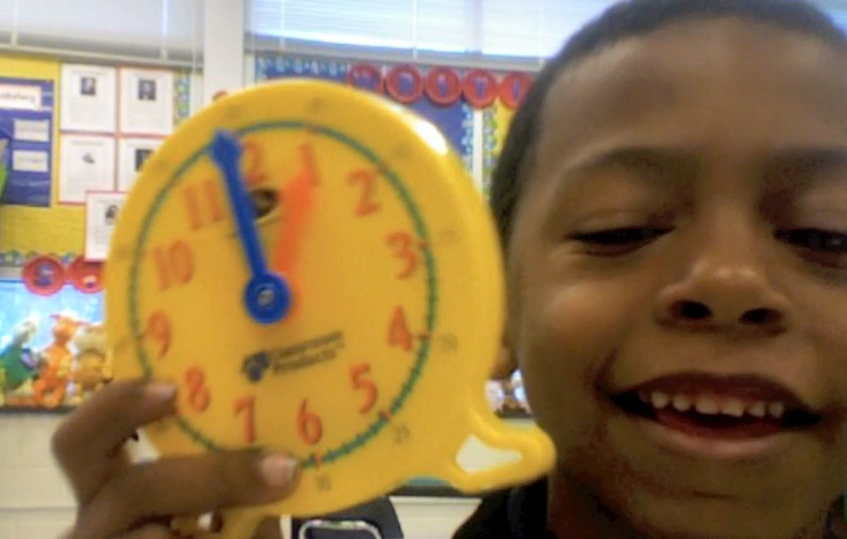
1stTimeFirst graders in Ms. Reese’s class at Laburnum Elementary have been learning how to tell time to the half hour (SOL1.8), and today they used Photo Booth iMovie to create their own videos about time. First we reviewed how to tell time using the model clocks. Then we discussed what students are doing at different times throughout the day because I wanted them to not just tell the time on their clocks, but to also tell what they do at those times. Next we opened up Photo Booth, and I explained how it reverses the image so it will be kind of tricky to tell the time (although Samontey could tell time in the reverse as well!). They recorded themselves holding up the clocks, telling the time, and explaining their activities. This was a great way to assess understanding since we found out that although many students could tell the time, several had difficulty knowing what they do at those times. After that, we imported the videos into iMovie. I showed them how to add titles and music to their video. They loved that part! Finally we exported the videos as QuickTime movies. Take a look at a few student examples: Jarrett, Jakirra, and Noah (he can do a LOT at 9:00!).


1st Grade Review with Padlet & Socrative

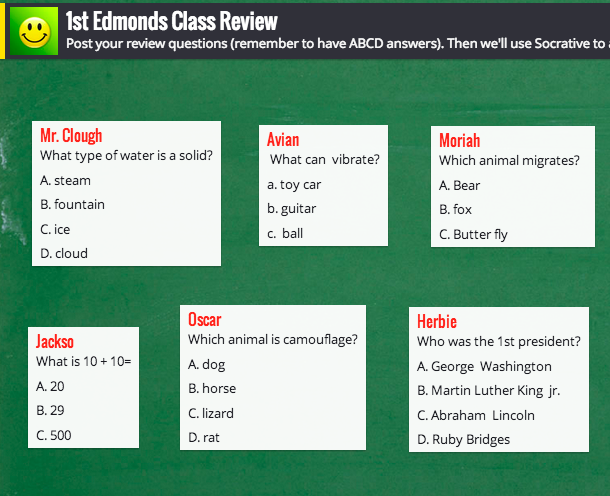
Screen shot 2014-03-31 at 11.08.06 AMFirst graders in Ms. Edmonds’ class at Holladay Elementary have been reviewing for upcoming tests, so today I showed them how to create their own review questions using two web tools, Padlet and Socrative. First we talked about what makes a good multiple choice question. Most importantly, it should make people think. If the answer is obvious or if some of the choices are ridiculous, then it’s not a good question. Next we discussed topics that they could write questions about: In Social Studies they’ve been studying famous Americans (SOL1.2). In Science they’ve been learning about animals (SOL1.7) and force & motion (SOL1.2). In Math they’ve been adding doubles (SOL1.5). Once they thought of their question, each student went to a wall I created for them in Padlet and posted their question to the wall. Click the link to see their questions. Next they logged into our class on Socrative and I gave them questions to answer from the wall. Socrative is similar to ActivEngage in that questions appear on each student’s screen, they answer them, and the teacher gets instant feedback with a graph that shows how their responses. The students enjoyed answering each others’ questions, and they had a great review through the process.


4th Grade Equivalent Fractions

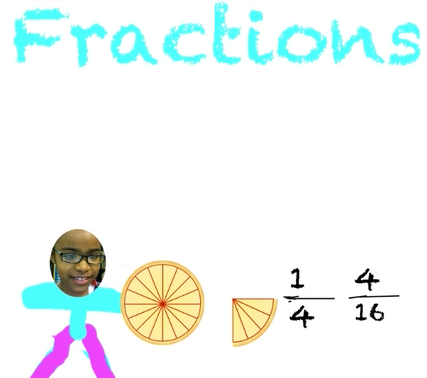
EquivFourth graders in Ms. Thomas’s class at Varina Elementary have been learning about equivalent fractions (SOL4.2b). Today I showed them how to make equivalent fraction videos using Pixie. First they created a picture of themselves using the built-in camera and the paint tool. Next they used the fractions clip art to show a whole and a fraction of that whole. Then they used the text box tool to type the fraction and its equivalent, and they recorded a voiceover explaining how the fractions were equal. I showed them how to go to File > Duplicate Picture and create a few more pictures with voiceovers showing various fractions of the same whole. Finally they exported their pictures as one video by clicking Share > Video > Create. You can take a look at a couple of student examples: Kendall showing fractions of a pizza and Krystal showing fractions of an orange.


2nd Grade Symmetry Pixie

Screen shot 2014-03-28 at 1.44.38 PMTechnology lessons don’t have to be long and complicated. There is definitely an appropriate place for multi-day projects, but you can also do quick lessons in as little as 30 minutes. Today’s lesson is an example. Ms. Salvo’s class at Davis Elementary has been learning about symmetry (SOL2.15), and Pixie has an excellent tool for making symmetrical drawings. If you click the paint brush tool and then click the Mirror box, it mirrors what you draw. So the students drew a couple of symmetrical drawings and then they added a picture of themselves (because people are kind of symmetrical). You can use the Line tool to identify the line(s) of symmetry. That’s all we had time for since this was a quick lesson, but you could extend the activity by adding some stickers of insects, fruits, or other symmetrical objects and drawing the line of symmetry for those (you’d have to glue the sticker down first though). There are also a couple of cool sites for exploring symmetry. On MathIsFun you can experiment drawing with different lines of symmetry and on PicHack you can see if your face is symmetrical.


Tags:


4th Grade Fractions Animations

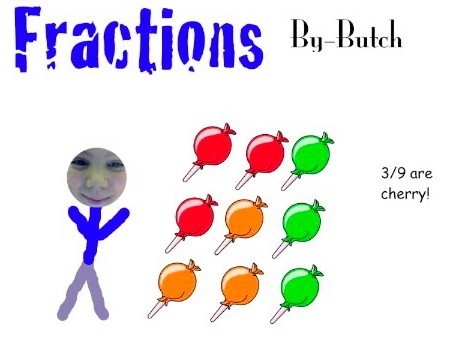
butch Fourth graders in Ms. Cousins’ class at Davis Elementary are just beginning their fractions unit (SOL4.2), so today we used Pixie to make animations showing fractions as part of a group in order to determine their prior knowledge. The students started by drawing a picture of themselves with a set of identical objects (such as 4 cherry pies). Then they duplicated the picture (File > Duplicate Picture) and added a few more different but similar objects to the group (like 3 peach pies). They could duplicate the picture, adding more sets to the group, as many times as they wanted. Finally we added pictures at the end identifying the fraction of the group each set represented. The students added a voiceover to each picture explaining the steps. This made very clear to us which students understood the concept. For example, one student drew a picture of 2 cookies and 1 car (so we could tell he wasn’t clear on making similar sets). Then he wrote the fraction as “3 2s” (in his voiceover he said “three twos”). So that let the teacher know he probably wasn’t ready to start comparing fractions (SOL4.2) and would need some remediation. I won’t post his example, but here are some students who did understand the concept and are ready to move on: Butch, Hannah, and Sryia.


Kindergarten More & Less Comics

ZoeyKindergarten students in Ms. Miller’s class at Holladay Elementary have been learning how to calculate 1 more and 1 less (SOLK.4b), so today I showed them how to demonstrate their math skills by using Comic Life. I gave them a 4 square template that you can download by clicking here. First we changed the title to say “More Less” to practice typing those words. Then I showed them how to use the “Capture” button to turn on the built-in camera. For the first square, they took pictures of themselves and wrote their names in the speech bubble. Next I told them to collect a certain number (less than 10) of an object. Some got 8 crayons, others got 5 pairs of scissors, and some got 7 erasers. It was their choice. Once they gathered the objects they took a picture of them for the second panel of the comic and wrote the number in the speech bubble. Finally they figured out how to show 1 more and 1 less of their original number, took those pictures, and completed the speech bubbles with the new number. For example, if they started with 6 paint brushes, they took a photo of 5 and wrote “1 less is 5.” Take a look at a few student samples: Zoey, William, and Stephanie.


1st Grade Addition Animations

Screen shot 2014-03-21 at 12.49.11 PMFirst graders in Ms. Long’s class have been learning how to create and solve one step story and picture problems using basic addition facts (SOL1.6) so today we made animated Keynotes to illustrate an addition problem they created. First we opened a blank Keynote (there’s no template to download) and the students added a title “Addition” and their name. Then I showed them how to create a simple snowman using the Shapes tool. We grouped it together and made copies of it. Next the students added a text box to show the number of snowmen they started out with. We used the Build In animation feature to make the number appear. Then we pasted in more snowmen and added another text box for that number. The students added their numbers together and typed the answer. Finally I showed them how to record their voices as they told their story problem. We exported the Keynotes as videos, and you can take a look at a few student samples here: Eric, Madeline, Natalie, and Tommy.


Tags:


3rd Grade Create-Your-Own Calculator

Screen shot 2014-03-21 at 11.09.28 AMThe Mac spreadsheet program, Numbers, is most often used by students to make graphs, but it’s also a great program to teach students how to create formulas to solve problems. As students troubleshoot their formulas, they gain a better understanding of the underlying math concepts and practice logical thinking. Third graders in Ms. Middleton’s class at Holladay have been learning about multiplication and division (SOL3.5) so today I showed them how to create their own calculators with Numbers. First I gave them a template that you can download by clicking here. I told them that these calculators were going to be a little different. Instead of giving the right answer, they would let you know if your answer is correct. So we made two columns for the factors or divisors and a column for people to write their answers. In the fourth column we wrote our formulas. I showed them how to write the first formula for checking multiplication and I let them write the division formulas on their own. Spreadsheet formulas are also helpful for reviewing map grids (SOL3.5e) since they use the same basic principle of identification. You can see all the formulas in the sample that comes with the template, but here’s the multiplication formula: =IF(D2=B2*C2,”Right!”,”Wrong!”). It checks if the answer in cell D2 equals the product of the numbers in B2 and C2, and let’s the user know if they are correct. The students wrote their own feedback messages (and some were rather creative 🙂 After writing the formulas, students switched seats and tested each others’ calculators. Similar formulas can be written for almost every mathematical concept you teach. Go ahead and try it with your class!


Tags: