Category: Language Arts

First Week of School
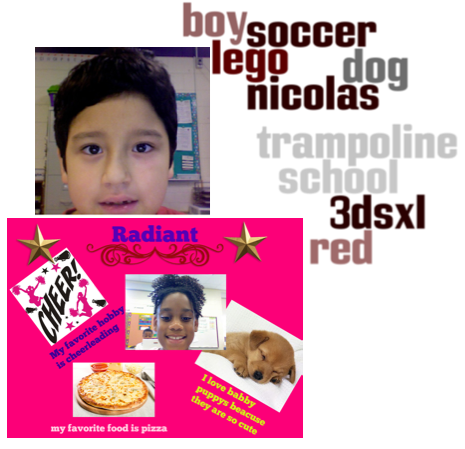
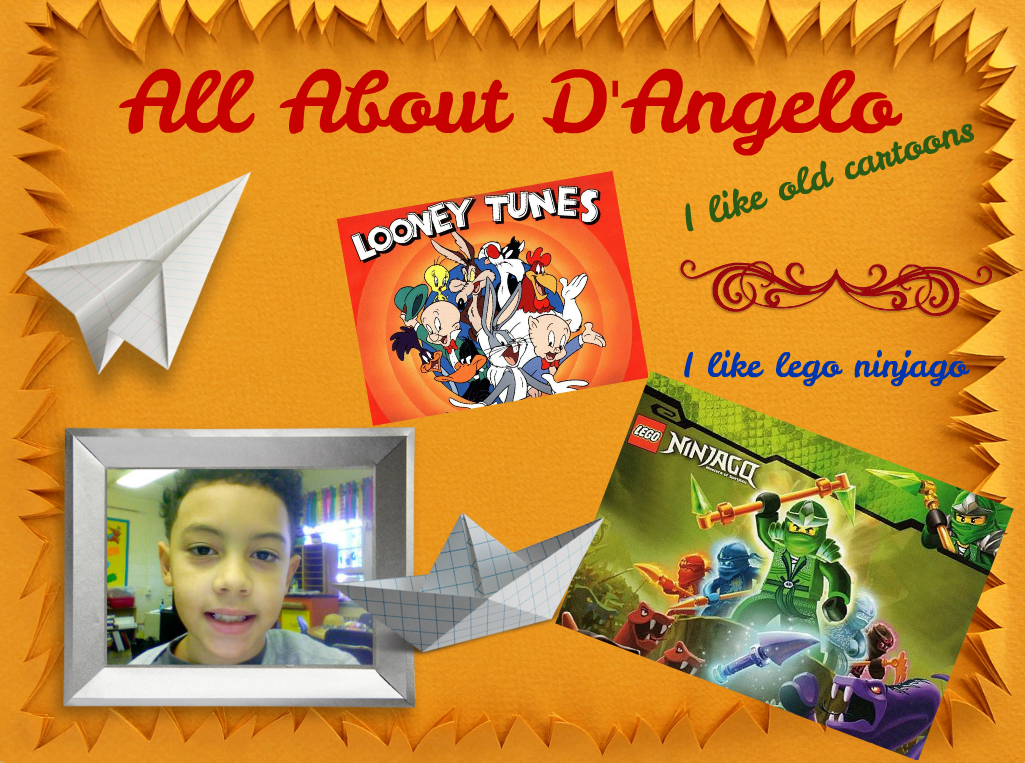
Screen shot 2013-11-22 at 12.21.11 PMIt’s been a good start to the 2013-2014 school year. I have two new schools where I will be serving as the ITRT (technology instructor), Varina and Davis. I’m still at Holladay and Laburnum, where I’ve been for the past eight years. This week we’ve been doing introductory activities with technology. We’ve written notes to our parents in Pages and added a photo, we’ve made Comics and Pixies about ourselves, and we’ve interviewed each other. Since I’ve already posted similar projects, I won’t post them again here, but I’d like to highlight two projects we did at my new schools. The 4th graders in Ms. Cousin’s class at Davis created a video to explain the classroom procedures to their parents. That really grabs parents’ attention at Back-to-School night. The 4th graders in Ms. Hubard’s class at Varina created Biteslide posters about themselves (see photo). Biteslide used to be called Beeclip, so if you’d like to see how I’ve used it in other ways search my blog for Beeclip. Finally, 3rd grade students in Ms. Eller’s class at Davis made Wordle word clouds about their interests and added a photo.


2nd Grade Choose-Your-Own-Ending Stories

inkle2A couple of days ago I was searching for a way that students could make an online classification system for living things (SOL5.5). I wanted them to be able to answer questions about a living thing and have their search get narrowed until they were able to classify it. I found a site called Inklewriter that was pretty cool. It allows you to write “choose-your-own-ending” stories. It was perfect for the classification lesson, and I made a sample that you can see here. Unfortunately, that lesson was cancelled because of testing. However, I was able to try it out today with a couple of 2nd grade classes as part of a creative writing assignment. I explained the idea that their stories had to have a dilemma with two choices for the reader to make. One choice should result in something good happening, and the other should result in something bad happening. Each student typed up their stories and wrote the two choices. Then I showed them how to add a picture by searching for an image of something in their story and pasting in the weblink to that image. Next they wrote about the results of each choice. Inklewriter was fun and easy to use and it didn’t require any login to write the stories (although you need a login to save them… we did run into a little problem when we all tried logging into the same account, so I just saved their stories one at a time afterwards). Their stories turned out great! You can try a couple of student samples here and here, or you can find all their stories here: Marable and Street. (PS. This site would also work great with an economics lesson on choices and opportunity costs SOL3.9).


3rd Grade Blog Entries About The Inauguration

GabrielleThird graders at Laburnum Elementary have been doing a lot of writing using Pages (the word processing program on the Macs), so they wanted to try something new and different. I thought that blogging would be perfect for them! We used Instablogg because it doesn’t require a login, it gives a link for them to go back and edit, and it also allows comments. Since this past weekend was the Inauguration of President Obama in Washington DC, I gave that as a possible topic. It’s a good idea to give choices though, so if they didn’t want to write about that, they could write about their weekends. First we talked about good writing habits. We discussed how to keep their ideas organized and flowing smoothly. We also discussed using sentence variety and descriptive words to keep things interesting. I pointed out the importance of correct spelling and grammar since this would be published online and anyone could read it (even President Obama)! Once they finished typing, I showed them how to search for a good picture online. I also showed them how to change the size when they embed it into the blog. I posted all their links to a Google Doc that you can see here.


2nd Grade Winter Writing & Editing

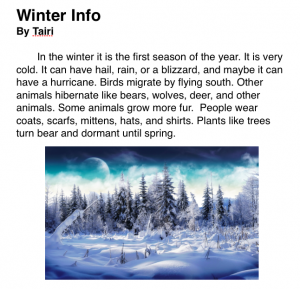
Picture 2Now that we are back from vacation, many classes are writing about the winter. Pages is our Mac word processing program, and I like to make sure that all the students know how to use it. So today I was teaching a 2nd grade class how to write about winter in Pages. The teacher wanted them to include facts about the winter that they have been learning about. So first we reviewed the weather and how plants, animals, and people adapt to the changes. Then we opened Pages and I showed them how to use the Style button to add a title and a subtitle (for their name). Using the Style button is a lot quicker than changing the font and size manually because once you hit Return, it goes back to the regular style. I instructed the students to write as much as they could in the alloted time. Then we did a Google image search to find a winter picture, and they dragged it to their document. We didn’t publish this writing assignment since several students didn’t finish, but there are many options for publishing. You could combine them all into one document, print it as a PDF, and create an online flipbook using sites like Youblisher or Flipsnack. You could also do all the writing online using sites like Instablogg or Google Docs. You could even have students print their stories as individual PDFs and drop them into your DropBox account using sites like DropItToMe. Then you could transfer them to your Public Folder and send the links out that way. I also recently found a cool webtool for editing online writing without messing up the original. Using Markup you can draw and write on any webpage just by clicking on a bookmarklet that you drag to your bookmarks bar. When you are finished, it gives you a new separate link with all your edits. I used it to edit one of today’s writing assignments so you could see an example here.


4th Grade Class eBook

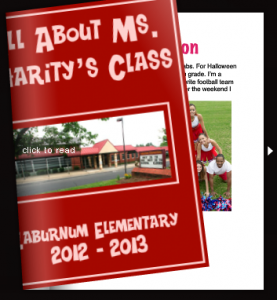
Picture 2Today 4th graders in Ms. Charity’s class at Laburnum Elementary created their own class eBook. You can create one fairly easily with your class as well! The cool thing about eBooks is that they can be read by anyone on almost any platform (computers, iPods, iPads, etc), and all you need is a word processing program (such as Word or Pages) and an Internet connection. We used Pages for this project. The students first typed a paragraph about themselves. I showed them how to change the font, size, and color of the title. You usually want to keep the main text in a common font because some devices will not display strange fonts correctly. Then they added a photo of themselves using PhotoBooth and searched the Internet for a picture of something else they had written about in their paragraph (which they highlighted in bold text). In order to publish their writings as an eBook, it must be a PDF document. So I combined them into one Pages document and saved it as a PDF (go to Print > PDF > Save as PDF). Then I uploaded it to FlipSnack which is a webtool for making eBooks or flipbooks. Flipsnack converts it into an online book that can be read anywhere and even embedded on a webpage (as you can see below)


3rd Grade “Guess Who” Game

Today third graders at Laburnum Elementary created their own class “Guess Who” game to learn more about each other. First I gave them a Pages template that you can download by clicking here. It includes some bookmarks and links so that viewers can click and see the answer. Once students opened the template, they added a title using the Styles button. Next they typed four our five sentences about themselves. They could write about their family members, friends, pets, favorite foods, sports, etc. Then they took their picture using Photo Booth and uploaded it to a cool site called PicMonkey. PicMonkey is great because you can add cool effects to photos for free without having to register. We picked the Pixelate filter to make the picture extremely difficult to identify. I helped them take a screenshot of their pixellated photo and add it to the document. Then we added their real photo to the bottom of the document with their names. So when viewers tried to guess who it was based on the written clues and the scrambled picture, they could click on a link to reveal the true identity of the student. You can see how it works with this sample, and if you’d like to see them all, I converted them into an online flipbook that you can view here.


4th Grade “About Me” Posters

Here at the beginning of the year it’s always a great idea to give your students the opportunity to introduce themselves to you and to each other. There are so many different ways to do this type of project. We’ve done movies, comics, Keynote slideshows, and Pages documents. I’m always on the lookout for new ideas though, and I found a cool website called BeeClip that I wanted to try out with a class. Ms. Waggoner at Chamberlayne Elementary was all for it, so I went to her fourth grade class today, and her students had a good time making posters about themselves. This site is great because it doesn’t require a login to use it. Students can upload their photos, add text and stickers, and even search for pictures online with a built in safe Google image search. Once they created their posters we went to full-screen mode and took a screenshot of it (Apple + Shift + 3). Screenshots are saved to the Documents folder on student computers. Next I uploaded the posters to Comemories which is a great way to share photos instantly. You can see all the posters here.


Kindergarten Summer Plans… with a Twist

I’m amazed at the opportunities technology provides for students to publish their work. Just a few short years ago the only way to publish your students’ work was to post it in the school hallways. Now students’ work can be easily published online for the whole world to see! I’ve been using Checkthis a lot lately with students because it is an incredibly simple way for them to publish a one page website with many advanced options such as adding pictures, videos, maps, and polls. I’ve used it from kindergarten to fifth grade. You can search my blog for checkthis to see some of the lessons I’ve done with it. Today I used it in kindergarten with two classes. They were learning how to write complete sentences with capitals and periods, and their assignment was to type a sentence or two about their summer plans. This is a typical end-of-the-year assignment, so we added a twist by showing them how to turn that into a website and add a picture of a sun (they could choose which sun picture to use, but we limited their search for the sake of time… plus “sun” was easy for them to spell). Then I collected their links together into one GoogleDoc that you can see here and here. Take a look at a few student samples and feel free to leave a comment: Jabne (she even had an animated sun), Kylie, Daniel, Adriana, and Ashley.


4th Grade Poetry Online

Fourth graders at Laburnum Elementary have been learning about poetry, so today I showed them some web tools that could help them write and publish their poems. The first tool is WriteRhymes. There is no registration (which I like). You just type your poem, and you can option click on words to find other words that rhyme with them. The students planned their poem using that tool. Then they published their poems using a tool called InstaBlogg. Again, there is no registration, but it allows students to publish their writing online, add a photo, and even comment on each others’ poems. You could use InstaBlogg for publishing all types of student writing, not just poems. The comment feature is blocked at school, but it works at home, so encourage parents to comment as well. I compiled all the fourth graders poems together into one GoogleDoc for easy access that you can view here. Check out a few student samples: The Basketball, My Good Mood, Cheering Times, and Just Me


4th Grade Sign of the Beaver Videos

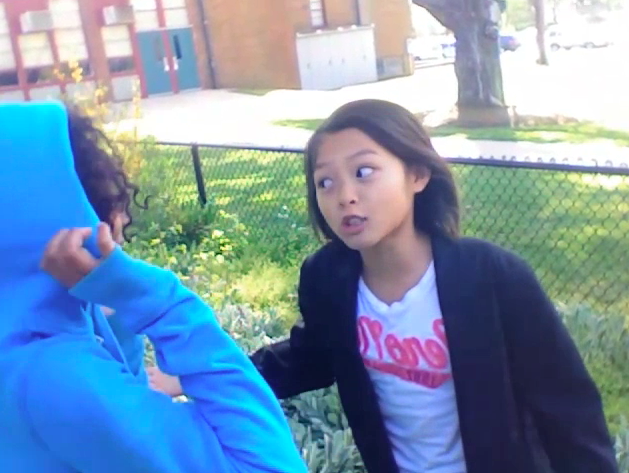
One of the great things about the student laptops is that they all have a built in video camera with Photo Booth. So your students can use it to film anywhere… even outdoors. Today at Johnson Elementary, fourth graders were creating their own movie adaptation of The Sign of the Beaver book. Movie-making is an excellent way to review and check for comprehension of any book your students are reading. It also includes elements of research, collaboration, problem-solving, and creativity! For several days prior to filming, the students had worked in groups to develop their scripts and make their own props. Today was filming day, and I was in charge of holding the laptop/camera while they performed. It was quite entertaining! The students did an excellent job speaking with expression. After I shot the raw footage, the students were going to edit it using iMovie to add in the titles, music, and special effects. You can take a look at the raw footage here:
Group 1 – Scene 1, Scene 2, Scene 3, Bloopers
Group 2 – Scene 1, Scene 2, Scene 3, Scene 4