Tag: GoogleDocs

4th Grade Revising with Google Docs

Screen shot 2014-03-31 at 9.42.52 AMToday I showed the fourth grade students in Ms. Cousins’ class at Davis Elementary how to log into their new Google accounts. They are preparing for the writing SOL test so I wanted to show them how to use Google Docs to help with editing and revising their writing. We created a new document and gave it a creative title. I told them to write a plain boring sentence, like “I have a cat.” Then I showed them how to use the Research Tools to find a picture to represent their sentence. When we dragged it over into our document, I pointed out that Google automatically generates a citation for the photo. Next we discussed the need for revising our writing. Using my example, we can’t picture this cat in our minds. We don’t know what it looks like or any details about it. So sometimes it helps to get someone else’s input. I showed them how to share their documents with a neighbor by entering their neighbor’s email address and then how to find those shared documents in their document list. Each student picked a new color and typed suggestions to their neighbor for writing a better sentence. Then the original author selected a different color and, incorporating their peer editor’s suggestions, rewrote the sentence. That’s all we had time for today, but now they are equipped to use Google Docs to help with the revision process. If you’d like to look at some student examples, I listed the links here.


4th Grade Poetry with Google Docs

Screen shot 2014-03-25 at 12.03.27 PMMs. White’s fourth graders at Davis Elementary have been writing different forms of poetry such as limericks and cinquains. Today I showed them how they could publish their poems using their new Google accounts. Since this was their first time, I helped them sign in and change their passwords. They created a new document and used the Styles button to write a title and subtitle (their name). Next they typed their poem and I showed them how to change the font and size of their text and use the Tools button to check their spelling. I also wanted them to know how to use Google Docs for research so we clicked the Research Tools and searched for a picture and a fact about something in their poem. They dragged the picture from the built-in search box to add it to their poem and a citation was automatically created! Then they rewrote their fact in their own words and clicked the “Cite” button to create another automatic citation. Finally I showed them how to publish and share their poems. I posted all their poem links to a Google Doc that you can explore here.


3rd Grade Google Research Tools

Screen shot 2014-03-21 at 12.22.46 PMAll Henrico students now have their own Google accounts, so I’ve been going to different classes, showing them how to log in and use the research tools. There are two really nice features that stand out. The first feature is the sharing feature, where you can share your document with others, facilitating collaboration. The other is the research tool that lets you find information and photos right in the same window where you are typing. If you include a fact or photo in your document, Google creates an automatic citation. Today I was showing Ms. Remley’s 3rd graders at Davis Elementary how to use their new accounts. They chose a famous American they have been learning about and created a short “report.” I showed them how to change the font, size, and color of the text, how to check their spelling, how to add photos, and how to use the citation feature. I also showed them how to share their documents with Ms. Remley and how to publish them as a webpage. I uploaded all the links to one Google Doc that you can check out here. If you’d like me to help your class get set up with their new Google accounts, let me know!


2nd Grade Famous Americans iMovies

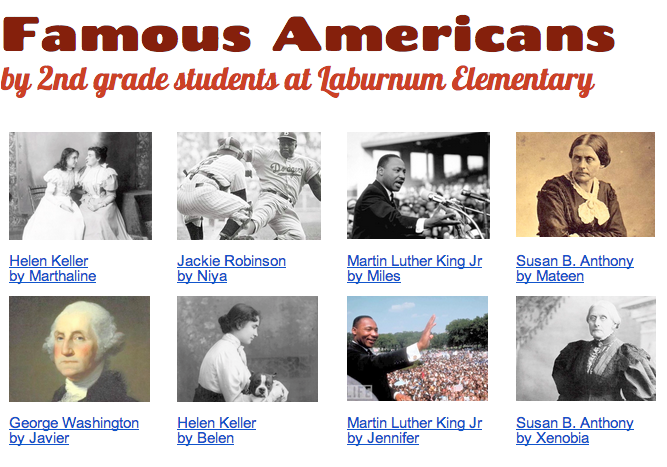
Screen shot 2013-08-07 at 1.49.26 PMiMovie is one of the more complicated programs on the MacBook computers, so I usually save that one for later in the school year. I’ve been working a lot with the second graders at Laburnum Elementary, and they have showed me they were ready to try iMovie. Since they’ve been reviewing the famous Americans (SOL 2.11) for upcoming tests, we decided to create movies about the famous Americans that they (and other classes) could use for review. Each child selected a person they were interested in and did a bit of research to refresh their memories. I showed them how to open up iMovie and add a title screen. Next they recorded themselves introducing the person using the built in video camera. I taught them how to select the part of the video they wanted to use and drag it up into their project. Then we did a Google Image Search for pictures of their famous person and added those to the video. I explained how to adjust the Ken Burns effect if necessary and they recorded a voiceover narration to accompany the photos. Finally I showed them how to add music to their video using the Audio Inspector. We exported the finished videos, and I posted them to a Google Doc which you can see by clicking here.


4th Grade Civil War Timelines

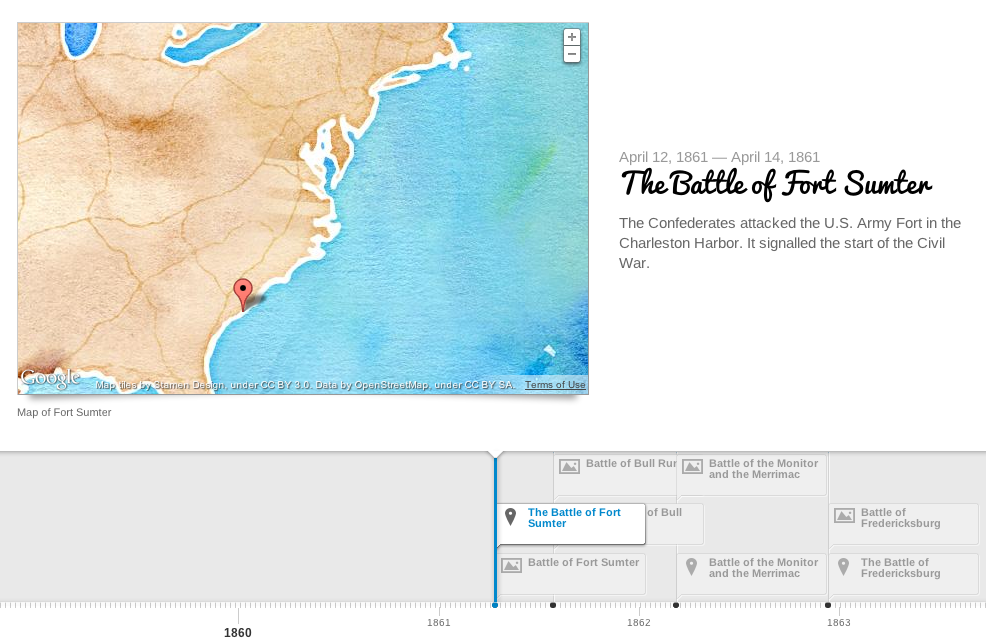
Picture 2Fourth graders at Chamberlayne Elementary are currently studying the Civil War. There are a lot of people, places, and battles they have to remember, and making a timeline helps keep everything in perspective. My supervisor, Tom Woodward, just told me about a cool webtool, TimelineJS, that can create a timeline from a Google spreadsheet. So I decided to try it out with the fourth graders today. First I set up a Google Spreadsheet for each class using the template found on the website. Then the students choose a partner to work with, and we generated a list of people, events, and battles from the Civil War. Each team selected one topic and conducted some very quick research. They also found a picture and made a Google Map to embed in the timeline. They were assigned rows on the spreadsheet corresponding to their student numbers (it doesn’t matter if the events are listed in order on the spreadsheet… the webtool sorts it all out). They entered the information into the correct columns and copied/pasted the link to the picture or map. It was a great example of crowdsourcing because in just a few minutes we had collected enough information to make a timeline about the Civil War without having to enter all the data individually. What’s really cool is, each student can use the same data to create their own customized timeline. All they need to do is copy the document link into the TimelineJS Embed Generator, choose the font and style they like, and press a button! I have some samples I created as well as the student projects linked here.


2nd Grade American Indian Websites

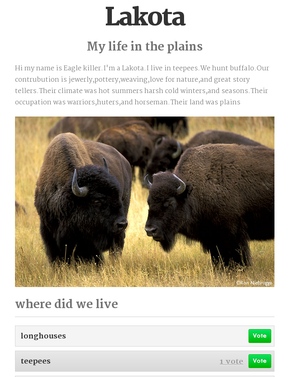
IndianSiteSecond graders at Laburnum Elementary are currently reviewing the American Indian tribes they’ve been studying for the past several weeks (Powhatan, Lakota, and Pueblo). So to help them review, they made websites today using CheckThis. CheckThis is a great way for elementary students to create websites because it doesn’t require a login, and adding new parts is as simple as clicking a button. To get them started brainstorming ideas, each child chose a tribe and pretended that they lived in the tribe. They gave themselves a name and an occupation and thought about what their lives would be like. Then we went to CheckThis and started writing. They wrote about where they lived, what they ate, what the land and climate were like, and any other creative ideas they wanted to add. Next we got a picture to embed. We discussed good search terms that would get the best picture (“lakota indian” would get more results than just typing “indian”). Finally, I showed them how to add a poll question that would help the reader review the American Indians. I posted all the links to a Google Doc that you can see here.


5th Grade Mean, Median, Mode with GoogleDocs

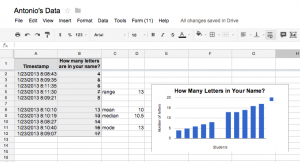
Picture 7Fifth grade students at Laburnum Elementary have been learning about mean, median, mode, and range (SOL5.16) so today I showed them how computers can help them figure out those numbers. First I wanted the students to collect data that was relevant to them. So I asked them to come up with a question to ask their classmates that would generate a variety of numbers. They thought of some great ideas like, “How many letters are in your name?” and “How many pairs of earrings do you own?” Then I showed them how to create a Google form with that question and they went around the room filling in each others’ forms. Next they looked at their data in the Google spreadsheet which was automatically generated from the form. We figured out the mean first. The students highlighted all the numbers and clicked on the AVG button. They rounded the answer and entered it into a cell labeled “Mean.” To figure out median and mode, the students had to sort their data. So I showed them how to click on the column heading and choose “Sort A – Z.” Now they could see which number(s) occurred most often. We wrote that in another cell labeled “Mode.” We used the slash button to cross off numbers until they got to the middle one(s) for the “Median.” If there were two middle numbers, the students knew they had to add them together and divide by two, but I showed them how the computer could make that calculation quickly by typing the “=” first. For example, if the two numbers were 15 and 18, they would type “=15+18” into a cell and hit Enter, then in another cell they would take that answer and divide by 2: “=33/2” and hit Enter. They could use that same idea to figure out the range by subtracting the smallest number from the largest number. Finally I showed them how to highlight the data and create a quick graph by clicking the Chart button. We published their forms and data sorts online, and you can see them here.


4th Grade Weather Forms

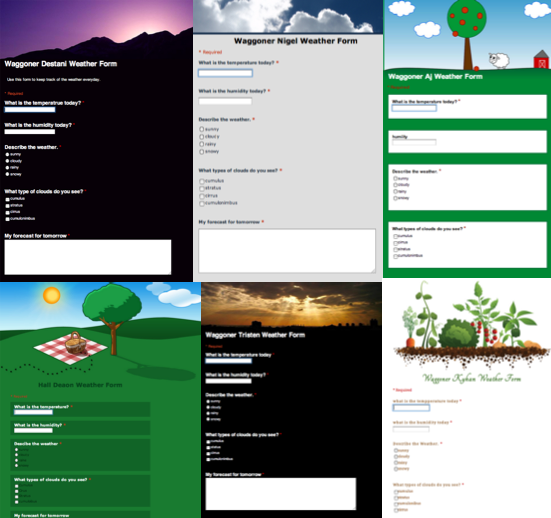
Fourth grade students at Holladay and Laburnum Elementary schools will be keeping track of the weather this semester using Google Forms. I showed them how to create the forms using several different types of questions: short-answer, multiple-choice, check boxes, and long-response. They designed their forms using different Google-provided templates (you can see six examples in the photo above). The students will be recording the daily temperature, humidity, types of clouds, and a general description of the type of weather (sunny, cloudy, rainy, snowy). They will also try to forecast the next day’s weather based on their observations. After they have collected their data for a couple of weeks they will use the graphing feature in Google spreadsheets to graph their results. You can see a sample student weather form here.


Kindergarten Summer Plans… with a Twist

I’m amazed at the opportunities technology provides for students to publish their work. Just a few short years ago the only way to publish your students’ work was to post it in the school hallways. Now students’ work can be easily published online for the whole world to see! I’ve been using Checkthis a lot lately with students because it is an incredibly simple way for them to publish a one page website with many advanced options such as adding pictures, videos, maps, and polls. I’ve used it from kindergarten to fifth grade. You can search my blog for checkthis to see some of the lessons I’ve done with it. Today I used it in kindergarten with two classes. They were learning how to write complete sentences with capitals and periods, and their assignment was to type a sentence or two about their summer plans. This is a typical end-of-the-year assignment, so we added a twist by showing them how to turn that into a website and add a picture of a sun (they could choose which sun picture to use, but we limited their search for the sake of time… plus “sun” was easy for them to spell). Then I collected their links together into one GoogleDoc that you can see here and here. Take a look at a few student samples and feel free to leave a comment: Jabne (she even had an animated sun), Kylie, Daniel, Adriana, and Ashley.


1st Grade Recycling Graph

First graders in Ms. Murray’s class at Laburnum Elementary have been learning about recycling (SOL1.8). They have also been learning about graphing. So we wanted to see if they could collect some recycling data and make a graph about it (and even do a little bit of data analysis on a first grade level). I created a Google Form for them to collect their data. You can view the form by clicking here. They collected data about what they recycled at home and also wrote about things they reuse or try to reduce using at home. After everyone entered their information, I showed them the data set (you can see it here). We discovered that when the data is presented like that, it doesn’t make much sense. So I gave them a Numbers template for graphing the data. You can download it here. The students entered the information about what their classmates recycled and noticed some patterns right away! They were able to discuss ways they could improve their recycling habits at home. You could adapt this idea to almost any data collection and graphing lesson. Let me know how I can help!