Tag: video

VSTE Conference 2012
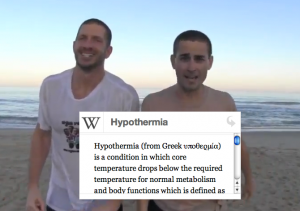
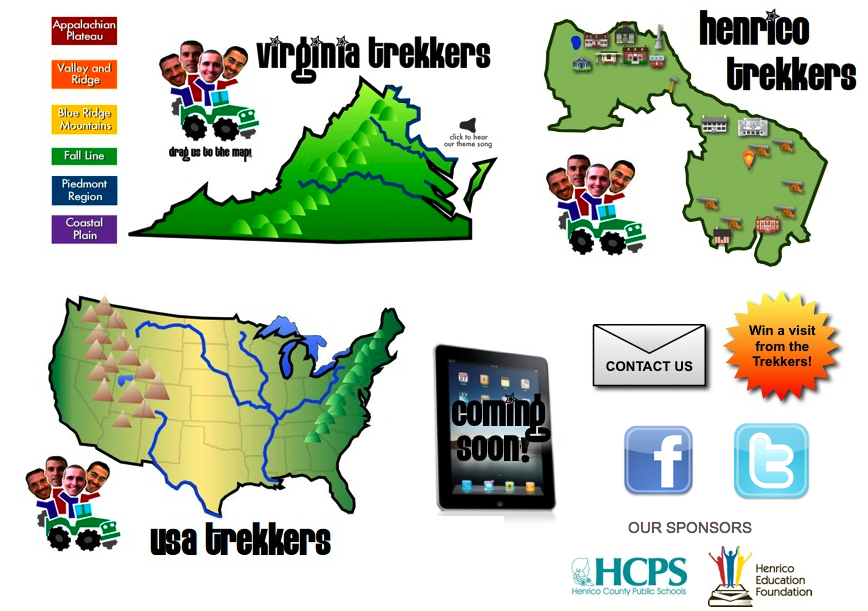
Picture 8This weekend I attended the VSTE Conference in Virginia Beach. It was a great conference, and I learned lots of new ways to use technology in the classroom. I also presented a session with Alfonso Favale. The title of our presentation was “Make Meaningful Media with the Virginia Trekkers.” You can see our entire presentation here. The tool we used to create that website is actually one that you and your students could use too. It’s called Tackk and doesn’t require a login to use. It has lots of cool features like embedding videos and maps which I tried to include in our sample site. We started our presentation by sharing some of the latest updates to the Virginia Trekkers. This summer we traveled across the country thanks to a HEF grant. We went from Virginia to California, passing through seven other states along the way: Tennessee, Arkansas, Oklahoma, Texas, New Mexico, Arizona, and Nevada. We added those videos to our USA Trekkers page to help 5th graders with their study of the United States regions. After telling about the updates, we wanted to show teachers how they could create videos with their students like the Trekkers do. So we gave them a variety of resources and web tools that you can find linked on our Tackk page. Try some of them out and let me know how I can help you. You might even consider entering one of your videos to our Video Contest. After our presentation, the Trekkers took a Polar Plunge into the ocean and we made a “pop-up video” using a cool web tool we learned about at VSTE called Popcorn Maker. Students can use it to add pop-ups to their videos including maps, twitter feeds, text, pictures and more. Check it out!

4th Grade Jamestown iMovies

Picture 4Fourth graders in Ms. Hall’s class at Laburnum Elementary recently took a field trip to Jamestown. Today she wanted to see how much they had learned there, and she also wanted them to practice using iMovie. I explained that our iMovie project would need to be completed within the one hour class period since iMovie projects cannot be saved to the student folders (if you want them to keep working on them, they have to get the same computer that they started with since the projects are saved to the hard drive). I explained that we didn’t expect perfect videos due to the time restraints, but I wanted them to learn as much as they could about the features of iMovie. First, in order to show them how iMovie can use both pictures and video, we did a Google image search to find pictures of Jamestown. I pointed out that they could search for other topics besides just “Jamestown.” They could search for important people, events, and resources as well. Once the students found four or five good pictures, they dragged them into their folders and imported them into iMovie (you can’t drag pictures directly from the Internet into iMovie). I also showed them how to adjust the Ken Burns effect using the cropping tool since some parts of their pictures were cut off. Next we added text to each picture and recorded a voiceover with additional details. I think their favorite part was adding the music soundtrack. A nice feature of iMovie is that it automatically lowers the volume of the soundtrack during the voiceover, but I also showed them how they could adjust it manually. Finally we added video at the end using the built-in webcam. We exported their projects as QuickTime videos and saved them to their folders. Now that they are familiar with the most important features of iMovie, they will be able to continue using it for future projects. You can see a student sample by clicking here.


The Virginia Trekkers are Heading to California!

Fifth graders are now required to learn about the fifty states, so the Virginia Trekkers have decided to venture beyond the borders of our state to make videos about the other states as well. We have already been to eleven other states including New York, Florida, Missouri, Kansas, and Colorado. You can see those videos on our newly updated USA Trekkers page. However, all that travel costs money, so we applied for a grant from the Henrico Education Foundation (HEF), and they were generous enough to fund a trip out to California for the annual ISTE Conference in San Diego (June 24-27). So our plan is to leave June 19th and drive through Tennessee, Arkansas, Oklahoma, Texas, New Mexico, Arizona, and Nevada, finally arriving in California five days later in time for the conference. Some of the cool stuff we’ll film along the way: the Mississippi River, a full-size replica of the Parthenon, the Petrified Forest, Pueblo Ruins, Meteor Crater, and the Grand Canyon! So stay tuned because we’ll have lots of video resources for you to use in your classroom next school year. Have a great summer!


2012 Video Contest Winners!

Each year the Virginia Trekkers have a video contest where students create their own Trekker video about sites of historical significance near their home town. We got some great submissions this year, but the winners for 2012 were from Lovettsville Elementary in Loudon County. They did a fantastic job filming about their German heritage. They even had their own “Lovettsville Lookouts” tshirts! You can see their winning submission here. Today we drove up there to present them with their reward… a dance party! It was a lot of fun, and we captured all their crazy dance moves on film! If you would like to enter our contest for 2013, you can download the application here. While we up in that part of Virginia, we also filmed at Harpers Ferry (VS.7a) and the George C. Marshall (VS.9b) Center in Leesburg. You can check out that video here. By the way, if you’re ever up in Leesburg, be sure to stop by Mom’s Apple Pie Company. Their homemade pies are amazing!


Kindergarten Seasons Movie

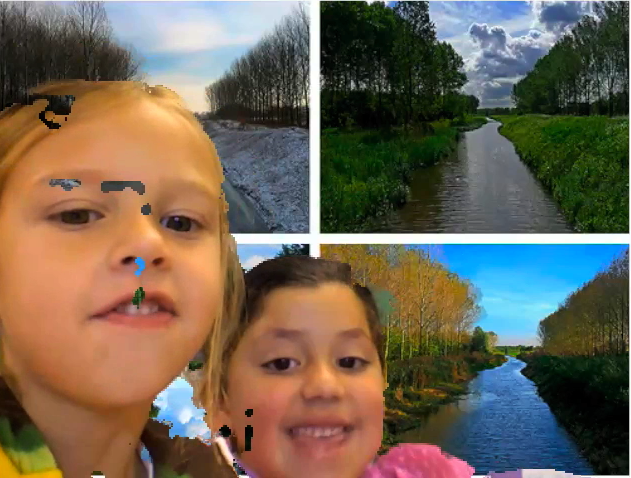
Today kindergarten students in Ms. Brown’s class at Holladay Elementary created a movie about the seasons. First we talked about science shows and how the speakers talk clearly with expression. We also reviewed the facts they had learned about the different seasons including how their clothing and activities change as well as how animals and plants change. The students worked in partners and planned what they wanted to say in general, but we didn’t ask them to write a script because we wanted them to be creative and ad lib. Sometimes having a script with young readers is too distracting for them. When it came time to film, the students used Photo Booth and used custom backgrounds of the different seasons that you can download by clicking here. Each pair spoke about all four seasons, then I took clips from each pair’s video and combined them into a whole class movie. I added a soundtrack, “PB&J” by Kerry Muzzy, and subtitles using iMovie. The students had a few problems with the Photo Booth backgrounds (as you can see in the bloopers), but overall they did an outstanding job. Take a look at their movie here.


Kindergarten Frog Life Cycle Videos

Today Mrs. Brown’s kindergarten students at Holladay Elementary created videos about the frog life cycle using Pixie. I gave them a template that you can download by clicking here. First the students added their photo of their head and painted a body for it. Then they duplicated the picture three times so it would stay the same and just the frog and the speech bubble would change. For the first picture they put some stickers of frog eggs into the pond and changed the text in their speech bubble to say, “Egg.” On the second picture they put stickers of tadpoles in the pond and said, “Tadpole.” On the last picture they put stickers of adult frogs in the pond and said, “Frog.” Finally they recorded a voiceover for each picture and exported it as a movie. It was a simple activity, but it helped them review the stages in a fun way as well as learn some new computer skills. You can change the template for almost any life cycle. To see a student sample click here.


Kindergarten Seasons Pixie Videos

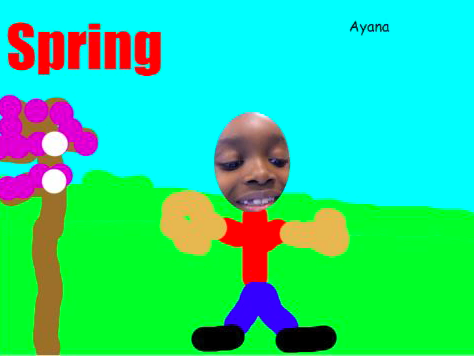
Today, kindergarten students in Ms. Hall’s class at Laburnum Elementary created Pixie videos about the four seasons. It was a complicated process, but they did just fine with it. We started with a basic template they they created themselves. It had a text box with the name of the season, a tree that they painted and a photo of their head. They duplicated that template four times. Then they changed the title of each one to be a different season: Spring, Summer, Fall, and Winter. Next they painted the tree and their clothing to reflect the changes in each picture. They also added stickers that related to that season. Finally they recorded their voice explaining the facts that they had learned. You can see some finished student samples here: Durell and Ayana.


4th Grade Sign of the Beaver Videos

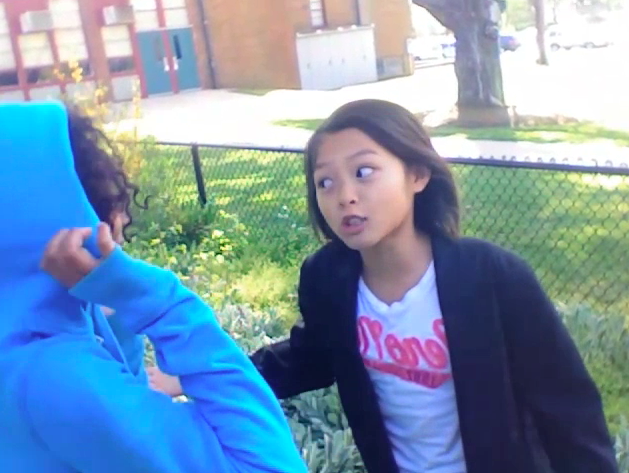
One of the great things about the student laptops is that they all have a built in video camera with Photo Booth. So your students can use it to film anywhere… even outdoors. Today at Johnson Elementary, fourth graders were creating their own movie adaptation of The Sign of the Beaver book. Movie-making is an excellent way to review and check for comprehension of any book your students are reading. It also includes elements of research, collaboration, problem-solving, and creativity! For several days prior to filming, the students had worked in groups to develop their scripts and make their own props. Today was filming day, and I was in charge of holding the laptop/camera while they performed. It was quite entertaining! The students did an excellent job speaking with expression. After I shot the raw footage, the students were going to edit it using iMovie to add in the titles, music, and special effects. You can take a look at the raw footage here:
Group 1 – Scene 1, Scene 2, Scene 3, Bloopers
Group 2 – Scene 1, Scene 2, Scene 3, Scene 4


4th Grade Talking Heads VS.6

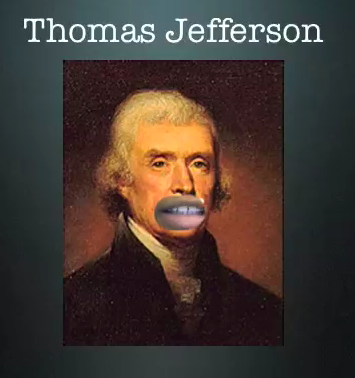
Fourth graders at Laburnum Elementary have been studying famous Virginians and the early documents they wrote declaring our rights and freedoms as Americans (SOL VS.6). We wanted our Founding Fathers to explain the documents themselves, and this is possible with Blabberize, but since we were having trouble with that website, we decided to try something different (you have to be flexible with technology, right?). I gave them a folder of pictures to use that you can download by clicking here. We cut away their mouths in Pixie and exported the pictures as PNG files with transparency (so their mouths would be empty holes). Then we brought them over into Keynote and added a title. Next we used Photo Booth to record ourselves speaking for the famous people, explaining their accomplishments. We put the video into our Keynote and put the picture on top of it, aligning our mouths with the hole in the picture. Then when we played our Keynotes, it looked like the famous person was talking! Take a look at a couple of student examples: Alicia – Thomas Jefferson and Nyesha – George Washington.


3rd Grade Famous African Americans

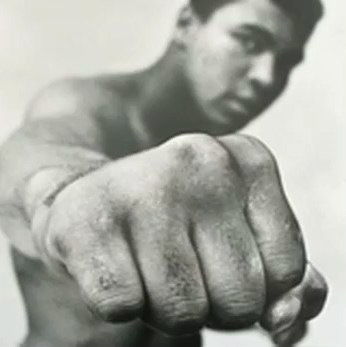
Third graders at Chamberlayne Elementary have been researching famous African Americans for African American History Month. Today I helped them create movies (podcasts) about their people in Garage Band. The students were able to choose the famous person they wanted to research and they worked with a partner to plan a script. I gave them a folder of images that you can download by clicking here. Students also had the option of finding pictures online. Our first step was to drag the pictures into the Garage Band project. Next, the students recorded their voiceovers and adjusted the length of their pictures to match the audio narration. Our last step was to add some background music. I exported them as QuickTime videos so that they could be posted to a blog or website. Take a look at some student samples: Muhammad Ali and Michelle Obama.