Tag: video

Trekker Updates

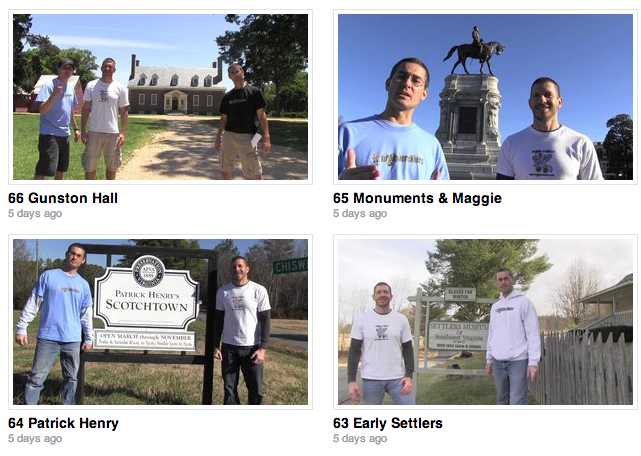
Screen shot 2013-11-22 at 10.45.50 AMI had a great summer traveling across the country to California going the northern route and making videos for our 5th graders who are studying the regions of the United States. Last summer I went the southern route with the Virginia Trekkers and those videos are on our website. I haven’t finished editing the videos from this summer’s trip yet, but there are lots of other updates on the Trekkers site. We filmed 5 videos in southwestern Virginia telling about the Indians (VS.2), the European immigrants (VS.4), and westward migration (VS.6). We filmed a whole podcast about the life of Patrick Henry (VS.5b) from his birthplace in Scotchtown to his famous speech in Richmond and ending with his death and burial at Red Hill. We also filmed at the Maggie Walker house (VS.9d) and Gunston Hall, home of George Mason (VS.6b). Our most recent podcast was done back in May where we visited the Midlothian Mines to talk about coal production at the first coal mine in Virginia (VS.10b). Several teachers have written to us telling us that they have been having trouble playing our videos. I produce them using an old version of Flash, so that could be the problem. Over the summer I uploaded most of our videos to Vimeo, and hopefully they will play better there. Finally, be sure to enter our 2014 video contest this year. Your class will learn a lot making their own video and you could win a dance party, like our 2013 winners.
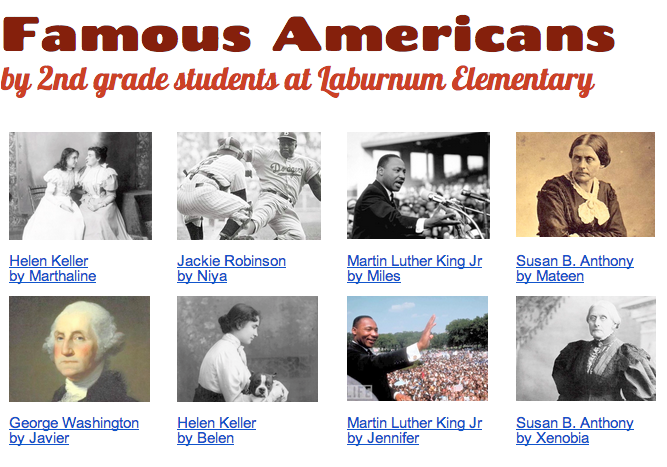

2nd Grade Famous Americans iMovies

Screen shot 2013-08-07 at 1.49.26 PMiMovie is one of the more complicated programs on the MacBook computers, so I usually save that one for later in the school year. I’ve been working a lot with the second graders at Laburnum Elementary, and they have showed me they were ready to try iMovie. Since they’ve been reviewing the famous Americans (SOL 2.11) for upcoming tests, we decided to create movies about the famous Americans that they (and other classes) could use for review. Each child selected a person they were interested in and did a bit of research to refresh their memories. I showed them how to open up iMovie and add a title screen. Next they recorded themselves introducing the person using the built in video camera. I taught them how to select the part of the video they wanted to use and drag it up into their project. Then we did a Google Image Search for pictures of their famous person and added those to the video. I explained how to adjust the Ken Burns effect if necessary and they recorded a voiceover narration to accompany the photos. Finally I showed them how to add music to their video using the Audio Inspector. We exported the finished videos, and I posted them to a Google Doc which you can see by clicking here.


Kindergarten Spring Video

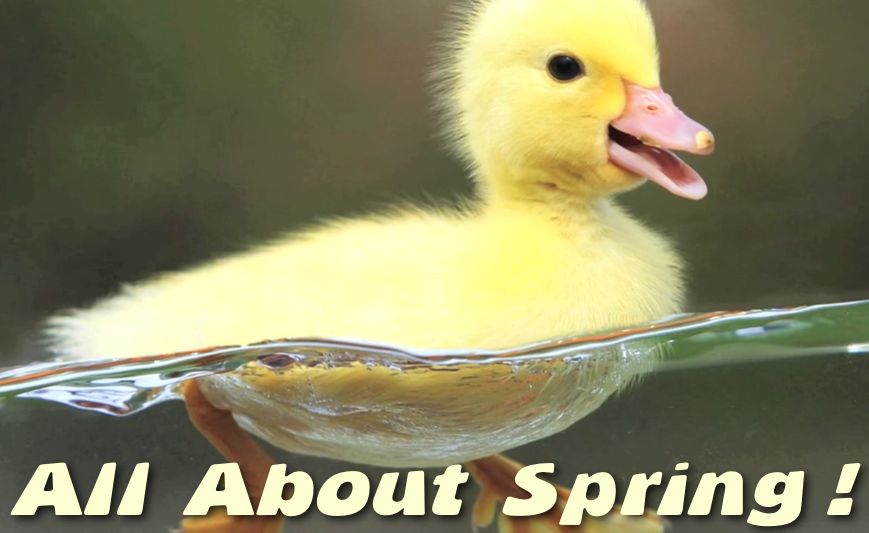
Picture 1Kindergarten students in Ms. Brown’s class at Holladay Elementary have been learning about the spring and how it affects the weather, plants, and animals. So today I showed them how to create a movie about Spring using iMovie. First we opened up iMovie and they recorded themselves saying something like, “Hi, my name is Whatever, and I’m going to tell you all about spring.” I showed them how to highlight the good part of their video and drag it into the project (that is always the most difficult part of iMovie for students to understand). Next we generated a list of search terms for finding spring pictures. They came up with words like sun, flower, chick, duckling, lamb, rain, butterfly, etc. They selected one word they wanted and I showed them how to do a Google Image Search. I thought they would be able to drag the picture right into iMovie, but since they couldn’t, I had to help with that part. (I discovered that feature is in a later version of iMovie so I had to drag the picture into a folder and then drag it into iMovie). Then I showed them how to record a voiceover telling about the picture. Finally they exported their videos as QuickTime movies (yep, they did it all by themselves!). Later, I combined all their videos into one movie and added a soundtrack. You can see it here.


2nd Grade Magnets Animation

Picture 2Second graders at Laburnum Elementary have been learning about magnets (SOL2.2) and today they created Keynotes to explain how magnets work. Keynote is a great program to use for magnets because of its animation features. Students can actually show magnets being attracted to or repelled from each other. First we created the magnets. I showed them how to make two rectangles (red for north, grey for south) using the Shapes tool. We labeled them N and S using Text Boxes. We grouped them all together to make one magnet. Then we copied and pasted the magnet three times to make a total of four magnets. We arranged the magnets so that pairs were opposite each other like in the picture. The last magnet we had to ungroup so we could switch the poles, then we grouped it back together. We added the words “Attract” and “Repel” under the pairs of magnets. Next I showed them how to add the animations. I let them use whatever animations they wanted for the words and the transition, but we had to use specific ones for the magnets. We used the “Move In” animation to make the magnets appear and come together. To show the magnets repelling, we used the “Move Out” animation. Finally I showed them how to record their voice in sync with the animations. They did an excellent job! You can see a few student samples here: Kezah, JaNiya, and Takiyah.


4th Grade Talking Heads

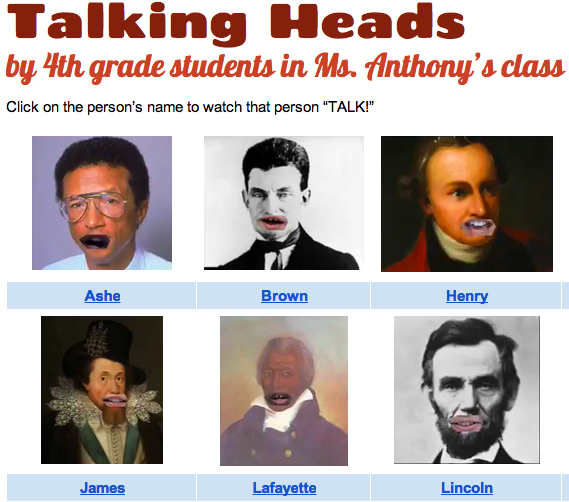
Picture 1Fourth graders at Holladay Elementary are reviewing all the famous Americans they have studied this year. Each student chose a person to research and they will present their information in a “Living Wax Museum” later on in the spring. I’ve been showing them different options to use for the technology part of their presentation, and today we learned how to make a “talking head.” I gave them a Keynote template that you can download by clicking here. The students went online to find a picture of their famous person (a headshot), and they dragged the picture onto their Keynote template. They sent the picture to the back (using the “Back” button in the toolbar), so that the shape with the hole cut out of it was on top. I showed them how to position the shape over the picture so that the mouth was centered in the hole. Next they selected both the shape and the picture (by clicking and dragging across them) and went to Format > Mask with Selected Shape. That left the picture of the famous person with a gaping hole where their mouth used to be. Now we were ready to add the students’ talking mouth to the picture to make it look like the famous person was doing the talking. Students recorded themselves in Photo Booth speaking like they were the famous American telling about his or her life and accomplishments. I told them to keep their heads still while they were recording (so the mouth wouldn’t move around). We dragged the finished videos out of Photo Booth onto the Keynote and sent them to the back with the “Back” button. We had to resize and reposition the video so that the mouth fit in the hole, and then we covered up the remaining pieces of video that showed with black shapes (using the “Shapes” tool). Finally, we exported the Keynote as a video and I published them on a GoogleDoc. You can see them all here.


3rd Grade Famous African Americans

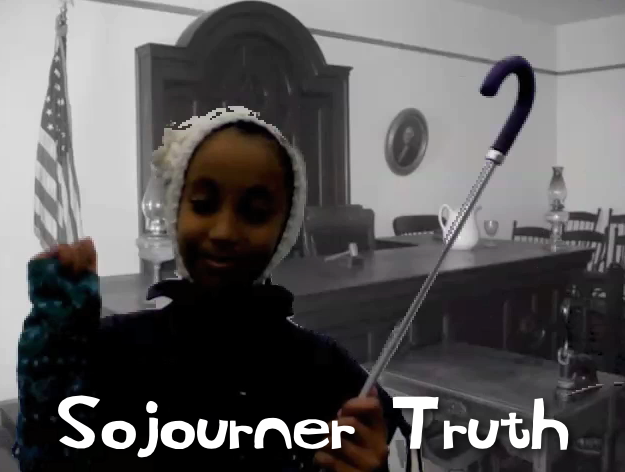
Picture 4As a special enrichment project for Black History Month, a small group of third grade students in Ms. Marion’s class at Holladay Elementary researched, created, and presented their own videos about famous African Americans. The three pairs of students selected Sojourner Truth, Malcolm X, and Rosa Parks for their projects. First, with the help of the media specialist, they gathered information about their person using books from the library and various websites. Then I helped them with some of the technology for their presentation. Some wanted to do a Keynote, and others wanted to do an iMovie project. These students already knew the basics of the programs, but I showed them how to use the advanced features like adding backgrounds, music, and special effects. They did all of the scripting and editing themselves. They also selected their own pictures and music to use. They even designed their own costumes and props! When they finished, I exported their projects as QuickTime videos and uploaded them to Vimeo so the students could share them with their classmates and families. You can check them out here: Sojourner Truth, Malcolm X, and Rosa Parks.


3rd & 4th Grade Videos with Green Screen Effects

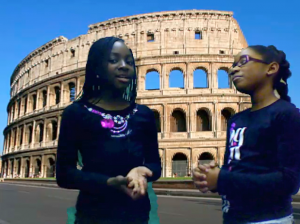
Picture 3Third and fourth grade students at Chamberlayne Elementary learned how to use green screen effects for videos today, just like the ones professional movie producers use. The green screen effect is great for making it look like you are standing right in front of a historical landmark, or a habitat you are studying in science, or a setting from a book, and it can be used right in Photo Booth! First we did a Google image search to find a good background. The third graders were making movies about Greece & Rome while the fourth graders were making Revolutionary War videos. We allowed them to choose their topic, but if too many students were picking the same topic, we encouraged them to select another one. The background photo cannot be directly dragged into Photo Booth, so they had to drag the pictures into their folders. From there we dragged them into the Photo Booth backgrounds (found at the end of all the Effects). Next I modeled how to use the green screen effect in Photo Booth. I also gave them an informal rubric to use for evaluating their videos for Content, Clarity, and Creativity. It’s important to have a plain backdrop when using this effect so I provided them with plastic colored table cloths to hang or hold behind them. Now it was time to start filming. The students acted like they were news reporters or talk show hosts interviewing people. When they were finished they saved the movies to their folders. Teachers could then post the videos on their blogs or somewhere else online for publishing. Here’s a 3rd grade example (Rome) and a 4th grade example (Declaration of Independence)


Kindergarten Martin Luther King Jr. Videos

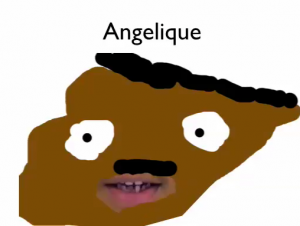
MLKSampleKindergarten students have been learning about Martin Luther King, Jr. since his birthday is coming up (today is actually his real birthday, but we’re celebrating it on Monday). They have learned that Dr. King gave many speeches, so today they recorded a speech of their own, saying things that he would say. Then, to make it look like he was actually talking, we created a mask in Pixie. They painted his face very large, gave him a mustache, and then erased the part where his mouth was. I showed them how to export it as a PNG file with a transparent background. Next I put their video into Keynote and dragged the Pixie mask on top of it, trying to line up the hole in the mask with their talking mouth in the video. I exported the Keynote as a QuickTime movie and posted a few online. You can see some of their examples here: Angelique, Duncan, Paul.


2nd Grade Indian Animations

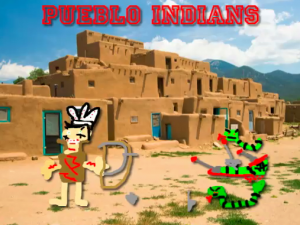
Picture 2Second graders in Ms. Marable’s class at Laburnum Elementary made animations about the different Indian tribes using Keynote today. First each student selected a tribe: Lakota, Powhatan, or Lakota. Then they opened up Keynote and did a Google image search for a picture of the region occupied by their tribe. I showed them how to drag the image into Keynote and resize it so it took up the whole background. Next they opened Pixie and drew a picture of an Indian from their tribe, a typical home, and an animal from that region. They exported their pictures as PNG files with a transparent background, and I helped them cut the pictures apart so they were separate. They dragged their pictures to the Keynote and added animations using the Build Inspector. Finally they recorded a narration explaining how their American Indian tribe lived. I exported those as QuickTime videos. You can see a few student examples here: Powhatan, Pueblo, Lakota.


Kindergarten Measurement in Pixie

KMeasureKindergarten students at Chamberlayne Elementary are learning about measurement using nonstandard units (SOLK.10), so today we measured our virtual selves using nonstandard units in Pixie. First I showed them how to take their photo with the webcam tool and paint a body with the paint brush tool. Next we used the stamp tool to find a stamp of something we wanted to use for our unit of measurement. We discussed and modeled the correct way to measure: start at the top or bottom, stack the units neatly on top of each other, stop when you get to the other end, and then count the units. After they measured themselves, I showed them how to record their voice saying their measurements. Click here to see a student sample.