Tag: photobooth

Kindergarten Presidents Day Birthday Presents
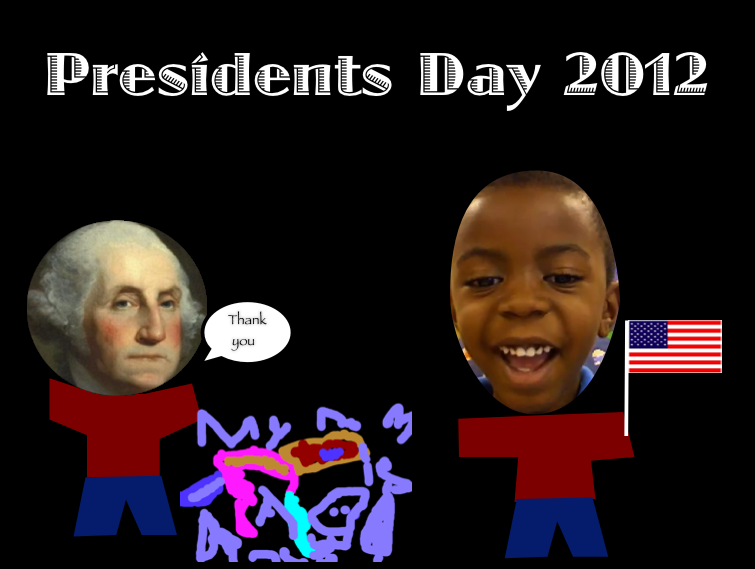
Today kindergarten students at Holladay Elementary thought about what they could give George Washington or Abraham Lincoln for Presidents Day. We talked about how they lived in the past so we couldn’t give them presents that we would want, like Xbox or Legos. We also discussed presents that would be meaningful for them, relating to what they did or what they enjoyed. The students did a great job coming up with ideas: books, axes, top hats, and a big 16 for Abraham Lincoln; a horse, new teeth, a lantern, and a big #1 for George Washington. Next students drew their ideas in Pixie and exported the picture as a PNG file so that it would have a transparent background. We helped them put the picture into a Keynote template that you can download by clicking here. Then the students filmed themselves giving a birthday message to the president, explaining why they gave him that gift. They placed the video in the template as well. You can see some finished projects here:
Daisy giving a horse to Lincoln
Harrison giving an axe to Lincoln
Jack giving a tricorn hat to Washington


3rd Grade Virtual Tours of Ancient Rome

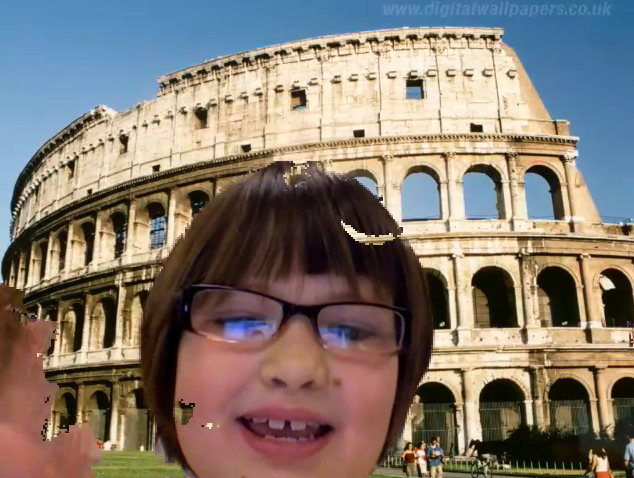
Today third graders at Holladay Elementary created virtual tours of ancient Rome. I gave them a folder of pictures that you can download by clicking here. They chose the picture they wanted to use for the background of their video and researched facts about that place or topic. Some of them chose to write out a script while others improvised with just a few notes. After discussing the importance of speaking clearly with expression, we opened up Photo Booth and I showed them how to add their background picture using the green screen effect. Depending on the background, some videos turned out better than others. You can see a couple of student samples here: The Collosseum and Grapes.


Kindergarten Measurement

Today at Holladay Elementary, kindergarten students practiced measuring things using digital nonstandard units of measurement. I gave them a Keynote template that you can download by clicking here. It has a variety of pictures and students use shapes to measure the pictures. They can either click the Shapes Tool to add more shapes, or they could copy and paste the shapes (this is a good skill to teach, even in kindergarten). Students could change what the shapes look like by changing the Theme of the slide or just changing the color. You could also allow students to chose their own shapes to measure with as well as their own pictures (depending on time and your students’ skill levels). On the last slide students add a picture of their face (from Photo Booth) and measure it with shapes. If students click in the center of each shape, they can add a number to it. I stressed the importance of making sure the shapes are stacked evenly and touch each other. I also pointed out the yellow alignment guides that pop up when students are moving the shapes around to help them. Finally students type the answer in the ? on each slide. As a follow up activity, students could measure each others’ pictures. Take a look at a student sample by clicking here.


2nd Grade Fall Project

All the second graders at Johnson Elementary had a special day today, not only because it was Halloween, but also because the teachers planned a Fall Project Day. The students moved through different rotations with lots of fun fall-related learning activities at each station. I was in charge of the movie station. First I gave the students a folder of fall pictures to choose from. You can download the file by clicking here. The students got in pairs and selected a picture for their movie background. Then I showed them how to drag it into Photo Booth. Now it looked like they were actually in the fall scene. We discussed how to include facts about fall they they’ve been learning about in class. We also talked how to speak with expression. After a bit of modeling, the students were ready to produce their movies. I tied them all together with a soundtrack and you can see the final result by clicking here.


Summer School 2011 “Lights, Camera, Action!”

During the week of July 25-28 I taught a summer school class at Springfield Elementary called “Lights, Camera, Action!” I had rising 4th and 5th graders and our goal was to create educational videos for teachers to use in their classrooms about different famous people. Students chose to work with a partner or solo, and they selected a famous person to research. They created all the parts of the video themselves, including the animations and music, using software on the computer (Photo Booth for the interview/green screen, Keynote for animations, Google Earth for satellite imagery, and iMovie for video editing) as well as web tools (SitePal for voiceovers, Aviary Education for soundtracks, Screencast-O-Matic for recording, and Blabberize for the “talking heads”). You can see my sample below and take a look at all the student samples on this website. Be sure to leave a comment on the videos to let my summer school students know what you think of their projects!

Woodrow Wilson from Henrico Students on Vimeo.


Dr. Seuss Day & Running Records

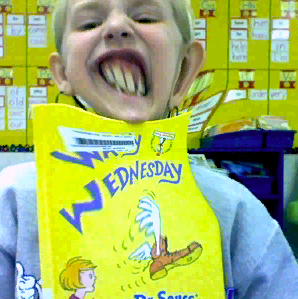
Wouldn’t it be great if your students could take their own running records? You can teach your students how to record themselves, listen for their mistakes, self-correct, and re-read for better fluency… all with GarageBand! Since today was Dr. Seuss Day, this first grade class recorded themselves reading excerpts from his books. To make it a bit more entertaining, they added a funny photo of themselves taken with the Photo Booth special effects (we did have to flip the pictures so the covers weren’t backwards, you do that by clicking Edit > Autoflip New Photos). Finally they added some music of their choice. Once they get good at this, it’s a great way for them to improve their fluency in a self-directed way. Think of how that will help your ESL students especially! Here are two examples from ESL students: Chahd and Jose.


Famous Americans & Student Choices

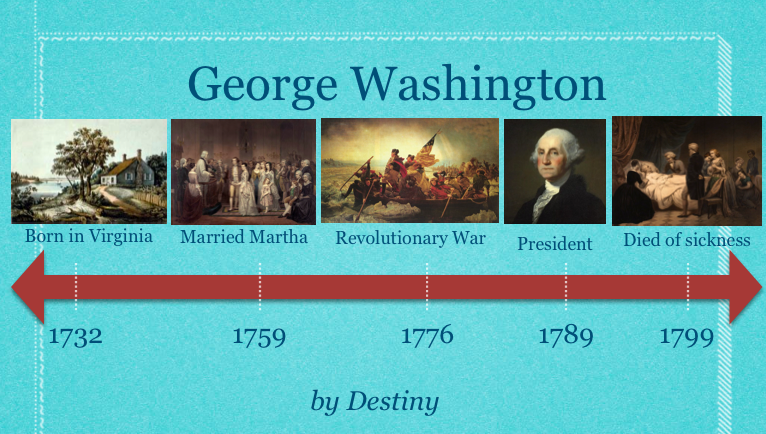
An important 21st century skill to include in your lessons is making choices. The famous Americans unit is a great opportunity to provide choices for your students. Not only could you let them choose which person they want to research, but they they could also choose how they want to present the information. As long as you’ve introduced the programs, let your students select the one they want to use… or they could even choose to use multiple programs. Students could do a Comic Life, a Garage Band podcast, a Keynote slideshow, or use some of the online web tools for their projects. Just to give you a couple of examples from recent lessons: in first grade, this student did a Keynote and video about Benjamin Franklin, and this student did an animated timeline about George Washington (you can download the template by clicking here); in second grade, this student made a podcast with music about Jackie Robinson, and this student should really just have his own talk show. Most of the pictures of the famous Americans can be downloaded on this post. Go ahead, give your students choices! What could be more American?


3rd Grade “A Person I Admire” Videos

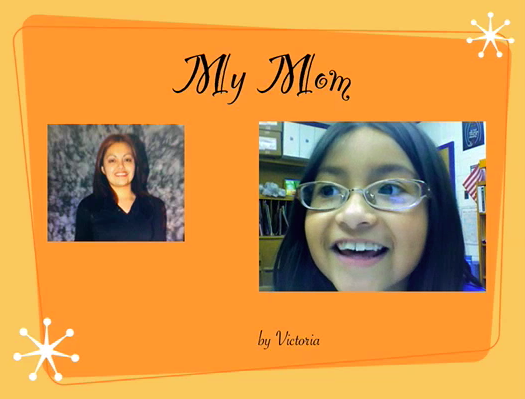
Third grade students in Ms. Cowart’s class at Holladay Elementary have been writing about people they admire. They chose historical figures, athletes, politicians, or even people they know personally. Then they wrote a paragraph explaining why they admire that person with an introduction, supporting details, and a conclusion. Instead of reading their paragraphs to the class, Ms. Cowart asked me to help them create a digital project that can be viewed by the other students and posted online. So we made Keynotes with videos. The Keynotes had just one side with the person’s name and the student’s name. I helped them find pictures online, or if their person wasn’t famous they brought in photographs from home and we used Photo Booth to digitize them. We put the pictures into a Smart Build which is a cool feature of Keynote that makes a slideshow within a slideshow. Next we recorded their video in Photo Booth and added that to the Keynote. Finally we exported the final product as a QuickTime movie. You can see a couple of examples here: John F. Kennedy, Michael Jordan, Helen Keller, and mom!


1st Grade Place Value Movies

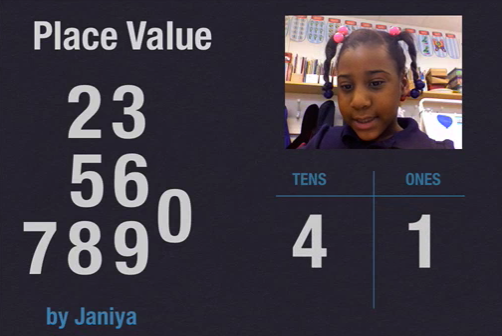
Ms. Hancock’s first grade students at Laburnum Elementary made place value movies today. I gave them a Keynote template that you can download by clicking here. The students recorded a video of themselves instructing a friend to show a two-digit number, like “Can you show me 47?” You could skip this step by just doing an audio voiceover right in Keynote, but the video makes it more interesting, plus students can replay it if they missed a part. Then we helped them drag the video onto their Keynote. Next they went to a friend’s computer and showed the number by dragging the digits to the correct spot in the place value chart. I added the animation at the end. Students could continue trying each others’ problems for additional practice. You can see a couple of examples here and here.


3rd Grade Human Impact Videos

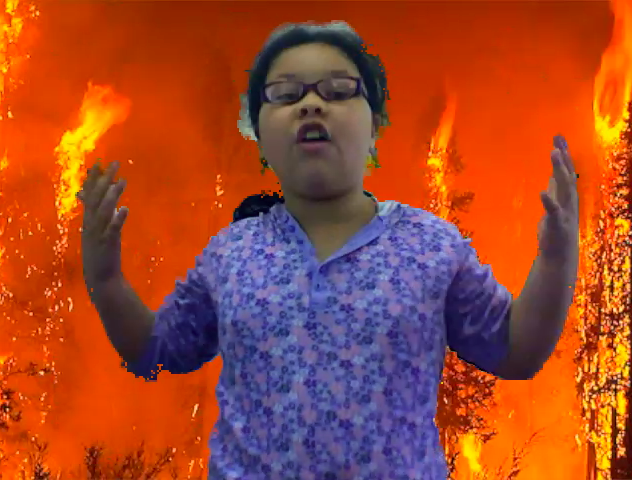
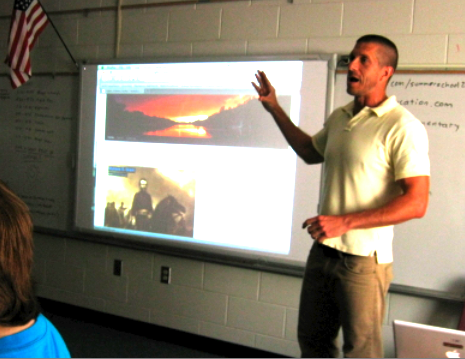
Third graders at Pinchbeck Elementary have been learning about human impact on the environment (SOL 3.10). Partners selected a topic (forest fires, floods, disease, deforestation, pollution, etc) and researched the topic together. Then I collected a variety of photographs about each topic for the students to use. You can download them all by clicking here. Many of the photos I got from Flickr and The Big Picture which are two great resources for photos. Next I showed the students how to drag the photo into Photo Booth as a background image. After a bit of coaching about how to use your “television voice” the students were ready to record their videos. You can see a couple of student samples here: forest fires and floods.