Tag: webtools

3rd Grade Blog Entries About The Inauguration

GabrielleThird graders at Laburnum Elementary have been doing a lot of writing using Pages (the word processing program on the Macs), so they wanted to try something new and different. I thought that blogging would be perfect for them! We used Instablogg because it doesn’t require a login, it gives a link for them to go back and edit, and it also allows comments. Since this past weekend was the Inauguration of President Obama in Washington DC, I gave that as a possible topic. It’s a good idea to give choices though, so if they didn’t want to write about that, they could write about their weekends. First we talked about good writing habits. We discussed how to keep their ideas organized and flowing smoothly. We also discussed using sentence variety and descriptive words to keep things interesting. I pointed out the importance of correct spelling and grammar since this would be published online and anyone could read it (even President Obama)! Once they finished typing, I showed them how to search for a good picture online. I also showed them how to change the size when they embed it into the blog. I posted all their links to a Google Doc that you can see here.
2nd Grade American Indian Websites

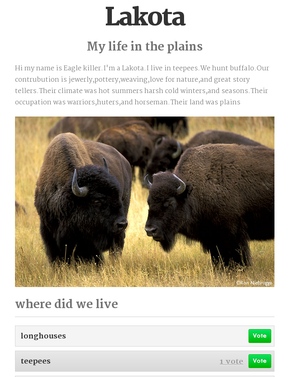
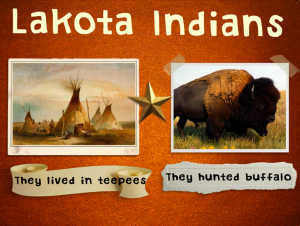
IndianSiteSecond graders at Laburnum Elementary are currently reviewing the American Indian tribes they’ve been studying for the past several weeks (Powhatan, Lakota, and Pueblo). So to help them review, they made websites today using CheckThis. CheckThis is a great way for elementary students to create websites because it doesn’t require a login, and adding new parts is as simple as clicking a button. To get them started brainstorming ideas, each child chose a tribe and pretended that they lived in the tribe. They gave themselves a name and an occupation and thought about what their lives would be like. Then we went to CheckThis and started writing. They wrote about where they lived, what they ate, what the land and climate were like, and any other creative ideas they wanted to add. Next we got a picture to embed. We discussed good search terms that would get the best picture (“lakota indian” would get more results than just typing “indian”). Finally, I showed them how to add a poll question that would help the reader review the American Indians. I posted all the links to a Google Doc that you can see here.


4th Grade Review Sites by Students

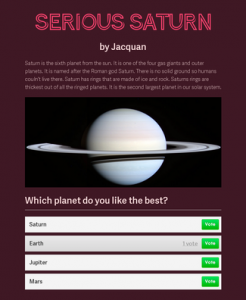
4thSaturnToday fourth grade students in Ms. Hall’s class at Laburnum Elementary created websites for each other (and anyone else) to help them review for upcoming tests. First I told them to pick a topic that they know a lot about. It could be from Math, Science, or Social Studies. Next we went to CheckThis which is a site I have often used with students to create webpages since it doesn’t require a login. I showed them how to type a title, subtitle (name), and their information. It’s important to finish the writing part first before going onto the fun stuff because otherwise students get too distracted. Next we did a Google image search to find a relevant picture and added the link to their webpage. I also showed them how to add a poll. We wanted to create these sites for review so we discussed what makes a good question. After they published their pages, I would usually go around and write down the last 4 digits of their websites (since the first part is the same for all of them) and add it to a GoogleDoc for sharing, but I didn’t have much time today, so I made a quick Google form that you can see here, and asked the students to enter the last 4 digits themselves. Then I published the results as a webpage with all the links. You can see it by clicking here. Try visiting a couple of sites and answering their poll questions. One last thing, in trying to take a screenshot of one of the sites for the sample picture on this post, I found it difficult to capture the whole site since it wouldn’t fit on my screen. Then I discovered a cool webtool called Site2Pic that did the trick! UPDATE 2/5/15: Here are a few more examples from a similar lesson with Ms. Bennett’s class at Davis.


2nd Grade Winter Writing & Editing

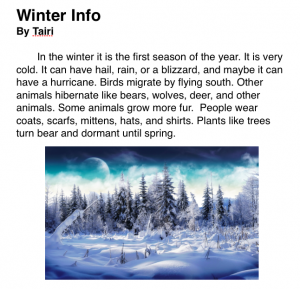
Picture 2Now that we are back from vacation, many classes are writing about the winter. Pages is our Mac word processing program, and I like to make sure that all the students know how to use it. So today I was teaching a 2nd grade class how to write about winter in Pages. The teacher wanted them to include facts about the winter that they have been learning about. So first we reviewed the weather and how plants, animals, and people adapt to the changes. Then we opened Pages and I showed them how to use the Style button to add a title and a subtitle (for their name). Using the Style button is a lot quicker than changing the font and size manually because once you hit Return, it goes back to the regular style. I instructed the students to write as much as they could in the alloted time. Then we did a Google image search to find a winter picture, and they dragged it to their document. We didn’t publish this writing assignment since several students didn’t finish, but there are many options for publishing. You could combine them all into one document, print it as a PDF, and create an online flipbook using sites like Youblisher or Flipsnack. You could also do all the writing online using sites like Instablogg or Google Docs. You could even have students print their stories as individual PDFs and drop them into your DropBox account using sites like DropItToMe. Then you could transfer them to your Public Folder and send the links out that way. I also recently found a cool webtool for editing online writing without messing up the original. Using Markup you can draw and write on any webpage just by clicking on a bookmarklet that you drag to your bookmarks bar. When you are finished, it gives you a new separate link with all your edits. I used it to edit one of today’s writing assignments so you could see an example here.


1st Grade Goods & Services Town

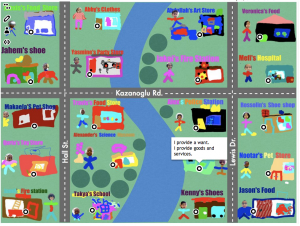
Picture 9Today first graders at Chamberlayne Elementary combined their knowledge of map skills (SOL1.4) and goods and services (SOL1.7) in a special project. Each class created their own interactive town map where you could click on a building and see whether it produced goods or services. Here’s how we did it. First we discussed what goods and services the people in a town would need or want. Then I instructed the students to choose one and design their store in Pixie. If we noticed that too many students were picking one type of store, we’d say, “We have a lot of pet stores in our town, what is something else our town should have?” I asked them to include several elements in their Pixie drawings: their names, their stores’ names, pictures of themselves, and pictures of what they sell or provide. I also asked them to highlight whether they provided goods or services or both. They exported their finished pictures as PNG files with transparent backgrounds. Next I added their buildings to a town map in Keynote (you can download the files we used for this project here). I uploaded the map to ThingLink and added the clickable hotspots. Since ThingLink sometimes has ads, I didn’t want to directly link to those, so I embedded them into Instabloggs. You can see the finished products from each class by clicking the links: Ms. Gardner, Ms. McLean, Ms. Kazanoglu. Teachers could then use these maps to review knowledge and encourage critical thinking: Is our town lacking anything? Which side of the river would you live on and why? Which direction would you travel to get from one specific store to another? Parents can also view the maps from home and leave comments!


3rd Grade Greece & Rome Websites

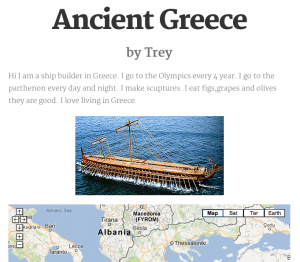
3rdSiteThird graders at Holladay Elementary have finished their study of Greece & Rome and were ready today for a final project to review and share what they have learned. I showed them how to create free websites using CheckThis. First they had to decide which ancient civilization they wanted to review. We wrote that in the title. Next they had to pretend that they actually lived in ancient Greece or Rome and tell about their lives. They had to include facts about land features, occupations, trade, sports, art, etc. They wrote a paragraph, or as much as they could in the alloted time (you can save if you log into an account, but since we didn’t, we had to finish the website in the hour we had together). I showed them how to add a picture from the Internet, but I also just learned today that CheckThis has a webcam feature you can use to add pictures. So I was able to test it out with Ms. Marion’s class. They took pictures from classroom books about Greece and Rome. We also added a Google map of the region that was fully interactive. Finally, we wrote poll questions for site visitors to answer. You can see all the websites by clicking on the teacher links below:
http://tinyurl.com/checkthismarion
http://tinyurl.com/checkthisbarnes
http://tinyurl.com/checkthiscowart


2nd Grade Beeclip Indian Posters

Picture 5Second graders at Laburnum Elementary have been studying the different American Indian tribes (SOL 2.2 & 2.4). So today they chose a tribe and made an online poster using a cool free site called Beeclip (although it was just updated to Biteslide). First I showed them how to select a background from the side menu. Then we added a title using the text button. They wrote the name of their tribe, and I showed them how to change the font, size, and color. Next we used the built-in safe image search to find pictures about the tribes. We discussed various search terms they could use to find specific photos. After dragging their pictures onto the poster, I showed them how to add frames and stickers for decoration. Some of the stickers could even be written on using a text box. Since you can’t save your posters without an account, we clicked the full screen button and took a screenshot. Then we saved those to our folders. The only problem with that is they can’t go back later and edit their work. I took all their screenshots and uploaded them to a CoMemories gallery that you can see by clicking here.


VSTE Conference 2012

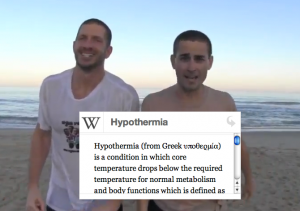
Picture 8This weekend I attended the VSTE Conference in Virginia Beach. It was a great conference, and I learned lots of new ways to use technology in the classroom. I also presented a session with Alfonso Favale. The title of our presentation was “Make Meaningful Media with the Virginia Trekkers.” You can see our entire presentation here. The tool we used to create that website is actually one that you and your students could use too. It’s called Tackk and doesn’t require a login to use. It has lots of cool features like embedding videos and maps which I tried to include in our sample site. We started our presentation by sharing some of the latest updates to the Virginia Trekkers. This summer we traveled across the country thanks to a HEF grant. We went from Virginia to California, passing through seven other states along the way: Tennessee, Arkansas, Oklahoma, Texas, New Mexico, Arizona, and Nevada. We added those videos to our USA Trekkers page to help 5th graders with their study of the United States regions. After telling about the updates, we wanted to show teachers how they could create videos with their students like the Trekkers do. So we gave them a variety of resources and web tools that you can find linked on our Tackk page. Try some of them out and let me know how I can help you. You might even consider entering one of your videos to our Video Contest. After our presentation, the Trekkers took a Polar Plunge into the ocean and we made a “pop-up video” using a cool web tool we learned about at VSTE called Popcorn Maker. Students can use it to add pop-ups to their videos including maps, twitter feeds, text, pictures and more. Check it out!


4th Grade Motion and Energy Animations

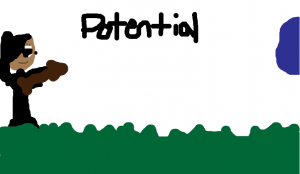
Picture 6Ms. Waggoner’s fourth grade students at Chamberlayne Elementary have been learning about potential and kinetic energy (SOL4.2), and she wanted a fresh way to use technology to review these concepts. Since motion is involved, student-created animations work very well for this project. Keynote is one tool that can be used to create animations, and I have some samples on this post. But her class is already familiar with Keynote, so I found a cool website called ABCYa! that allows you to draw animations and export them as a GIF. First I wanted to make sure that the students understood the concepts. So I created a TodaysMeet page and asked them to give me examples of potential energy. After they generated some good ideas, I asked them to write ways that they could increase potential energy. That was a bit more difficult for them to do. So I held up a book and they correctly said that I was demonstrating potential energy. I asked how I could increase that potential energy. Some realized that if I held the book higher, the potential energy would increase. We went over other examples like squatting for a dive, pulling back for a throw, and stretching a bow with an arrow. You can see a PDF of our discussion by clicking here. Now that the students were ready to create their animations, they went to the website and drew a picture of potential energy. They copied that page, and on the next page, they erased and redrew the part that moved a little further than it was on the first page. They continued making their objects appear to move step by step in each subsequent picture. Finally they saved their completed animations as a GIF. You can see some student examples by clicking here and here.


4th Grade Planet Books

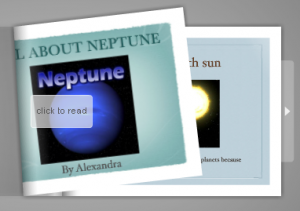
Picture 2Fourth graders in Ms. Tonello’s class at Holladay Elementary have been working on planet research projects. Each student chose a planet and gathered information from library books and websites. Today they were ready to share their information using Keynote. I taught them how to create a title slide and add new slides using different masters and themes. Next they did a Google Image search to gather pictures of their planets. They dragged the pictures into their slideshow and I showed them how to add transitions and animations. Finally they added text boxes and typed in their information. An additional step, that we didn’t have time for, would be to record a voiceover narration for their slideshow. With audio, you would export the slideshow as a video, but since we didn’t have audio, we exported them as PDF documents. Then I uploaded them to Flipsnack and converted them into an online flipbook. You can see a student sample about Neptune by clicking here.