Tag: webtools

4th Grade Math Equation Animations

Screen shot 2013-12-08 at 1.37.41 PMFourth graders in Ms. Lara’s class at Holladay Elementary have been learning about simple math equations using addition, subtraction, multiplication, and division. So today we used ABCYa! Animate to illustrate some equations that they made up. First they decided which two different functions they wanted to include in their equation. Most picked either addition/subtraction or multiplication/division, but a few attempted a multiplication/addition relationship. They had to write the first number on the first page of the animation and add a picture from the clip art library (example, 3). On the next page they illustrated the second number (example, 3 + 2). On the following page they began the second half of their equation (example, 3 + 2 = 10), and on the last page they completed their equation (example, 3 + 2 = 10 – 5). They saved their completed animations as .gif files which I then embedded into a Google Doc that you can see here. I learned that in order for the animations to play correctly you have to link to the document and not the published webpage. You also need to host the .gif files online, so I have mine in my Dropbox Public folder. The nice thing about animated .gif files is that they can be embedded anywhere and usually load very quickly.

Kindergarten Frog Life Cycles

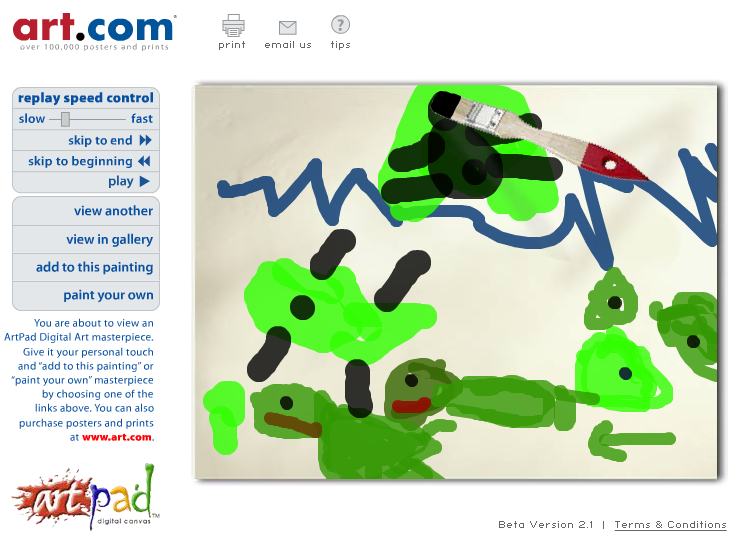
Screen shot 2013-08-14 at 12.48.18 AMToday the kindergarteners in Ms. Brown’s class at Holladay Elementary showed that when students are given many opportunities to use the computers, they can do amazing things! Sometimes I can’t even believe it. In just under an hour, they were able to create a digital drawing of the frog life cycle using ArtPad, record their voices explaining the cycle using a site called RecordMP3, and upload their links using a Google Form. You can see their links by clicking here. My job afterwards was to combine their mp3 recordings with their drawings to make a movie. You can see their finished movies here. But you might also want to check out the direct links to their Artpad drawings because Artpad has a cool feature where it shows the painting as it happened. So it’s a great way to create a simple animation.


4th Grade Plant Prezis

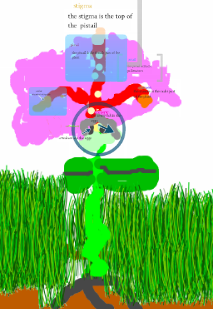
AzariahFourth graders at Chamberlayne Elementary have been studying the parts of a flowering plant (SOL 4.4) so today they made interactive diagrams of a flower using Prezi. First they drew a picture of a flower in Pixie. They looked at online photos to get different ideas for the type of flower they wanted to draw. I explained that they needed to include all the parts of a flower (pistil, stamen, anther, sepal, petal, ovary, ovule, stigma, etc) in their picture. Next they exported their Pixie drawings as PNG files with transparent backgrounds. The transparent background makes it look better in Prezi. Then they logged into Prezi and uploaded their pictures. I showed them how to use the selection tools to zoom into a part of the flower. They added text to label each part and to write a description. When they were finished, they viewed their presentations to make sure they worked correctly. When you click the arrows underneath a Prezi, it zooms into the different spots. It’s a very effective way to present information. Their projects turned out great, and you can see them all by clicking here.


4th Grade Civil War Instabloggs

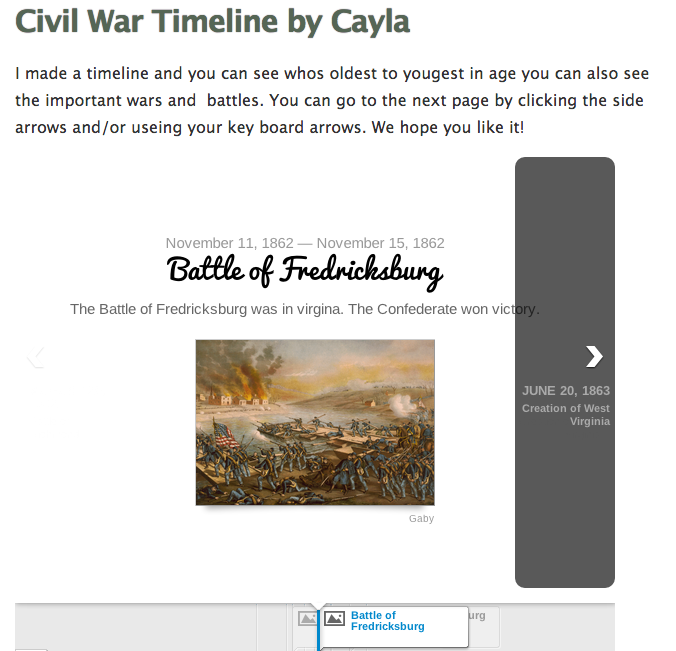
timelinesampleEarlier, on this post, I described a lesson where students created Civil War timelines using TimelineJS. I was teaching that lesson today with a different group of students at Holladay Elementary and wanted a good way for them to save and display their timelines. Instablogg is one of the best sites I have found for students to easily publish projects that have an embed code. I like it because there is no sign in required, it allows comments, and it gives students a link where they can go back and continue editing. To add embed code, you just click on the “Code” button. We did find that we couldn’t use the exact embed code that TimelineJS gave us, so I showed them how to go into the code and adjust the size to this: height=”650″ width=”600″ and that seemed to work well. You can see all the students’ Instabloggs by clicking here (but remember that the timelines will all be the same since they use data from the same spreadsheet).


Kindergarten & 1st Grade Flower Animations

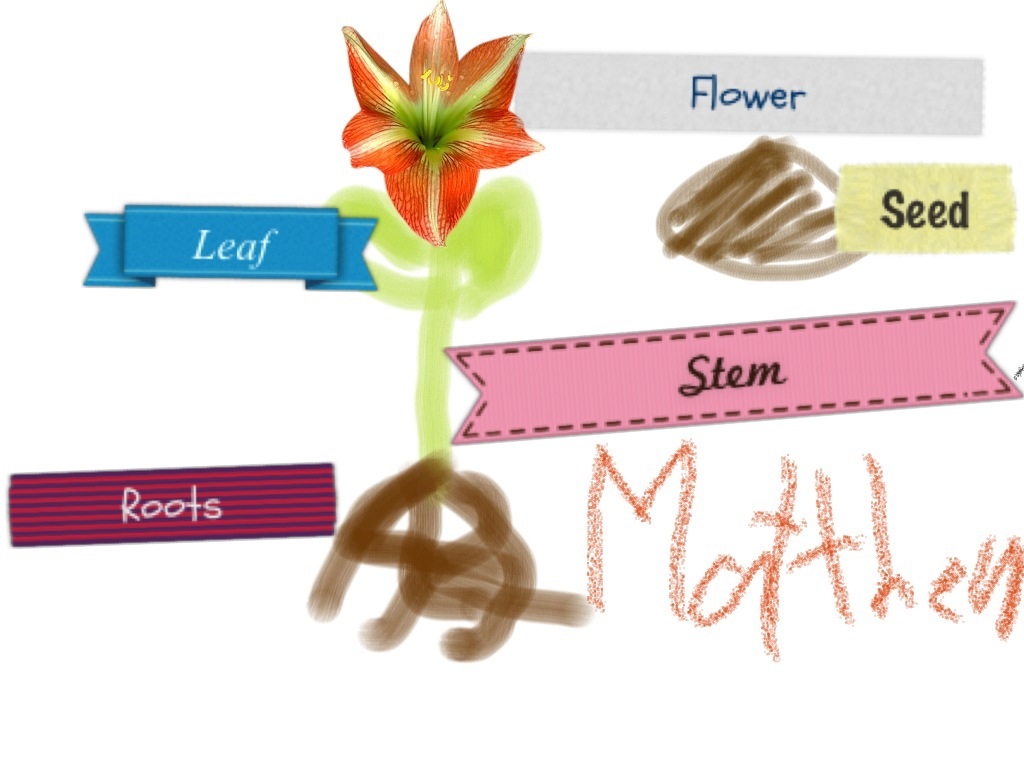
amberKindergarteners and 1st graders at Holladay have been learning all about plants and flowers and how they grow in the spring (SOL K.9 & 1.4). So today I tried two different ways to create animations with them. In Kindergarten we used a site called ArtPad. It records the painting process from start to end, so students painted their flowers in the order they grow: first the seeds, then the roots, stem, leaves, and flower. We also labeled the parts. When you click on the students’ pictures, you can see the animation and it looks like the flower is growing! You can also speed it up or slow it down. Check them out by clicking here. In first grade we used a site called ABCYa! Animate. It was a bit more complicated because it was a frame-by-frame animation. The nice thing about this website though is that you can duplicate frames (pictures) so the students don’t need to draw them over each time. First we drew the background with the things plants need (soil, sky, sun), then on each picture we added the different steps: a seed falling into the soil, roots growing out of it, then a stem, leaves, and finally the flower. We also labeled the parts. You can see all their animations by clicking here.


2nd Grade China & Egypt Websites

egyptSecond graders in Ms. Jones’ class at Laburnum Elementary created their own websites about Egypt & China (SOL 2.1) today. We used CheckThis which allows the students to make a quick webpage with pictures and maps. First they picked Egypt or China and wrote the title. Then they had to write a few sentences about the ancient civilization, including information about its location, landmarks, and contributions. Next they did a Google search for an image that would represent their civilization. I gave them a word bank to use, or they could choose their own search terms. Once they found a picture, they just added the link to it in their CheckThis website. I also wanted them to include a map, so we went to Google Maps, searched for the country, copied the link, and pasted it into CheckThis. If we had more time, the students could have added a poll or a question to their site. I copied all their links and posted them to a Google Doc for easy access. You can see a couple of student samples here: China, Egypt, or see them all by clicking here.


1st Grade Spring Comics

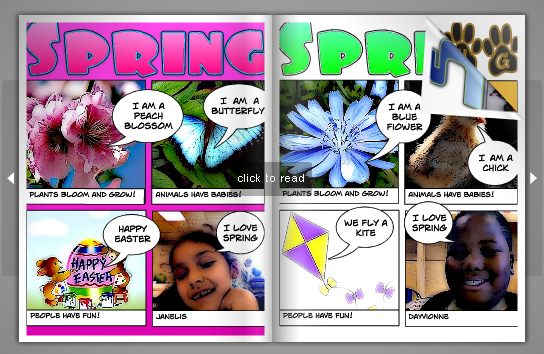
springFirst graders in Ms. Middleton’s class have been studying the Spring (SOL 1.7), and she wanted them to learn how to use Comic Life. So today we made spring comic books. I gave them a template to use which you can download by clicking here. I showed them how to change the style of the title, and we discussed what needed to go into each panel. We talked about what kinds of pictures they could search for to show what plants, animals, and people do in the spring. I put a word bank on the board (types of flowers, color words, baby animals, spring activities, etc). Then the students did Google image searches for their pictures and dragged them into the panels. I showed them how to change the style of the pictures to make them more comic-like. Then they typed simple sentences in the speech bubbles to tell about their pictures. I also wanted them to know about another way to get pictures into Comic Life by using the built-in camera, so they took pictures of themselves and put those in the last panel. I combined all their comics together into one PDF document and uploaded it to FlipSnack. You can see the final comic book by clicking here.


1st Grade iPad Flowers

image_25First graders at Chamberlayne have been learning about the parts of a flower (SOL 1.4) and their teachers wanted to try something new with the iPads. We combined their classroom iPads together so we had enough for each student, and we used 3 different apps to make labeled diagrams of flowers. First the students could use the Camera app or the Drawing Box app to take a picture of a flower or draw their own picture. The teacher took the students who wanted to take a picture outside, and I worked with the ones who wanted to use Drawing Box. They had to include the roots, stem, leaves, flowers and maybe seeds. Since the pictures were all saved to the Camera Roll, we could access them from the Labelbox app. The Labelbox app allows you to add colorful labels to pictures. The only part that was confusing for the students was that if you drag the label the wrong way, the text is upside down! But they were able to label their pictures and we posted them all online to a site called CoMemories. It’s a great way to share projects from the iPads. You can see them all here.


3rd Grade Mali Comics

maliThird graders have been studying Mali (SOL 3.2) recently so today we made comics about Mali using a program called Comic Life. I provided them with a blank template and showed them how to add a fancy title. Then I showed them how to twist and stretch the title and change the style of it. We added 4 panels to the comic and then we did an Internet image search for pictures. I gave them some suggestions and wrote a word bank on the board: Africa, empire, Mali, gold, salt, trade, route, pilgrimage, Mansa Musa, Sundiata, griot, Timbuktu, Sahara, etc. With our version of Comic Life, the students couldn’t drag images off the Internet into their comics, so I taught them how to drag the photos into their folders first and then, from there, drag them into their comics. Next we used the Style button to change the style of the photos. Finally I showed them how to add the speech bubbles. I explained that they should write in complete sentences and include good facts and details. When they completed their comics I combined them all into one document and uploaded it to FlipSnack. You can see the finished comic by clicking here.


4th Grade Civil War Timelines

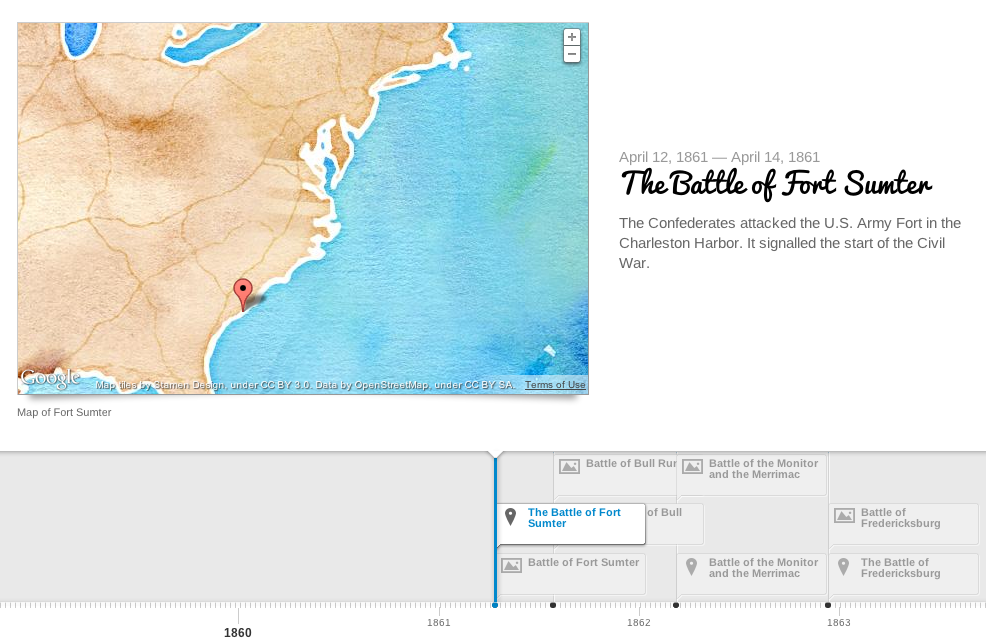
Picture 2Fourth graders at Chamberlayne Elementary are currently studying the Civil War. There are a lot of people, places, and battles they have to remember, and making a timeline helps keep everything in perspective. My supervisor, Tom Woodward, just told me about a cool webtool, TimelineJS, that can create a timeline from a Google spreadsheet. So I decided to try it out with the fourth graders today. First I set up a Google Spreadsheet for each class using the template found on the website. Then the students choose a partner to work with, and we generated a list of people, events, and battles from the Civil War. Each team selected one topic and conducted some very quick research. They also found a picture and made a Google Map to embed in the timeline. They were assigned rows on the spreadsheet corresponding to their student numbers (it doesn’t matter if the events are listed in order on the spreadsheet… the webtool sorts it all out). They entered the information into the correct columns and copied/pasted the link to the picture or map. It was a great example of crowdsourcing because in just a few minutes we had collected enough information to make a timeline about the Civil War without having to enter all the data individually. What’s really cool is, each student can use the same data to create their own customized timeline. All they need to do is copy the document link into the TimelineJS Embed Generator, choose the font and style they like, and press a button! I have some samples I created as well as the student projects linked here.