Tag: webtools

3rd Grade 3-D Shapes
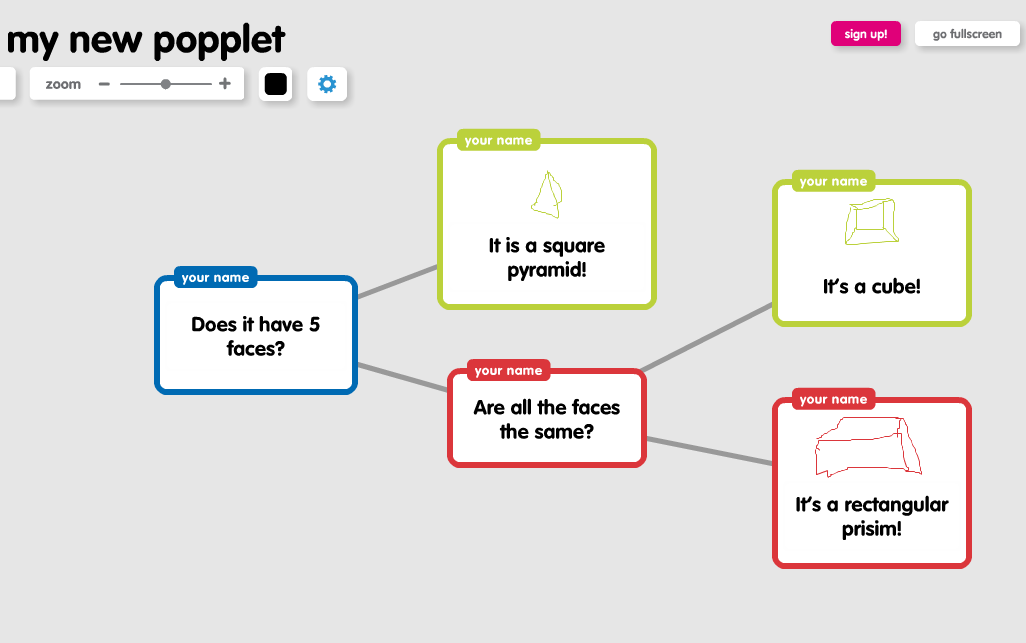
mackenzieThird graders in Ms. Leo’s class at Varina Elementary have been learning about solid shapes (SOL3.14). They had to be able to identify the number of angles, edges, vertices, and faces of each shape. Today I showed them how to create a program that would identify the shape based on its features. We started out, like most programmers do, by making a flowchart. I thought about using Gliffy because there is no sign in required to create one (although you can’t save it), and it has the ability to type on the connectors, so we could have typed “yes” or “no” like this example. However, I decided to go with Popplet since it was much easier to use and you can draw pictures in the shapes. Since we couldn’t write on the connectors like with Gliffy, we worked around it by making the shapes green for “yes” and red for “no”. Their flowchart was basically a decision tree for identifying the shape based on its faces (so it was limited to the cube, rectangular prism, and square pyramid). They created their flowchart, drew pictures of the 3-D shapes, and then took a screenshot. You can see a couple of student examples here: Lauryn and McKenzie. Next I showed them how a spreadsheet and a formula can be used to identify the shape in a similar way. You can download the Numbers spreadsheet I used by clicking here. After looking at the example, I wanted them to write a simple formula on their own for distinguishing a cone and a cylinder. They had to come up with one good “yes” or “no” question and then write the formula (which was something like this: “IF ANSWER=”YES” THEN “CONE,” IF NOT, THEN “CYLINDER”). There is a sample included with the template, if you download it, so you can see how it works.

3rd Grade Finds the Best Bait for Three Lakes Park

fishingEach year the 3rd grade students at Holladay Elementary take a PE field trip to Three Lakes Park to go fishing. This year they decided to do a science experiment to see which type of bait worked best. In groups, they researched which kinds of fish are at the park and what types of bait to use. The students developed their own hypotheses about which type of bait would work best, and then they tested their hypotheses at the park by keeping track of which types of bait caught which kinds of fish. They also measured the fish as they caught them and took photos. They had practiced measuring fish earlier in Art class using fish rubbings. The photos were posted online here using CoMemories. (CoMemories is a great site for sharing pictures because anyone can contribute with the given link). Back at school, students analyzed the data and drew conclusions. They concluded that worms were, by far, the best bait. I helped them publish their findings in a brochure for the visitors center at Three Lakes Park. They also created group presentations about the different types of fish using a program of their choice (Comic Life, Keynote, Pixie, and/or video). You can take a look at the students’ presentations here. Finally, they scored their projects using a rubric. This project was also Holladay’s entry for Henrico21. Hopefully we’ve helped future 3rd graders and other visitors to Three Lakes Park catch lots of fish!


2nd Grade Money Websites

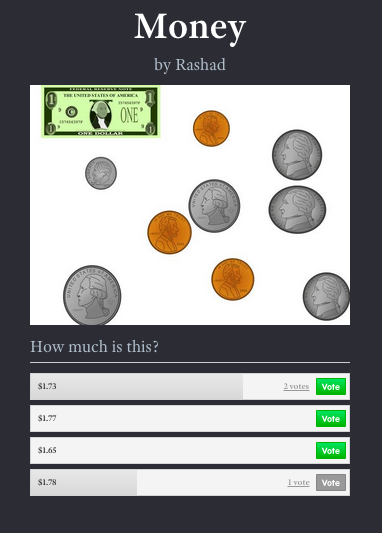
1stMoneySecond graders in Ms. Crostic’s class have been learning about counting money up to $2.00 (SOL2.10). Today they created money websites to practice this skill with their classmates (and anyone else who visits their websites). First they created a money picture using the clip art in Pixie, then they counted the coins and bills in their picture to figure out the total amount. They exported it as a JPG image and saved it to their folder. Next they went to CheckThis, a free site for making quick webpages without having to sign into an account. They changed the title to “Money” and typed their name for the subtitle. Then they uploaded their money picture. They also added a poll question asking site visitors to identify the amount of money in the picture. Finally they changed the theme of their site and published it. I posted all their links to a Google Doc that you can check out by clicking here (and feel free to answer their questions… they love seeing those votes)!


1st Grade Review with Padlet & Socrative

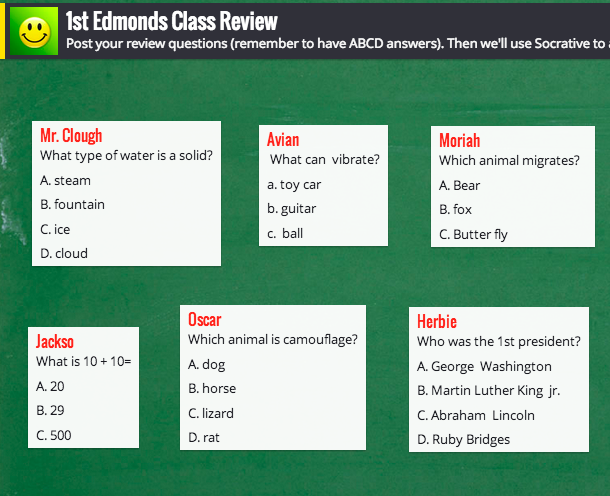
Screen shot 2014-03-31 at 11.08.06 AMFirst graders in Ms. Edmonds’ class at Holladay Elementary have been reviewing for upcoming tests, so today I showed them how to create their own review questions using two web tools, Padlet and Socrative. First we talked about what makes a good multiple choice question. Most importantly, it should make people think. If the answer is obvious or if some of the choices are ridiculous, then it’s not a good question. Next we discussed topics that they could write questions about: In Social Studies they’ve been studying famous Americans (SOL1.2). In Science they’ve been learning about animals (SOL1.7) and force & motion (SOL1.2). In Math they’ve been adding doubles (SOL1.5). Once they thought of their question, each student went to a wall I created for them in Padlet and posted their question to the wall. Click the link to see their questions. Next they logged into our class on Socrative and I gave them questions to answer from the wall. Socrative is similar to ActivEngage in that questions appear on each student’s screen, they answer them, and the teacher gets instant feedback with a graph that shows how their responses. The students enjoyed answering each others’ questions, and they had a great review through the process.


4th Grade Virginia Studies Timeline

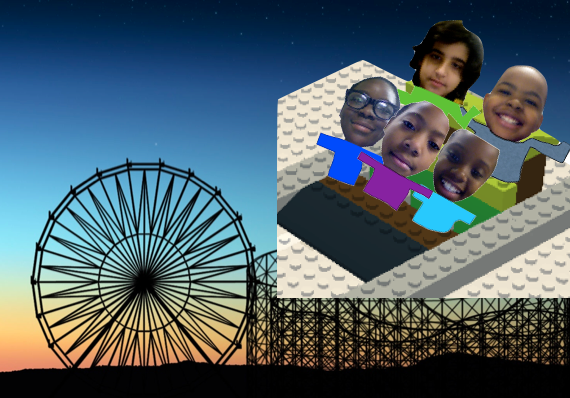
coasterI’ve been working with a small group of fourth grade students from Ms. Daniel’s class at Laburnum Elementary on their Henrico21 project. Today we were able to finish it. It all started about a month ago when the students came up with the idea of making a “Roller Coaster through the Curriculum” to help other 4th graders review for the upcoming SOL Tests. Each student chose a period of Virginia history and they were instructed to find 5 important events from that period to include on the timeline. They gathered their information and images from a variety of online sources and collected them into a Google Doc. They also recorded videos of themselves introducing their topics using the Photo Booth roller coaster background. Kenan used BuildWithChrome to make a virtual Lego model of the roller coaster. Once their research was complete, they used two websites to build the timelines. The first was JSTimeline which automatically generates a timeline from the Google Doc data. The second one was Dipity (this site no longer works 4/2/2020) which not only generates a timeline, but it also turns the data into a flip book and an interactive map! Finally they created a webpage to share their timelines with the other 4th grade students using a site called Yola. Their project turned out great! You can take a look at it here (link was removed because it no longer works 4/2/2020).


2nd Grade Famous Americans Animations

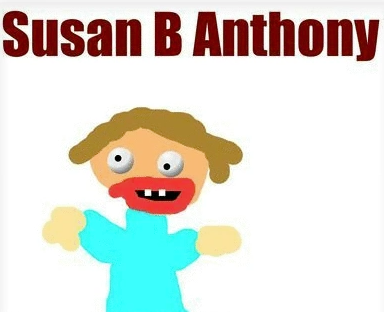
Screen shot 2014-03-25 at 12.57.03 PMSecond graders in Ms. Arnold’s class at Holladay Elementary have been researching famous Americans, and today they created speaking animated characters to share their information. First they drew their famous American in Pixie and typed his or her name. I showed them how to use the 3D brush to make “googly eyes” so their character looked more “cartoonish.” Next we had to make the mouth appear like it was talking. To keep it simple we just added two different mouth shapes. We duplicated the picture and redrew the mouth so that it was in a long shape for making the “ee” sound. Then we duplicated the picture again and redrew the mouth so it was in an O shape for making the “oh” sound. We exported all the pictures as PNG files and saved them to our folders. Next the students went to Voki to create the voice. They clicked the “TTS” button (text to speech) and typed in some factual sentences for their famous American to say about themselves. The fun part was choosing an accent! The students saved their Voki links to their folders as well. That was all we had time for, so it was my job to put the voices together with the drawings. I uploaded the 3 drawings of each character to Glickr in order to make an animated GIF. Then I clicked the link to their Voki. As the GIF and the Voki were playing at the same time I recorded it with Screencast-O-Matic. Take a look at a couple of student examples: Helen Keller by Alana and Susan B. Anthony by Hayden. I uploaded them all to a Google Doc that you can view here.


5th Grade Cell Comics

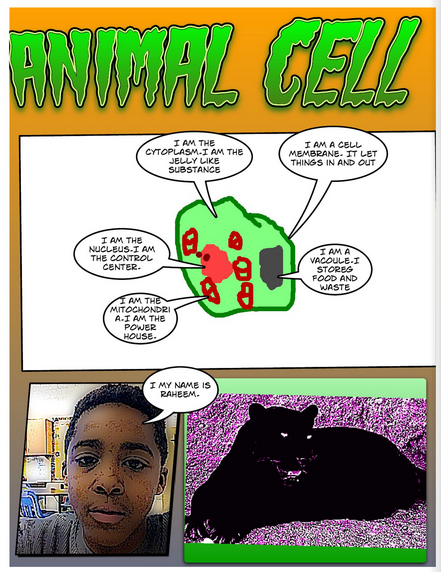
cellFifth graders in Ms. Payne’s class at Laburnum Elementary have been learning about plant and animal cells (SOL5.5). Today they made a comic book to review the different parts and their functions. The students could chose whether they wanted to illustrate an animal or a plant cell. They started by drawing the cell and its organelles in Pixie. Then they exported it as a PNG file and dragged it into a Comic Life document. Next they used the speech bubbles to make each part of the cell “talk” and describe its function. I stressed to them the importance of writing complete sentences with correct grammar and spelling. Then they did a Google Image search and found a photo of a plant or animal to accompany their cell diagrams. They also used the built-in webcam to take a picture of themselves to add to their comic. I combined all the pages together into one document, saved it as a PDF, and uploaded it to Youblisher. Youblisher is a site like Flipsnack that allows you to upload PDFs and it publishes them as online flipbooks. You can see their finished comic here.


4th Grade Moon Phases Animations

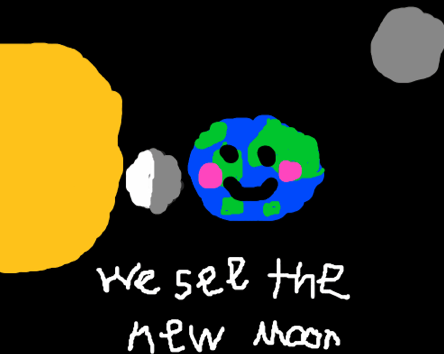
4thmoonToday fourth graders in Ms. Bennett’s class at Davis Elementary made animations of the moon phases using Flipbook (SOL4.8). I tried this lesson earlier with another class, but I had neglected to do my research ahead of time, and we got a lot of things wrong. Like did you know that the moon moves counterclockwise around the Earth (unless you’re looking at it from below)? But that shows that making animations requires a deeper understanding of processes than you would normally need to have. To give another example, I tried to make an animation of a power plant for the Virginia Trekkers based on my research (which I did do), but when I sent it to the director of the power plant to check it over, he pointed out several mistakes. It took many revisions and a lot more research, and through it all, my understanding of the process greatly improved. The point is, making animations is a valuable learning activity, even if it takes a bit of extra time. And it does take time. We didn’t get to finish our animations today, but they still turned out pretty good. The students illustrated where the moon is located at different phases and how it appears to us on Earth. You can see all the animations here.


3rd Grade Multiplication Arrays

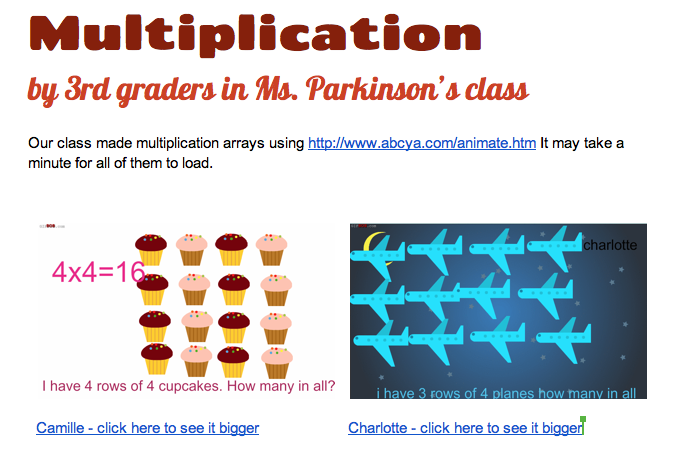
3rd arraysThird graders in Ms. Parkinson’s class at Davis Elementary are starting to learn about multiplication, and one of the ways they learn how to multiply is by making arrays. So today I taught them how to make animated multiplication arrays using ABCYa! Animate. First the students decided what numbers they wanted to multiply together. We discussed how one of those factors is the number of objects in a group and the other factor is the number of equal groups. They used pictures from the clipart library to create one row of objects representing a group. Then they typed out a simple sentence to describe their array such as “I have 3 rows of 4 trees. How many in all?” We duplicated that picture a couple of times (so our animation wouldn’t go too fast) and then added another row. We continued duplicating pictures and adding rows until we had a complete array. One problem we encountered was that some of the pictures would automatically group together. The only way we found to ungroup them was to delete them and start over. On our last picture we typed out the multiplication sentence and the answer, like “3 x 4 = 12.” Animating the array helps students understand the concept because as each group appears they can skip count until they get the total amount. Furthermore, they can review their multiplication facts by viewing each others’ animations (which they are always eager to show off to each other… and since they are online, they can show off and review at home too). If an animation ends up being too fast, I found a site called GifBob that will slow down a .gif file. You can see all the students’ multiplication arrays here.


4th Grade Mystery Animals

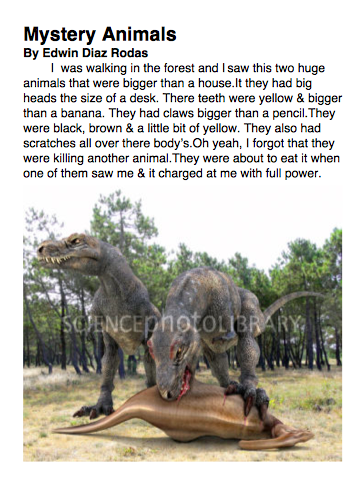
mysteryToday 4th graders in Ms. Ficor’s class at Holladay Elementary were working on writing better descriptions. We started out in Today’s Meet where I would write a non descriptive sentence like, “I saw a monster,” and then they would have to add their descriptive ideas to help us “picture” the topic better. We talked about using the senses to describe what it looks like, sounds like, acts like, moves like, feels like, and even smells like. We also talked about comparing its size to something else. After a bit of practice (you can see the transcript of our Today’s Meet session by clicking here) it was time to start writing about our mystery animal. One of my goals in this lesson was to teach them how to use the Mac word processing program called Pages. So we opened up a blank Pages document, and I showed them how to add a title as a heading, “Mystery Animal,” and their name as a subheading. Then they started typing a paragraph describing an animal without actually identifying the animal. We wanted to see if they could write a good enough description that their classmates could figure out what the “mystery animal” was. When they were finished, they did a quick Google image search and added a picture of their animal to their Pages document. You can read a student example here.