Category: Kindergarten

Kindergarten Coins Video

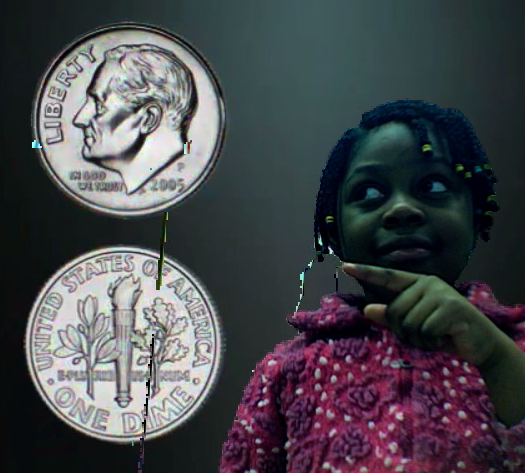
Today kindergarten students at Holladay created videos about coins (K.7) using Photo Booth. I gave them an animated video created in Keynote that they had to drag into the PhotoBooth background. Then they recorded themselves identifying the coins and telling how much each was worth as it appeared behind them. You can see a student sample by clicking here. You can download the files I used by clicking here. Included in the folder is another Keynote where your students can identify the coins without using Photo Booth. I’ve also included the link to a website I created with more money games I found online. Take a look at it by clicking here, and let me know if you find any more you’d like me to add.


Kindergarten Life Cycle Movies

Kindergarten students at Holladay have been learning all about the frog and butterfly life cycles. We used Photobooth and Keynote animations to create some cool life cycle movies. First the students chose a special effect in Photobooth and filmed themselves describing the steps in either the frog or the butterfly life cycle (they could choose which one they wanted). Then we dragged the movie from Photobooth into Keynote (be sure to save your work at this step). Next the students dragged the correct pictures of each step into the animation wheel. On the second slide they had to put the stages in order and label them. Finally the students clicked the play button and watched their movies. You can download the template and pictures to use by clicking here. Take a look at a student sample for a frog life cycle and a butterfly life cycle.


Kindergarten American Heroes Podcast

Kindergarten students can even make podcasts! They proved it today by recording their own voices and adding music to podcasts about the famous Americans they have been studying (SOL K.1). I gave them a GarageBand template with pictures of George Washington, Abraham Lincoln, Pocahontas, and Betsy Ross (which you can download by clicking here). We practiced what they were going to say ahead of time, then they recorded their voices on their own as they told about the importance of each person. Finally they added a song of their choice from the GarageBand library. I exported them as QuickTime videos so they could be posted online. Take a look at a student sample by clicking here. There’s a cool feature to these podcasts that I’d like you to notice. Down in the lower right hand corner of the video, you will see a list of the famous people’s names. You can click on a name and go directly to that part of the video. That’s the Chapters feature of GarageBand!


Kindergarten Shadows Keynote

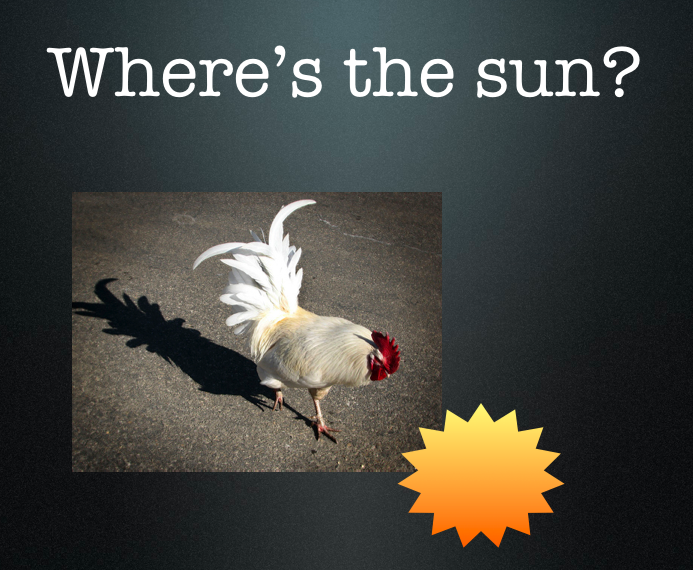
Kindergarten students at Laburnum have been learning about shadows (K.7) and they have also learned about positional words (K.3), so I decided to combine those concepts together into one Keynote lesson. I gave each student a template to use which you can download by clicking here. On the first slide, the students had to create a shape of their choice using the Shapes Tool and it automatically appears with a shadow. Students have to position the sun where it should be to cast that shadow. On the following slides they examine the shadow pictures and put the sun in the correct position. Next the students add motion to the sun (by clicking the Build tab in the Inspector) and they add a transition to each slide. Finally they record their voice telling the relative position of the sun to the object (the Record button is found in the Document tab of the Inspector under Audio). You can take a look at a sample by clicking here.


Tags:


Kindergarten Graphs

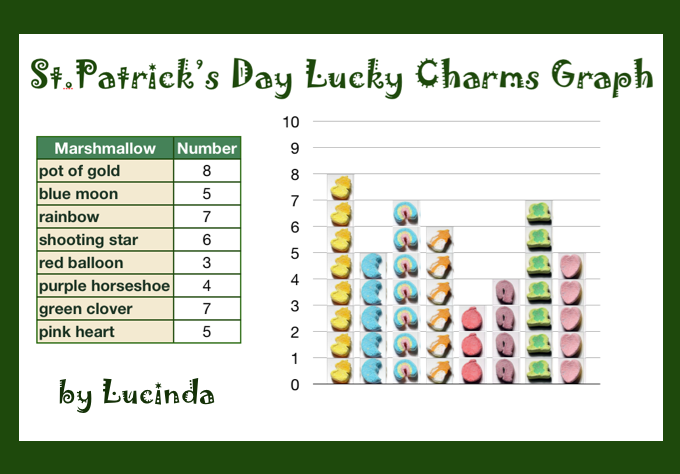
Today at Trevvett we had a delicious graphing lesson with Lucky Charms in kindergarten. I gave them each a handful of Lucky Charms and a Numbers template to get them started. You can download the template by clicking here. The students sorted their marshmallows into groups and counted them. Then they started entering the numbers into the spreadsheet. As soon as the students press the Enter key after each number, the spreadsheet automatically generates a bar graph with pictures, or a pictograph, of the marshmallows! After the graph is finished the students could ask their neighbor questions like, “Which type of marshmallow had the most? had the fewest? had the same? How many pots of gold did I have? etc.” Then, of course, the students could eat their Lucky Charms!


Kindergarten Sound Patterns

An important skill for kindergarteners to master is identifying patterns. Ms. Hayes at Holladay had a great idea for helping her students with this concept. She wanted them to try making musical patterns in GarageBand. So I created a template which you can download by clicking here. Your students could try playing along with the pattern using the Musical Typing feature (to access it, just go to Window > Musical Typing in the menu bar), or they could try saying the letters as they are played. Your students could even record their voices by clicking the Vocal Track and pressing the record button. To see what it looks and sounds like, click here.


Kindergarten Sink & Float

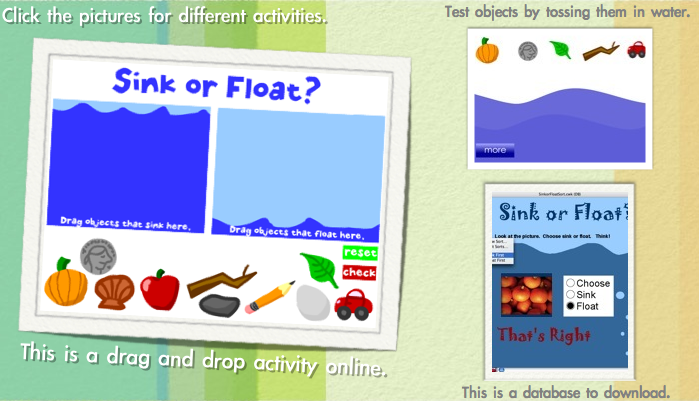
Today at Holladay Elementary, kindergarten students reviewed sinking and floating (SOL K.5c). I created a website where they can test different objects by tossing them in the water. Then they practice sorting the objects into Sink & Float Groups. These activities were followed by completing an AppleWorks database which is self-correcting. AppleWorks is an old program however, and sometimes causes problems. That’s why we’ve switched to online databases, until a new program comes out. You can download the database and do the activities with your students by clicking this link.


Databases in Kindergarten?

Can kindergarten students really be expected to do databases? Well, two kindergarten classes did them today at Trevvett Elementary! Granted, it took a lot of guidance and help, but that’s what I’m here for, to provide you with an extra pair of hands when you need it! I’ve already explained how I found an excellent online database resource in this post, so I used that resource, MyTaskHelper, to create two kindergarten databases. One for needs and wants and one for magnets. First the students drew pictures in Pixie and we exported them as JPG or PNG files (in Pixie, go to Export, and choose the file type). It would be a good idea to have this part done ahead of time. Next we went to the online database and the students uploaded their pictures and entered their information. After they clicked the submit button we went to the “Sort” link at the top of the webpage and they could see all their classmates’ records! Then you can really show them the power of a database. Students can click the column headings to sort the data by type (need/want or magnetic/nonmagnetic) and they can search (by teacher name for example) to narrow the number of records shown. You can see the completed needs/wants database by clicking here, and you can see the completed magnets database by clicking here.


Kindergarten Beginning Sounds

An important reading skill in kindergarten is being able to identify the beginning sounds of words. To help students with this task I created a Keynote activity where the students type in the beginning letter and then push a button to find out if they are right or wrong. There are 15 different slides (you can see them all by clicking here). When the students get the answer right a green smiley face appears on the slide like in this picture. When they get an answer wrong a red sad face will appear so they can fix their mistake. If you’d like to expand the activity you can use the record feature on Keynote and instruct your students to record their voices reading the words aloud as the slideshow plays like in this example. You can download the activity by clicking here.


Tags:


Kindergarten Christmas Counting

Kindergarten students at Holladay have been learning their numbers 1-10. So in keeping with the holiday spirit, we made Christmas counting slideshows with Keynote. I gave them a template to use with clip art from Pixie. It already has all the animations built into it. The students typed the correct number on each slide. While they were working on that, we took their photo in Pixie and pasted it to the first slide with an elf hat. Finally we recorded their voices reading the short sentence on each slide. The final project turned out great! You can see a student example by clicking here. You can download the template to use by clicking here.