Category: Kindergarten

Kindergarten Letter Paintings
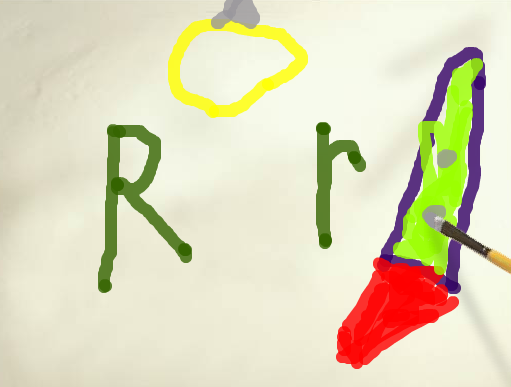
Screen Shot 2015-03-26 at 12.19.46 PMKindergarteners in Ms. Hart’s class at Laburnum Elementary have been learning the letter R this week. So I showed them how to use ArtPad to not only practice writing their letters, but to also practice the important computer skill of clicking and dragging. First we practiced just scribbling on the paper using different colors. Then I showed them how to change the size of the paintbrush by clicking and dragging the slider. They thought it was really cool that the brush changes! I also taught them about Undo. We undid our painting until we had a plain sheet of paper again (or you could just click Start Over, but we wanted to practice Undo). Now we painted an uppercase letter R and a lowercase letter r. I told them to draw one or two things that begin with the letter R. When they were finished I showed them how to replay their painting. They loved that! It’s also valuable for you as a teacher because you can watch exactly how the students are forming the letters. Take a look at a couple of student samples here and here. You could even make examples of other letters for students to watch and see how they are formed and try to guess the pictures before you finish. Here’s an example like that.

1st Grade Graphs

Screen Shot 2015-03-26 at 12.48.12 PMFirst graders at Laburnum Elementary have been learning how to gather data by counting and tallying (SOL1.14) and how to display that data in graphs (SOL1.15), so today students in Ms. Tyler’s class practiced those skills using the computer. First we logged into their Google accounts (with lots of help) and went to Google classroom. I posted a question: “What is your favorite ice cream of these 3 choices: vanilla, chocolate, or strawberry?” The students clicked where it said “Add a comment” and typed their favorite flavor. They loved seeing their classmates’ names pop up. We counted how many students liked each flavor and wrote tally marks on the board. Next I posted a Google spreadsheet template to the classroom page and clicked the button “Make a copy for each student.” You can make a copy of the template to use with your class as well. The template has two tabs at the bottom. The first tab is the one the students will use. The tab labeled “Key” is a finished sample for your reference. I showed the students how to type the flavors in the first column (some of them needed help with that). Then they typed in the numbers. The graph will automatically build itself as the students type. We discussed what words we needed to add to the title and added “Ice Cream” to it. Finally I showed the students how to change the colors of the bars (click them and then click the paint bucket). That was all we had time for, but you could extend the lesson by asking questions like, “Which flavor had the most votes? the least?” Try graphing other favorites like colors, foods, animals, sports, etc.


Kindergarten Butterfly Life Cycles

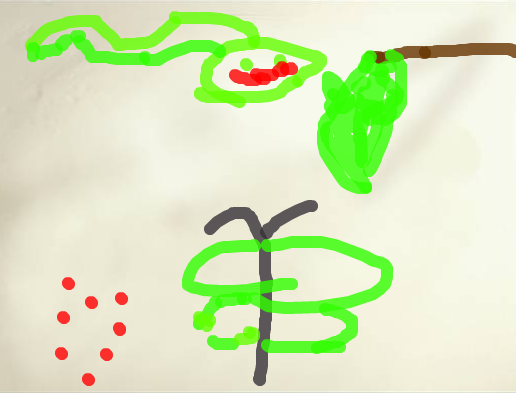
CoreyMs. Lee’s kindergarten students at Davis Elementary have been learning about the butterfly life cycle in science (SOLK.6). Since a life cycle is a sequence that involves change, it’s a perfect subject for an animation. So today we made animations of the butterfly life cycle using a site called ArtPad. First the students used the paint brush to illustrate each of the four stages: egg, larva (or caterpillar), pupa (or chrysalis), and adult. The paint brush tool is easy to use and you can change the size by simply dragging a button. The paint brush actually changes appearance as well. When they were finished, I showed them how to publish their drawings and get the link. If they click the link, they can watch the animated replay of their painting from start to finish, so it shows the sequence of the life cycle. It’s actually really cool to watch and the students loved it! I gathered all their links together and put them on a Google Doc that you can take a look at by clicking here.


Kindergarten Wishes

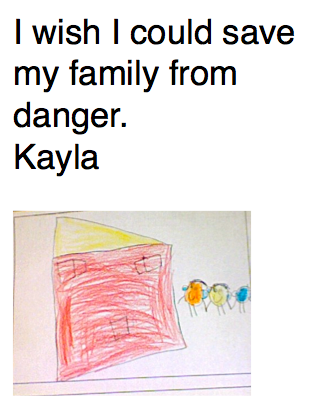
Screen shot 2014-06-29 at 7.45.16 PMKindergarten students in Ms. Fennell’s class have been working hard all year to get to the point where they are finally ready to write complete sentences. That’s a pretty amazing accomplishment, considering when they started in September they were just learning to identify their ABCs! They had previously written a sentence on paper about their wishes and drawn a picture, so today we were making a digital copy for their portfolios. I was also teaching them some basic word processing skills such as using Shift to make capital letters and using the space bar and punctuation keys. First I gave them a Pages template with the font already set to a large size. They typed their sentences and added their names. Then I showed them how to use Photo Booth to take a picture of their drawings. Ms. Fennell and I helped them drag the photos to their Pages documents. They saved their files, then I combined them together into one document and uploaded them to Flipsnack for publishing. You can take a look at it online here or download the complete PDF here. I love how their wishes are all unique and some are quite moving.


Kindergarten Signs of Spring Video

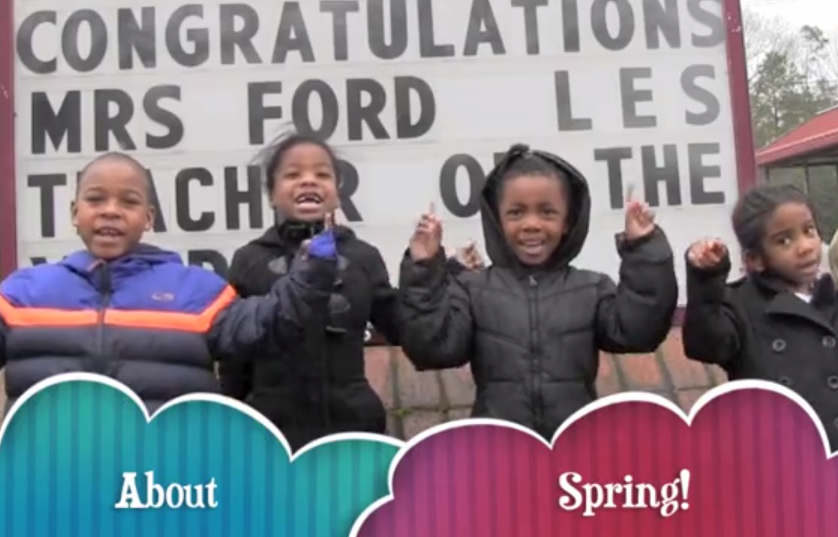
springEvery grade in elementary school learns about seasonal changes and the weather (SOL K.10, 1.7, 2.7, 3.8, 4.8, 5.7) so I have been working with a small group of kindergarten students at Laburnum Elementary to create an informational video announcing the start of spring that would be played on the school-wide morning announcements. Nathaniel, Jaziah, Karen, and Taliyah have been excited about this project since we started it last month. First we met together to discuss the signs of spring and they selected which ones they wanted to do. They came up with four main signs of spring: the weather gets warmer, animals have their babies, flowers start to bloom, and gardens begin to grow. Next they read books and watched videos about the spring to get ideas and background knowledge to share in their video. On some of our project days it was too cold to film outside (and very un-spring-like) so they decided to include some of their artwork in the video. They used Pixie to draw pictures, illustrating their special sign of spring. Finally, today it was warm enough to film, so we explored the grounds of the school looking for signs of spring and filmed at the sites we found. They improvised their lines in the video (there was no written script since we weren’t sure what we’d find, but we had made some predictions). The finished film will be presented on the morning announcements to the entire school and submitted to our county’s H21 website. You can watch it here!


Kindergarten Rhyming Words Comic

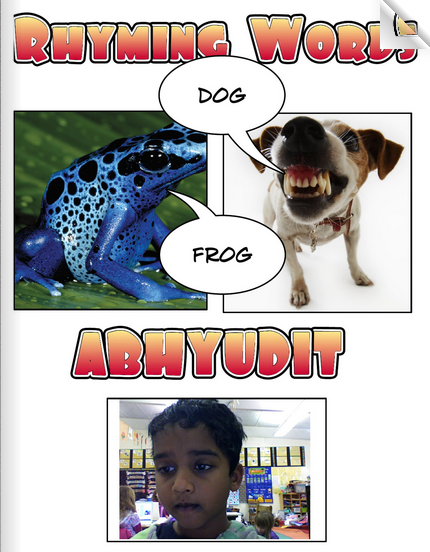
krhymingwordsKindergarten students in Ms. Lewis’s class at Davis Elementary have been studying rhyming words (K.1e) so today we created a class comic book of rhyming word pairs. I gave them a Comic Life template that you can download by clicking here. The students opened the template and added their name to it. Then we brainstormed rhyming word pairs and wrote them on the Promethean Board. I asked them to choose a pair to illustrate on their page. We did a Google Image Search to find the pictures, but they needed a lot of help with that, so I made a folder of images that you can use (download here). After the students added the pictures to the comic, they typed the rhyming words in the speech bubbles. Then I showed them how to change the style of the images using the Style button. We ran out of time at that point, but if you have extra time you could also show them how to change the Style of the text, the paper, and the speech bubbles. I combined their documents together into one Comic Life and saved it as a PDF (go to File > Print > PDF > Save As PDF). Then I uploaded it to Youblisher to create an online flipbook for embedding in a blog or sharing with parents. You can take a look at it here.


Kindergarten More & Less Comics

ZoeyKindergarten students in Ms. Miller’s class at Holladay Elementary have been learning how to calculate 1 more and 1 less (SOLK.4b), so today I showed them how to demonstrate their math skills by using Comic Life. I gave them a 4 square template that you can download by clicking here. First we changed the title to say “More Less” to practice typing those words. Then I showed them how to use the “Capture” button to turn on the built-in camera. For the first square, they took pictures of themselves and wrote their names in the speech bubble. Next I told them to collect a certain number (less than 10) of an object. Some got 8 crayons, others got 5 pairs of scissors, and some got 7 erasers. It was their choice. Once they gathered the objects they took a picture of them for the second panel of the comic and wrote the number in the speech bubble. Finally they figured out how to show 1 more and 1 less of their original number, took those pictures, and completed the speech bubbles with the new number. For example, if they started with 6 paint brushes, they took a photo of 5 and wrote “1 less is 5.” Take a look at a few student samples: Zoey, William, and Stephanie.


Kindergarten Measurement

Screen shot 2014-03-17 at 7.34.08 PMKindergarten students in Ms. Dunkum’s class at Davis Elementary have been learning how to measure and compare objects using nonstandard units (K.10) so today we practiced those skills using digital tools. I tried this lesson with another class previously where they found a picture of an object online and measured it using shapes in Keynote, however, it took too long to get the picture, and we didn’t have time to write the unit of measurement. So many students ended up saying “inches” or “feet” even though we weren’t using those units. You can see a couple of those student examples here: Belladona and JR. Since I wanted them to have time to include the correct unit of measurement in their presentation, I decided to give the students a quicker way to make a variable picture. I gave them some shapes and told them to build a snowman out of them. You can download the template by clicking here. Next the students selected a shape from the Shapes tool and measured their snowmen with the shapes. Last, they added a text box with the nonstandard unit of measurement such as “5 stars” or “4 triangles.” I showed them how to add animated builds to the shapes and text box, and then they recorded a voiceover narration. Here are some student examples: Mackenzie, Ryan, and Wyatt.


Tags:


Kindergarten Needs & Wants Comic

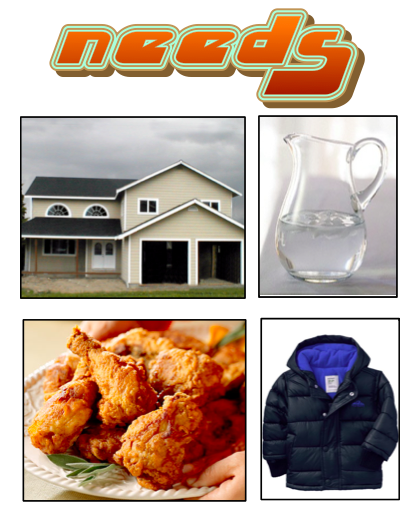
Screen shot 2014-03-17 at 7.24.37 PMKindergarten students in Ms. Fennell’s class at Laburnum Elementary have been learning about needs and wants (SOLK.7) so today I taught them how to make a needs and wants comic using the program, Comic Life. They started out with a template that you can download by clicking here and a folder of pictures that you can download by clicking here. On the first page it says “I have needs and wants.” I showed the students how to take their photo using the built-in camera and type their name in the speech bubble. The next page says “Needs” and has four boxes. I taught them how to use the Finder button in Comic Life to find the folder of pictures I gave them. They had to look at the pictures, identify four examples of needs, and drag them into the boxes. Most of the students did a great job identifying food, clothing, water, and shelter as needs. But pizza presented a bit of a dilemma. Was it a need (food) or a want? I let them think about that, then we went to the last page, titled “Wants.” They had to drag in four pictures of wants. Finally, I showed them how to change the style of the pictures and text using the Style button in Comic Life. You can see some student examples of this project here: Josiah, Markiya, and Alejandro.


Kindergarten Counting Pumpkins

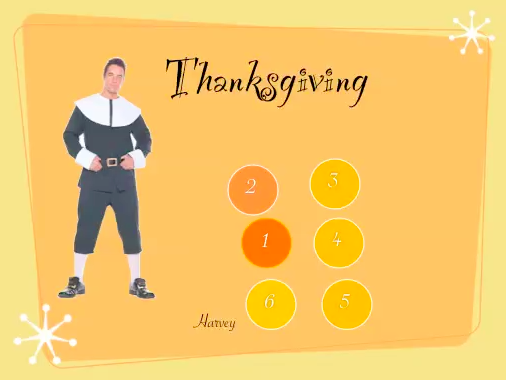
Screen shot 2014-02-17 at 10.40.01 AMKindergarten students at Holladay Elementary created their own Keynote animations today to showcase how they have learned to count up to 10. They started with a blank Keynote (so there’s no template to download) which means they made these animations from scratch–a pretty remarkable feat for kindergarteners! First they typed the word “Thanksgiving” for the title, then they added their names. They also chose a theme for their Keynote by clicking the Themes button. I showed them how to do a Google Image search for a “pilgrim.” They clicked on the pilgrim picture they liked and dragged it onto their Keynote (the teacher and I had to help a lot with this part, but a few students were able to do it on their own). Then I showed them how to click the Shapes tool, choose a circle, and change the color to orange so it looked like a pumpkin. They typed the number 1 in the pumpkin. I told them they could choose how many pumpkins they wanted to make, from 1-10. They created the rest of their pumpkins and typed in the numbers. Next we opened the Inspector and added animations to each pumpkin using the Build-In tool. We also added an ending using the Transitions tool. Finally I taught them how to record their voices, and I pointed out that they needed to sound like they were on a TV show, talking about counting. Take a look at a couple of student examples: Harvey and Muhaimen.


Tags: