Category: 4th Grade

4th Grade Powhatan Dioramas

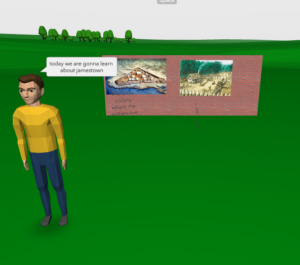
Fourth graders at Varina Elementary have been learning about the Indian tribes of Virginia and their language groups (VS.2d,e). Today students in Ms. Connell’s class created virtual 3-D dioramas of a tribe of their choice using CoSpaces. First, we reviewed the tribes (Powhatan, Monacan, and Cherokee), their language groups (Algonquian, Siouan, and Iroquoian), and where they lived in Virginia. Next, I explained the project and pointed out that these dioramas could be viewed and explored with virtual reality goggles. They could also use coding to add actions and sounds to their project (we didn’t get that far, but I made an example here where you can click each person, and they will move and speak). After logging into CoSpaces with our Google accounts, we created a new space, and I showed them how to set the background with the Environment button at the bottom. CoSpaces offers a few backgrounds, but we did a Google search for a 360 degree photo of Virgina woodlands, and uploaded that. Next I showed them how to add characters from the Library and right click on each one to customize its colors and poses. I also explained how to add speech bubbles and type facts about the tribe. We used the Building Blocks library to create model longhouses. Finally we clicked the share button, copied the link, and posted our creations on Schoology. You can see them all here.

5th Grade Henrico Watershed Animations

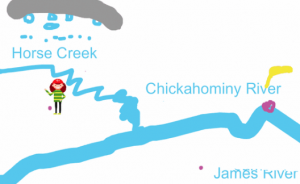
Fifth graders at Laburnum Elementary have been studying Henrico County and Virginia watersheds (SOL4.9a). Today students in Ms. Burgess’s class created animations for Laburnum’s watershed. First we reviewed watersheds and why understanding them is important. Several students didn’t realize that their drinking water comes from the James River. So we discussed where the trash that is thrown on the ground eventually ends up (Answer: rain washes it into creeks and rivers which flow into the James River). Next we went to Google Maps and found Laburnum Elementary. We searched for the nearest creek, which turned out to be Horse Creek. Then we followed Horse Creek to the Chickahominy River and finally to the James River. Now they were ready to create an animation showing the path a discarded piece of trash takes from Laburnum Elementary down through the watershed into the source of their drinking water. We used ABCYa! Animate to create the animations. You can see them all here.


4th Grade Graphing Virginia Resources

Fourth graders at Laburnum Elementary have been learning about graphing in Math (SOL4.14) and Virginia natural resources in Science (SOL4.9), so today students in Ms. Waltz’s class researched and graphed Virginia products. First I shared two websites for research: Virginia Farm Products & Virginia Minerals. These sites provide the amount in dollars or tons for each resource. We discussed why the units were different (it wouldn’t make sense to compare farm products in tons because of their different sizes: cows weigh a lot more than chickens). Next we opened a Google spreadsheet and wrote “Product” in Column A and “Amount in (tons or dollars)” in Column B. They had to choose the unit that corresponded with their products. Then they typed three products of their choice in Column A and entered the amount of each in Column B. Now that they had entered their data, it was time to graph it. Google Sheets has a new “Explore” feature that can be accessed by clicking the star shaped icon in the bottom right corner. They chose a color scheme from the pop up menu and added the graph to their spreadsheet. I also showed them how to change the color of the bars (click on a bar and choose a color from the side menu). Finally we shared our spreadsheets on Schoology so we could learn from each other. Click here to see all their graphs (UPDATE: I did the same lesson with Ms. Dowling’s class on 9/27, so those have been added as well).


4th Grade Mapping the Hurricanes

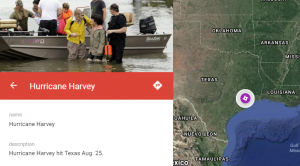
Fourth graders at Holladay Elementary have been learning about weather in Science (SOL4.6) and maps in Social Studies (SOL4.1), so today students in Mr. Rivara’s class created Google maps showing this season’s hurricanes. The 2017 hurricane season has been rough, with Hurricane Harvey hitting Texas at the end of August, and Hurricane Irma currently hitting Florida! First I showed them a few webtools that are great for tracking hurricanes: Earth and Meteoearth both show wind directions across a 3-D globe, while Windy shows wind directions on a flat map. Next, we went to My Google Maps and created a new map. I showed them how to add a marker to show where Hurricane Harvey hit in Texas. We added a title and a descriptive sentence with a fact about the hurricane. The students had to do some quick research to get their fact by opening a new tab and typing “Hurricane Harvey” in the search box. I wanted them to find a fact with a number, since they are learning about place value in Math (SOL4.1a). Finally, we added a photo of the hurricane, and I explained how to customize the marker by changing the color and icon. We had time to add one more marker for Hurricane Irma. They will continue using the map to track other hurricanes this season. You can see all their maps here.


New Teacher Academy

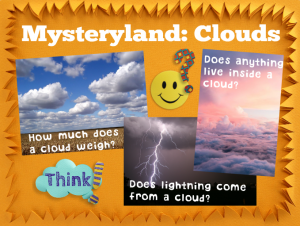
Today was New Teacher Academy, our county’s training session for newly hired teachers. My team’s job was to share ideas for using technology in the classroom. Alfonso and I presented a session called “Mysteryland” with the 4th grade teachers. Mysteryland is a music festival that I attended one summer, but it could also be your classroom, because classrooms are places for exploring mysteries. When you present topics as mysteries to solve, it stimulates students’ natural curiosity and increases motivation to learn. We used clouds (SOL4.6) as an example to show that every topic has plenty of mysteries to investigate: How much does a cloud weigh? Why does a cloud form in one spot and not another? Does anything live inside a cloud? Does lighting come down from clouds or up from the ground? Do clouds protect us from anything? Does wind speed and direction have anything to do with cloud cover? (Look here or here and turn on cloud cover)? Technology can be used by teachers to present these mysteries to the students in creative ways, but once a few mysteries have been presented, technology can be used by students to share their own questions with each other, research the answers collaboratively, and publish their findings online. We shared a variety of webtools for accomplishing these tasks. For example, we asked each new teacher to research a cloud mystery and post their answers on a shared Google spreadsheet. Try adding an element of mystery to your lessons this year!


4th Grade VR Review Worlds

Fourth graders at Laburnum Elementary have been reviewing for their upcoming SOL Tests, so today students in Ms. Mauck’s class created virtual-reality review worlds about a topic using CoSpaces. First, we reviewed different topics to get them thinking. They’ve learned about motion (SOL4.2), electricity (SOL4.3), plants (SOL4.4), animals (SOL4.5) weather (SOL4.6), space (SOL4.7), Virginia history (Virginia Studies), and more. There were plenty of topics to choose from! Next, we signed into CoSpaces with our Google accounts. I showed the students how to choose a background image (you can also upload your own 360 photo as a background image). Next we went to the Library (at the bottom) and added a person. The older objects are currently more customizable than the newer (low-poly) models. I showed them how to click on an object to resize or raise it using the buttons that appear above it (you have to click and drag the actual button). You can also rotate objects with the rotate button. To customize the object, we right clicked on it and changed the colors or typed something for it to say. We also made walls using the “Building blocks” in the library. Students added photos of their topic to the walls by clicking “Web image search,” then right clicking the image to make it a “Panel,” and attaching it to the wall with the “Attach” button. CoSpaces even has a coding feature, but the students didn’t have time to use that (look at my example to see some coding features). Finally, we published our projects and pasted the links to Google classroom so everyone could explore our virtual worlds for review. You can take a look at them here.


Tags:


5th Grade Planet Websites

Fifth graders at Varina Elementary have been reviewing the planets in our solar system (SOL4.7), so today students in Ms. Primrose’s class researched a planet of their choice and created a website about it using the new Google sites. First we reviewed the planets, their order, and interesting facts about each one to get the students thinking. We discussed how the Earth is unique in space, and is not named after a god. The other planets are mostly named after Roman gods, except Uranus, which is named after a Greek god. (By the way, did you know Uranus was first named after King George)? After the students chose a planet that interested them, they conducted their research online. There are several good sites, but the ones we used are ESA Kids (good facts, written at on elementary reading level), Solar System Scope (an interactive, animated solar system), and the basic Google search page. Other websites sites that your students can explore in a center or station are PixelSpace (shows the vast scale of the solar system if the moon were the size of a pixel); Scale of the Universe (shows not only the relative sizes of the planets, but many other objects in the universe), and Neave Planetarium (shows students where the planets and constellations are in the sky tonight). Next, it was time to create our website using Google sites. Students went to their Google drive and clicked New > More > Google sites. The students typed a creative title for their planet webpage, then typed some facts in their own words (we discussed the problems with plagiarism). Finally, students added photos using the built-in Google image search. We published our websites, and shared the links on Google classroom. You can see them all here.


4th Grade Animal Research Websites

Fourth graders at Holladay Elementary have been learning about animal ecosystems in Science (SOL4.5) and measuring length in Math (SOL4.6). Today students in Ms. Rivara’s class researched an animal and created a website about it. First the students chose their animals (we made sure that there weren’t too many duplicates by brainstorming a variety). Next, I gave them some guidelines for their research: they had to find out the animal’s (1) habitat, (2) predators, (3) prey or diet, (4) length, and (5) an interesting fact. I showed them how to do quick Google searches to find the information they needed, such as “animal name + predators,” for example. There are also several great sites for researching animals: National Geographic Kids, Go Wild by WWF, A-Z Animals, and Arkive (more advanced reading, but lots of photos and videos). To create the websites we used the new Google sites. Students went to their Google drive and selected “New > More > Google Sites.” They added a title and found a suitable background header image. Then they added a text box and typed the facts they found in their own words (we reviewed the problems with plagiarism). For images, the students used the built-in Google image search to find copyright-free pictures of their animals. I showed them how to add a caption by double clicking next to a picture and choosing the text box option from the pop-up menu. Some students even added videos after class. Finally we published the websites and pasted the links to Google classroom. You can see them all here.


4th Grade Measurement Movies

Fourth graders at Trevvett Elementary have been learning how to estimate and measure length in both metric and U.S. customary units (SOL4.7). Today students in Ms. Town’s class created measurement movies using WeVideo. First we reviewed the different customary units of measurement from smallest to largest (inches, feet, yards, and miles), and we reviewed the metric units (millimeter, centimeter, meter, kilometer). Then I explained that they would create movies about the units with a partner or by themselves. Each group chose a unit until all the units were chosen. The students logged into WeVideo with their Google accounts and created a new video project. I outlined three main requirements for the video: (1) introduce themselves, (2) describe their unit of measurement, and (3) give examples of objects that would be measured by that unit. For the first two parts, students used the built-in webcam to record their video directly to WeVideo. For the third part, students had to do some research online and find images of appropriately-sized objects. They downloaded their images to the desktop, then imported them into WeVideo. Finally, we selected themes with music, and I showed them how to adjust the volume so the music wasn’t too loud. We published our videos and pasted the links into Schoology so our classmates could watch them and comment on them. You can see them all here.


Tags:


4th Grade Animated Revolutionary War Heroes

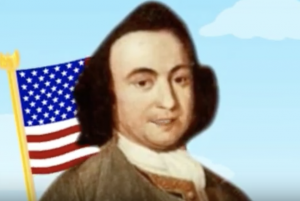
Fourth graders at Trevvett Elementary have been learning about Revolutionary War heroes like Thomas Jefferson, George Mason, Jack Jouett, and James Armistead Lafayette (VS.5, VS.6). Students in Ms. Adamonis’ class have each chosen a person to research and have prepared a written speech for the person describing his life and actions. Today we took their speeches and created animated faces using SitePal, so it looks and sounds like the famous heroes are actually talking. First we did a Google image search to find an image of the person. The best images are the ones where the person is facing forward. For people who don’t have a portrait online (like Jack Jouett) we searched for a Revolutionary War era/colonist costume model. Next we uploaded the image to SitePal (click Demo > Classic Demo > 3D > Create Your Own) and followed the directions to mark the eyes, nose, ears, chin, and mouth (this is important for the animation to look realistic). Then we clicked the “Audio” button and chose “TTS” (Text to Speech). We either copied and pasted our speech from our original document or typed it in the box. We chose a voice and an accent, then previewed it to be sure everything sounded correct. SitePal really helps with punctuation and spelling because you can hear right away when something isn’t right. Finally we used Screencastify to record our video and save it to our Google drive. We posted the links to Schoology, but you can take a look at some student projects here.