Category: 4th Grade

4th Grade Motion and Energy Animations
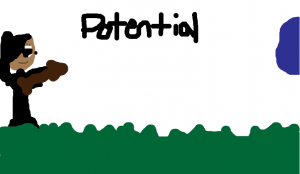
Picture 6Ms. Waggoner’s fourth grade students at Chamberlayne Elementary have been learning about potential and kinetic energy (SOL4.2), and she wanted a fresh way to use technology to review these concepts. Since motion is involved, student-created animations work very well for this project. Keynote is one tool that can be used to create animations, and I have some samples on this post. But her class is already familiar with Keynote, so I found a cool website called ABCYa! that allows you to draw animations and export them as a GIF. First I wanted to make sure that the students understood the concepts. So I created a TodaysMeet page and asked them to give me examples of potential energy. After they generated some good ideas, I asked them to write ways that they could increase potential energy. That was a bit more difficult for them to do. So I held up a book and they correctly said that I was demonstrating potential energy. I asked how I could increase that potential energy. Some realized that if I held the book higher, the potential energy would increase. We went over other examples like squatting for a dive, pulling back for a throw, and stretching a bow with an arrow. You can see a PDF of our discussion by clicking here. Now that the students were ready to create their animations, they went to the website and drew a picture of potential energy. They copied that page, and on the next page, they erased and redrew the part that moved a little further than it was on the first page. They continued making their objects appear to move step by step in each subsequent picture. Finally they saved their completed animations as a GIF. You can see some student examples by clicking here and here.
4th Grade Jamestown iMovies

Picture 4Fourth graders in Ms. Hall’s class at Laburnum Elementary recently took a field trip to Jamestown. Today she wanted to see how much they had learned there, and she also wanted them to practice using iMovie. I explained that our iMovie project would need to be completed within the one hour class period since iMovie projects cannot be saved to the student folders (if you want them to keep working on them, they have to get the same computer that they started with since the projects are saved to the hard drive). I explained that we didn’t expect perfect videos due to the time restraints, but I wanted them to learn as much as they could about the features of iMovie. First, in order to show them how iMovie can use both pictures and video, we did a Google image search to find pictures of Jamestown. I pointed out that they could search for other topics besides just “Jamestown.” They could search for important people, events, and resources as well. Once the students found four or five good pictures, they dragged them into their folders and imported them into iMovie (you can’t drag pictures directly from the Internet into iMovie). I also showed them how to adjust the Ken Burns effect using the cropping tool since some parts of their pictures were cut off. Next we added text to each picture and recorded a voiceover with additional details. I think their favorite part was adding the music soundtrack. A nice feature of iMovie is that it automatically lowers the volume of the soundtrack during the voiceover, but I also showed them how they could adjust it manually. Finally we added video at the end using the built-in webcam. We exported their projects as QuickTime videos and saved them to their folders. Now that they are familiar with the most important features of iMovie, they will be able to continue using it for future projects. You can see a student sample by clicking here.


4th Grade Planet Books

Picture 2Fourth graders in Ms. Tonello’s class at Holladay Elementary have been working on planet research projects. Each student chose a planet and gathered information from library books and websites. Today they were ready to share their information using Keynote. I taught them how to create a title slide and add new slides using different masters and themes. Next they did a Google Image search to gather pictures of their planets. They dragged the pictures into their slideshow and I showed them how to add transitions and animations. Finally they added text boxes and typed in their information. An additional step, that we didn’t have time for, would be to record a voiceover narration for their slideshow. With audio, you would export the slideshow as a video, but since we didn’t have audio, we exported them as PDF documents. Then I uploaded them to Flipsnack and converted them into an online flipbook. You can see a student sample about Neptune by clicking here.


4th Grade Number Patterns

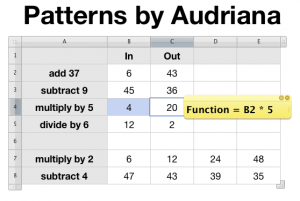
4thNumberPatternsFourth graders at Laburnum Elementary have been identifying number patterns which is an important math skill (SOL 4.15), so today I wanted to show them how computers can help create and identify patterns. Since this was the first time many of them had worked with spreadsheets, I gave them a Numbers template to get started. You can download it by clicking here. I just made the cells and the fonts a little larger for clarity. First I explained to the students how the cells work and how they are identified (such as A1 and B2) since that understanding is essential for writing formulas. Next we added the headers “In” (to cell B1) and “Out” (to cell C1) because I wanted to start with simple In-Out formulas. I told them to write a number between 1 and 10 in B2, and then I showed them how to write their first formula in C2. We did an addition formula first: =B2+?. I let them choose another number between 1 and 10 for the “?”. When they pushed Enter, they saw the instant magic of formulas! Next they erased their number in B2 and switched seats with a partner. The partner had to enter numbers into B2 in order to try and figure out what the formula was in C2. Once they figured it out, they wrote the rule in A2. We did a similar process for subtraction =(B3-?), multiplication =(B4*?), and division =(B5/?) formulas. Now that they were familiar with formulas, I had the students create their own patterns using multiple cells. Then their partners had to figure out the patterns and write them in column A. It was a great learning experience, with the students not only gaining a clearer understanding of patterns, but also of how to create spreadsheets. You can see a student sample by clicking the picture.


Tags:


4th Grade Class eBook

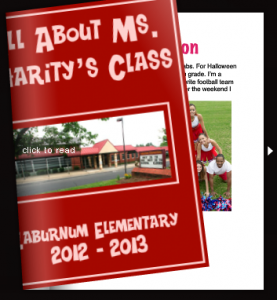
Picture 2Today 4th graders in Ms. Charity’s class at Laburnum Elementary created their own class eBook. You can create one fairly easily with your class as well! The cool thing about eBooks is that they can be read by anyone on almost any platform (computers, iPods, iPads, etc), and all you need is a word processing program (such as Word or Pages) and an Internet connection. We used Pages for this project. The students first typed a paragraph about themselves. I showed them how to change the font, size, and color of the title. You usually want to keep the main text in a common font because some devices will not display strange fonts correctly. Then they added a photo of themselves using PhotoBooth and searched the Internet for a picture of something else they had written about in their paragraph (which they highlighted in bold text). In order to publish their writings as an eBook, it must be a PDF document. So I combined them into one Pages document and saved it as a PDF (go to Print > PDF > Save as PDF). Then I uploaded it to FlipSnack which is a webtool for making eBooks or flipbooks. Flipsnack converts it into an online book that can be read anywhere and even embedded on a webpage (as you can see below)


4th Grade Weather Forms

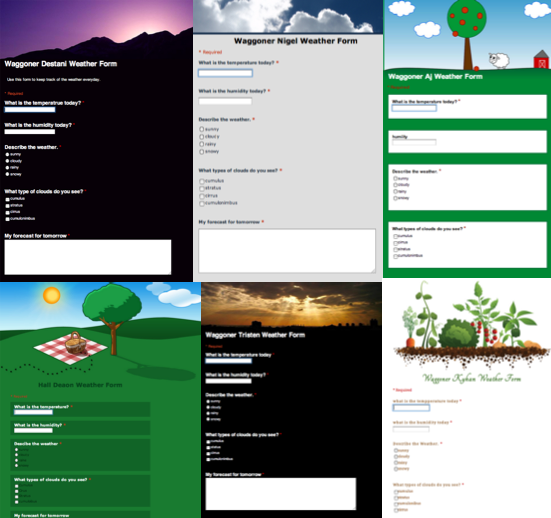
Fourth grade students at Holladay and Laburnum Elementary schools will be keeping track of the weather this semester using Google Forms. I showed them how to create the forms using several different types of questions: short-answer, multiple-choice, check boxes, and long-response. They designed their forms using different Google-provided templates (you can see six examples in the photo above). The students will be recording the daily temperature, humidity, types of clouds, and a general description of the type of weather (sunny, cloudy, rainy, snowy). They will also try to forecast the next day’s weather based on their observations. After they have collected their data for a couple of weeks they will use the graphing feature in Google spreadsheets to graph their results. You can see a sample student weather form here.


4th Grade Virginia Regions BeeClip Posters

I’ve shared several ideas for projects your students could do about the regions of Virginia on this blog (search for “regions” in the search box). Here’s a new one we did today using BeeClip. One of the best things about BeeClip is the safe Google image search that is incorporated within the website. The students used that to find pictures of places, products, and industries for their chosen region. They could also upload photos that I provided for them. Then they added labels using the stickers and the text tool. Finally we entered full screen mode and took a screenshot to save it (Command + Shift + 3). Screenshots are saved to the Documents folder, so students can drag them from there to their own folders. If you would like your students to save their work online so they can keep working on it later, you would have to set up an account. Otherwise it’s free to use with no login required.


4th Grade Virginia Regions Maps

There are many technology projects your students can do to review the Virginia Regions: a video, a website, a rap, a Keynote slideshow, or even a comic. Today in fourth grade at Chamberlayne Elementary, we made interactive maps online. There are many free sites for creating maps, but here’s what we found when we tried out three of them. A really cool one by National Geographic is called MapMaker. Your students can draw on maps, measure distances, add symbols, and see overlays with interesting data like population and climate. However, we couldn’t get it to load in class. So next we tried AniMaps which also lets you draw on maps and add symbols, but we found it was too complicated for the students, and had some glitches like panning and zooming too rapidly. At last we had success with ScribbleMaps. The students were able to draw the regions on the map, add labels, and search a huge library of symbols to show the products and industries of the regions. What I like best about it is that it gives two links for saving. One allows you to go back and edit it (using a password instead of a login). The other link is for simply sharing your map. I included both links on a GoogleDoc with all the student maps. You can see that by clicking here. Take a look at a student sample, and notice that you can zoom in and out and click on the symbols. It was a great way for the students to review the regions!


4th Grade “About Me” Posters

Here at the beginning of the year it’s always a great idea to give your students the opportunity to introduce themselves to you and to each other. There are so many different ways to do this type of project. We’ve done movies, comics, Keynote slideshows, and Pages documents. I’m always on the lookout for new ideas though, and I found a cool website called BeeClip that I wanted to try out with a class. Ms. Waggoner at Chamberlayne Elementary was all for it, so I went to her fourth grade class today, and her students had a good time making posters about themselves. This site is great because it doesn’t require a login to use it. Students can upload their photos, add text and stickers, and even search for pictures online with a built in safe Google image search. Once they created their posters we went to full-screen mode and took a screenshot of it (Apple + Shift + 3). Screenshots are saved to the Documents folder on student computers. Next I uploaded the posters to Comemories which is a great way to share photos instantly. You can see all the posters here.


4th Grade Thinglink Interactive Photos

Mrs. Waggoner’s fourth graders at Chamberlayne Elementary wanted a fun way to review the famous Virginians that they have been learning about this year. So I introduced them to a site called Thinglink. It lets you create interactive photos like online newspapers sometimes publish with hotspots that provide information when you rollover them. I created a couple of examples to show the students first. One was a picture of a horned lizard with hotspots describing its adaptations. Another was a timeline of the Civil War with hotspots describing the different events. So once the students had an idea of what the site could do, they picked a famous Virginian, embedded the photo in a Thinglink, and added hotspots describing the person’s accomplishments. When they were finished I posted all the links to a GoogleDoc so anyone could access all the pictures for review… even at home! Hopefully you can see there are a lot of ways to use this site in your classroom. Take a look at some student examples: Stonewall Jackson, Maggie Walker, James Lafayette, Robert E. Lee, and Arthur Ashe.