Category: 3rd Grade

3rd Grade Rounding Calculator
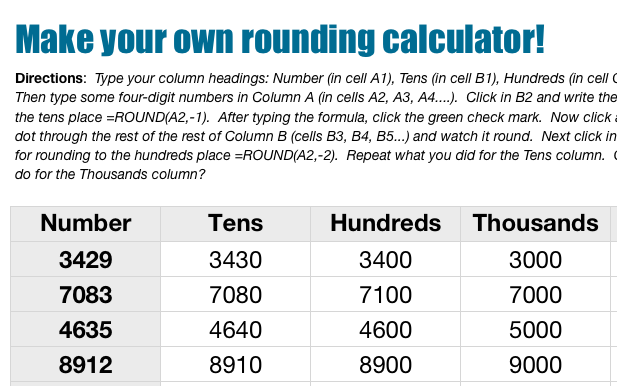
roundingcalcThird grade students in Ms. Wells’ class at Varina Elementary have been learning how to round numbers. I pointed out to them that their calculators can’t help with rounding because there is no rounding key. However, they can create their own rounding calculators using Numbers. I gave them a Numbers template that you can download by clicking here. The template guides the students through the process of creating formulas. The cool thing about teaching young children about formulas is it prepares them for the harder tasks of writing computer code and programming. It also gives students the opportunity to practice analysis and logical thinking skills because they have to figure out how to write the formulas and also how to debug the problems when they arise (which they inevitably do). First I explained how a spreadsheet is divided into columns and rows. Many 3rd graders are familiar with this concept because they learn about letter-number map grids (SOL3.5e). I instructed them to write any numbers they wish down column A. Next, in column B we wrote our first formula together to round any number to the tens place. I showed them how to drag the little white dot in the corner down the column to automatically fill in the other cells with the formula… and magically, all the numbers in Column A are rounded! You may think spreadsheets are boring, but when students see their formulas actually work, there is plenty of excitement! We do the formula for rounding to the hundreds place with a little less guidance from me. Finally they write the formula for rounding to the thousands place on their own.

3rd Grade Rounding Raps

roundingrapThird graders in Ms. Collins’ class at Laburnum Elementary have been learning about rounding, and today she wanted me to teach them how to use Garage Band to create rounding rap videos. Even though Garage Band doesn’t have video producing functions, it gives students a way to create music quickly. So we used Garage Band to make the beats and then used Photo Booth to make the video. First the students divided themselves up into groups. I showed them how to open the loops browser in Garage Band and find a good beat that matched the rhythm of their raps. Then they practiced rapping to the beat, and some of the groups even choreographed some dance moves. Next we opened up Photo Booth, they selected a visual effect they liked, and they recorded their music videos. I posted a couple of them to Vimeo, take a look: Girls’ Rounding Rap, Boys’ Rounding Rap.


1st & 3rd Grade Migration Pixies

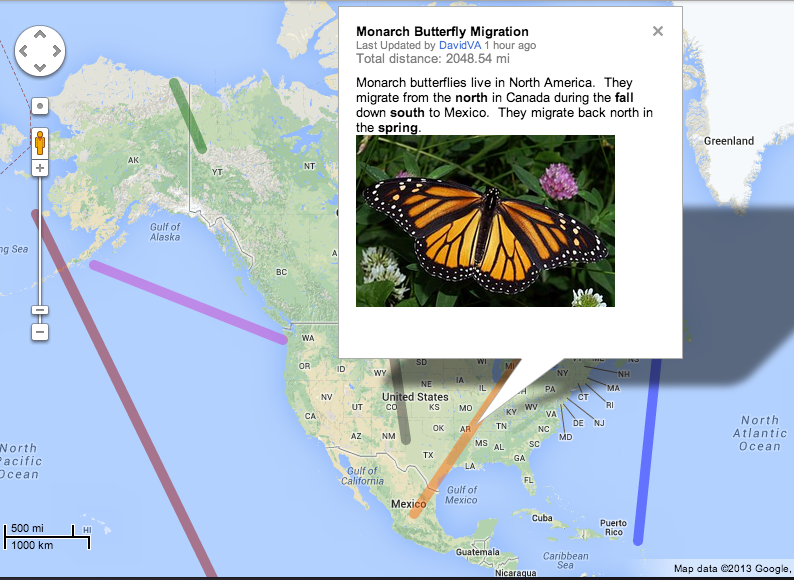
migrationmapFirst (SOL1.7) and third (SOL3.4) grades are both learning about migration at this time since it’s the fall. So I’ve been doing research projects with both grades and we’ve been using Pixie to present our findings. First students selected an animal that migrates (monarch butterfly, wildebeest, caribou, whale, salmon, etc), then they went to PebbleGo to research their animal. PebbleGo is a great site for elementary research because it’s easy to navigate, it uses simple vocabulary, it has lots of pictures and videos, and it can even read the text to the students. I wanted the students to also see how far the animals traveled on a map, so I created a Migration Google Map, where the students could click on a line and see a picture of the animal and read about its migration route. After the research part was finished, students opened a Pixie, added a sticker of the world map and a sticker of their animal, and then drew a line to show the animal’s migration path. Next they recorded their voices telling about the amazing journeys their animals make. Third grade was also able to animate their animals so they moved north to south. Check out a third grade student example here. You can download a Pixie template for this lesson by clicking here.


Tags:


3rd Grade Migration Place Value

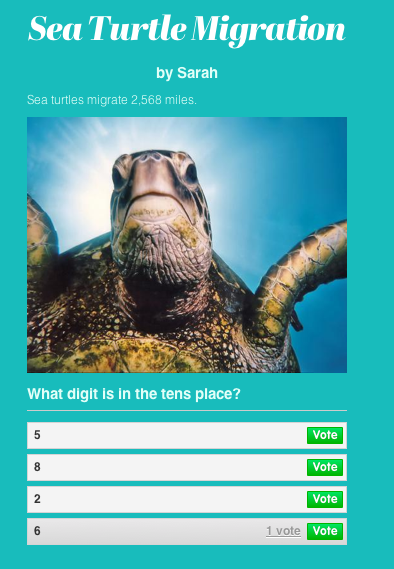
Sea Turtle MigrationThird graders at Holladay have been studying animal migration (SOL3.4) and they have also been studying place value. Since animals usually migrate long distances (numbers in the hundreds or thousands), I thought this would be a perfect opportunity to review both concepts at the same time. First the students picked an animal that migrates and did some online research to find out how far it travels. Next we went to CheckThis and created a website about our animal. Students included the number of miles their animal traveled and added a picture of their animal. Then they added a poll question to ask visitors to identify the digit with a certain place value (i.e. “in the hundreds place”). I posted all the student sites to one page so they could visit each others’ sites and answer their questions. You can see them here: Ms. Moon’s class and Ms. Cowart’s class. One way to extend this activity would be to add a GoogleMap showing the path that the animal travels. We only had an hour though, so we didn’t have time to do that, but I was impressed with how much they accomplished in such a short time!


3rd Grade Math Formulas

Screen shot 2013-08-14 at 12.04.29 AMThird graders (and students in other grades as well) are often asked to identify patterns in a series of numbers. For example, given the following series of numbers: 7, 10, 13, 16, students might be asked to identify the next two numbers in the series or describe what mathematical “rule” is creating the pattern (in this case, the rule is “adding 3”). So I figured this was a perfect opportunity to teach the students in Ms. Boone’s class at Chamberlayne Elementary about spreadsheets and formulas. I gave them a Numbers template that you can download by clicking here (I just adjusted the size of the cells and fonts). I told them to enter any 2-digit number into cell B2. Then in cell C2 we wrote a formula “=B2 + 3” and pressed the Enter key. The answer automatically appeared in the cell. Then I showed them how they could click in the cell and drag the little dot in the lower right corner to fill in the neighboring cells and create a pattern. Next they wrote the rule in the box. We continued in a similar manner writing formulas for subtraction, multiplication (use *), and division (use /). Once the students understood how to write formulas, I let them write a formula of their own. Then a partner had to enter a number and see what the “secret” formula did to that number. Their goal was to try to identify the formula or rule that was creating the pattern. Some students discovered that certain numbers (like 0 or 1) were very helpful in figuring it out!


Tags:


3rd Grade Fraction Pies

piechartfractionsThird graders in Mr. Friend’s class are studying fractions, so today I showed them how to make fraction pies using a program called Numbers (the Mac version of Excel). The was the first time many of them had seen a spreadsheet so I explained the parts. The naming of each cell, (A2, B4, etc) was familiar to them because they studied map grids which use a similar format. I explained that we couldn’t just write a fraction like 3/4 in the cells and generate an accurate fraction pie. To show them what happens we typed 3 in A1 and 4 in A2, highlighted them both, clicked the Charts button and picked a pie chart. It made a fraction pie that looked like 3/7. After trying a couple more that way, the students figured out that the computer is taking the top number and making pieces of pie one color, then taking the bottom number and making pieces of pie another color. So they had to “trick” the computer into making the correct pie chart to represent the fraction accurately. In order to get a pie showing 3/4, we had to type 3 on top and 1 underneath. We tried that strategy with a couple of basic fractions until they got it right. Then they made up their own fraction, created a pie chart for it, and their neighbor had to identify the fraction. Before saving their work, I showed them how they could change the colors of the pies (they love that, but I try to save it until the end or they get distracted by it)! If you’d like to try another Numbers activity comparing fractions and showing mixed fractions, look at this post.


Tags:


3rd Grade Mali Comics

maliThird graders have been studying Mali (SOL 3.2) recently so today we made comics about Mali using a program called Comic Life. I provided them with a blank template and showed them how to add a fancy title. Then I showed them how to twist and stretch the title and change the style of it. We added 4 panels to the comic and then we did an Internet image search for pictures. I gave them some suggestions and wrote a word bank on the board: Africa, empire, Mali, gold, salt, trade, route, pilgrimage, Mansa Musa, Sundiata, griot, Timbuktu, Sahara, etc. With our version of Comic Life, the students couldn’t drag images off the Internet into their comics, so I taught them how to drag the photos into their folders first and then, from there, drag them into their comics. Next we used the Style button to change the style of the photos. Finally I showed them how to add the speech bubbles. I explained that they should write in complete sentences and include good facts and details. When they completed their comics I combined them all into one document and uploaded it to FlipSnack. You can see the finished comic by clicking here.


ActivEngage in 2nd Grade

activeRecently I have been training the staff at my schools how to use the ActivEngage software. It turns the cart laptops into a student responders so that teachers can get instant feedback. You can learn more about it here. I’m happy to do a demo lesson in your class if you’d like to see it in action. Today I showed 2nd graders at Laburnum how to use it. I asked them a few questions about the famous Americans they’ve been studying (SOL2.11) using a simple GoogleDoc but then I sent them to TodaysMeet to generate their own questions. You can see some of their questions here. Even though ActivEngage works with ActivInspire flipcharts, you can actually use anything (PDFs, Word documents, websites, etc) to display the questions you want to ask. You just need the ExpressPoll program to be open so that you can receive the students’ input. Another free option that’s available if you want to implement a student response system in your class is to try Socrative. You set up a quiz on the website, and then then your students log in with the link to your class. They can respond in many different ways and even play online competitions.


3rd Grade Explorer Websites

samplesiteToday 3rd grade students at Chamberlayne Elementary created their own websites about the Explorers (SOL3.3) using CheckThis. I taught a similar lesson last year but this time I wanted them to include a Google map of the location where their explorer landed. I also wanted them to work on creating a more difficult polling question. So first they wrote their facts about their explorers in their own words. Next we searched for a picture of their explorer and pasted the link into the webpage. Then I showed them how to search for the location where their explorer landed in Google Maps. They copied the link and added it to their webpage, which embeded the actual interactive map (if we had more time students could create their own map showing the path the explorer took with markers like in this example). Finally we talked about writing a good poll question that would make visitors think. Some of the students thought of some really good questions. Take a look at a student sample here or you can check them all out by clicking this link. One of the benefits of posting student work online like this is that they can be accessed anywhere, so students review their facts every time they share their webpage with a friend or family member. Encourage them by “liking” their pages, answering their poll questions, and even leaving a comment!


2nd Grade Choose-Your-Own-Ending Stories

inkle2A couple of days ago I was searching for a way that students could make an online classification system for living things (SOL5.5). I wanted them to be able to answer questions about a living thing and have their search get narrowed until they were able to classify it. I found a site called Inklewriter that was pretty cool. It allows you to write “choose-your-own-ending” stories. It was perfect for the classification lesson, and I made a sample that you can see here. Unfortunately, that lesson was cancelled because of testing. However, I was able to try it out today with a couple of 2nd grade classes as part of a creative writing assignment. I explained the idea that their stories had to have a dilemma with two choices for the reader to make. One choice should result in something good happening, and the other should result in something bad happening. Each student typed up their stories and wrote the two choices. Then I showed them how to add a picture by searching for an image of something in their story and pasting in the weblink to that image. Next they wrote about the results of each choice. Inklewriter was fun and easy to use and it didn’t require any login to write the stories (although you need a login to save them… we did run into a little problem when we all tried logging into the same account, so I just saved their stories one at a time afterwards). Their stories turned out great! You can try a couple of student samples here and here, or you can find all their stories here: Marable and Street. (PS. This site would also work great with an economics lesson on choices and opportunity costs SOL3.9).