Category: 2nd Grade

2nd Grade American Indian Problems & Solutions
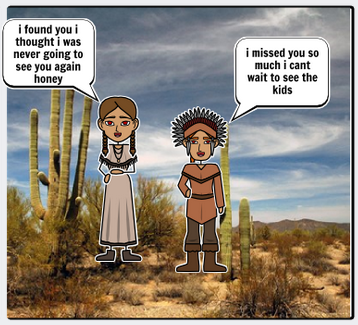
Screen Shot 2015-05-08 at 1.58.37 PMSecond graders at Holladay Elementary have been learning about the Powhatan, Lakota, and Pueblo Indian tribes in Social Studies (SOL2.2), and they’ve been learning how to identify the problem and solution in fictional texts in Language Arts (SOL2.8f). So today students in Ms. Coyle’s and Gardner’s classes created comics about the American Indians and included a problem and solution. First I posted a link to StoryboardThat on their classroom page and instructed them to choose an Indian tribe for their story. Next we discussed problems that the various Indian tribes might have. The students mentioned sickness, war, weather, drought, animals, and more. They had lots of ideas! As the students thought of a problem and solution for their story, I instructed them to look at the different Scenes and find a good setting for the tribe they selected. The “US History” tab has examples of longhouses, tipis, and multi-storied terraced buildings. The “Outdoor” tab has examples of woodlands, grasslands, and deserts. Then I showed them how to find American Indian characters under the “1600s to 1800s” tab and how to customize their skin, hair, eye color, facial expressions, and poses. After the students had their drawings in place, they added speech bubbles and typed sentences explaining the problem and solution. Finally they posted the links to their comics on the Google Classroom page with a question for their classmates to answer. You can take a look at some examples here.


2nd Grade Rock Observations

Yashesh rockSecond graders in Ms. Jefferson’s class at Davis Elementary have been making scientific observations about rocks (SOL2.1k) including their texture, color, and weight. Each student picked a rock, wrote down their observations about it, and today we turned their descriptive words into word clouds. I posted the link to Tagxedo on Google classroom so they could find it easily if they wanted to make another word cloud in the future. With Tagxedo you can pick a shape for your word cloud, so I instructed them to choose a shape that looked like their rock. Then they typed their words into the box and selected a color theme and font (some of them even selected colors that were similar to their rock). We downloaded our finished word clouds, and I taught them how to post their pictures to Google classroom. Since readers of my blog can’t access the classroom pages, I’ve also posted them to a Google doc so you can see them.


Word Sort Spreadsheet

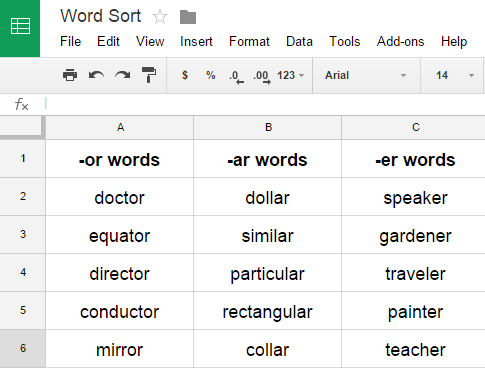
WordSortI’ve been doing lots of spreadsheet lessons this year because most of my schools are focusing on math skills. However, spreadsheets can be used for other things besides math… like word sorts. Most students have to do weekly word sorts, and a spreadsheet is a useful tool for them to keep their word sorts organized. Today I showed some of the 2nd and 3rd grade teachers at Davis Elementary how to do this. Give each student a word sort spreadsheet (you can make a copy of it). If you distribute it using Google classroom, it will automatically be shared with you. Students can do all their word sorts on the same spreadsheet by adding new sheets at the bottom. That makes it very easy for you to manage since you have just one document for each student, and you can access them anytime right in your Google Drive! Students write their column headings at the top, then write the correct words in each category. When it’s time for a new word sort, they would click the arrow in the Sheet tab at the bottom and click Duplicate. They can give their new sheet a name, like Week 3, and delete all the old data by highlighting it and clicking the Backspace key. Now they are ready for a new sort.


2nd Grade Ordinal Numbers

2ndOrdinalsThis year, with the new Dells and new log in procedures, I am encouraging my teachers to use Google classroom. Since all Henrico students have Google accounts now, it provides a great way for them to share their work. Today I showed Ms. Crostic’s class at Holladay how to log into Google classroom and work on their first Google doc (online word processing). My focus this year is on math and writing, so I decided to combine some writing with ordinal numbers (SOL2.2), which is what they are currently studying in math. First I instructed them to search for a picture of a group of objects and insert it into their document (Insert > Image > Search). We discovered that it was better to type the words “line of…” instead of “group of…” when doing the search so we could get an orderly group for identifying the ordinal numbers. After they got their pictures, they wrote questions for a partner to answer such as “Which car is red? What color candy is 6th?” I showed them how to change the font size and color, and we discussed the importance of using capital letters and question marks. Then they switched seats and answered each others’ questions in a different color. Since all their work was posted to Google classroom, Ms. Crostic had a quick and easy way to access them. You can see some student examples here.


2nd Grade Coin Graph & Calculator

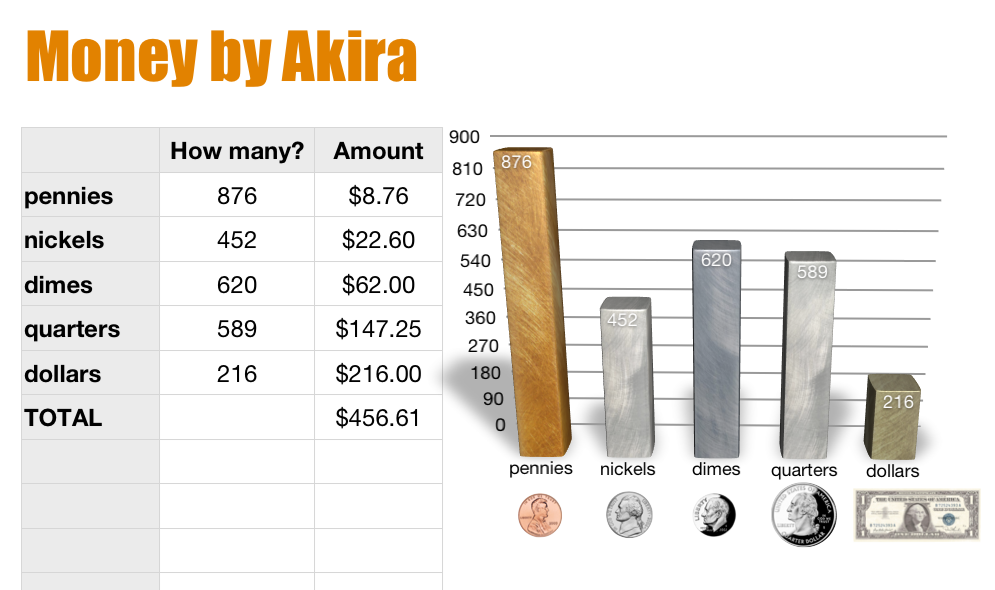
moneySecond graders in Ms. Vest’s class at Davis Elementary have been learning how to count coins and bills up to $2.00 (SOL2.10). But when it comes to money, most kids want to count to the billions and higher! So why not? They can if they create their own calculator based on what they know, which is the value of each coin and bill. I gave them a Numbers template that you can download by clicking here. It has the coins and bills listed in the first column, and the students have to write formulas for calculating the total value based on the number of coins and bills that are entered into the 2nd column. I guided them through the first couple of formulas. For example, the formula to find the value of pennies would be: (NUMBER IN 2ND COLUMN * .01). They caught on pretty quickly and were able to write the rest of the formulas on their own. The template has a built-in graph, but with this class I had them create the graph themselves. You could do that as well by just deleting the pre-made graph. That way, they get practice with not only money, but graphing as well!


2nd Grade Subtraction Animations

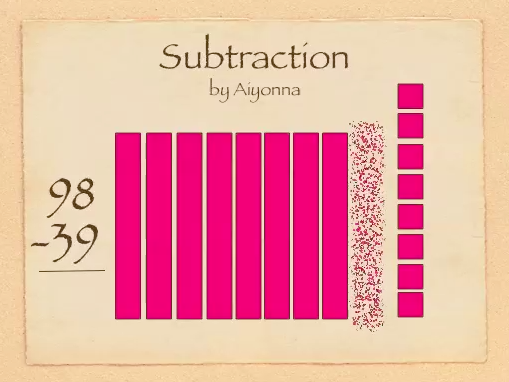
SubSecond graders in Ms. Gardner’s class at Holladay Elementary have been learning the difficult concept of subtracting with regrouping (SOL2.7). Sometimes abstract ideas become clearer when we can visualize them with an animation. It’s even better if we have someone verbally explaining the animation. The best way is to create and explain the animation yourself! So that’s what we did today using Keynote. First we opened up a blank Keynote and I showed them how to add a Title and change the theme. Next, I instructed the students to come up with two numbers less than 99 that would require regrouping to subtract. They added those numbers to their slide with text boxes. Then they used the shapes tool to represent the top number as base-10 blocks (bars for tens and cubes for ones). Now it was time to add the animations. This is where Ms. Gardner and I really got to see which students understood the concept and which ones didn’t. The used the Inspector to add “Build Out” or “Build In” animations to the different bars and cubes. They had to make one ten disappear and ten ones reappear. Next they had to make the correct number of ones and tens disappear to show the subtraction problem. At the end they should have had the same number of base-10 blocks as their answer. They used a text box to make their answer appear, and finally they recorded the voiceovers explaining each step. The students exported their slideshows as a QuickTime video. It was a lot of work for these second graders and took us a couple of days, but they hopefully they have a better understanding of subtraction with regrouping. You can see a couple of student examples here: Giada and Jessie.


2nd Grade Money Websites

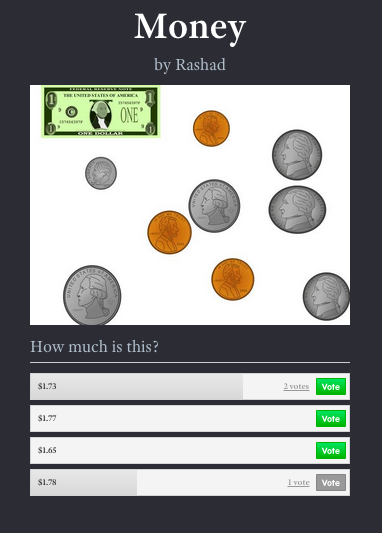
1stMoneySecond graders in Ms. Crostic’s class have been learning about counting money up to $2.00 (SOL2.10). Today they created money websites to practice this skill with their classmates (and anyone else who visits their websites). First they created a money picture using the clip art in Pixie, then they counted the coins and bills in their picture to figure out the total amount. They exported it as a JPG image and saved it to their folder. Next they went to CheckThis, a free site for making quick webpages without having to sign into an account. They changed the title to “Money” and typed their name for the subtitle. Then they uploaded their money picture. They also added a poll question asking site visitors to identify the amount of money in the picture. Finally they changed the theme of their site and published it. I posted all their links to a Google Doc that you can check out by clicking here (and feel free to answer their questions… they love seeing those votes)!


2nd Grade Symmetry Pixie

Screen shot 2014-03-28 at 1.44.38 PMTechnology lessons don’t have to be long and complicated. There is definitely an appropriate place for multi-day projects, but you can also do quick lessons in as little as 30 minutes. Today’s lesson is an example. Ms. Salvo’s class at Davis Elementary has been learning about symmetry (SOL2.15), and Pixie has an excellent tool for making symmetrical drawings. If you click the paint brush tool and then click the Mirror box, it mirrors what you draw. So the students drew a couple of symmetrical drawings and then they added a picture of themselves (because people are kind of symmetrical). You can use the Line tool to identify the line(s) of symmetry. That’s all we had time for since this was a quick lesson, but you could extend the activity by adding some stickers of insects, fruits, or other symmetrical objects and drawing the line of symmetry for those (you’d have to glue the sticker down first though). There are also a couple of cool sites for exploring symmetry. On MathIsFun you can experiment drawing with different lines of symmetry and on PicHack you can see if your face is symmetrical.


Tags:


2nd Grade Ancient China Comics

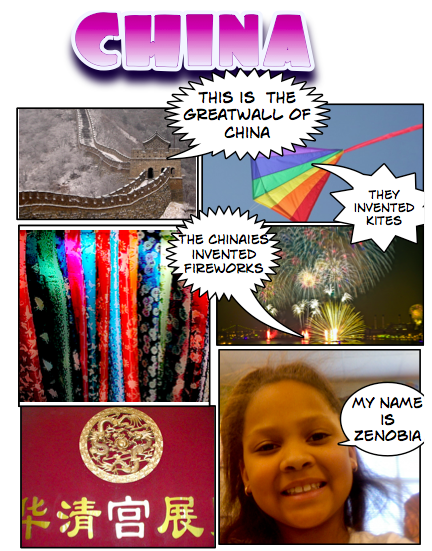
Screen shot 2014-03-26 at 9.12.03 AMSecond graders in Ms. Street’s class at Laburnum Elementary have been learning about ancient China (SOL2.1), and today they created a comic book about the famous places and inventions of this incredible civilization. They started with a blank Comic Life document. I showed them how to add a fancy title and change the style, then they dragged over six panels. I gave them a folder of pictures to use that you can download by clicking here. They added 5 pictures of their choice and then took pictures of themselves for the 6th panel. I showed them how to change the style of the photos to make them look more comic-like. Finally we added speech bubbles, and the students typed in sentences to give facts about each picture. I combined all their comics together into one comic book and published online here. If you are studying ancient China, there are lots of great resources online. You can watch a video about how they invented gunpowder here. You can take a virtual tour of the Great Wall and see a panoramic view of it here. I also made a Google map here where you can zoom down and see part of the Great Wall.


2nd Grade Famous Americans Animations

Screen shot 2014-03-25 at 12.57.03 PMSecond graders in Ms. Arnold’s class at Holladay Elementary have been researching famous Americans, and today they created speaking animated characters to share their information. First they drew their famous American in Pixie and typed his or her name. I showed them how to use the 3D brush to make “googly eyes” so their character looked more “cartoonish.” Next we had to make the mouth appear like it was talking. To keep it simple we just added two different mouth shapes. We duplicated the picture and redrew the mouth so that it was in a long shape for making the “ee” sound. Then we duplicated the picture again and redrew the mouth so it was in an O shape for making the “oh” sound. We exported all the pictures as PNG files and saved them to our folders. Next the students went to Voki to create the voice. They clicked the “TTS” button (text to speech) and typed in some factual sentences for their famous American to say about themselves. The fun part was choosing an accent! The students saved their Voki links to their folders as well. That was all we had time for, so it was my job to put the voices together with the drawings. I uploaded the 3 drawings of each character to Glickr in order to make an animated GIF. Then I clicked the link to their Voki. As the GIF and the Voki were playing at the same time I recorded it with Screencast-O-Matic. Take a look at a couple of student examples: Helen Keller by Alana and Susan B. Anthony by Hayden. I uploaded them all to a Google Doc that you can view here.