Category: 1st Grade

1st & 3rd Grade Migration Pixies
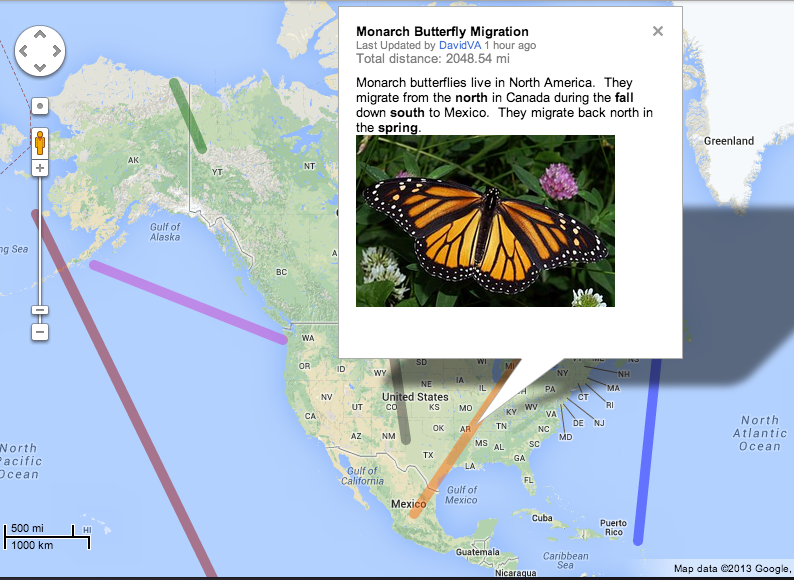
migrationmapFirst (SOL1.7) and third (SOL3.4) grades are both learning about migration at this time since it’s the fall. So I’ve been doing research projects with both grades and we’ve been using Pixie to present our findings. First students selected an animal that migrates (monarch butterfly, wildebeest, caribou, whale, salmon, etc), then they went to PebbleGo to research their animal. PebbleGo is a great site for elementary research because it’s easy to navigate, it uses simple vocabulary, it has lots of pictures and videos, and it can even read the text to the students. I wanted the students to also see how far the animals traveled on a map, so I created a Migration Google Map, where the students could click on a line and see a picture of the animal and read about its migration route. After the research part was finished, students opened a Pixie, added a sticker of the world map and a sticker of their animal, and then drew a line to show the animal’s migration path. Next they recorded their voices telling about the amazing journeys their animals make. Third grade was also able to animate their animals so they moved north to south. Check out a third grade student example here. You can download a Pixie template for this lesson by clicking here.
Tags:


1st Grade “Animal” Tracking

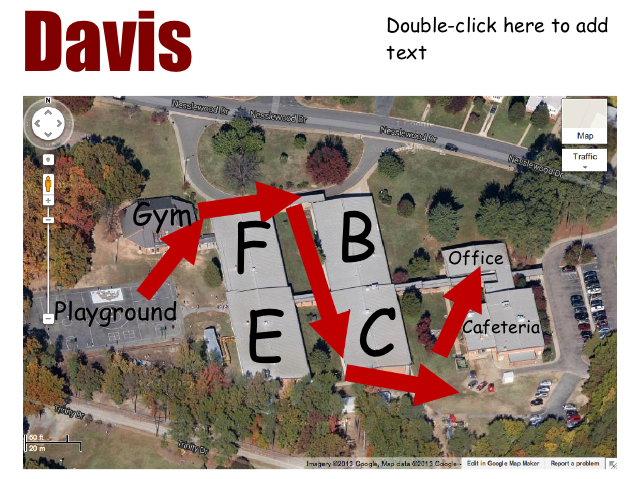
teachertrackingFirst grade students at Davis Elementary have been learning about animal migration (SOL1.7) and we discovered that scientists learn about where animals migrate by attaching tracking devices to them. We discussed why scientists wouldn’t be able to directly observe where the animals went (some swim, some fly, and some travel faster than a scientist can!) Here’s an example of a map scientists created after attaching tracking devices to blue whales: National Geographic: Mapping the Blue Whale Migration. So today, the first graders were “mini-scientists” and tried tracking some “animals” using the iPads as tracking devices. We attached the iPads to their hungry teachers who migrated around the school in search of food. When the teachers returned from their journey we examined the photos on their devices and tried to figure out where they went. I gave the students a map of their school in Pixie (see photo) and they used the arrow tool to draw their teachers’ migration routes. If you are up for a greater challenge, you could send the students out to migrate with the iPads. We just weren’t ready for that yet!


1st Grade Five Senses Comic

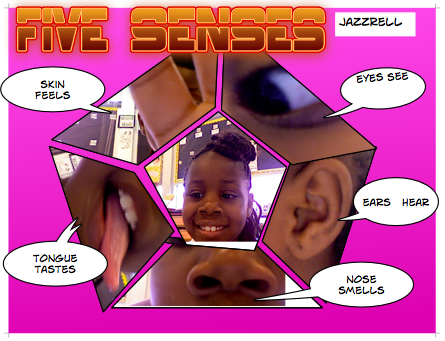
PastedGraphic-5Today first grade students at Laburnum Elementary used Comic Life to make posters about the five senses. I created a template to get them started that you can download by clicking here. First I showed them how to change the Style of the title. It’s always amazing to see how much excitement that simple task creates. Then we turned on the cameras and took pictures of our faces to put in the middle. For the next part, students had to recruit a friend to press the Freeze button while they got their faces in the correct position to photograph their ears, eyes, noses, mouths, and hands. Then I showed them how to add speech bubbles to each part to tell what it does. That was the most difficult part, but most of them typed the words themselves which is really great this early in the school year! You can see their finished comic book by clicking here.


Skyping in 1st Grade

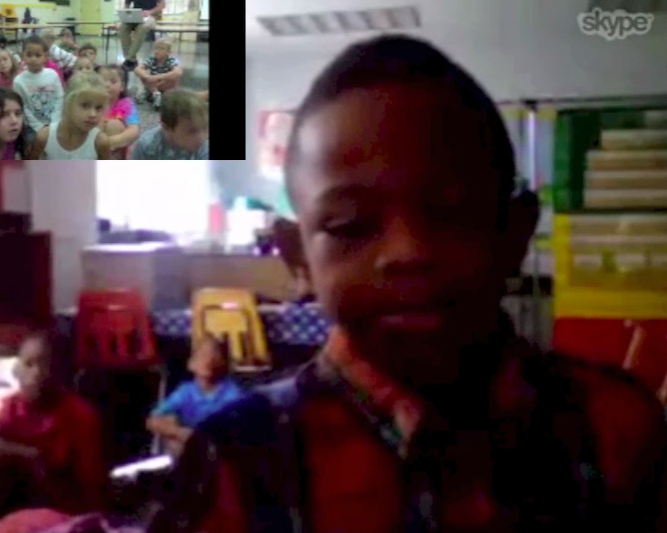
Screen shot 2013-11-22 at 11.29.27 AMMs. Long’s first graders at Davis Elementary have been Skyping (video conferencing with Skype) already this year! What a great way to begin. Today they Skyped with another 1st grade class and compared their classroom rules and routines to see how they were alike and different. They learned a valuable lesson, that you can get good ideas by collaborating and communicating. Next they are planning to Skype with a community helper since they will be learning about communities and citizenship (SOL 1.6 & 1.12). He’s an EMT (Emergency Medical Technician) that is related to Ms.Long. The students don’t know what his job is though. They have to come up with “Yes” or “No” questions to figure out what he does. I’ve only known Ms. Long for a few weeks since Davis is one of my new schools, but I can already tell that she has fantastic ideas to get her students engaged in learning and technology. I’m hoping to do more Skype sessions with her class and other classes this year!


Tags:


Kindergarten & 1st Grade Flower Animations

amberKindergarteners and 1st graders at Holladay have been learning all about plants and flowers and how they grow in the spring (SOL K.9 & 1.4). So today I tried two different ways to create animations with them. In Kindergarten we used a site called ArtPad. It records the painting process from start to end, so students painted their flowers in the order they grow: first the seeds, then the roots, stem, leaves, and flower. We also labeled the parts. When you click on the students’ pictures, you can see the animation and it looks like the flower is growing! You can also speed it up or slow it down. Check them out by clicking here. In first grade we used a site called ABCYa! Animate. It was a bit more complicated because it was a frame-by-frame animation. The nice thing about this website though is that you can duplicate frames (pictures) so the students don’t need to draw them over each time. First we drew the background with the things plants need (soil, sky, sun), then on each picture we added the different steps: a seed falling into the soil, roots growing out of it, then a stem, leaves, and finally the flower. We also labeled the parts. You can see all their animations by clicking here.


1st Grade Spring Comics

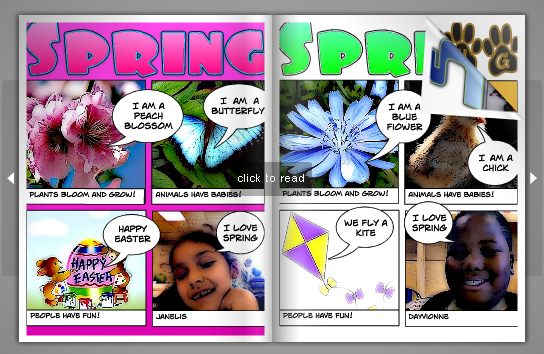
springFirst graders in Ms. Middleton’s class have been studying the Spring (SOL 1.7), and she wanted them to learn how to use Comic Life. So today we made spring comic books. I gave them a template to use which you can download by clicking here. I showed them how to change the style of the title, and we discussed what needed to go into each panel. We talked about what kinds of pictures they could search for to show what plants, animals, and people do in the spring. I put a word bank on the board (types of flowers, color words, baby animals, spring activities, etc). Then the students did Google image searches for their pictures and dragged them into the panels. I showed them how to change the style of the pictures to make them more comic-like. Then they typed simple sentences in the speech bubbles to tell about their pictures. I also wanted them to know about another way to get pictures into Comic Life by using the built-in camera, so they took pictures of themselves and put those in the last panel. I combined all their comics together into one PDF document and uploaded it to FlipSnack. You can see the final comic book by clicking here.


1st Grade iPad Flowers

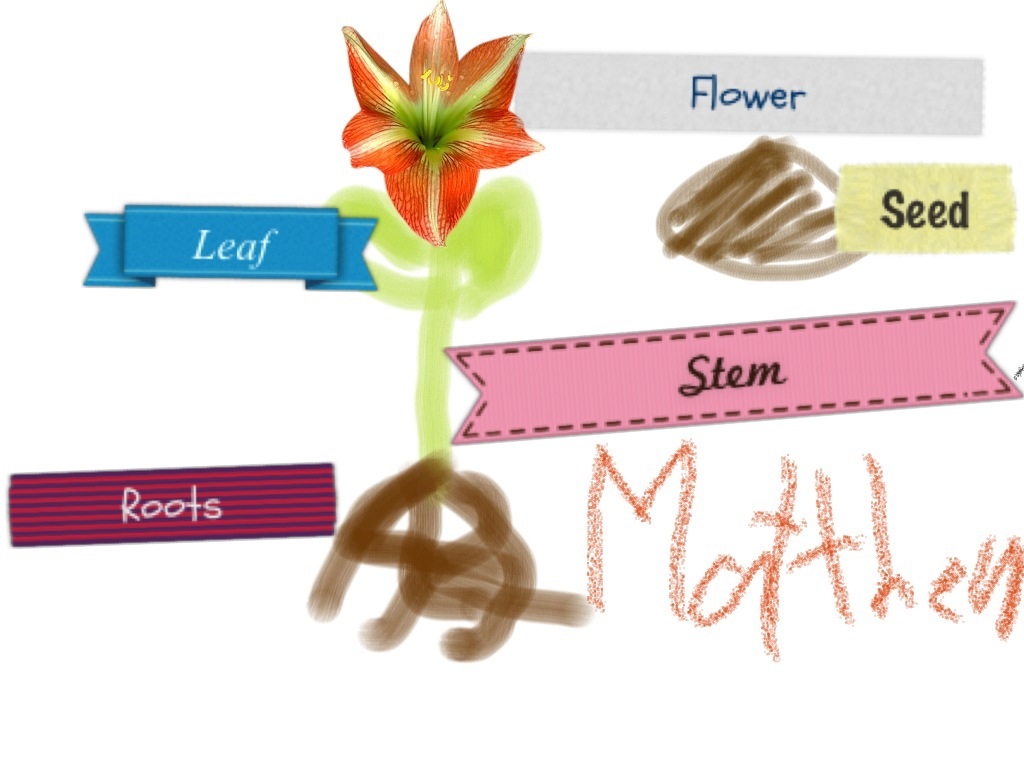
image_25First graders at Chamberlayne have been learning about the parts of a flower (SOL 1.4) and their teachers wanted to try something new with the iPads. We combined their classroom iPads together so we had enough for each student, and we used 3 different apps to make labeled diagrams of flowers. First the students could use the Camera app or the Drawing Box app to take a picture of a flower or draw their own picture. The teacher took the students who wanted to take a picture outside, and I worked with the ones who wanted to use Drawing Box. They had to include the roots, stem, leaves, flowers and maybe seeds. Since the pictures were all saved to the Camera Roll, we could access them from the Labelbox app. The Labelbox app allows you to add colorful labels to pictures. The only part that was confusing for the students was that if you drag the label the wrong way, the text is upside down! But they were able to label their pictures and we posted them all online to a site called CoMemories. It’s a great way to share projects from the iPads. You can see them all here.


ActivEngage in 2nd Grade

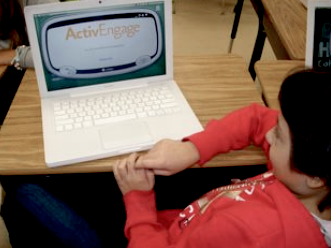
activeRecently I have been training the staff at my schools how to use the ActivEngage software. It turns the cart laptops into a student responders so that teachers can get instant feedback. You can learn more about it here. I’m happy to do a demo lesson in your class if you’d like to see it in action. Today I showed 2nd graders at Laburnum how to use it. I asked them a few questions about the famous Americans they’ve been studying (SOL2.11) using a simple GoogleDoc but then I sent them to TodaysMeet to generate their own questions. You can see some of their questions here. Even though ActivEngage works with ActivInspire flipcharts, you can actually use anything (PDFs, Word documents, websites, etc) to display the questions you want to ask. You just need the ExpressPoll program to be open so that you can receive the students’ input. Another free option that’s available if you want to implement a student response system in your class is to try Socrative. You set up a quiz on the website, and then then your students log in with the link to your class. They can respond in many different ways and even play online competitions.


1st Grade Community Maps

samplemap1Today 1st grade students at Chamberlayne Elementary created their own community maps using ScribbleMaps (SOL1.4 & 1.5). Since I knew it would be kind of tricky for 1st graders to find their school on the map, I put a direct link to it in their classroom folder on the computers. With ScribbleMaps, there’s no log in so we could get started right away. First we talked about what we saw on the map and how it showed their community from above. We located their school and the different parts (playground, bus loop, cafeteria, their classroom, etc.), and we also located the nearby shopping center. I showed them how to select a color and size for the marker tool and they drew on the roads. Then we clicked the “Create a Legend” link in the top left, and they added a colored line to the map key identifying it as a road. Next we discussed how maps often use symbols for places, so we clicked on the “Place Marker” tool and added a symbol of a school to our maps (it can be found in the Places folder under “Geology/Locations”). We also added that same symbol to our map key. Finally we went to the folder called “Places-High Detail” and found a symbol of our choice to represent the shopping center. We added that to the map and to our map key. Each symbol on the map has a label so we labeled the school “Chamberlayne Elementary” and the shopping center “Dollar General.” Some students went on to add descriptive sentences (photos can also be added to the labels). Since I wanted to publish all of their maps to one page for easy access, I created a form for them to copy and paste their links (I had to help with this). Then I published the results here.


1st Grade Pictures of the Past

PastLearning the difference between the past and present (SOL 1.1) is a difficult concept for first graders to understand since they have little to no experience of life in the past. Providing lots of opportunities to see and hear about the past through videos, stories, and pictures is essential for helping them understand the differences. So today first grade students in Ms. Edmonds’ class at Holladay Elementary created pictures about the past using Kerpoof. Pixie would be another good option, but this class already had lots of experience with Pixie, so they wanted to try something new. Kerpoof has a relatively large collection of clip art, and many of them relate to life in the past. First we chose “Create a Picture” and they selected a background for their picture. We discussed which backgrounds would be good for the past (nature scenes) and which ones would not (cities, schools, sports fields, etc). Then the students added clip art to their pictures. We focused on family life and transportation. I gave them a few words they could search for in order to find good clip art (cabin, past, horse, wagon, pilgrim work well). If they couldn’t find a particular picture, they could draw their own. To practice this, all the students drew a fire and added it to their scene. Another cool feature of Kerpoof is that each clip art object has a speech bubble icon that can be used to make the object “talk” or to create a label. Some of the advanced students were able to use that feature. Finally we posted the pictures online so the students could see each others’ scenes. They could then use these pictures to write a story or they could contrast them with pictures from the present.