Category: Social Studies

3rd Grade Animal Rules & Laws
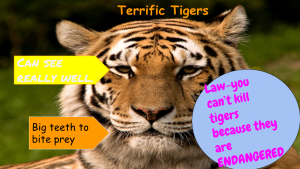
Third graders at Holladay Elementary have been learning about the difference between rules and laws in Social Studies (SOL3.10a), and they have been studying animal adaptations in Science (SOL3.4). So today students in Ms. Whittaker’s class created slideshows that identified animal adaptations and also included a rule or a law about that animal. First they opened a blank Google slideshow, and I showed them how to add a background image of their animal. Next we added some shapes to point out different features on the animal (Example – deer have antlers to fight with). If the students needed to do some research, they could open a new tab and do a quick Google search. I demonstrated how to change the color and type a fact in each shape. Then we added another shape and typed in a rule or a law about the animal (Example – Rule: Don’t feed the deer; Law: You can only shoot two deer with antlers per season). Finally, we used the Transitions button to add animations to the shapes. Students shared their slideshows on Schoology, and you can see them all here.


4th Grade Graphing Virginia Resources

Fourth graders at Laburnum Elementary have been learning about graphing in Math (SOL4.14) and Virginia natural resources in Science (SOL4.9), so today students in Ms. Waltz’s class researched and graphed Virginia products. First I shared two websites for research: Virginia Farm Products & Virginia Minerals. These sites provide the amount in dollars or tons for each resource. We discussed why the units were different (it wouldn’t make sense to compare farm products in tons because of their different sizes: cows weigh a lot more than chickens). Next we opened a Google spreadsheet and wrote “Product” in Column A and “Amount in (tons or dollars)” in Column B. They had to choose the unit that corresponded with their products. Then they typed three products of their choice in Column A and entered the amount of each in Column B. Now that they had entered their data, it was time to graph it. Google Sheets has a new “Explore” feature that can be accessed by clicking the star shaped icon in the bottom right corner. They chose a color scheme from the pop up menu and added the graph to their spreadsheet. I also showed them how to change the color of the bars (click on a bar and choose a color from the side menu). Finally we shared our spreadsheets on Schoology so we could learn from each other. Click here to see all their graphs (UPDATE: I did the same lesson with Ms. Dowling’s class on 9/27, so those have been added as well).


4th Grade Mapping the Hurricanes

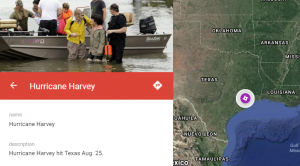
Fourth graders at Holladay Elementary have been learning about weather in Science (SOL4.6) and maps in Social Studies (SOL4.1), so today students in Mr. Rivara’s class created Google maps showing this season’s hurricanes. The 2017 hurricane season has been rough, with Hurricane Harvey hitting Texas at the end of August, and Hurricane Irma currently hitting Florida! First I showed them a few webtools that are great for tracking hurricanes: Earth and Meteoearth both show wind directions across a 3-D globe, while Windy shows wind directions on a flat map. Next, we went to My Google Maps and created a new map. I showed them how to add a marker to show where Hurricane Harvey hit in Texas. We added a title and a descriptive sentence with a fact about the hurricane. The students had to do some quick research to get their fact by opening a new tab and typing “Hurricane Harvey” in the search box. I wanted them to find a fact with a number, since they are learning about place value in Math (SOL4.1a). Finally, we added a photo of the hurricane, and I explained how to customize the marker by changing the color and icon. We had time to add one more marker for Hurricane Irma. They will continue using the map to track other hurricanes this season. You can see all their maps here.


5th Grade Virtual Tours of U.S. Regions

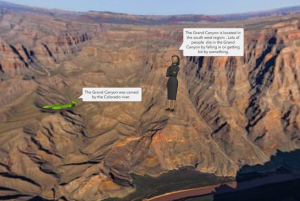
Fifth graders at Holladay Elementary have been learning about the different regions of the United States, so today students in Ms. Sharpe’s class created virtual tours of the U.S. regions using CoSpaces. First, the students selected a region from the five possible choices: northeast, southeast, midwest, southwest, and west. Next, they used their notes and the Internet to research important facts about their region. I also instructed them to find and download a 360 degree photo of an interesting place in their region (search place name + 360 – NOTE: a 360 degree photo will appear somewhat curved). Then we were ready to start creating our virtual tour. We signed into CoSpaces with our Google accounts and created a new project. We clicked the Environment button at the bottom to upload our 360 degree background photo. I showed them how to add 3-D people and objects using the Library. In order to customize the objects’ positions, poses, sizes, and colors, we right clicked on them and selected the appropriate buttons from the pop-up menu. The students added speech bubbles to explain important facts about their regions. We tested our VR scene by clicking the play button (you can move around the scene by clicking and dragging or using the arrow keys). If students weren’t satisfied with where the camera view started out, I showed them how to adjust that with the “Special” button in the Library. Finally we clicked the “Share” button at the top and copied our links into Google classroom so we could view each other’s tours. You can see them all here.


Tags:


5th Grade Review with Chatbots

Fifth graders at Holladay Elementary have been reviewing for exams, so today students in Ms. Neal’s class created review questions for each other in the form of a chatbot. A chatbot is an online virtual assistant that you’ve probably already had interactions with if you’ve used the chat feature on a business website. The chatbot is programmed to ask you questions and give replies based on your answers. We used a website called Fobi.io which turns any Google form into a cool-looking chatbot. First we created the Google Form by going to our Google drive and choosing New > More > Google Forms. I explained that the first question should be: “What is your name?” Then the students had to come up with two multiple choice educational questions about any topic they’ve learned about this year in 5th grade (we brainstormed a list of topics, in case they had trouble remembering). They could also create additional questions of their own if they had time. We published our forms by clicking the “Send” button and copied the link. Next we went to Fobi.io and pasted the link to our form. Now we could program the chatbot Fobio to reply to each of the questions. For example, if an answer was correct, he could say, “Great job!” or if it was wrong, he could say, “Try again!” The students were very creative in their responses. You can take a look at some of their chatbots here.


4th Grade VR Review Worlds

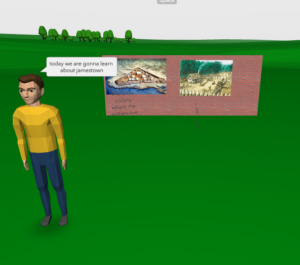
Fourth graders at Laburnum Elementary have been reviewing for their upcoming SOL Tests, so today students in Ms. Mauck’s class created virtual-reality review worlds about a topic using CoSpaces. First, we reviewed different topics to get them thinking. They’ve learned about motion (SOL4.2), electricity (SOL4.3), plants (SOL4.4), animals (SOL4.5) weather (SOL4.6), space (SOL4.7), Virginia history (Virginia Studies), and more. There were plenty of topics to choose from! Next, we signed into CoSpaces with our Google accounts. I showed the students how to choose a background image (you can also upload your own 360 photo as a background image). Next we went to the Library (at the bottom) and added a person. The older objects are currently more customizable than the newer (low-poly) models. I showed them how to click on an object to resize or raise it using the buttons that appear above it (you have to click and drag the actual button). You can also rotate objects with the rotate button. To customize the object, we right clicked on it and changed the colors or typed something for it to say. We also made walls using the “Building blocks” in the library. Students added photos of their topic to the walls by clicking “Web image search,” then right clicking the image to make it a “Panel,” and attaching it to the wall with the “Attach” button. CoSpaces even has a coding feature, but the students didn’t have time to use that (look at my example to see some coding features). Finally, we published our projects and pasted the links to Google classroom so everyone could explore our virtual worlds for review. You can take a look at them here.


Tags:


3rd Grade Mali Comics

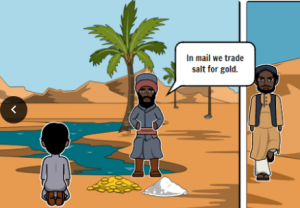
Third graders at Varina Elementary have been learning about the Empire of Mali (SOL3.2), so today students in Ms. Galvin’s class created comics about Mali using StoryboardThat. First we reviewed what they learned, and I wrote a word bank on the board: Africa, empire, Mali, gold, salt, trade, route, pilgrimage, Mansa Musa, Sundiata, Niger River, griot, Timbuktu, Sahara, etc. Next, we went to StoryboardThat, and I showed them how to search in the Scenes for background images that look like Mali. We compared the images from the American southwest desert with the ones of the Sahara Desert so they wouldn’t pick the wrong kind of desert. Next we searched the Characters for people that looked like the people of ancient Mali. I did a Google image search to show them how the people really dressed. I also demonstrated how to customize the characters by changing their skin colors and poses. Finally we added speech bubbles from the Textables, and students wrote complete sentences with facts about Mali. Since our students cannot have accounts (they are under 13), we saved our comics by taking screenshots using the Snipping Tool. Then we uploaded them to a shared Google folder so we could read each others’ comics. You can take a look at all of them here.


3rd Grade 3D Shapes on the Earth

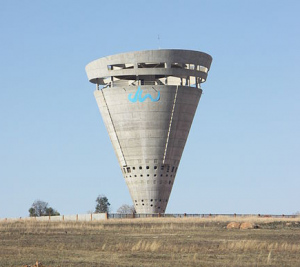
Third graders at Laburnum Elementary have been learning about plane (2D) and solid (3D) figures in Math (SOL3.14). Today students in Ms. Ford’s, Ms. Forrester’s, and Ms. Collins’ classes found examples of these shapes using the new web-based Google Earth. Google Earth is pretty awesome, and this is attested by the Oooh’s and Ahhh’s I heard in every classroom as the students opened it up. Many of the cities are in 3D so it’s perfect for finding real-life examples of the 3D shapes (if you want to see which places are in 3D here is a downloadable KMZ file from the GEarth Blog). However, while rectangular prisms and cubes are fairly easy to find, other shapes like cones and spheres are more difficult. So I created a KMZ file that the students downloaded (you can download it here or see the map here). Then in Google Earth, the students clicked the gear (settings) to allow KMZ uploads and went to Bookmarks to upload my KMZ file. Now all the places were available to the students by clicking on the folder in their bookmarks (click the eye icon to make them visible or invisible). First we explored shapes in Richmond. The students were surprised to find out that there is a pyramid right here in Richond! I showed them how to take screenshots of the places they found and save them. Then I let them explore and try to find examples of each shape on their own. We uploaded our screenshots to a Padlet to share with our classmates. You can see them all here: Forrester, Ford, Collins.


3rd Grade Explorers Spreadsheet & Map

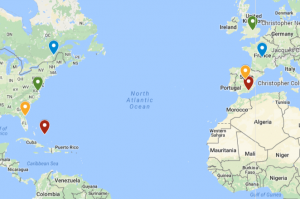
Third graders at Laburnum Elementary have been learning about the first European explorers in the New World (SOL3.5c,d). Today students in Ms. Burgess’ class learned how to enter data about the explorers into a spreadsheet and upload it into a Google map. I gave each student a copy of an “Explorers Spreadsheet” (you can make a copy of the spreadsheet here). The explorers’ names are already on the spreadsheet, but students had to do research to enter the remaining information – sponsor country, final destination, and length of trip. For the length of the trip, we first tried finding the mileage of the trip, but realized it was easier to find the length of the trip in days. We were surprised by what we discovered in our research because the lengths of the various trips were very different from our initial predictions. After we entered the data, we highlighted it all and clicked the graph button to make a bar graph. Next we went to “My Google Maps” and clicked the “Add Layer” button. We imported our spreadsheet from Google Drive and checked off “Sponsor” for the placemarks and “Explorer” for the label. Then Google maps automatically created the placemarks in the correct spots. To create an additional set of placemarks for the destinations, we repeated the steps above, but checked off “Landed” for the placemarks. Finally, students could customize the placemarkers by changing the colors and adding photos. You can see a sample spreadsheet here (they were all pretty much the same) and a sample map here.


5th Grade Midwest Region Comics

Fifth graders at Trevvett Elementary have been learning about the regions of the United States this year, and they are currently focusing on the Midwest Region. Today students in Ms. Adamonis’ class created comics about the Midwest using StoryboardThat. First, we spent a few minutes researching the Midwest (SOL5.9). I encouraged them to look for interesting facts that their classmates may not already know. Some key words to use in search engines are: midwest + interesting facts, fun facts, interesting places, landmarks, trivia, etc. We also discussed how to double check their facts and evaluate the reliability of websites, since we found some “facts” that weren’t true (like roller skates weren’t actually invented in the midwest as this site claimed). Next, the students chose three of the most interesting facts to illustrate in their comic. We went to StoryboardThat and created a new comic with three panels (one for each fact). I explained that they should create their comic like a storyboard for a tv show or a documentary. The students chose different backgrounds and characters and customized them using the blue “Edit” button. Then they added speech bubbles (textables) and typed the facts they discovered in their research. Finally, we took screenshots of our comics and uploaded them to CoMemories. We have been using Schoology albums to share our work, but we found that comics do not display large enough in this format, so that’s why we chose CoMemories instead. You can see all their midwest comics here.