Category: Math

5th Grade Comparing Virginia Rivers
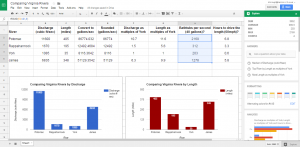
Fifth graders at Laburnum Elementary have been reviewing the rivers of Virginia (VS.2c) and watersheds (SOL4.9) in Social Studies and Science. They have also been multiplying decimals in Math (SOL5.5a). So today students in Mr. Hofilena’s class used those skills to compare Virginia Rivers. First we discussed ways to compare the rivers. Everyone agreed that we should compare the length, but I also suggested comparing the discharge. Discharge is the amount of water flowing down the river, measured in cubic feet per second. We discussed factors that influence discharge: river depth and width, rainfall, and the velocity of the current. Next I gave them a Google Sheets template that you can copy here. The students had to do their own research to find the length and discharge for each river (Google “River name length” and “River name discharge”). They entered the data into the correct cells on the spreadsheet (using only numbers, no units). Then I showed them how to highlight the data and analyze it using the new “Explore” button in the bottom right corner. We used the Insert Chart button (top toolbar) to create graphs of the data. It was interesting to see how the length compared with the discharge. For example, the Rappahannock River is almost 6 times the length of the York, but its discharge is only 1.5 times that of the York. What does that tell us about the two rivers? We didn’t have time to do further comparisons, but I’ve added them to the template. You could convert the discharge to gallons per second with a formula (CELL*7.48052). Then convert that to bathtubs per second (the average bathtub holds 40 gallons) to help students visualize it better. You could also figure out how long it would take to drive the length of the river by dividing the total miles by 60 (assuming you are driving 60 MPH). You could even compare the rivers using the York as the unit. Take a look at a sample here.

4th Grade Data Collection

Fourth graders at Holladay Elementary have been learning how to collect, organize, display, and interpret data from a variety of graphs (SOL4.14), so today students in Ms. Tonello’s class used the new Google forms to collect data. I’ve taught similar lessons in the past, but since then Google has added some cool new features. You can now add photos to each individual answer choice, you can mark answer choices correct or incorrect (for grading purposes), and there are new ways to explore your data. We tried out a couple of these features today. First, the students came up with topics they were interested in for collecting data. Since it’s the day after Halloween, many students chose topics relating to that. Next they signed into their Google drives and created a new form (click Create > New Form). They typed a title and a question for their classmates to answer. Some students added photos for each answer choice (click the photo icon). We published our forms and posted the links to Google classroom (click the Preview button to get the link). After the students responded to each others’ forms, they clicked “Responses” on their own form templates. This showed a quick pie chart of the results, but Ms. Tonello wanted them to create bar graphs, so we clicked the green button at the top to export the data to a spreadsheet. The spreadsheet doesn’t automatically tally the number of votes for each answer choice, so the students had to do that calculation. Then they highlighted the tallies, clicked the graph button, and created a bar graph of their results. Google Sheets has a new “Explore” button in the bottom right corner that lets you explore your data in a variety of ways. We didn’t get that far, but you can take a look at their forms here.


Tags:


1st Grade U.S. Symbols Patterns

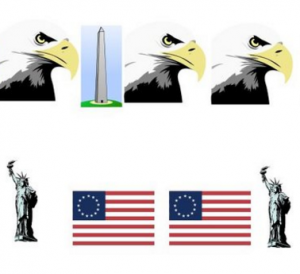
captureFirst graders at Trevvett Elementary have been learning about patterns in Math (SOL1.17) and U.S. symbols in Social Studies (SOL1.11), so today students in Ms. Lucas’ class created patterns with U.S. symbols using Pixie. First I showed them how to add a text box by clicking the blue T, and they typed their names with a capital letter. Next we clicked the Stickers button and searched for the Symbols folder (it has an orange exclamation point on it). Inside the Symbols folder, there is a folder of American symbols. There are stickers for the four symbols the students have been studying: the American flag, the bald eagle, the Washington Monument, and the Statue of Liberty. I showed the students how to click and drag the stickers onto their document and create a pattern. As they finished their patterns, we exported them using the Export button, and I uploaded them to a photo sharing site called CoMemories. You can see them all here.


Tags:


4th Grade Bordering States Place Value

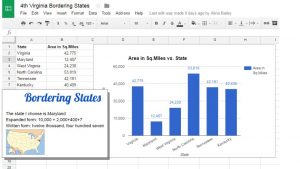
border-place-valueFourth graders at Holladay Elementary have been learning about the bordering states in Social Studies (VS.2a) and place value in math (SOL4.1a). Today students in Ms. Zimmerman’s class found the place value of the sizes of the bordering states. I posted a template to Google classroom that you can download here, and I set it so that all the students could edit it. Then I instructed them to research and find out the size of each state. The first student to find the answer wrote it in the correct cell (I explained that it’s like a race, but if they see a color in the cell, that means someone else is already in that one). We discovered that the quickest way to find the answer is to Google “size of [state name].” The template automatically creates a graph of the data. You can see their finished graph here. Next they opened a blank Google doc and selected a bordering state to write about. I showed them how to import the graph (Insert > Chart > From Sheets), and they wrote the area in written form and expanded form. You can take a look at a student sample here.


5th Grade Scientific Method

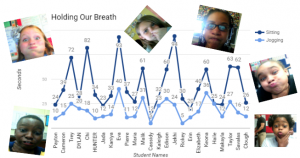
captureFifth graders at Varina Elementary have been learning about the scientific method in Science (SOL5.1) and nonfiction text features in Language Arts (SOL5.6a). To reinforce those concepts, students in Ms. Rumans’ and Ms. Gallahan’s classes conducted a quick experiment and wrote about the scientific method they followed, including some nonfiction text features. First I made a copy of a blank Google doc for each student in Google classroom. I usually like to review word processing skills for my first technology lesson. I showed them how to add a title and change the font, size and color. Then we wrote about our experiment using the vocabulary words we have learned: hypothesis, independent variables, and dependent variables. I demonstrated how to make the important words bold (a feature of nonfiction text). Next we opened this template (I changed the Share settings to “Anyone with the link can edit”) and each student typed their name in column A using the row with their student number. First we timed how long we could hold our breath while sitting quietly using Google stopwatch (just do a Google search for “stopwatch”). Then we ran in place for a minute and timed how long we could hold our breath. Students recorded their times in columns B and C. The template automatically generates a line graph. After collecting our data, the students went back to their own Google docs and clicked Insert > Chart > From Sheets. They navigated to the spreadsheet we just completed and clicked on the graph. Finally we added a photo of ourselves holding our breath by clicking Insert > Image > Take a snapshot. I linked their individual documents to their names on the spreadsheet. You can check out Ms. Gallahan’s class results here.


5th Grade Perimeter

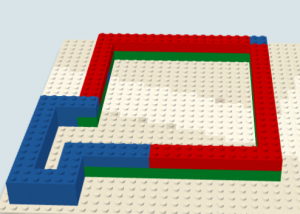
CaptureFifth graders at Varina Elementary have been learning how to find the perimeter of shapes (SOL5.8a), so today students in Ms. Shiew’s class created shapes out of virtual building blocks and asked their classmates to calculate the perimeter. First I posted a link to Build with Chrome on Google classroom. This is a great site for anyone who loves Legos (which means everyone in the world). Students could select different colors and sizes of bricks to build their shape. I explained that they would have to figure out the perimeter of their own shape before asking their classmates to do it, so they shouldn’t make it too complicated. Once the students finished building their shape, we took a screenshot of it (using the Snipping Tool on the Dell Start Menu). Then I posted a link to CheckThis on Google classroom, and the students created a simple webpage and uploaded their pic. Next they added a poll to their webpage and listed some possible perimeters, including the correct one. We used the knobs on the bricks as our unit of measurement. Finally the students published their webpages and posted the links to Google classroom so their classmates could figure out the perimeters of their shapes. You can see their projects here.


1st Grade Coin Values

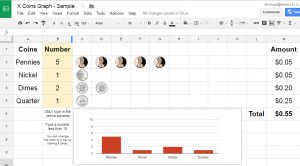
CaptureFirst graders at Laburnum Elementary have been learning how to find the value of coins up to $1.00 (SOL1.7b) and understand picture graphs (SOL1.14). Today students in Ms. Wingfield’s class practiced these skills using Google docs. First, to review the values of the coins and picture graphs I gave them a spreadsheet that you can copy here. Students can enter a number of coins (less than 10) in the colored squares, and the spreadsheet automatically generates a picture graph and provides the value. You can see a sample here. Once the students had experimented with the spreadsheet, they opened a Google slideshow template that I posted to Google classroom (you can make a copy here). They typed their name on the first slide, and on the second slide they had to type an equivalent coins statement (like “5 pennies = 1 nickel”). Then they could make copies of the coin images they needed to show their equivalence, and they could delete the ones they didn’t need. You can see a sample here.


5th Grade Shapes & Angles

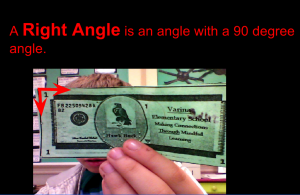
CaptureFifth graders at Varina Elementary have been studying angles (SOL5.12) and plane figures (SOL5.13), so today students in Ms. Parker’s class created slideshows about shapes and angles found in real life. I posted a blank Google slideshow template in Google classroom and made a copy for each student. For the title page we searched for a good background image to represent shapes. On subsequent slides, the students wrote sentences about angles and shapes, typing the important words in bold. Then they clicked the image button and either took a photo with the webcam or searched for an image online representing the geometric concept. Next they clicked the Shapes button and added arrows or shapes to highlight the relevant part of the image. The students also added transitions and animations to their slideshow. We only had time in class to make the first slide, but the students went on afterwards and added additional slides. You can see them all here.


4th Grade Coding Shapes

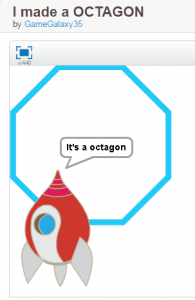
CaptureFourth graders at Davis Elementary have been learning about polygons (SOL4.12) and angles (SOL4.10), so today students in Ms. Bennett’s class used their knowledge of angles to create polygons using basic coding skills. Teaching students about coding is an important skill that is being emphasized more and more. Not only is it practical, but it also trains the brain in logical and sequential processing. I posted a link to Scratch on Google classroom, which is an excellent site for teaching elementary students how to write basic computer code. I helped them set up their accounts, and we used the teacher’s email for confirmation. Then we signed in and clicked “Create” to start our project. I did an example first, showing them how to use code to create a triangle. We discussed pixels (for the length of the sides), angles (for the corners of the shape), and position (for returning to the beginning). First I wrote a long code, programming each side and angle, then I asked if they thought there was a simpler way. Some of them figured out that they could use the loop feature to handle some of the repeated commands. Now they were ready to create their own shapes. We started by making a custom sprite (click “New Sprite” and choose file, drawing, or camera). The the students used the coding blocks to make their shape. They could create any polygon with less than 10 sides. They also added a speech bubble at the end for their sprite to say the name of the shape they created. When they were finished, they shared their projects on Google classroom. You can see them all here. Be sure to click the “See Inside” button to take a look at the code.


Tags:


2nd Grade Menus

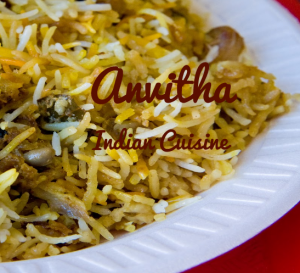
CaptureMs. Jefferson at Davis Elementary emailed me with a project idea she had for her class: “I would like for the kids to create menus. One of our language arts sols includes real world reading, so on Wednesday the kids will start creating menus for a pretend restaurant. We will also include math by using prices for items written correctly using the dollar sign and decimal point or the cent sign. When you come on Thursday, the kids should be ready to use their drafts to create on the computer.” This was a great idea, and I really like how it included elements of both language arts and math. I created a simple Google slides brochure template with a line down the middle of the slide for the menu fold. I gave a copy to each student on Google classroom, but only one student in each group opened the slideshow so they could all be on the same document. First I showed them how to add a Background image. I explained that the image shouldn’t be too distracting from the text. Food closeup photos work well, but images with lots of different types of food are distracting. Next the students added a title with the name of their restaurant and a subtitle with their names or a description of their cuisine. Davis is a multicultural school, so there were many ethnic restaurants. The second slide was the inside of the menu, so I showed the students how to add a table for the foods and the prices. They also added some images of the dishes they served. Finally, we published our menus to the web (File > Publish to the web) and pasted the links to Google classroom. You can see them all here.