Category: Math

5th Grade Habitat Stem and Leaf Plots
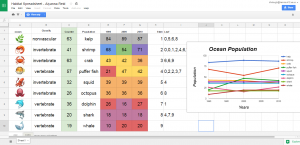
Fifth graders at Holladay Elementary have been learning about stem and leaf plots and line graphs in Math (SOL5.15), and they have been studying ways to classify animals and plants in Science (SOL5.5). Today students in Ms. DiMatteo’s class created stem and leaf plots and line graphs about the populations of animals and plants in different habitats. First I gave each student a copy of this Google spreadsheet (you can make a copy by clicking File > Make a copy). They clicked the arrow in box A1 and chose a habitat from the drop down list. Depending on the habitat they choose, a list of animals and plants appears. Google now has emojis (click Insert > Special Characters > Emoji), so that’s where I got the images. Next the students had to identify each one as an invertebrate, vertebrate, vascular or non-vascular plant. I tried to include at least one of each kind. (You will notice as you edit the spreadsheet the counter numbers change, that’s supposed to happen). Next the students acted like scientists and recorded the data for each year by typing the number in the counter box at that moment. The numbers have conditional formatting rules that will turn them different colors based on their tens digits (to help with the stem and leaf plot). To create the stem and leaf plot, the students type the numbers 1-9 in the Stem column (column H), and record the ones digits in the Leaf column (column I). To create the line graph, the students highlight the data in rows D-G and click the graph/chart button. Then they click the “Chart Types” tab in the window that appears and choose a line graph. They also need to check the box that says, “Switch rows/columns” so each line shows a specific living thing. Finally, I showed them how to customize the colors, titles, and labels of their graphs by clicking on each one. As we looked at our data, we discussed why there were more of the smaller creatures and less of the larger ones, and what would cause populations to increase or decrease. You can take a look at the students’ projects here.

3rd Grade Valentine Machines

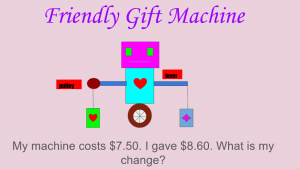
Third graders at Holladay Elementary have been learning about simple machines in Science (SOL3.2) and adding and subtracting money in Math (SOL3.8). Today students in Ms. Whittaker’s class created their own Valentine machines with a money math problem for their classmates to solve. First I made a copy of a blank Google slideshow for each student in Google classroom. I showed them how to click the Background button and choose a background color. Next we moved the “Title” textbox to the top of the page, and the students typed a title for their machine. We moved the “Subtitle” textbox to the bottom of the page, and the students typed in a money math problem about their machine (adding two amounts together or calculating change). We did the written part first because that was the most important part, and I wanted to make sure it was finished. I showed them how to change the font, size, and color of their text. Then it was time to draw the machine. I demonstrated how to use the Shapes Tool to create a machine that would deliver Valentines. It could be just one simple machine, or it could be a compound machine, made of several simple machines. After the students drew their machines, they labeled the machine parts with text boxes. Finally we published them to the web (File > Publish to the web) and pasted the links to Google classroom, so we could solve each others’ problems. You can see them all here.


2nd Grade 2-digit Addition or Subtraction

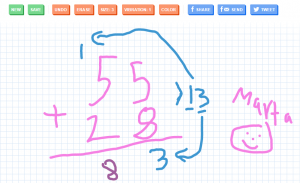
Second graders at Trevvett Elementary have been learning how to add and subtract two-digit numbers (SOL2.6 & 2.7), so today students in Ms. Golden’s class used Sketchtoy to animate the steps. SketchToy is a cool website that replays anything you draw. The students could choose to show the steps in solving a 2-digit addition or subtraction problem. I encouraged them to use different colors for the ones and tens. When they finished, they clicked “Save” and pasted the link to Google classroom so they could watch each others’ animations. It’s great for teachers because they can observe the process the students’ go through to solve the problems. Plus, they can speed it up, slow it down, or pause it as they watch the replay (using the play bar at the bottom). The students really enjoy how you can also add different vibrations to the sketch. After the students solved their math problems, I wanted to show them different ways to use SketchToy, so we used it to illustrate a plant growing and a frog life cycle (SOL2.4a,b). You can see all their drawings here.


3rd Grade Elapsed Time Comics

Third graders at Varina Elementary have been learning about elapsed time in one-hour increments (SOL3.11b). Today, students in Ms. Long’s class created comics to show their own elapsed time math problems. First we discussed different situations that take several hours, like a sports game, a special event, or traveling. Each student thought of an idea, then we opened a 3-panel comic in StoryboardThat. I showed them how to add a background scene to each frame and how to use the “Edit Scene” button to change things in the background. Next we added characters, customized their hair and skin colors, and changed their poses and facial expressions with the “Edit Pose” button. Finally we added speech bubbles to each frame: the first one told the starting time, the second one told either the ending time or the duration (like 2 hours), and the last one asked a question about the elapsed time. We took a screenshot of our comics and posted them to Google classroom. Students answered each others’ questions in the comments. You can see all their comics here.


Kindergarten Measuring with Nonstandard Units

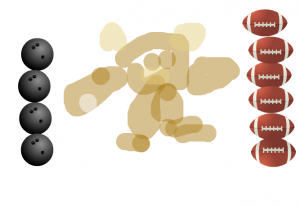
Kindergarten students at Trevvett Elementary have been learning about bears and hibernation in science (SOLK.6,K.7) and about measurement in math (SOLK.10). Today students in Ms. Sharpe’s class used ABCYa!Paint to draw a bear and measure it with nonstandard units. First we reviewed how to click and drag to paint, then the students clicked the paintbrush, chose a color, and drew a big bear. As they drew their bears, we discussed the special features bears have (ears, tail, claws, teeth, fur, etc.), and I displayed some photos of real bears for their reference. Next I showed them how to use the stickers to find a nonstandard unit of measurement. They had to click the “Categories” button to choose a type of sticker, like “Sports,” “Birthday,” or “Yum.” We reviewed how they had to use the same sticker for their measurements, and they had to stack them one on top of the other to be accurate. Some students were able to make two measurements with different units and compare them (like the image on this blog post). We didn’t put the answers on the pictures because we wanted Ms. Sharpe to use them as a review. So I exported their drawings and uploaded them to CoMemories (a great site for easily sharing photos). Now Ms. Sharpe, or even parents, can go to that site and look through the images to review measurement and/or bear facts. You can see them all here.


5th Grade Probability Polls

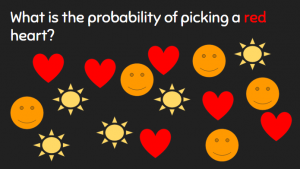
Fifth graders at Laburnum Elementary have been learning about probability in math (SOL5.14). Today students in Mr. Hofilena’s class created probability slideshows with the new polling feature. First I posted a link to the Poll Everywhere extension on Google classroom so we could install this necessary extension before we got started (just click the Install button and follow the on-screen instructions). Then the students opened a copy of a blank Google slideshow and wrote their title and name on the first slide. I showed them how to change the theme, background color, and fonts. We also added some animation to the text. On the next slide, we used the shapes tool to draw different colored shapes (click the shape, then click and drag on the slide, and use the paint bucked to change its fill color). We discussed the probability of picking a certain color or shape. Now it was time to add the new polling feature. We clicked the Poll Everywhere button at the top of our slideshow (it appears once you add the extension), and chose “Insert > Poll.” We typed our question: “What is the probability of selecting ____?” Then we typed our answer choices: Certain, Likely, Unlikely, Impossible. To share the slideshow with our class, we clicked File > Publish to the web, and copied/pasted the link to Google classroom. When students viewed each others’ slideshows, they clicked the link on the polling page and answered the question. Finally, after everyone had voted, the students went back to their own slideshow and clicked Poll Everywhere > Insert > Screenshot to create a new slide with the results. You can see them all here.


3rd Grade Temperature Predictions & Comparisons

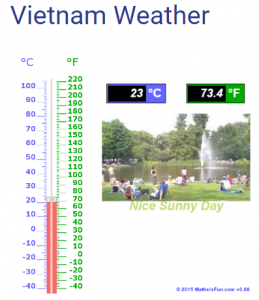
Third graders at Holladay Elementary have been learning about the motions of the Earth in Science (SOL3.8a) and temperature in Math (SOL3.13). Today we predicted, researched, and compared temperatures from around the world, and then discussed reasons why they were so different. I gave each student a copy of a blank Google slideshow, and showed them how to create the title slide, “Temperature.” I also showed them how to change the theme. Then we added a new slide and titled it “Richmond Weather.” Before looking up the current temperature, I asked them to predict the temperature based on what they saw and felt this morning. We used this interactive thermometer to show the temperature. I like how it displays the temperature in Fahrenheit and Celsius and provides a representative photo for different temperatures. We took a screenshot and added it to our slide. Then, we did a Google search for “Richmond weather” to find the current temperature and added the actual temperature to the slide. Many of the students’ predictions were very close. Next, we wanted to see what the weather was like in some other part of the world. The students could pick a city or country of their choice. Holladay has students from all over, so many of them picked their home countries–China, Vietnam, Mexico, El Salvador, and more. When they typed the name of their city/country and “weather” in a Google search, they found the current temperature and time. We talked about why the time and weather were different (because of the rotation and tilt of the Earth). They adjusted their interactive thermometer to display that temperature, took a screenshot, and pasted it to a new slide. We also added an image of the city/country to the slide (click the image button > Search). Finally we published our slideshows (File > Publish to the web), and pasted the link to Google classroom. You can see them all here.


3rd Grade Graphing Plant Growth

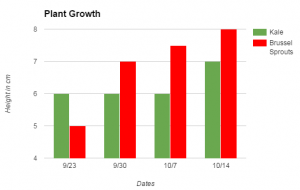
Third graders at Trevvett Elementary have been studying plants (SOL3.5), measurement (SOL3.9a), and graphing (SOL3.17), so today students in Ms. Hufnell’s class learned how to graph their plant measurements using Google sheets. Over a 4-week period, they have measured and compared the growth of kale and brussels sprouts in the Trevvett Learning Garden. They had their data, and now they were going to analyze their data. I gave them each a blank Google sheets template in Google classroom. Before they recorded their data, we discussed how it should be organized. Should we put the plants in Column A and the dates in Row 1 or the reverse? (Most put plants in Column A). Would that affect the way the graph looked? (It didn’t, necessarily, because of the customization features under Chart Types). I explained that they would need to put their units of measurement as a label on the graph instead of in the data cells, otherwise the graph wouldn’t recognize the numbers (for example, put 5 instead of 5cm). After entering our data, we highlighted it and clicked the graph button. I showed them how to use the Customization tools to change the title and labels on each axis. Then we inserted the chart into our spreadsheet and moved it so it wasn’t covering up our data. Finally, the students clicked the bars to change their colors (use the paint bucket button). The graph made it easy to analyze and compare the plants’ growth. Which plant grew fastest? Which plant grew tallest? Why did the kale not grow at all for 3 weeks? What might be the reasons for the differences since they were both in the same garden with the same sunlight and rainfall? We published our spreadsheets and pasted the links to Google classroom. You can see an example here.


Tags:


1st Grade Equality Animations

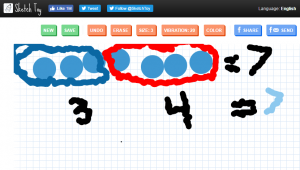
First graders at Trevvett have been learning about equality (SOL1.18), so today students in Ms. Lang’s class created equality animations using Sketchtoy. Sketchtoy is a cool web tool that replays whatever you draw, letting you watch the whole process in fast speed. It’s great for showing the steps in solving a problem or illustrating a scientific cycle (like the water cycle or a life cycle). First I showed them how to select a large size pen and a color of their choice. They drew a row of dots, making as many as they wanted, as long as the total number of dots was under 18. Next we selected a smaller pen size and and wrote “=” and the total number of dots. Then the students chose a new color and circled a portion of the dots, writing the number of dots they circled underneath. Finally, they chose one more color, circled the remaining dots, and wrote that number beneath. They also wrote “=” and the total of the two groups. They added some animation (probably their favorite part), and we saved it by clicking the save button. When you save in Sketchtoy, it gives you a link to share. We copied the students’ links and pasted them into a Padlet so they could watch each others’ animations. You can see them all here.


3rd Grade Measuring the Colosseum

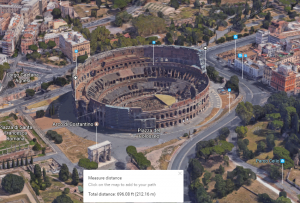
Third graders at Holladay Elementary have been studying ancient Greece and Rome in Social Studies (SOL3.1) and measurement in Math (SOL3.9). Today students in Ms. Middleton’s class practiced measuring the Roman Colosseum using Google maps. I previously taught a lesson on measuring the Parthenon, but I wanted to show them the new 3-D feature, so we looked at the Colosseum today (the Parthenon isn’t in 3-D yet). First we found Italy on the map and discussed its shape (peninsula) and the Mediterranean Sea that surrounds it. Then we zoomed into Rome and looked for the Colosseum (it’s called “Colosseo” on the map). Once we were close enough to see its circular shape, we switched to Google Earth view (click the button in the bottom left corner) and clicked the 3-D button on the right. I showed the students how to hold down the CTRL key and click and drag to rotate the view. They were amazed that all the buildings and terrain were in 3-D! It’s a great way to show students the hilly landscape. It also helps develop map skills (SOL3.4). Now it was time to measure the Colosseum. We discussed what unit we should use, and we made an estimate on Padlet. Then we right clicked on one side of the Colosseum and clicked “Measure Distance.” When we clicked the other side, it automatically gave us the distance across. We used the Snipping Tool to take a screenshot, and we uploaded our screenshots to the Padlet. You can see them all here.