Category: Math

Kindergarten Spring Math Pictures
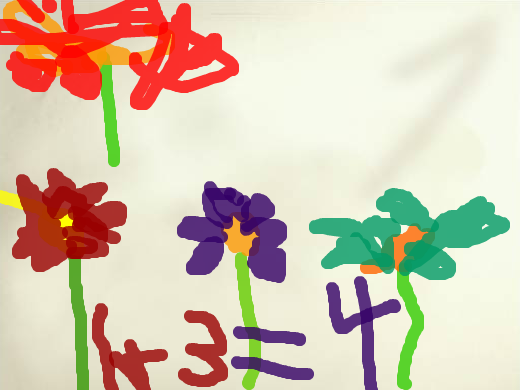
Screen Shot 2015-08-11 at 3.42.11 PMNow that winter is finally over, Kindergarteners at Holladay have been learning about the plants and animals of spring (SOLK.9). They’ve also been learning how to find one more or one less in math (SOLK.4b). So today students in Ms. Green’s class created spring math pictures using ABCYa!Paint. First we helped them log into Google classroom where I had posted the link to the website. Once there, I showed them how to add spring stickers or paint spring pictures like flowers or rainbows. They were instructed to only paint a small number of things. Next they saved their pictures and uploaded them to Google classroom. They also typed “one more” or “one less” with their post for their classmates to solve. Finally the students looked at each others’ pictures, counted the number of spring things, figured out one more or one less, and typed their answers in the comments. You can see their pictures and some of the comments here. UPDATE: I taught a similar lesson with Ms. Feldman’s kindergarten class at Davis. This time they used ArtPad and painted spring addition pictures. You can see those here.

4th Grade Battlefield Fractions

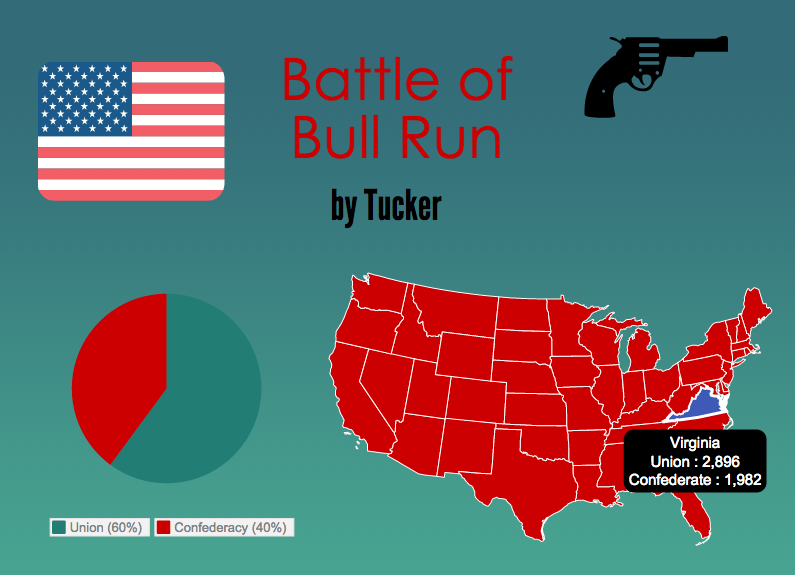
Screen Shot 2015-08-06 at 4.04.19 PMFourth graders at Davis Elementary have been learning about the Revolutionary War and Civil War battles fought in Virginia (VS.5c & VS.7b). They have also been learning how to compare fractions (Math SOL4.2a). So today students in Ms. White’s class compared the fractions of casualties in each battle to determine which battle was Virginia’s greatest victory. First students chose a battle they wanted to research. We used Wikipedia to quickly find the number of casualties on both sides. Next we went to Piktochart to create an infographic to display our findings. I showed them how to choose a template, add a title, and change the font, size, and color. Next we added a map of the United States (under Tools). They had to erase the data that was already in the map and replace it with the battle casualties data. Then they changed the colors for Virginia and the rest of the map. After that we added a pie chart showing the casualties (students had to type the data again and change the colors). I pointed out that they should try to limit the colors in their infographics to three or four colors. Last, they added some icons (under Graphics) to decorate their infographics. Finally we posted our infographics to our Google classroom page, and our classmates estimated and compared the fractions shown in the pie charts using the comments section under each infographic. After analyzing the fractions, we determined Virginia’s greatest victory. Which battle do you think it was? Take a look at some samples here. If you would like additional information about this lesson, including the lesson plan, you can find it on our county’s Henrico21 website. UPDATE: I taught a similar lesson in Ms. Burcham’s class at Varina, and you can see their infographics here.


5th Grade Decibel Day

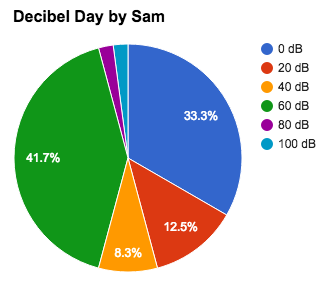
Screen Shot 2015-08-06 at 1.34.33 PMFifth graders at Holladay Elementary have been learning about sound in science (SOL5.2) and fractions in math (SOL5.2), so today students in Ms. DiMatteo’s class figured out the fractions of their day spent at different decibel levels. First we discussed what decibels measure (they are a way to measure the loudness or amplitude of the sound waves). Next we researched decibels using a variety of websites: Bouncy Balls, Dangerous Decibels, and the Interactive Sound Ruler. That last website has a valuable scale giving examples of sounds at different decibel levels. We used it to calculate the percentage of our day we spend at each level. I posted a Google spreadsheet template on Google classroom for the students to use. I made some changes to the template after teaching this lesson to simplify things. You can make a copy of the template here. It has some samples for you to look at in the tabs (sheets) at the bottom. Once we figured out how many hours we spend at each decibel level, we wrote a formula to convert it into a percentage. This is where we used fractions because the formula was a fraction with a variable in the numerator (# of hours)/24 hours. Next we highlighted all the percentages and created a pie chart. When the students posted their spreadsheets to Google classroom they estimated the fraction of their day spent at a certain level. You can take a look at some examples here.


3rd Grade Educational Coins

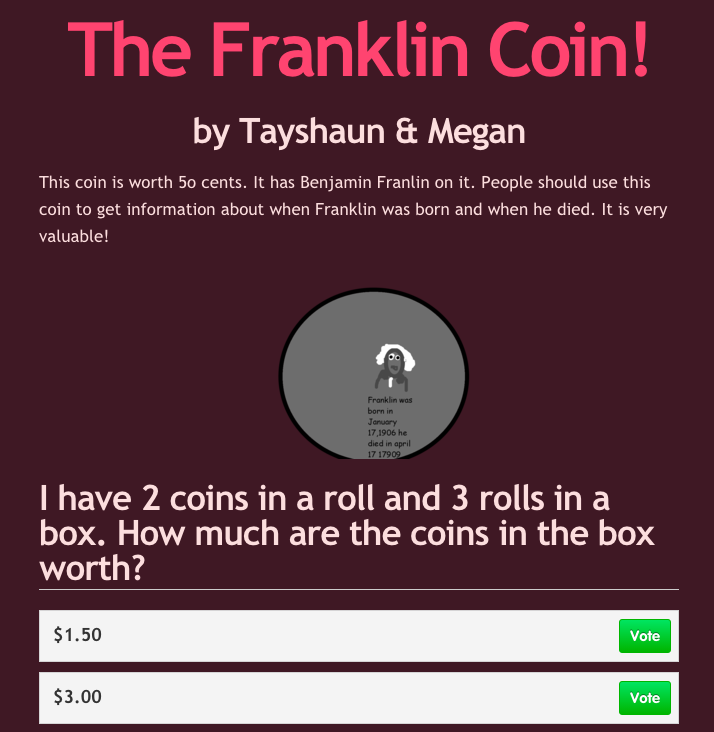
Screen Shot 2015-08-06 at 11.50.28 AMThird graders at Varina have been learning about money and multiplication in math (SOL3.8 & 3.2), so today students in Ms. Leo’s class designed their own educational coins and made up multiplication problems about them for their classmates to solve. First we discussed how the U.S. Mint designs new coins to sell and how, if people don’t like the designs, they won’t buy them. There are thousands of unused dollar coins sitting in vaults because no one wants them. I asked the students to guess the most popular coin (surprisingly, it’s the penny). Since they were also learning about the water cycle in science (SOL3.9), I told them to put something educational on their coins from science (water cycle, plant cycle, frog cycle, butterfly cycle, related to the circle shape of coin) or social studies (Greece, Rome, famous Americans, etc). They could either work with a partner or by themselves. Partners divided up the tasks, so one designed the coin using Pixie and the other designed a website about the coin using CheckThis. The website had to persuade people to buy the coin. Then they made a math multiplication word problems to explain how the coins are packaged and shipped out to banks (rolls of coins in boxes). Their sites were published to the classroom page, but you can take a look at them here.


3rd Grade Elapsed Time Slideshows

Screen Shot 2015-08-05 at 3.39.21 PMThird graders at Laburnum Elementary have been learning about elapsed time to the nearest hour (SOL3.11b), so today in Ms. Robinson’s class we created elapsed time slideshows. First they signed into Google classroom with their Google accounts. I had posted a blank Google slides template for each of them to open. I showed them how to choose a theme, add text, and change the font, size and color. Then they added a new slide. I explained that they would write an elapsed time problem about an activity of their choice for their classmates to solve. On this slide they would write about when their activity started. After the students wrote their problem, I showed them how to add a blank clock face (Image search “blank clock” or “clock face”). They could mask the clock with a circle (using the cropping tool) and add a frame (with outline color). Next we made arrows for the hands and placed them in the correct position. The students could make the hands a different color or thickness if they desired. Then we created a new slide and I gave them a choice to either tell what time the activity ended or tell how long the activity lasted. Their classmates would have to figure out the other part. We posted the links to their slideshows on Google classroom so they could write their answers in the comments. You can take a look at some of the slideshows and comments here.


3rd Grade Precipitation Probability Maps

Screen Shot 2015-08-04 at 4.49.55 PMThird graders at Holladay Elementary have been learning about the water cycle in science (SOL3.9) and probability in math (SOL3.18), so today Ms. Cowart’s students created precipitation probability maps. First we reviewed how probability relates to weather forecasting, and after so many snow days in February, the students were expert weathermen! We discussed the terms “likely”, “unlikely”, “certain,” and “impossible.” Next I posted a link to Google Maps on their Google classroom page and instructed them to click the “Create a New Map” button. They chose a type of precipitation/storm they had learned about (thunderstorm, snow, tornado, hurricane) and added an icon of it to their map. Then I showed them how to type a sentence and add a picture to it. They also added colored lines showing the probable paths of the storm. Finally they published their maps and posted the links to Google classroom. Their classmates added comments identifying the probability of the storm hitting Virginia. You can take a look at some of the maps and see the comments here.


1st Grade Fractions in Google Docs

Screen Shot 2015-08-05 at 11.21.49 AMFirst graders at Holladay Elementary have been learning about fractions showing halves, thirds, and fourths (SOL1.3), so today students in Ms. Bower’s class reviewed their fractions while learning how to use Google Docs for the first time. It took a while to help sign everyone into their Google accounts and get into Google classroom, but once we were there, I had posted a blank template for them to open. They typed the word “Fractions” at the top, and I showed them how to change the font, size, and color of the text. Next I demonstrated how to create a simple 1×2 table using the Table dropdown in the menu. The students created their table, and I asked how we could use that to show 1/2. They replied that they could color in one section of the table. I showed them how to use the paint bucket tool to fill in a section any color they wanted. Then we typed “1/2” in the remaining section. We followed the same procedure for thirds by creating a 1×3 table, but I let them decide whether they wanted to show 1/3 or 2/3, and they filled in the appropriate sections. By this time some of them were familiar enough with the procedure to create their fourths fraction on their own. Since all the tables were the same length I asked them how many fourths would fill in the same amount as 1/2? They could easily see that 2/4 = 1/2. They decided whether to show 1/4, 2/4, or 3/4 and wrote the fraction. Finally we helped them post the links to their fractions on Google classroom, and they enjoyed looking at each others’ creations. You can take a look at some of them here.


Kindergarten Counting Coins

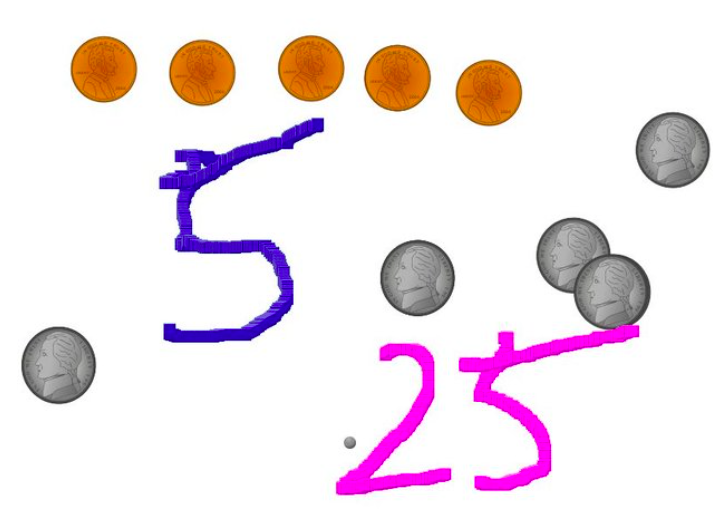
silberKindergarteners at Holladay Elementary have been learning how to count coins (K.7) and how to count by fives and tens (K.4c), so today students in Ms. Silber’s class practiced both those skills using Pixie. First we opened up Pixie, and I showed them how to use the stamp tool to stamp out different coins. I told them to use pennies, nickels, and dimes, and to only stamp out as many coins as they were willing to count. Next they counted the pennies, and I showed them how to use the paint tool to write the number. Then we chose a different color for the nickels, counted by fives, and wrote that number. Finally we picked a new color for the dimes, counted by tens, and wrote that number. We exported the finished drawings as JPG files and I helped the students upload them to a Comemories page so they could see each others’ pictures. You can take a look at it here. I did a similar lesson in Ms. Carlo’s class, but this time we were focused on just identifying the value of each coin. You can check out some of their drawings here.


Tags:


2nd Grade Magnet Fractions Animations

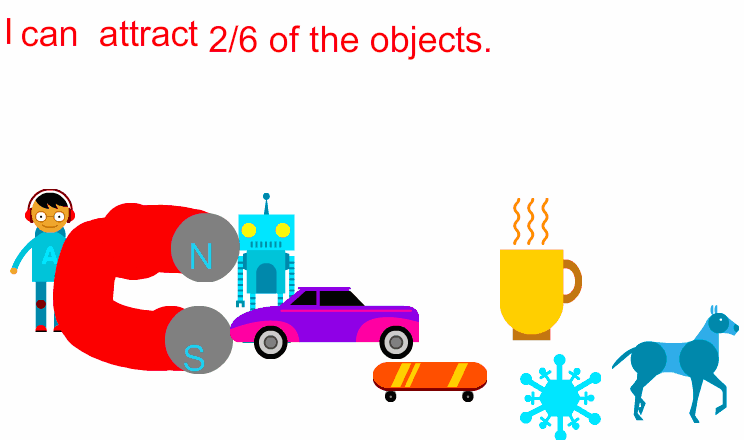
Screen Shot 2015-08-03 at 4.51.48 PMSecond graders at Holladay Elementary have been learning about magnets (SOL2.2) and fractions (SOL2.3) so today students in Ms. Gardner’s class created magnet fractions animations. First we reviewed the types of magnets (horseshoe or bar), their poles, and what types of objects they attract. Then I posted a link to ABCYa! Animate on Google classroom. I instructed them to use the clipart to add a person to their picture. Next they drew a magnet and labeled the poles with an N or an S. Then they went to the clipart library and added various objects that would be attracted to the magnet and others that would not. I showed them how to copy the picture into new frames and how to move the objects slowly toward the magnet in each frame. Finally they typed a sentence telling the fraction of objects that the magnet attracted. We published our finished animations to Google classroom. You can take a look at some of them here.


5th Grade POV Word Problems

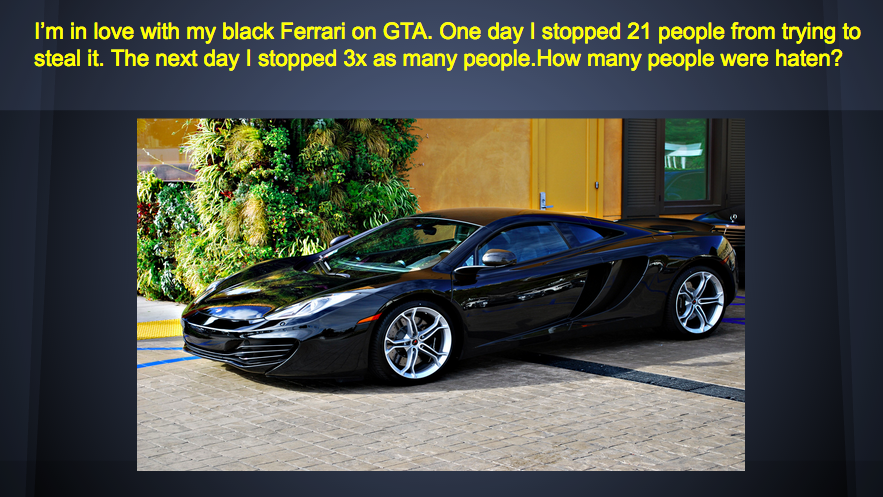
Screen Shot 2015-08-03 at 3.05.34 PMFifth graders at Varina Elementary have been learning about solving multistep word problems (SOL5.4) and identifying the point of view of an author (SOL5.5f). Since those were two areas of need identified on the recent benchmark tests, I wanted to focus on those skills as well as teach the students how to create Google slideshows. So today in Ms. Parker’s class we created word problems that involved identifying the point of view. First we reviewed point of view. I provided a few examples of situations where the author is feeling strong positive or negative emotions, and we discussed the clues. Then I instructed the students to think of a multistep word problem involving an emotional situation. I gave them a blank Google slideshow template in Google classroom and taught them how to choose a theme, add text, change the font, size, and color, and add a picture. We wrote a multistep word problem for our classmates to solve on one slide, then we added another slide for them to identify our point of view. The last step was to add transitions between the slides. Finally we published our slideshows and copied the links to Google classroom so we could solve each others’ problems. You can take a look at their slideshows here. I taught the same lesson with a couple of classes at Holladay the next day, and you can see those here.