Category: Language Arts

1st Grade Seasons Book & Graph

Today 1st grade students at Holladay Elementary did a multi-step technology lesson and they finished in just an hour! First they had to draw a picture of themselves in their favorite season using Pixie. We saved the pictures as JPG images and uploaded them to Keepsy. In Keepsy, students could add sentences with different fonts and change the background color. All the pictures together make a book that you can view online here. The next step in the project was to count all the students who liked each season. We tallied the results and graphed them using a template in Keynote that you can download here. Once the data is entered (directions are included in the template), the graph is automatically generated, and if you press the play button you will see some cool 3-D animation effects.
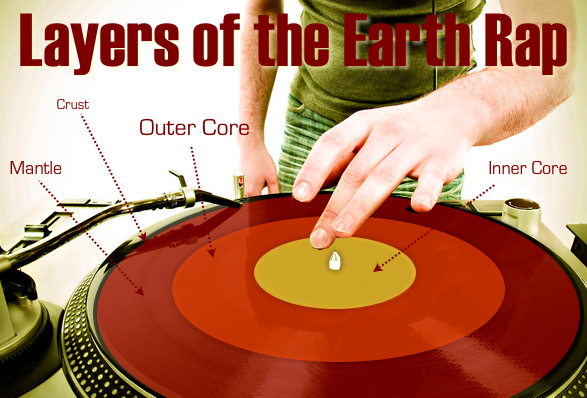

5th Grade Layers of the Earth Rap

Today 5th grade students in Ms. Allison’s music class at Laburnum Elementary created raps about different topics they have been studying. They could work alone or with a group, and they could choose the topic they wanted to rap about. Some students make social studies raps, others made math raps, and here’s a sample science rap: The Layers of the Earth. Making raps is a fun, easy way to motivate your students to review. It also provides an opportunity for writing since students must write out their lyrics ahead of time (and try to make them rhyme like a poem). Students created their raps by using a simple beat in Garage Band and recording their voices with the beat. If you want to learn more about making raps with your students check out my tutorial page.


Kindergarten Schools of the Future

At Pinchbeck Elementary they are celebrating “Five Decades of Learning” (founded in 1961, this year marks their 50th anniversary). Each class is taking a decade and doing a special project. The kindergarten classes were focused on the future. So today in Ms. Houghtaling’s class we created “Schools of the Future” videos. First we imagined what a school of the future would look like. Then they illustrated their ideas using the drawing tools in Pixie. Next the students used Photo Booth to record themselves explaining their pictures and their ideas. The results were pretty amazing – alien teachers, flying busses, classrooms on Mars! Click here to see some student samples.


4th Grade Google Forms & Databases

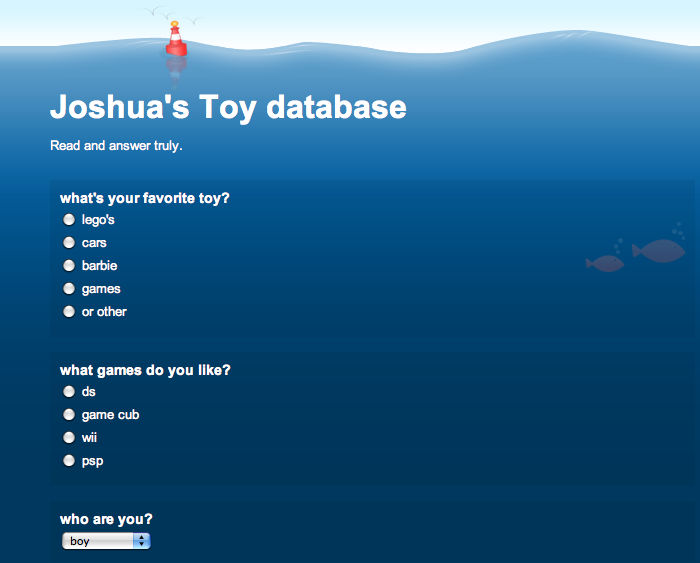
The database technology requirement often presents a quandary for teachers because we don’t have a database program per se on the computers anymore. However, a database is really just a collection of data that is organized into different categories, much like a spreadsheet. The key elements of a database are that it usually includes a form for entering the data, and the data can be sorted and filtered to show you exactly the information you want. So your students CAN make a database using Google Forms. That’s what we did today in Ms. Filer’s 4th grade class at Holladay Elementary. After building a sample form with the students, I showed them how to create their own form. Each student chose a topic of his or her interest, built the form using a variety of question types, and then travelled around the room filling out their friends’ forms. Next I showed them how they could access their data in Google Docs and sort and filter it. You can take a look at some students’ forms by clicking on the names below (and go ahead and fill out a couple if you want… the students will love it!)
Alex’s Pet Database
Skylar’s Field Trip Database
Joshua’s Toy Database
Emma’s Favorite Singer Database
Andrew’s Best SOL Test Database


1st Grade Jack & the Beanstalk (continued)

First grade students in Ms. Edmond’s class at Holladay Elementary have been reading Jack and the Beanstalk. She had them write a continuation of the story and then sent them to me in small groups to create a picture using Kerpoof and type it up using Pages. I’ve mentioned Kerpoof before on this blog. It’s a great website for students to create stories using clipart and their own drawings. In the sample picture you can see the student drew Jack and used clipart for the giant and his wife. After they created their pictures, we saved them as JPG files. Then the students typed their stories using this template in Pages. I helped them add their picture to the documents, then we saved them as PDFs. The cool thing about saving documents as PDFs is that they can be published online and if your school uses iPods or iPads you can upload them to the iBook app. Take a look at some student samples: Kimber, Ra’Quan.


Kindergarten Rhyming Words

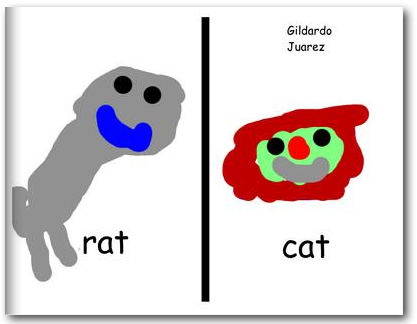
Kindergarten students at Holladay Elementary practiced their rhyming words today and made an online book. First I gave them a Keynote (which you can download here) and showed them how to record their voices as they read different sets of rhyming words (-am, -ap, -at, -ig, -it). The Keynote showcases several “smart builds” to transition between the words so you can see what they look like. Watch and listen to a student sample by clicking here. This activity got them thinking about many types of rhyming words so they wouldn’t all choose the same ones (like rat and cat). Next I gave them a Pixie (which you can download here) and they had to type two rhyming words and draw pictures to go along with each one. We exported them as JPEG files and then I combined them into one Keynote document which I printed as a PDF. Finally I uploaded the PDF to Youplisher. You can see the finished online book here.


Dr. Seuss Day & Running Records

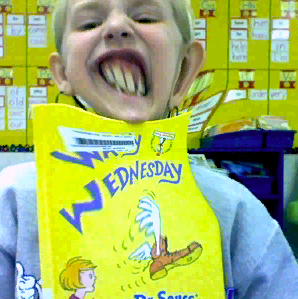
Wouldn’t it be great if your students could take their own running records? You can teach your students how to record themselves, listen for their mistakes, self-correct, and re-read for better fluency… all with GarageBand! Since today was Dr. Seuss Day, this first grade class recorded themselves reading excerpts from his books. To make it a bit more entertaining, they added a funny photo of themselves taken with the Photo Booth special effects (we did have to flip the pictures so the covers weren’t backwards, you do that by clicking Edit > Autoflip New Photos). Finally they added some music of their choice. Once they get good at this, it’s a great way for them to improve their fluency in a self-directed way. Think of how that will help your ESL students especially! Here are two examples from ESL students: Chahd and Jose.


3rd Grade “A Person I Admire” Videos

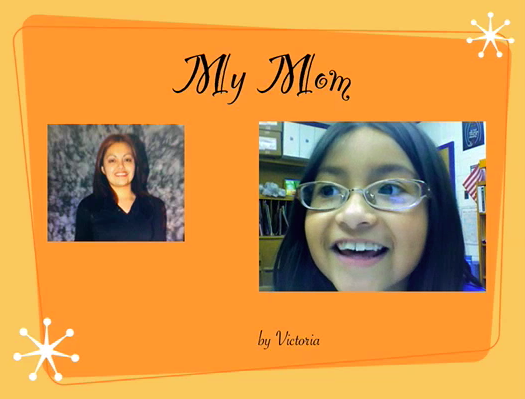
Third grade students in Ms. Cowart’s class at Holladay Elementary have been writing about people they admire. They chose historical figures, athletes, politicians, or even people they know personally. Then they wrote a paragraph explaining why they admire that person with an introduction, supporting details, and a conclusion. Instead of reading their paragraphs to the class, Ms. Cowart asked me to help them create a digital project that can be viewed by the other students and posted online. So we made Keynotes with videos. The Keynotes had just one side with the person’s name and the student’s name. I helped them find pictures online, or if their person wasn’t famous they brought in photographs from home and we used Photo Booth to digitize them. We put the pictures into a Smart Build which is a cool feature of Keynote that makes a slideshow within a slideshow. Next we recorded their video in Photo Booth and added that to the Keynote. Finally we exported the final product as a QuickTime movie. You can see a couple of examples here: John F. Kennedy, Michael Jordan, Helen Keller, and mom!


4th Graders Blogging!

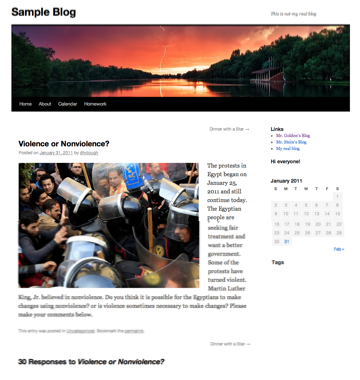
Today 4th graders at Chamberlayne Elementary started blogging. Your class can start too! Each Henrico teacher has a blog space on http://blogs.henrico.k12.va.us Just log in with your email name and password and start posting! I can show you how if you have questions, or I can teach a lesson in your class like I did today. If you would like some ideas about what to post, BrainPop has a nice guide here. The protests in Egypt are a current topic in the news, so I posted a question about it for students to comment on to give them practice. You can see the post and comments by clicking here. Before your students start making comments though, it’s very important to go over the rules and guidelines. You can make up your own, but here are a few to get you started (borrowed from here and here):

1. Use first names only – do not reveal personal information (that includes parents posting).
2. Stay on the topic of the original post – don’t say hi, or comment on something unrelated in someone else’s comment.
3. Proofread before submitting – check punctuation and spelling. Remember this is published online for anyone in the world to see.
4. Write in full sentences and words – no “text” talk.
5. Make a point – Don’t just say, “Great job,” “I agree,” or “You’re wrong,” explain why. Be sure your contribution to the discussion is meaningful.
6. Be respectful – Do not make comments that are unkind, impolite, or rude. Those comments will not be approved anyway, and you may lose the privilege to post comments in the future.

For more information about starting your own Henrico blog click here.


Tags:


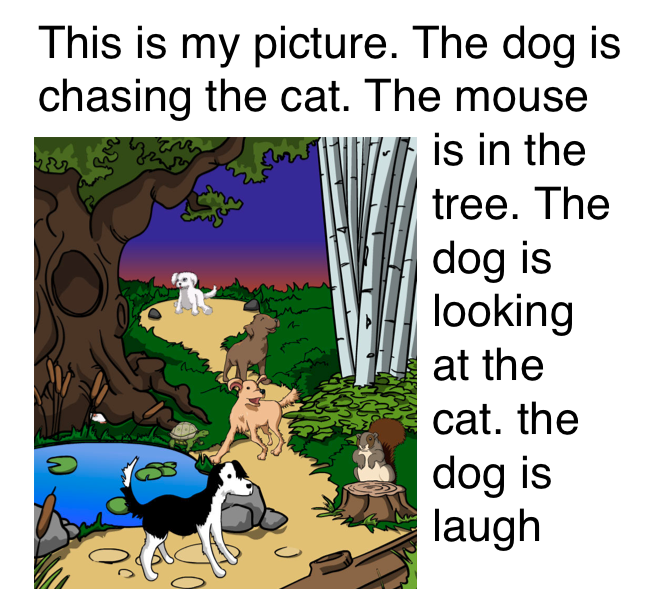
1st Grade Word Processing

It’s a great idea to start word processing instruction as early as possible since students use those skills through all grades. So here’s a sample word processing lesson I taught in first grade. I gave the students a very simple template that you can download by clicking here. It basically just has the font preset for 36 (large for first graders) and has a starting sentence: “This is my picture.” First the students went to Kerpoof, drew a picture, and saved it as a JPEG image (Kerpoof makes it easy). Then they opened the word processing template and dragged their picture into it. Next they wrote sentences describing their pictures. As you can see from these examples (Edwin, Giuliana, Lily, John, Maty, Reyna, Shriya, Yusuf) some students wrote a lot of details while others wrote only a few. But they all got some good experience with word processing and writing.