Category: Language Arts

4th Grade Revising with Google Docs

Screen shot 2014-03-31 at 9.42.52 AMToday I showed the fourth grade students in Ms. Cousins’ class at Davis Elementary how to log into their new Google accounts. They are preparing for the writing SOL test so I wanted to show them how to use Google Docs to help with editing and revising their writing. We created a new document and gave it a creative title. I told them to write a plain boring sentence, like “I have a cat.” Then I showed them how to use the Research Tools to find a picture to represent their sentence. When we dragged it over into our document, I pointed out that Google automatically generates a citation for the photo. Next we discussed the need for revising our writing. Using my example, we can’t picture this cat in our minds. We don’t know what it looks like or any details about it. So sometimes it helps to get someone else’s input. I showed them how to share their documents with a neighbor by entering their neighbor’s email address and then how to find those shared documents in their document list. Each student picked a new color and typed suggestions to their neighbor for writing a better sentence. Then the original author selected a different color and, incorporating their peer editor’s suggestions, rewrote the sentence. That’s all we had time for today, but now they are equipped to use Google Docs to help with the revision process. If you’d like to look at some student examples, I listed the links here.

3rd Grade Conclusions Comics

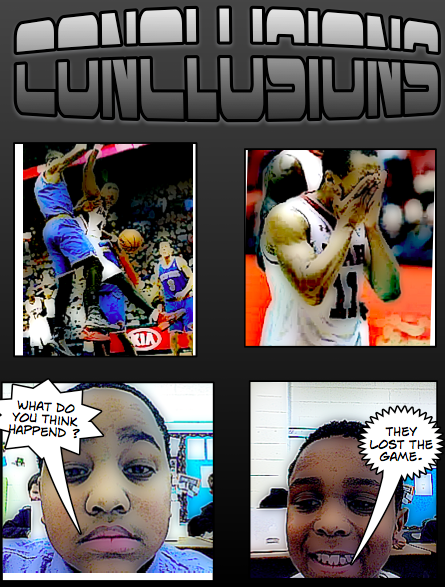
Screen shot 2014-03-28 at 4.17.00 PMThird graders in Ms. Leo’s class at Varina Elementary have been learning about drawing conclusions when they read. So today they created comics that told an ambiguous story and their friends had to draw conclusions about what they think happened. We practiced the skill first with some sample picture stories. I did a quick image search of a girl with some presents and then I showed a picture of the girl crying. They drew the conclusion that the girl didn’t get what she wanted. Then I showed a picture of a dog chasing a cat followed by a picture of a sad dog, and they drew the conclusion that the dog didn’t get the cat. Once they got the idea, they opened up a blank Comic Life and added a title “Conclusions”. Then they dragged over four panels. I instructed them to do a Google image search for pictures that would tell an ambiguous story, similar to the examples I modeled for them. They dragged the pictures into the top two panels. They put a picture of themselves in the third panel and added a speech bubble saying something like, “Can you guess what happened?” Then they switched with a partner and their partner added their picture and wrote their conclusion in the speech bubble. I combined all their comics together and saved it as a PDF. Then I uploaded it to FlipSnack where you can read it online here.


4th Grade Technology Enhanced Items (TEI)

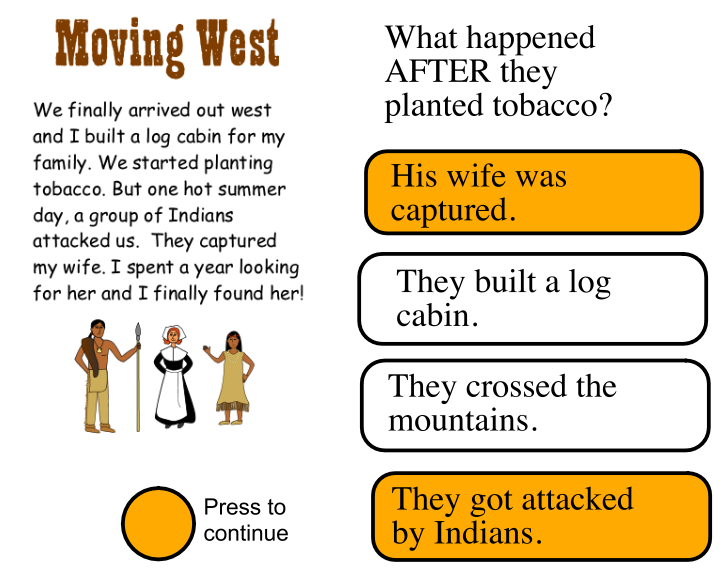
Screen shot 2014-03-26 at 11.22.32 AMFourth graders in Ms. Tonello’s class at Holladay Elementary are preparing for the upcoming SOL tests with Technology Enhanced Items (TEI). There are several pre-made flipcharts that the teachers have been using with their students for practice, but Ms. Tonello wanted her students to learn how to create their own so they’d have a variety of items to share with each other. Today I showed them how to make a typical reading passage question using ActivInspire. Since they’ve been learning about the westward migration of Virginia’s settlers (SOLVS.6c), I asked them to write a story about that for their reading passage. We wrote it in Pixie so we could use the clip art and paint if we needed to. They drew a line down the middle of their Pixie page and wrote half of their story on each side. Then they took a screenshot of each half. Next we opened a blank ActivInspire flipchart. They dragged their two screenshots to the page and placed them on top of each other so only one was showing. I told them to create a shape for a button that could be clicked to switch from one screenshot to the next as their story was read. The trick to making TEI items is the Actions panel (it looks like a red and blue top in the Browser window). We clicked the button shape and added an action that made the top screenshot “Hidden”. In order to test the button you have to be in the Blue Design Mode (small square button in the top right). In order to edit the button you have to be in the Red Design Mode. Once we got it working, it was time to create a good sequence question. The students made a question about events that happened BEFORE or AFTER other events in their story. We wanted the correct answers to be highlighted like the TEI so I instructed them to make two shapes, one white and one a highlight color of their choice. We put the white shape on top of the highlighted shape and put the answer text boxes on top of both. Then we clicked the answer text and the white shape and added a “Hidden” action to them so that they would hide the white shape when clicked, making the highlighted shape underneath show up. It’s probably easier to understand when you see it in action. So download a couple of student examples and take a look: Chahad, Ndi, and a sample I created.


4th Grade Poetry with Google Docs

Screen shot 2014-03-25 at 12.03.27 PMMs. White’s fourth graders at Davis Elementary have been writing different forms of poetry such as limericks and cinquains. Today I showed them how they could publish their poems using their new Google accounts. Since this was their first time, I helped them sign in and change their passwords. They created a new document and used the Styles button to write a title and subtitle (their name). Next they typed their poem and I showed them how to change the font and size of their text and use the Tools button to check their spelling. I also wanted them to know how to use Google Docs for research so we clicked the Research Tools and searched for a picture and a fact about something in their poem. They dragged the picture from the built-in search box to add it to their poem and a citation was automatically created! Then they rewrote their fact in their own words and clicked the “Cite” button to create another automatic citation. Finally I showed them how to publish and share their poems. I posted all their poem links to a Google Doc that you can explore here.


3rd Grade Synonyms & Antonyms with Prezi

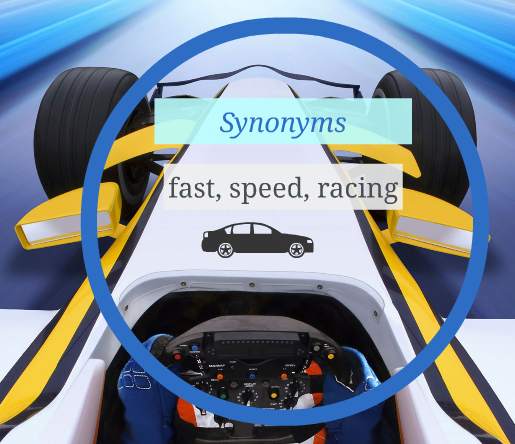
Screen shot 2014-03-25 at 10.36.59 AMMs. Wells at Varina Elementary has been teaching her third grade class about synonyms and antonyms. So today I showed them how to use Prezi to make a cool interactive presentation about the words they have been studying. First we logged into our Prezi account and I told them to pick a word and think of synonyms and antonyms for that word. We discussed what resource would help us if we couldn’t think of many words, and most of the students knew that a thesaurus would be helpful. A good site to use is thesaurus.com. Once they selected their word, we picked a theme in Prezi and typed some synonyms for that word in the first slide. I also showed them how to add a picture from the built in clip art or with a Google image search. On the next slide they typed antonyms for their word and added a picture. For the last slide, I showed the students that they could upload their own picture from Photo Booth. Finally we published our Prezi presentations and I posted all the links to a Google Doc that you can see here. Take a look at a couple of student examples: Kahmauri (synonyms and antonyms for “big”) and Jonathan (synonyms and antonyms for “fast”).


Tags:


5th Grade Video Book Reviews

Screen shot 2014-03-25 at 9.35.55 AMFifth graders at Holladay Elementary have been writing reviews for books and posting them to their Edmodo page. The media specialist, Ms. Teague, and the 5th grade reading teacher, Ms. Harris, wanted to expand their audience. Their idea was to publish short student videos of the book reviews that could be linked to each book on the library’s Reading Olympics website. I also suggested linking them with a QR code on each book. Then other students in the school could scan the QR code with a mobile device and watch the book review before deciding whether or not to read the book. So today we had students from each of the three fifth grade classes working with partners to create their videos in Photo Booth. We discussed the importance of showing the book and speaking in a lively manner. One problem with recording in Photo Booth is that the image is backwards so it reverses the words on the book. You can fix it by importing the videos into iMovie, clicking the Crop tool, and flipping the video. However, we didn’t have time to do that today. You can see some of their videos by clicking here or on the school’s Reading Olympics page. There are many free sites for easily generating QR codes: Site1, Site2, Site3, Site4. You could place QR codes around your room for students to scan to visit websites, view presentations, or watch videos. They can even be dynamic where the code stays the same but the link changes weekly (so you don’t have to generate and print a new code). Let me know if you’d like me to help you with a similar project.


3rd Grade Google Research Tools

Screen shot 2014-03-21 at 12.22.46 PMAll Henrico students now have their own Google accounts, so I’ve been going to different classes, showing them how to log in and use the research tools. There are two really nice features that stand out. The first feature is the sharing feature, where you can share your document with others, facilitating collaboration. The other is the research tool that lets you find information and photos right in the same window where you are typing. If you include a fact or photo in your document, Google creates an automatic citation. Today I was showing Ms. Remley’s 3rd graders at Davis Elementary how to use their new accounts. They chose a famous American they have been learning about and created a short “report.” I showed them how to change the font, size, and color of the text, how to check their spelling, how to add photos, and how to use the citation feature. I also showed them how to share their documents with Ms. Remley and how to publish them as a webpage. I uploaded all the links to one Google Doc that you can check out here. If you’d like me to help your class get set up with their new Google accounts, let me know!


4th Grade Choose-Your-Own Adventure Stories

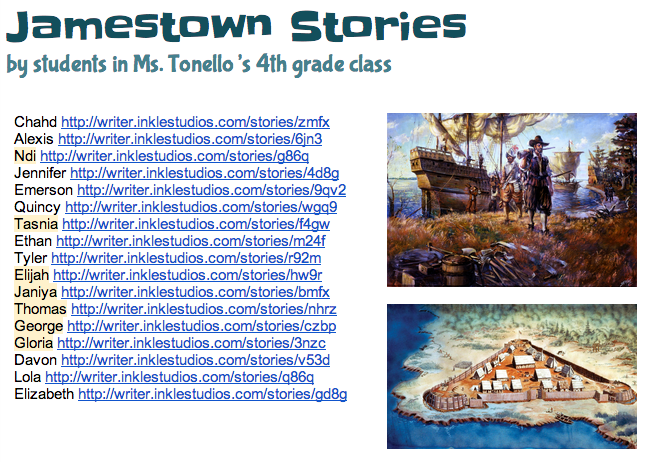
inkleFourth grade students in Ms. Tonello’s class at Holladay Elementary created choose-your-own adventure stories today about Jamestown using Inklewriter. They’ve learned about all the problems the Jamestown settlers had (VS.3), but what if the settlers made different choices? How would the outcomes be different? First I showed them a couple of examples to show them how Inklewriter works: What if one of the charters were revoked? Click here to see. What choices did a settler have when his wife became sick from drinking the water? Click here to see. Once the students understood the concept, I told them to think of a Jamestown problem and two possible choices for solving the problem. We wrote our stories in Pages so that we could save them if the website had any glitches (which they inevitably do). Then we just copied and pasted our text into Inklewriter. We also found pictures online to link in our stories. The students’ stories turned out great. You can see them all here. Reading each others’ stories gives students a fun way to review the Jamestown struggles and practice making predictions. If you’d like to try Inklewriter with your class, I’ve created a brief how-to guide that you can download here.


Kindergarten Beginning Sounds Pixie

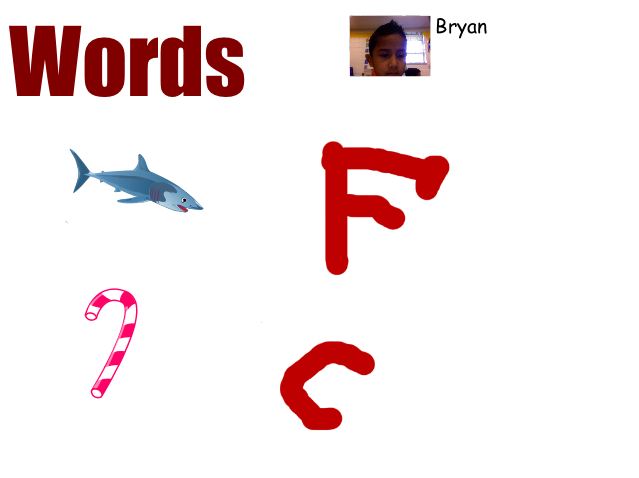
KBeginningSoundPeople outside of work are often surprised when I tell them that I teach kindergarten students how to use the computer. But I tell them that kindergarteners often catch on very quickly, more quickly than adults sometimes. It certainly was true today for Ms. Miller’s kindergarten students at Holladay Elementary. It was my first lesson with them using Pixie, and they did an impressive job. They have been studying beginning sounds, so I showed them how to find pictures of two different objects of their choice in the Stickers library. Then they used the paint brush tool to draw the letter each object started with. Since each child selected a different picture, they couldn’t copy each others’ like they may have been able to do with a worksheet. That’s one of the advantages of technology over worksheets because of the ability to customize it for each child based on their personal choices. We also practiced typing their names (using Shift to make the initial capital letter), and they added a photograph of themselves using the webcam tool. Finally they recorded their voices telling the name of the object and it’s beginning sound. You can see a couple of student examples by clicking here.


Tags:


4th Grade Mystery Animals

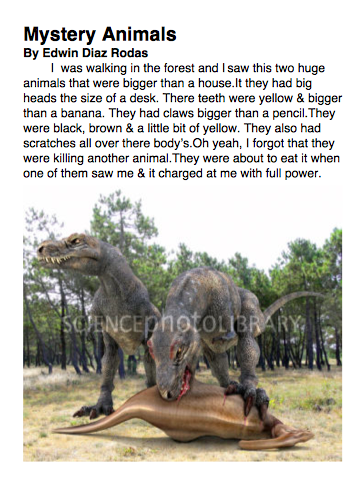
mysteryToday 4th graders in Ms. Ficor’s class at Holladay Elementary were working on writing better descriptions. We started out in Today’s Meet where I would write a non descriptive sentence like, “I saw a monster,” and then they would have to add their descriptive ideas to help us “picture” the topic better. We talked about using the senses to describe what it looks like, sounds like, acts like, moves like, feels like, and even smells like. We also talked about comparing its size to something else. After a bit of practice (you can see the transcript of our Today’s Meet session by clicking here) it was time to start writing about our mystery animal. One of my goals in this lesson was to teach them how to use the Mac word processing program called Pages. So we opened up a blank Pages document, and I showed them how to add a title as a heading, “Mystery Animal,” and their name as a subheading. Then they started typing a paragraph describing an animal without actually identifying the animal. We wanted to see if they could write a good enough description that their classmates could figure out what the “mystery animal” was. When they were finished, they did a quick Google image search and added a picture of their animal to their Pages document. You can read a student example here.